
Stacks Guru is born from the need to search the vast number of videos out there on stacks built for Stacks Pro and the Stacks 5 plugin for Rapidweaver.
We have scraped over 500 videos to get the transcripts for each in order to make the spoken word searchable.
Please use this free tool to help you learn and discover the awesome power that Stacks and the stacks made for Stacks have to offer.
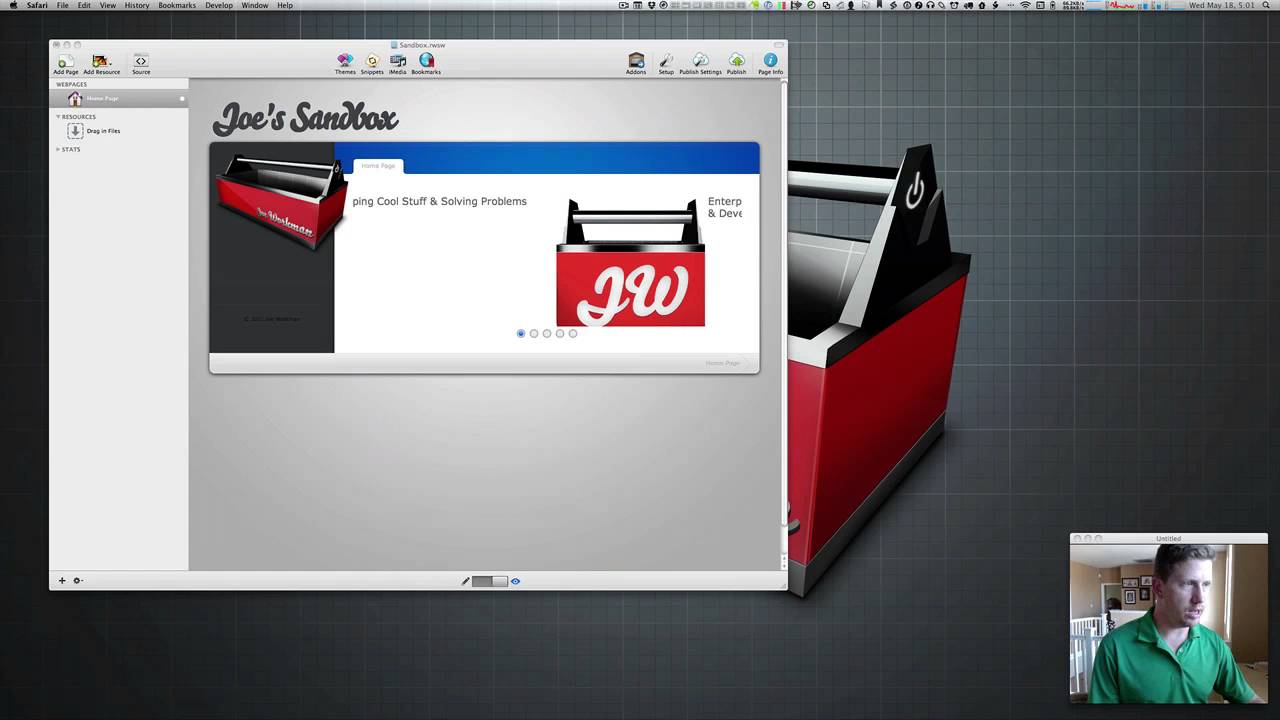
00:00 um okay again for for those of us who just joined we are going to be reviewing
00:06 some CSS within stacks okay how to you
00:11 know potentially take some content within a stack and make it your own okay
00:17 so as I as I said before I kind of ran
00:23 out of some time today I didn't get to properly prep as much as I'd like to so probably what we'll do it today I'm
00:28 still going to go over some CSS you'll get you guys get a jam-packed full of information but i'll probably split it
00:34 up and i'll probably do a continuation webcast next wednesday and then in that
00:41 in that cast i'll make sure that i'm a little bit more organized and whatnot so that i can make sure I cover everything
00:46 okay um so the number one request that we probably get okay is I have this
00:55 really cool stack that you developed and I love it but there's always a but right
01:02 but I i want the font to be bigger and there's no setting for that or i wanna i
01:09 want to reposition the little navigation bullets over to the left or you know i want to change the background color to
01:16 something else or you know i want this or have it slight little style differences okay and you know most
01:23 people um or ice it should say most other developers um don't really support
01:29 that they're they're pretty outwardly that they they're not going to help you customize with CSS okay um me and you
01:39 know we've tried intron have tried our best to help you out as much as possible to go ahead and help you customize the
01:47 stack we're not really customize the stack itself but you know give you some CSS to be able to to make the stack look
01:54 and feel as if it does fit on your website okay um because we do try to do
02:01 i do try to develop stacks that definitely you know are generic but it's
02:06 hard to develop something that's going to be universal it looks perfect everywhere right let's take a perfect
02:12 example actually i'm gonna let's bring out my website okay um get
02:21 rid of equity ver for right now okay so if we look at just my homepage will
02:29 notice that as I've told you before this main slider here is a cycle understand
02:36 okay um and as you noticed it's probably
02:41 it's a little bit different than what comes out of the box okay with a cycler stack okay if you notice the the
02:49 navigation bullets which in the latest update you can customize your own navigation bullets okay but by default
02:55 there in the middle I've moved them over to the right a couple of things let's see I've added a white border around
03:01 around the real I've get I've giving it a drop shadow okay um to kind of make it
03:09 pop a little bit and you know as you see it's it's still the cycler stack I have a custom background okay um you know
03:16 background image so you know it is the cycler stack um however I I have
03:22 customized it to to work on my site okay to customize to make it look like it
03:28 it's a little extra special and it works on my site okay it fits well um so why
03:35 not i'm going to go ahead and and and show you kind of how i did that the
03:41 process that I went through to do that and then we'll after that I'll kind of
03:47 show you some resources that I commonly use to go ahead and find out you know
03:52 what CSS property do i need to have things of that nature okay um to kind of
03:58 teach you wear what maybe are you going to be modifying okay um and and things
04:05 like that so let's go ahead and I'm going to let's do a file here and
04:14 actually I'm going to bear with me for a second I
04:21 open up a sample
04:46 change things up a little bit here guys
04:52 haven't seen our new RSS feed stack great new free stack check it out sweet
04:57 okay
05:13 ok so basically I have taken the cycler
05:20 stack that was in my rapidweaver file and i went ahead and pasted it in
05:27 directly into here okay that correct
05:34 just comparing some things here everyone started bear with me oops yeah the site
05:44 theme isn't big enough here with there
05:56 we go okay I think that does it okay so
06:05 as you see now i have my cycler stack okay i'm not going to go into how to
06:10 configure your cycler stack you know please check a previous cast or the the
06:15 product videos or the documentation and figure out how to how to configure it okay pretty simple i have my basic cider
06:21 my cycler stack in here okay i have added custom navigation bullets okay um
06:28 if you don't have those please update to version 25 dot one and you will have
06:34 these cool new custom the ability to customize your navigation bullets okay
06:41 so I have my cycler stack okay and I've built it and here it is okay out of the
06:49 box default this is what it looks like okay now how do i take this okay and
06:57 turn it into this okay now i'm a i'm
07:05 going to breeze through some of this because i'm going to probably use some some CSS properties that you know
07:10 probably are maybe a little bit out of the basics okay but i'm just going to kind of show you really quick um you
07:17 know what I did to do this okay so let's
07:23 go ahead and I'm going to bring up my mile
07:28 okay let's say I want to go ahead and let's customize the the background okay
07:37 and let's add a okay let's go ahead and
07:49 add our background okay so how do we do that um I'm let's pretend i'm mr. user
07:55 I've just you know implemented I developed this really cool slick stack okay however I now I want to tweak it
08:04 okay so how do we do that first off there is a fabulous tool that I've you
08:10 know been a high proponent of a lot of you use Firebug but I love Safari Devon
08:16 inspector okay and luckily within rapidweaver five you can actually do all
08:21 of this within rapidweaver now okay just make sure you go to your Safari preferences and you have this enabled
08:29 web developer tools checked okay once you have that checked you'll be able to
08:34 right click on anywhere inside preview mode and you'll see this inspect element
08:39 okay so i'm going to go ahead and inspect element okay and then i'm going
08:49 to go ahead and if you see it takes me to the exact spot so I I did a wet
08:54 inspect element on this clock okay and that took me all the way to the spot in the HTML where that particular image is
09:03 defined okay now if you you know hover over various other elements here you'll
09:08 see that what's cool is they actually get highlighted and you can see exactly where on your web page these elements
09:16 are going to be displayed okay so basically what i want to do is I want to find we want to put a background for our
09:23 cycler okay for cycler and then we're going to add some drop shadows you know and stuff to make that look nice okay so
09:30 what I'm going to go ahead and do if if we notice look at the kind of look at things right we can see look here's a
09:36 slide here's a slide oh look here's something that's you know
09:42 called cycler real um it looks like it contains you know a bunch of slides ok
09:49 so just basically you know even if I didn't wasn't developed the developer of this stack I can see that here's the
09:56 here's the thing that actually contains all of the slides ok so i'm using my
10:03 detective knowledge here so i have a div ok which is a basically a container that
10:09 contains all of my slides so chances are i'm probably going to want to muck
10:14 around if i want to customize the look and feel of cycler I want to muck around with with this div ok now with CSS there
10:24 are many many ways to target an element ok and there are two main two main ways
10:32 to do it ok first is via class ok and that's the class ID that you see here so
10:38 class equals cycler real so be able to actually identify and customize this
10:45 particular element via a class ok another way is via something called an
10:51 ID ok now an ID inside HTML is normally a unique character that is going to be
10:57 specific for that particular tag ok and
11:03 if we look at some of these other tags here we have stack ID we have div here's
11:09 ID equals and then there's this long strange unique number ok as you see this
11:15 one has both an ID and it also has a class ok now you may also be asking if
11:21 if you're a novice hey I go ahead and I I see that this stacks out um you know
11:29 is is a container it looks like it contains everything but I recommend playing or playing around looks tax in
11:34 is still there ok nav top that doesn't select anything um and here I go here
11:41 cycle or real it contains if we look fortunately I can't keep it highlighted
11:47 ok but if we see it contains just the area that I want to affect ok
11:55 it contains it doesn't contain the navigation bullets okay and also another
12:01 thing that is key here is that if you're going to be modifying the class of
12:07 something there could be multiple elements in HTML page that have a class
12:13 okay so let's take an example of cycler slide okay each slide see this has a
12:20 class of cycler underscore slide so does this one class equals cycler underscore
12:25 slide okay now if I wanted to I can
12:30 easily customize every single slide just by modifying the class cycler slide okay
12:40 if I'm confusing you a little bit i'm sorry i'm going to let's stick back and go to the basics I'm going I'm going to
12:47 modify this cycler real on class okay and basically I want to go ahead and do
12:53 dot cycler underscore real okay and the
12:59 the syntax here in CSS is for classes you do dot and then the name of the
13:06 class and then that will affect everything after that will affect everything that has a sign been assigned
13:14 that class okay now if this were an ID I can do pound cycler underscore real okay
13:24 this is just an example ID cycler real doesn't exist okay but if it did um
13:29 let's say I wanted to affect this right here I can go ahead and get that ID and
13:38 anything that I put inside here okay will affect everything that has the ID
13:46 of cycler nav top stacks underscore in underscore 2741 underscore page 0 okay
13:54 which is of course a unique a unique ID that has been automatically generated
14:00 and anything that I put in here will affect that okay um one word of caution
14:09 with IDs that you see in stacks okay if you ever see anything that has stacks
14:16 underscore in underscore number underscore page number okay that is a
14:21 basically automatically generated ID from stacks okay now is pretty dangerous
14:28 to actually go ahead and do custom CSS based on those IDs the reason being is
14:35 it is not guaranteed that that ID will not be changed at some point in the future without you being told okay so
14:44 try not to customize anything that has this stack ID in it okay because again
14:50 that ID can in probably you know sixty
14:55 to seventy percent of the time it won't change but you know that thirty percent of the time it is possible that that ID
15:02 will change okay without you knowing hence your CSS is going to break because
15:07 the IDS changed as granted has brilliantly pointed out in this in their
15:14 room in the chat room it does change when you add something new to the page that is one point when it potentially
15:20 changes if you copy and paste something onto the page that could potentially
15:26 change it just simply opening and reopening your file there are various
15:32 circumstances where the ID will then change there so just just word of
15:39 caution if you are doing this and do not style against anything that has this
15:44 what looks like this string okay because it is randomly generated and you know it
15:51 does have its purpose but it serves mostly the purpose for us stack developers okay so customizing things
15:57 after that after the fact is not really going to help you okay um so I'm going
16:04 to go ahead and let's continue customizing our cycler real okay um now
16:09 basically the syntax here is going to be again dot the name of your class and then we have two curly braces okay now I
16:17 like to have multiple lines so that I can then put each line a different setting that I
16:24 like to do ok so I'm going to go ahead and let's go ahead and I'm going to we
16:33 were going to customize the background of this ok so there is a a background
16:41 setting ok with in CSS and I already have it done so I'm just going to go
16:47 ahead and paste it in here ok so here is
16:53 this in tax ok you have background so it's the name of the setting colon and
16:59 then the value ok now this is actually I knew you'd put HTTP colon slash for this
17:08 to work ok so there are there are a ton of actually different combinations that
17:14 you can do with background and I will in a few minutes show you a resource that you can use that I use all the time and
17:21 commonly refer back to ok for how to potentially manipulate things ok and
17:27 syntax is and things of that nature ok now this is the shorthand for background
17:33 ok I have background and then basically I can do my default color ok which is
17:39 this which is this is basically a dark gray this is a hexadecimal color ok if
17:45 you'd like to find colors kind of deviating a little bit a phenomenal app
17:51 that I use and I think is a great valuable tool for anyone designing a web page especially if you do it for a
17:57 living um is color scheme or studio ok it is an awesome app that allows you to
18:03 you know find colors find you know relatively similar colors do schemes
18:10 color variations right so it's a great way to explore colors find colors find
18:19 colors that might match properly with other ones let's say I want to have this
18:24 color red I want to do a couple shades darker click on the little darker button and there you go here's my hexadecimal
18:30 value ok um this is a great tool I recommend again if anyone uses needs to customize
18:37 color or use color within their websites which is pretty much everybody I recommend this app fabulous app okay so
18:47 getting back to it back to CSS this is our hexadecimal our hex decimal number
18:53 for our color okay um then basically after the color on top of that we we
19:00 want to basically go ahead and provide a URL to an image okay now you might be
19:07 saying well what happens if why am I specifying a background color if I'm also going to be using an image okay um
19:14 there are several reasons um let's say my on my image isn't big enough to fill
19:19 the background um basically the background color will fill the rest okay let's say maybe I have a syntax error
19:26 and my my image can't be found or it was accidentally removed it will fall back
19:32 to your background color okay um the next the next thing here is basically
19:38 how do we want our background image to repeat okay now there are several different things there's there is no
19:44 repeat so we can say no repeat we can say repeat you can see repeat-x repeat
19:51 why will kind of look at a few of those things later and then ultimately these
19:56 two numbers the end are a background position where do we want our background to be positioned I want I want mine
20:02 start at 0 0 which is the top right top left hand corner okay so if i wanted to
20:12 do body you know of you know five pixels down from the top i could do you know 5px 0 something of that nature okay but
20:22 I i'm going to go ahead and show you the long the long way of doing this okay so
20:28 if I didn't know this this short this short thing I can do background color as you see kind of what's cool about Kota
20:34 here as you see the autocomplete now you can do as you see you know Kota autocompletes and shows you a bunch of
20:40 predefined colors that you can do okay so CSS allows you to define a a word
20:47 color which basically kotas shows you all the potential colors that you have available so if i wanted red or things of that
20:54 nature if i wanted black okay but i'm going to go ahead and let's copy the same color that I had before okay when
21:03 every single CSS line has to end with a semicolon okay so I've background color
21:08 okay next I'm going to do is a background image okay and that is going
21:16 to be a URL and inside that URL is going to be my image and in a semicolon okay
21:28 our next option was um was what background repeat okay so i'm going to
21:34 go ahead and say background repeat okay as you see it's they've already given code is really cool tells you everything
21:40 I think it's a great tool it's a little pricey I know it's a little pricey but if you're if you're just learning out
21:46 and you want to know what all the potential options are it definitely can help you out okay so we want to actually
21:53 think we want no repeat our actually I'm sorry we actually want to repeat i typed
22:00 in note just for an example before semicolon and last but not least was
22:07 background position okay and as you see here you can do pixels or you can do um
22:14 you know bottom left okay or top left
22:20 something of that nature okay or top left is the same as 0 0 okay so as you
22:30 see here you know coda does a nice job of helping you do top you know left okay
22:37 but you know you can also define the pixel coordinates and that would be 00
22:43 is top left ok so again our two settings that we have here are identical we have
22:49 this one liner shorthand okay method or you can define each individual property
22:56 individually and as you see here it's identical these four lines are too fat
23:02 topline ok but depending on what you do what you want to do maybe you just want
23:09 a background color you don't want an image or you don't want you know the repeat or you don't need background position right so again if you just need
23:15 background if you just want to customize the background color you can go ahead and do that ok but I'm going to go ahead
23:22 and let's leave it as as my one-liner I'm going to save this file and Dropbox
23:27 should automatically update it right go ahead and refresh that page and there we
23:35 go ok cool I have my cool background image ok now one thing I want to show is
23:41 let's actually go ahead and make this incorrect let me go I'm going to make this this image URL incorrect let's go
23:50 ahead and refresh our page and there we go my image is gone but as you see my
23:58 stack has nicely or my CSS is nicely reverted back to its default background color ok so again that's where the
24:09 benefit of having defining the color as well as a background image can be
24:14 helpful ok so that's cool i have i have a background image now that that looks
24:21 quite nice but i want to go a little bit farther I'd like to um you know maybe
24:30 define a few other things here sorry I'm
24:39 just looking at something really quick ok
24:44 let's say I want to increase the pretty much the the next thing I want to do is let's say I want to increase the padding
24:51 between the bullets and and the cycler stack a little bit so let's say to do
24:58 that there are various ways of doing it okay let's go ahead and inspect our element again looking sorry when we look
25:08 see if there's any questions going on oh
25:13 can I make the text larger in Kota I'm sorry everybody let me see if I can make the text larger in Kota um so next thing
25:27 we wanted to do right I wanted to up the the kind of the padding between this the navigation arrows maybe even increase
25:34 the padding between here and and and the edge here or something like that right and there are various ways to do that
25:41 okay um now I'm going to go ahead and select my cycler real again because
25:48 that's what we're going to play with okay um and there are various there are two things that you've probably seen
25:54 within stacks okay something called margin and something called a padding
26:00 okay and what's really cool another cool thing about sorry dev inspector again
26:06 I'm kind of just jumping around a little bit here but there is a little panel
26:12 over here on the left or on the right sorry um and one thing that that's cool about this let me make us a little bit
26:18 bigger is the computed style okay so
26:23 first off you can go ahead and see highlight your thing and it will tell you every single property that that
26:30 particular element has we say that it has a height of 270 pixels see that has
26:35 a width of 780 pixels we see we have a margin bottom is zero margin left is
26:41 zero margin right is zero margin top is zero we have an outline color right we
26:46 have our background image that we defined in our CSS file okay that lives on dropbox that is imported into our
26:53 page okay and we have you know border colors um you know border widths
27:00 you know font sizes basically everything ok now you can also check this show
27:07 inherited button and that will show you everything under the moon that is not
27:12 defined and it's basically set to a default value ok so you can see everything here that's semi kind of not
27:20 you know it's kind of faded out is something that's inherited and pretty
27:25 much it's set to its default value ok but this is a way to learn pretty much
27:30 what CSS properties are available ok um you know it's this is exactly where I
27:36 want to go and see a what cool things can I do in WebKit ok now if you see a CSS property that says dash WebKit dash
27:43 you know whatever that is a specific CSS property for WebKit only okay now there
27:51 are other stuff that you might see dash gecko dash whatever okay or um you know
27:58 I'm drawing a blank on what firefox's is right but but there are definitely you
28:03 know it's you know browser specific CSS extensions that you need to use okay and
28:09 in order to you know use that particular property okay like for example example a
28:16 WebKit box shadow okay that's a common property that is used for you know many
28:22 other browsers Moz ok so for mozilla its dash mo Z dash boxed a shadow okay it
28:30 has its own thing and it's pretty much the same exact syntax it's just it hasn't been decided by the gods that be
28:39 to be a standard you know CSS attribute yet so they're all browser specific ones
28:44 ok so again I'm kind of going off topic a little bit here but um other things
28:51 that are cool with in this thing here if we scroll down the compound compound view you can see where particular
28:59 elements are defined so we see somewhere in in this CSS file we have this being
29:06 defined the ID dots are Clips cycler real and it's to position relative okay we have inside
29:13 sandbox CSS which is actually our CSS here right it's set to have this
29:18 background setting okay and what's really really really cool if you just
29:24 want to test around and play with this stuff all within web web kit okay you
29:30 can use you can easily just start doing stuff you can uncheck that box and say oh look that that gives me a background
29:37 or let's say um we wanted to go ahead and customize something let's say I want to make this um height to be 300 pixels
29:47 okay and there we go okay or you want it 500 pixels okay there you go I've now
29:56 changed my height the cycler real to be 500 however once you refresh this page
30:01 all the work that you've done in terms of trying to customize this a little bit in your tweaks are gone okay so use this
30:08 as a playground to test what you can potentially change to get things the way
30:14 you want okay however you're going to have to make your permanent changes in a CSS file okay and then add that CSS file
30:22 to your page okay um so one thing I
30:29 wanted to go over some other things so again you can peruse through here see where particular attributes are being a
30:35 you know defined and then you can change them okay um I'm going to go ahead and
30:41 actually let's go ahead and refresh this page so we get back to where we were okay now there's this other really cool
30:46 feature called metrics okay and metrics help you define everything around that
30:55 particular component so right now again I have cycler real highlighted so that's what's being defined we see that we see
31:05 that the the cycler real has a width and a height of 780 by 270 okay we see here
31:15 this box this outer box is then padding okay then outside after that we have a
31:22 five pixel border okay okay after that we have a margin
31:30 that is set to zero on all sides okay if you're wondering why you don't see the
31:36 border um it's mostly because if we if we look I'll show you the border is set to white and since I have a white
31:42 background you don't see it okay um and then you have position so it is it you
31:49 know shift about five pixels shifted over 10 pixels something of that nature okay so this is really great this is
31:56 where we can potentially start playing around let's say I want to add I want to add a margin here 10 oh look that that
32:04 kind of that kind of changed things that kind of made a bigger gap between cycler and my nav buttons that's pretty much
32:10 that's kind of what I wanted okay I'm going to go ahead and add that same 10 10 pixels everywhere okay and not now
32:24 we're kind of cool it's kind of its kind of separated it's not so tight to the edges I've kind of brought it in a
32:29 little bit by giving it a margin okay again a padding is 0 right now these
32:37 little dashes means 0 if we wanted to see what padding would do for us let's go ahead and sometimes if i want to see
32:43 how something will do i'll do an extreme like i'll put 50 50 pixels on the top padding okay and basically what you see
32:50 is it basically made the innards bigger okay and that's what padding does okay
32:57 um paddings define everything so if we
33:02 have a border okay which actually i'm going to go ahead and change my on my
33:07 border color so we see exactly where the cycler stack and my border is white I'm
33:13 going to make my border black for right now okay just so we see again i added
33:19 border inside the stack okay so cycler supports having a border so you can just
33:25 simply say that border color is 5 pixels and it's a color okay and you set that color right now I have it set to block
33:32 okay um so right now loops see look I I
33:37 went back here and now my my dev inspector is gone and all the CSS changes that i tweaked
33:43 are our poof they're gone okay but they're easy enough to get back okay so let's go back here to the metrics um I'm
33:51 going to go ahead and let's highlight our cycler real which we want a pinpoint here okay if I were to add a padding of
34:00 of 10 pixels okay to each side of this
34:07 bad boy okay so i have now added 10
34:18 pixels to every side of this stack okay now if we highlight it and you look and
34:24 you analyze what is highlighted you'll see some lines within the highlight okay
34:29 uh the very outside of the stack is our border okay um I wish I had a way of
34:38 showing you this guy showing you this without actually moving my mouse but if
34:43 you look in the very outside of this we have a five pixel border okay and then
34:50 inside that there's another kind of border that we see that's 10 pixels tall
34:55 that is padding okay and then everything
35:00 inside the big square okay that's our content okay so basically padding allows
35:07 you to move up content such as text down okay inside I mean basically constrains
35:15 and it's a gap between its content and the border okay margin is basically the
35:22 gap between the border and whatever
35:27 content is next to your container okay so if i go ahead and add 10 pixels to a
35:36 margin
35:43 okay I now added 10 pixels or around the outside of this stack so now if we look
35:48 if we highlight we see another border on the outside so we have our content area around that is our padding okay around
35:57 the padding is our border okay and around the border is now a 10 pixel
36:03 margin okay I'm sorry if I'm confusing
36:09 you guys but I hope this is kind of making sense I like this tool please play around with it it will allow you to
36:15 really visualize um how CSS works and how it affects your web page okay you
36:23 need to make sure have this chat room opens that I'm constantly seeing you guys as comments
36:38 okay um so now let's go ahead and make some of these changes okay we didn't
36:44 really want our padding right because that made things look kind of funky so let's go ahead and delete the padding that we had added here okay so our next
36:53 change that we want is I want this okay so basically it's it's a 10 pixel margin okay really simple to do simple you just
37:02 do margin now as you see i started typing ma r and its and kota said hey
37:07 cool i know a bunch of CSS features that start with that so we have margin margin
37:12 bottom margin left margin right margin top okay i just want margin right now because I want all sides to have the
37:19 same exact margin and it's going to be 10 pixels okay and actually I'm going to
37:28 do something else I actually want to do I only want the margins to be on the top so there are ways if you were to do 10
37:36 pixels 5 pixels ok that will say it's 10
37:41 pixels on the top and bottom and 5 pixels on the left and right or I'm
37:48 sorry I did that wrong 10 pixels is going to be left and right 5 pixels will be um sorry I'm thinking of correcting
37:58 myself here no s correct 10 pixels will be top and bottom and then 5 pixels will
38:03 be left and right but actually I want to even go further than that I just want to say auto so basically i want to say i
38:09 want your the pixels on the top and bottom to be uh 10 pixels and then I
38:15 want my pixels on the left and right just to say automatic just kind of inherit whatever is there just
38:21 automatically determine the margins for me okay and by the way auto is a great
38:26 way to Center things if you want something to be centered you always give it a margin of 0 auto or or 10 pixels
38:35 auto okay whatever you know X number of pixels in auto and that will Center your
38:40 thing on the page okay there's a nice little tip for you ok so I'm going to do 10 pixels in auto um and then let's save
38:48 that go ahead and going to refresh my page and you know
38:56 exit refresh my page okay as you see i now have a 10 pixel margin on the top
39:03 and bottom and my margins on the left and right we're automatically set by the browser okay which is basically set to
39:11 zero okay so we're looking we're looking better okay now I want to add a drop
39:18 shadow to this to this I think a drop shadow would really would really set this thing off so I'm going to go ahead
39:25 and add a drop shadow now I'm just going to paste in this syntax really quick and we'll review it okay okay so as we see
39:36 here I have um I wanted to do a box shadow okay and actually to make things
39:42 less complex i'm just going to show you one way okay um you define a box shadow okay so there's a there's a property
39:49 called box-shadow that you basically give it various pixels so the first set
39:55 is your horizontal so I want this to be one pixel to the right okay I want this
40:04 one pixel down okay if you wanted it up you can do a negative one okay or if you
40:11 wanted it your your shadow to go to the left you can do negative one okay but I want it one pixel to the right one pixel
40:18 down and then my blur okay the size of my shadow will be 7 pixels wide okay and
40:26 then ultimately you give your your shadow a color which mine is zero which
40:32 was blacked of course okay now box shadow is one of those weird sintac
40:37 weird categories that basically follows where there's several you know various
40:43 browsers do it different ways and they have their own sin taxes so this is where you actually need to define three
40:49 values to accomplish one thing in all browsers okay so if you want a box
40:54 shadow to work in firefox you need to make sure that you have you know this setting okay the moz box-shadow if you
41:02 want it in WebKit which is basically safari and chrome home okay you do WebKit box-shadow ok
41:07 and then box shadow is used for other browsers I think opera uses box-shadow
41:13 actually Safari now with the latest patch now supports box-shadow as well as
41:19 WebKit box shadow so if you wanted just safari sport you could just use box shadow but you know if you want to
41:27 support anyone you know even one patch level back you know make sure you have the WebKit box-shadow in there ok so I'm
41:35 going to just go ahead and save this file okay go ahead and refresh our page
41:40 and there there we go I have a shadow
41:46 there okay as you can see however if you if you do notice it is getting cut off
41:52 just a little bit and I actually I think
41:58 I know exactly why now I had changed
42:11 and there goes so I had a slight modification on my home homepage where I
42:18 made the the margin on the content div on the page 0 okay so this is basically
42:24 this here this line here is overriding the theme okay and we're back to exactly
42:29 where we wanted to be okay so I i have my nice slider here it is definitely has
42:38 a nice little drop shadow that sets it apart from the page I have my white border I have my background I have my
42:45 navigation bullets that are slightly lower than then you know aren't so tightly coupled to this to the slider
42:52 we're getting close right there's a few other things that we'd want to change
42:58 such as let's go ahead and change our let's start customizing the inner it's
43:03 like I want to customize the text okay so if we're to look at this these are h2
43:10 okay so these are all headers that I've put into into there ok and again how I
43:16 did that is if you just go here just a text box that is formatted as a heading 2 okay and basically now I want to start
43:27 customizing those okay so how do we how do we target whoops what did i do there
43:33 I'll shoot it there
43:38 I know what I did we are going to have to put in and I'm gonna have to define
43:44 the width again just because of this whole thing where i modified it i modified them the margin of the content
43:50 blah blah blah blah blah ok save that ok
43:59 so I'm going to want to customize these so let's go ahead and do an inspect
44:04 element on this text and let's find it we see it's an h2 tag ok um however the
44:11 H this h2 tag doesn't necessarily it doesn't have a class it doesn't have an
44:17 ID so how can I target it ok I you know um I guess I could you could do
44:24 something like this you could do h2 and then your CSS in here ok and this will
44:30 customize every single h2 tag on the entire page ok but what if I have h2
44:36 tags somewhere else on my page that I don't want them to look different in my cycler stack ok so basically what we can
44:43 do is we can tell CSS to look within everything so i can say dot um cycler
44:53 underscore real space h2 so what this is
44:58 saying is inside something that has a class cycler real ok inside of that
45:05 every h2 tag that's inside cycle or real customize it with this ok so i i'm going
45:17 to go ahead and just quickly paced in exactly what i have customized it to be
45:29 okay as you see we have a lot of what common properties are that people want I want to change the font size I want to
45:37 change the font color I want to make the font bold I wanna you know align my text
45:43 to the right or I want it centered or I want to give my text a shadow or I want
45:50 to make the line height a little bit bigger how do I do that right well here's all your properties here ok we
45:56 have font size okay and then after that you basically give it pixels okay or
46:02 there are several other things you could do you know you can give it a point font or you can actually do something called
46:07 emu so you can say like 2am i'm not going to talk about all those various syntaxes right now i'll give you a great
46:13 resources that i use to be able to to look through those okay font weight is of course by default is bold but you can
46:21 say you know you want it normal you want to bold do you want it I tap you know I
46:27 forget what I tell it's called but we want bold okay um text align this could
46:36 be right left center so where do you want your text to be aligned okay I want
46:41 it to be aligned to the right okay um color this is where just straight color
46:47 that will define the text color of the text okay and again this is hex decimal
46:53 you can also use things like red black blue yellow green aqua things of that
47:00 nature okay now here's a new thing that we haven't seen before is similar to box
47:05 shadow is text shadow okay and this is where you can give it a text shadow so negative 1 means i want one pixel to the
47:12 right arms yet to the left sorry to the left and one pixel down okay and then
47:19 the shadow is going to be dark a dark grey okay then I want to give it a line
47:25 height okay um this is we see an e/m syntax here so 1.3 eem means basically
47:33 1.3 times the normal line height for
47:39 that size font okay so it's going to be slightly a slightly wider gap between each new line
47:47 um you know on in the font okay so what if we add a new line there'd be a slight
47:53 bigger gap between the two lines with 1.3 e.m again again the simpler it's
47:59 kind of like multiplication it's kind of 1.3 times the normal width okay so let's
48:07 go ahead and save this and go ahead and let's go ahead and get our page and
48:13 refresh it and we see I my my stack is basically complete now it's pretty much
48:20 exactly what we see on my homepage I have a nice you know light colored text
48:26 that is 34 pixels tall as you see it has a very slight shadow ok that is gray it
48:34 is shifted to the right so the text is aligned to the right okay now as we see
48:40 this this is a two column stack I have an image on the side and a text on that side so this text is going to be aligned
48:47 to the right ok so again we align our
48:54 text to the right we gave it a size I increase this the gap between these two
48:59 lines okay to be slightly larger and and that's it okay um any questions I've
49:09 gone over actually quite a bit of the really common properties that we see people ask about okay we've seen
49:16 background how do i change background color give it a background image how do
49:22 i adjust kind of emerging the margin and the padding make it kind of narrower at just little gaps here and there that is
49:29 margin and padding we've seen how to add a box shadow to something okay so we
49:35 added in a nice box shadow to cycler um i-i've actually because of some again
49:41 some theme modifications here where I set the margin 20 on my content area for
49:46 the whole page I needed to define an exact width for my stack or else it was going to take up you know the entire
49:53 width of the content area which I didn't want okay we learned how to Center things via
50:00 margin via you know give it a number of margin on the side whether that's zero auto or 10 pixels auto or whatever auto
50:08 okay this auto is the second will Center a particular thing okay we learn how to
50:14 how to modify text okay we we change font size we changed font-weight the
50:19 alignment of our texts the color of our texts we gave our text a shadow we adjust the line height okay I think the
50:26 only thing we haven't done okay is how do we move things around the page okay
50:33 and let's go ahead and do that the last thing that we haven't done is I need to move these bullets you know they're cool
50:40 here in the center okay but I'd like to have them if we look at my homepage if I
50:46 had them over here in the center they kind of be colliding with this text that i had and i think it just looks better
50:52 it fills this empty space that was over here on the right and everything just kind of fits better together with these
50:57 bullets for my homepage they fit better on the right okay so let's go ahead and
51:03 see how I did that and I know I'm
51:08 approaching the hour and a half mark everybody almost so I apologize but we're zipping through it here this is
51:14 the last thing so cycler nav let's go ahead let's say we I want to customize
51:20 this so I'm going to right-click on our navigation and I see here a lot of
51:27 various elements ok now if I have it over these I see it affects the each
51:33 individual bullet and that's not really what I want I don't want to move every single individual bullet I wanted a
51:39 container that look here's a container that holds all the bullets so how do I move that group of bullets way over to
51:47 the right ok so if we were to look at the CSS for this just curious we'll see
51:55 that it's actually set to be eight hundred fifty pixels wide 18 pixels tall ok but what I'm going to do here is I
52:03 want to float these things to the right okay so there is a CSS
52:10 attribute so I'm going to go ahead and say dot cycler underscored nav and I
52:16 know that again because if we look this has a class the class is cycler underscore nav and then also there is
52:25 also a class here called nav bullet but we're going to we're going to focus on cycler nav a component or a an element
52:33 can have multiple classes okay and they're separated by spaces so I'm going
52:38 to affect cycler nav I'm going to go ahead and there is a CSS property called
52:44 float okay and you can float something to the left you can float something to
52:50 the right okay and my particular situation I want to float something to
52:56 the right okay so let's go ahead and save that and as you see here now all my
53:10 bullets are floated to the right that's really really cool it's pretty much exactly what I wanted okay however um
53:19 there they're way too far to the right right they've gone all the way to the edge it doesn't really look good okay
53:26 but we've learned how to how to adjust things already right we did it we did it earlier we learned how to you know fill
53:32 in and make a bigger gap between the bullets and the cycler stack okay so
53:37 let's go ahead and do that I want to move these things I moved them all the way to the right now I just want to nudge them a little bit to the to the to
53:46 the right back to the right back to the left so what we're going to do is basically we're going to set up a margin
53:52 okay and basically what i want to do is
53:58 I only want to affect the right margin of these so I'm going to do margin right okay is 30 pixels okay let's go ahead
54:09 and save that refresh my page and voila I now have I've given them a right
54:17 margin of 30 pixels and and we golden right it looks absolutely
54:23 beautiful is exactly what I wanted on it now fits nicely into my web page
54:29 everything is hunky-dory fine and dandy and we are happy okay now there there
54:35 are some other things I only touched on a very little bit some of the basic things with with CSS okay now there are
54:44 some great resources that I think you should eyes look at again here's coda code is a great tool I think it's it's
54:51 nice i love editing CSS and coda as you see because it does the nice autocomplete okay um but we're going to
54:57 move these windows off here let's go ahead let's go on the web and let's show
55:02 you some great resources okay uh the first resource that I always use I go to
55:09 this site every day right um I always forget shoot is margin what's the syntax
55:16 on the margin again is it is it the top bottom first or is it the left or right first so on and so forth right I know
55:23 I'm not a rock you know I I do this stuff every day but I do it so much that sometimes they just forget okay so let's
55:30 say I want to search for margin here okay and it says oh look your CSS margin
55:36 again w3schools com okay it shows you all the potential syntaxes that you have
55:42 here for margin you could do you know a margin for every single one so you can
55:48 do top margin right margin bottom margin is 75 left margins 100 so you can see
55:53 you could define for different margins for all four different sides right so you can see this is a great tool just to
55:59 kind of see the syntax of things okay you can also see some other sent at some other properties that are related such
56:06 as if you only wanted to define the bottom margin period and that's it or customize the bottom margin you can just
56:12 do margin bottom okay this is a great resource I personally go to this site
56:17 probably every single day okay just to make sure that I have proper syntax is
56:23 for this and that and the other thing okay great resource okay
56:29 now another thing that I did not really touch upon is CSS positioning and there
56:36 is a phenomenal site that i have bookmarked I think it's and is this
56:47 website right here i will paste this in the chat room so that everybody has this
56:55 URL okay um this site is phenom healing
57:02 paste this one too oops copy and paste
57:18 oh you can only send a message within 30 seconds okay um w3schools com okay so i
57:31 put i posted both these URLs in the chat room this is a phenomenal site I did not
57:36 touch upon CSS positioning at all okay um and CSS positioning is another way to
57:43 determine how to position things do you want it positioned static do you want to
57:50 absolute positioning relative positioning okay that there's it's actually quite quite complex you can do
57:56 a lot of different things okay um and basically this site here does a
58:03 phenomenal job in showing you the 10 basic steps to position things okay
58:10 different ways using both position relative combinations of different positions combination of floats with
58:17 position static there this is a phenomenal site that whenever I'm doing
58:23 anything positionally I go to this site all the time as a reference to help me
58:29 clear my head and think about really how I want to properly position things phenomenal resource great little site I
58:36 definitely recommend it okay hopefully it never gets taken down I looked um
58:43 please also everybody i am you know i'm not running out of ideas yet but i would
58:48 love to hear feedback on what you would want to hear in sessions so what topics would you like me to discuss i'll
58:56 probably next week even though i did kind of blaze through a lot of CSS stuff today i think i might still do another
59:03 CSS thing next week maybe slow it down and really dive down into particular
59:09 things slow down i know i tend to talk a little bit fast for everybody so you
59:15 know thank you for for bearing with me luckily again i am recording all this so
59:21 you know you'll definitely be able to you know watch this stuff again so if you're ever confused with anything you
59:27 know i will provide a full HD feed of this keeler cast so thank you very much
59:34 everybody I love doing this stuff I hope you love doing it again please keep it coming with ideas and stuff outside
59:40 rapidweaver as well like I said on fridays i plan on doing stuff not really rapidweaver related um so I love to hear
59:49 your ideas on what else you want me to talk about maybe some my cool little utilities I have up here or what Twitter
59:56 client do i use or whatever you want just let me know and and we'll do that on Fridays um okay thank you much thank
60:04 you very much everybody a lightbox stuff if you miss it at the very beginning I did release a lightbox stack today
60:11 please make sure you send emails with with ideas that would be the best okay i
60:17 guess you can send me a tweet to but i'd prefer email that would be awesome and
60:22 we'll make sure that that that gets done so thank you very much everybody have a
60:28 great day bye


