
Stacks Guru is born from the need to search the vast number of videos out there on stacks built for Stacks Pro and the Stacks 5 plugin for Rapidweaver.
We have scraped over 500 videos to get the transcripts for each in order to make the spoken word searchable.
Please use this free tool to help you learn and discover the awesome power that Stacks and the stacks made for Stacks have to offer.
00:00 so us I know some of you are on here I've actually gotten to test out my new
00:09 cam tastic apt today you got the first look at the beta which is this right
00:14 here if we go in full screen mode whoo we can see me and big you can see I didn't shave today so this is my new app
00:22 cam tastic a really cool little app I've shown you pretty much every single time
00:29 so we're not going to go into it but you know about it check it out keep your eye out for it and it's pretty cool um
00:35 before we start today I actually want to want to show you guys something here let
00:41 me change my mic really quick no just
00:48 tests that I can't get computer audio to work through through through the stream
00:53 so we're just going to here's here's my new
01:06 whoo
01:28 oh yeah so that's my new theme song pretty cool song uh let me switch my mic
01:37 back here okay um pretty soon I'll figure out how to stream that onto the
01:43 thing so i don't have to muck with stuff but cool new theme song you guys like
01:49 that hey cal put Derek yep his buddy mark is the guy who composed and
01:55 recorded that for me and he did a great job so you'll be hearing that as intro
02:02 to all of our videos coming up and whatnot so cool audio cool flick cool
02:07 tune let's get the ball rolling here uh how many people we got in the room here today we got to think like what seven
02:13 eight people one two three four five six seven eight people so eight um so as I
02:20 stated on Twitter we are going to be going over a couple cool things today
02:25 we're going to be going over the the new Twitter stack okay um I got a bunch of
02:32 comments on you know from people how do I do this and that you know how do i set
02:38 up pretty urls and so on and so forth okay so we're going to dive through that
02:43 a little bit today then then after that we're going to continue our what we did
02:48 last week and getting kind of go into some CSS but we're going to do it in a roundabout way I'm going to focus on
02:54 Strictly Safari dev inspector today and show you guys how to use that how to utilize it and then we'll probably pick
03:01 up from there next week and do our last kind of CSS session and you know we'll
03:06 review what we learned in dev inspector and really learn how to apply it to CSS right I think the dev inspector is a
03:13 huge great tool so I think we're definitely going to have to to take you
03:19 know a bulk of this session today and go through that I think it's a very vital thing for everybody to know okay so
03:27 without further ado let's go ahead and open up a a rapidweaver file here
03:37 and I'm going to go ahead and oh oh yeah
03:43 if you guys didn't notice my cool new live page Oh use probably solvable countdown that was on a live page right
03:49 this is it is a new stack it hasn't been released yet it's just for me at this
03:57 time but it does work it's pretty cool um so look for that and at some point
04:03 right it's pretty slick okay so tumblr
04:10 stack let's go ahead and just I'm just going to really go off-the-cuff here and we're just going to going to do this so
04:18 tumblr stack dragged your tongue blows deck out blah blah blah boring stuff right huh we don't need to watch me all
04:23 day okay let's so the tumblr stack if
04:31 you notice you just drag it out okay you definitely have to put in your tumblr ID here which by default tumble off stack
04:39 will work okay I'm going to go ahead and put in mine right I'm going to put in your work min okay the discuss ID now
04:46 this tumblr ID it's not your tumblr it's not the URL right it's just your ID okay
04:52 so mine is Joe workman because it's joe workman dot tumblr.com right um then
05:00 your Disqus ID okay make sure that you
05:05 know you put in your Disqus ID if you want comments okay so basically if you
05:11 put in an ID here comments will be turned on and if you don't put an ID in
05:17 here comments won't be turned on so pretty simple um there you know it's
05:24 pretty much pretty logical cash in minutes uh the tumbler cash so the
05:29 tumbler stack makes an attempt to cash all of your posts that are done so if
05:37 tumblr goes down your blog won't be down okay because if we were to try to effect
05:43 your blog posts every single time you know a user visited your page
05:49 and tumblr was down the tumblr stack would basically say sorry I don't have anything and basically display nothing
05:56 on your blog that's not too cool right because as we know tumblr lately has been going up and down and around and
06:03 around right so having a little caching engine behind there where it actually caches your your post for a certain
06:09 amount of time is a huge benefit ok so
06:15 again it does cash this is where you can define the expiration of that cash and
06:20 let me dive a little bit into how the caching works this is outlined in the
06:25 manual but essentially actually if we bring up the manual just that we can you
06:34 all look at it and be on the same page there it is ok ok limitations of the of
06:46 a stack cash okay so basically the caching it does not create a cache of
06:55 your tumblr database right so the cash is not meant to be a full-blown database
07:01 of all your tumblr posts ok um but what
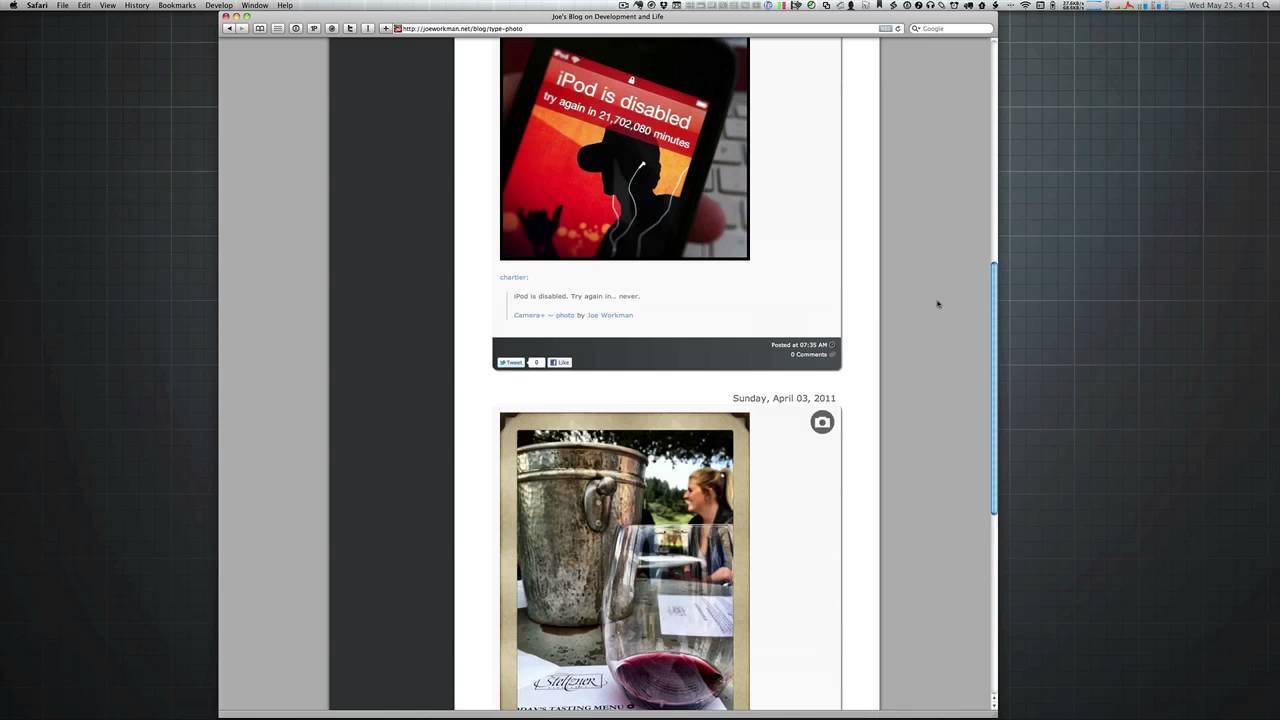
07:07 it does do if we let me bring up a window of my blog because I think if I
07:13 visually show you this it'll make sense ok so what it does what it does do is it
07:20 caches queries and the results of those queries ok so by default when you go
07:27 visit your blog page you're basically it's an all query okay so um it's
07:32 actually I believe I by default get 50 posts and then I keep on going ok but
07:39 essentially it's I'm creating one big cash of all posts ok so when you visit
07:46 this page every on my blog it's set to I believe 20 minutes it it will refresh
07:53 all of the arm the all posts ok basically think of it every single query
07:59 story in a separate file so whenever someone visits blog instead of querying tumblr every
08:05 time it brings in goes I need I need the the all the results for my all query so
08:12 basically goes and it pulls the all query okay now if I were to go ahead and look and drill down into a single post
08:19 this is another query ok so now now i'm at a page where it's a single post okay
08:26 so basically now I've query tumblr for a single post and basically my the tumblr
08:32 stack creates a cache file for the query of post ID 5779 217 372 ok so now I have
08:43 two files on my server that our caches again it is query specific ok now on my
08:51 blog add these little links let's say I click on this and as you see here this is a a quote so this is basically
08:58 sorting by all my quote posts so I did another I did another query of tumblr
09:05 give me everything that is type that all opposed to have a type of quote okay or
09:10 if I click on photo give me all the posts that have a type of photo okay
09:16 this is another query this query would be then cashed for 60 minutes by default or you know whatever you configure in
09:23 the HUD okay now now let's go to the flip side let's say tumblers down okay
09:33 oh and another thing i should say is if um if the cash is due to be refreshed
09:41 okay and tumblr is down while while the refresh is going is scheduled to take
09:48 place the tumblr stack will keep its cash instead of pulling new data from
09:55 tumblr okay so what I mean by is let's say my the default is set to an hour I
10:01 set my cash flow Matt to an hour and let's say tumblr is down and tumblr
10:07 stack goes oh look my cash is done I need to go get new content so it goes to query tumblr tumblr is down so instead
10:15 of of the the stacks coming back and saying I really don't have anything so I don't
10:21 care what the cash is I'm just going to display what tumblr says what it does is it keeps the cash so it says tumblr was
10:27 down uh-oh I'm gonna keep my cash instead okay so there is some some cool
10:33 logic okay however let's say that tumblr
10:39 went down and before tumblr went down um no one ever created a a you know clicked
10:48 on this individual post so let's say I just posted this no one ever went to the
10:53 individual link yet tumblr went down okay therefore my the stack didn't have
10:59 a chance to create a cash for the for the query for this blog post okay
11:05 hopefully I'm not confusing you but because there isn't a cash for this particular query of post and then the
11:12 post ID okay um this means that if the if this query were to be ran or if
11:19 someone were to try to open up this individual post and tumblr were down um
11:25 you basically get an error and so the tumblr stack would say invalid query I don't know what you're trying to request
11:31 me okay request of me um I don't have any data for you okay so that is some
11:37 limitations while the caching is um is cool and in probably ninety eight
11:43 percent of the time it's going to be perfect exactly what you want there are fringe cases where um you know it is
11:50 possible while tumblr is down you know some potential queries in your blog
11:56 might not work right okay so that's that
12:02 that's a note about tumblr cash okay
12:07 let's go back to rapidweaver wherever the world it is there it is okay so now
12:13 we're back at rapidweaver so that's cash
12:18 okay um the rest of this bracelet from here on down is pretty much customizing
12:25 the look and feel of you how you want your post to be done you know done right um and unfortunately
12:32 when you when you customize a lot of these things they don't really reflect
12:38 um the I try to reflect them as much as possible with in edit mode okay so if
12:44 you notice your drop you know show drop shadow it definitely turns on and off the drop shadow in edit mode okay enable
12:52 footer color do you want the you know do you want the footer the footer color to be a different color than the basically
13:00 the text or I'm sorry the body of your of your blog post okay do you want the
13:05 date on the left or on the right now unfortunately that this isn't going to show you in preview mode but just to
13:12 show you what it does look like is not my blog my default blog uses the date on
13:17 the right the top right now if you go to my stack update blog you'll notice that
13:24 it does have a different look and this is this is the date on the left so if you check this over here date on left
13:31 you will have the date on the left of the post okay um use black icons that
13:43 essentially changes if you if you've noticed every single post intrude tumblr
13:49 fashion um you know shows you what type of post is it okay is it a text post is
13:55 it a photo post is it a link post and audio post a video post things that nature and these icons will change for
14:03 each individual post based on the type of post it is okay so you can either
14:08 have you know a lighter gray or black icon okay the number of post per page
14:15 that's obvious how many posts do you want to see per page okay um the border
14:22 radius the border radius obviously is the border radius for all four corners
14:28 of your blog post so you can go from zero which gives you square corners okay
14:34 all the way up to 20 which gives you pretty rounded corners
14:40 okay and again the border radius will be the same on all four corners of your
14:45 blog post okay text size this is obviously the size of the text inside
14:52 the post okay um header size this is the
14:58 site it's the size of the header text date sighs this is the size of the date
15:04 okay the footer text size how much how big do you want the footer text to be
15:09 okay and then these are all your colors you know what color do you want your header text to be where is my little
15:19 window
15:28 here it is other display okay so if we wanted you know change the header text
15:35 to be change that blue okay you can see we definitely change the header text to
15:41 blue the footer background color do you want it you know a lighter gray things
15:46 of that nature and again if you enable you know footer color background turn it on and off okay um alternate border okay
15:56 a lot of people are confused on what is the alternate border the alternate border if you hover over you'll see that
16:03 it is the basically the colour of the border between the body and the footer
16:10 okay um if we look at the the configuration with the date on the left
16:17 this little bar that's on top of the date okay it's that color um and the
16:22 other thing that it affects it affects one more thing um Oh quotes so if we go
16:28 to go to my regular blog and we go to
16:34 quote posts okay the color of the quote here okay is the same color as the that
16:43 old border okay so that is what the the
16:50 alt border is it affects a few kind of accent borders throughout the throughout the stack okay the footer text is of
16:58 course the text the color of the text in the footer text is the of course the color of the text within your stack okay
17:05 date is the color of the date okay um so another thing that can be done is uh we
17:13 definitely need you can utilize the background color and background border okay so if you noticed inside inside my
17:23 stack here I have a background color for my individual post okay and essentially
17:28 all I do is I said it I give it a background color here so you say I want a background color and it can be or
17:35 wherever my color palette disappeared to ok and then define your color here
17:42 also border you can give your post a border and that will create in edit mode it shows you the border around the stack
17:50 okay however once you publish that border will be on the individual blog
17:55 posts okay so I it looks a little eluding elusive inside edit mode but if
18:02 you change the border here and same thing as background color okay it will
18:07 only modify the background color of the published content okay or the in each
18:15 individual cook post so instead of it would be around every single post if you had a border or the background color
18:21 only affects the background of the post okay now obviously if if you don't want
18:28 to have a few questions of how do I make it so I don't want each a box around
18:33 every single one of my posts okay to be able to do that is basically you have a transparent background so you have no
18:40 background you have no border okay probably disable your footer border
18:45 disable your drop shadow okay and all of a sudden you now have a you know a style
18:53 we're basically every single post looks as if it's just on the page okay they're
18:58 not you know styled in each individual you know a box they'll just be inside um
19:04 you know on the page just as a normal you know paragraph text would be okay um
19:12 the last thing that I'm going to review just a little bit okay is pretty urls
19:19 okay so please if you're going to turn on pretty urls you have to follow the
19:26 manual to a tee okay um another thing i
19:31 should i should mention is the tumblr stack does require php5 so if your host is PHP only as PHP for you have to make
19:39 sure you do have PHP 5 okay so if you want to enable pretty urls and what pretty urls are is if we look at my blog
19:47 again okay you'll notice that instead of normally if we look at the query string
19:54 that here on the browser you'll see it says Joe coconut net / blog / type dash quote
20:01 okay now normally if I didn't have pretty urls turned on it would be this
20:07 it would be indexed off PHP ? type
20:14 equals quote okay if we've noticed that
20:21 the pretty URL looks a lot nicer right um it's it's also a little bit more search engine friendly okay because
20:28 Google and and you know everything will source that and see you know kind of a prettier URL and you know it won't
20:36 ignore your query string okay so that's definitely a benefit okay you can have a
20:42 nice pretty thing here so if we see this is again four types its type dash quote if we wanted to see an individual blog
20:49 post right it's post dash and then the post ID okay so on and so forth okay now
20:56 there's a few other things if we look at the manual if you want to enable pretty or else you just have to check this by
21:02 the way um but if we look go ahead and look at the manual on how to turn on pretty urls okay um essentially there's
21:12 a few things you need to do check the pre URL setting inside the settings hood okay make sure that in your site seddie
21:20 in your sights set up okay you are set to have file links are relative to doc
21:26 route now when you when you set this you're going to have to republish all files um for your site to work properly
21:33 again but you do have to have relative to doc route set up okay for your
21:40 particular site okay um then basically you know you republish all files okay
21:46 then you're going to have to edit what's called the HT Access file on your web
21:52 server okay and let's go ahead and and analyze the configuration here I give
21:58 you the exact what I have on my website this is a straight copy of the htaccess
22:03 configuration that i use on my web server for Joe workman okay so if we look at let's just go
22:11 ahead and bring up we bring up text edit paste this in there and let's go ahead
22:18 and look at this configuration go ahead
22:26 and add others okay so if we look at
22:32 this configuration here I will see this first line is just a comment just a you
22:38 know say that you know from here on as our blog reader x ok first we have to
22:44 tell your web server to make this a little bit bigger there we go first we
22:51 have to tell you know we have to turn on for your web server something called a rewrite engine okay so that tells you
22:58 know our your web server that we're going to start redirecting some stuff dynamically okay now everything that's
23:05 bold in here you're gonna have to replace with the path of where your blog
23:11 is inside your website okay so for
23:16 example this of course is a setup for my
23:21 blog okay um if I if you go to Joe work in net / blog this is the blog the
23:28 settings that that does the redirect okay now what about my stack updates
23:34 blog i'm going to show you basically i'm going to take this configuration and and
23:40 modify it so that it works with this blog okay so / blog / stacks okay is
23:48 going to be um you know we want this to also use pretty urls okay so basically
23:53 i'm going to take my my configuration here and modify it for this new blog URL
23:59 ok so if you look at my URL here i have joe coconut net / blog / stacks okay um
24:09 so essentially I need to take my root URL which is / blog / stacks okay and
24:19 then I'm going to change this so instead of slash blog I
24:24 have / blog / stacks / and then leave
24:30 this the way it is okay you cannot change this it needs to stay that way
24:35 post dash with this regular expression okay again I'm just going to go ahead and change it for everything remember
24:48 you have to change it both places so they're gonna have to change it here as well so there's two places in every
24:57 single line and also if your page is not index dot PHP okay by default it should
25:04 be index PHP but if you've changed it to maybe blog PHP or something of that
25:11 nature you're gonna have to change that as well okay now this this is a final
25:18 confining configuration you shouldn't have to change anything after this ? don't touch any of that okay and don't
25:25 touch anything that looks like this regular expression page dash type dash tag dash okay refresh things of that
25:33 nature okay just leave that as is okay so once you save this file to your web
25:41 server depending on your host it might take some time for that configuration to be you know reset but you should then
25:48 have you know pretty urls working on your website okay so let me let me look
25:55 in the chat rooms and see if there are any um any questions regarding tumblr
26:06 let's see but countdown doesn't show in ie8 okay thanks look into that discuss
26:13 setup as simple as adding a user name yes the the discuss set up for the
26:20 tumblr stack okay is is as simple as entering your discuss your username
26:25 that's it that's all you have to do so inside the setting side just type in your username and discuss integration
26:33 will work it okay so so yes that's all you have to
26:42 do to enable discuss that's it ok any other questions on the tumblr stack
26:52 going going tron ask do we offer support
26:59 for HT access changes no we you know with the amount of of work I've given
27:06 pretty pretty straightforward and direct instructions um please work with your
27:13 hosting company to get your HT access working properly ok I've also provided
27:19 in the manual I provided a few resources ok here to help you out ok if you want
27:26 to do some some different rewriting rules and stuff like that ok but we just
27:31 we don't have the bandwidth right now to really take on helping you out with with
27:37 the HT access rules and customizing all these this stuff on your for your web host ok so I've given as best
27:45 instructions as I could and even giving you again the example configuration of
27:51 what you'd need but you know in terms of support please contact your hosting
27:56 company ok um other things if you look
28:03 at the URL structure in the in the manual will show you all the various URL structures one thing that's kind of a
28:09 cool hidden feature of the tumblr stack ok is manually refreshing your blog ok
28:16 um so manually refreshing your blog let's say I have a a blog post ok that i
28:24 would like to refresh so I post a new
28:31 blog post to my blog ok and of course tumblr since it caches stuff on a
28:37 routine basis ok it's not going to catch my new blog post until that cash is due
28:43 to refresh okay however I built in a pretty cool little manual refresh feature there's a
28:51 couple different ways you can do it if you have pretty urls turned on you could just do / blog / refresh okay and that
28:59 will do it for you ok that's the pretty URL version on the other thing is if if
29:05 you don't have pretty urls you just do ? refresh equals 1 okay and that will do
29:11 it for you as well but essentially
29:17 another thing that you can do that's even you don't even have to remember URLs at all is if you leave your mouse
29:23 button and hover over the bottom left hand corner of your blog page you will
29:29 notice it now it has to be there for two and a half seconds okay your mouse has
29:35 to hover over the bottom left-hand corner for two and a half seconds and a button will be shown and then you can
29:42 click that button and it will refresh your page for you okay and it will get
29:47 whatever new blog content you have okay so a great feature um you know so you
29:54 don't have to remember exactly what URL you need to visit and so on and so forth okay um so now we're going to jump into
30:05 the second part I took about a half hour with with the tumbler stack which is what I wanted to spend and now we're
30:11 going to go over on the Safari dev inspector okay um any other questions
30:18 before I completely leave tumblr okay um
30:25 oops so the Safari dev inspector I touched base on it a little bit
30:32 yesterday okay and our yesterday uh last
30:37 week in last week's cast when we went over some CSS and I showed you the
30:42 Safari dev inspector and and whatnot um but i'm going to go over I didn't touch
30:48 hardly any of the features of the Safari dev inspector okay and we're going to spend some time right now and just dive
30:54 into that ok so to enable your inspector basically go to your Safari
31:01 preferences um and it is somewhere in
31:06 here advanced that there's a checkbox
31:12 here in the Advanced tab and your Safari preferences and you say show develop menu in menu bar okay that will enable
31:21 your developer and dev inspector within safari okay now within rapidweaver okay
31:30 if you want again we showed you how you can use the dev inspector within rapidweaver okay and basically for that
31:37 you go to general and you say in your in your rapidweaver preferences you go to
31:43 the general tab and say and Neville enable web developer tools ok but we're
31:51 just going to stick in Safari it's the same same thing so inside Safari if you
31:57 ever want to open up your dev inspector okay you can either go develop and say
32:02 show web inspector okay or what I like to do is you just right click anywhere on the page and say inspect element okay
32:11 and as I showed you yesterday if you right-click or last week if you right-click on any device or any node in
32:18 your page and do inspect element it takes you to that exact part of the page inside the code okay and if you start
32:27 you know hovering over various aspects of your page inside the source code that
32:34 those particular elements are then highlighted inside your browser view okay so very cool little feature okay um
32:43 it also if you if you select a particular device you'll see it shows you the exact hierarchy of that
32:51 particular node okay inside your um you
32:57 know source code okay so things like divs and all these individual tags
33:04 they're called nodes okay so this is a node inside of your Dom okay the DOM is
33:10 the object or your your ultimately source code that's being displayed in the browser
33:16 okay you can also open the dev inspector in an external window if you want okay I
33:24 personally like it inside Safari so it's nice and nice and crisp and easy to see
33:30 okay so this is it again this this tab
33:35 here this elements tab is very first tab you'll notice that there are several other tabs along the top of the
33:41 development inspector okay the elements tab shows you the generated source code
33:48 okay now how this is different if we this what you're seeing here is not
33:55 necessarily if you right click and go view source okay and we see the view source okay when you do a few source
34:05 this is the exact source that is being you know sent to your browser okay what
34:12 you're seeing inside the development inspector is something slightly different okay let's say for example I
34:21 have some JavaScript on my page that injects new content onto the page okay
34:28 that new content that the JavaScript injects onto the page will not show up
34:35 in my view source but it will show up in the Safari dev inspector okay another
34:43 thing let's say I have some JavaScript that actually deletes stuff from my dom
34:49 okay that if it is removed that mean is it does not it is not displayed in the
34:56 browser it will not show up in the Safari dev inspector but it may show up
35:01 in view source okay so yet view source is basically the file that exists on
35:08 your server okay if it's an HTML file if it's PHP not even going to go there okay
35:16 but is basically the file that is the exact file that is returned to the browser okay the browser then goes
35:23 through and is it processes all javascript and then your javascript might potentially add or remove or
35:30 modify stuff within the the code okay and that modified end final result is
35:38 displayed here for you okay I'll come
35:44 back and we'll review this this little pain over here that we kind of went over
35:49 last week I will go over that again ok let's go go over some of the other tabs
35:55 the resources tab in the Safari dev inspector okay it's very cool it shows
36:01 you the the total amount of time that it took two to load something okay um how
36:08 long we've actually been on the page so if we refresh my page will see that it
36:15 took a total of 2.7 seconds for my page to load you can see exactly the document
36:23 took two hundred fifty nine milliseconds stylesheets took eight hundred and five milliseconds images took one point zero
36:30 seven seconds scripts took two point zero two seconds to load and fonts took
36:37 a 160 milliseconds okay now if you look this number is constantly changing is
36:42 because javascript is still running but if you load your page you'll see that you know initially exactly how long does
36:49 it take to load certain elements on your page okay now if you look we can show you can display this graph by time or by
36:57 size so you can see exactly my page is 71 k okay how much is my scripts how
37:05 much how much is image is how much is style sheets so on and so forth now some of this is actually a little bit smaller
37:11 than you would expect and that's mostly because my browser has cashed um images
37:17 it's cached images it might have cached some style sheets and whatnot okay so if
37:22 you wanted I could do develop and develop menu for Safari you could say disable cash things of that nature so
37:30 you can disable your cash refresh your page and see exactly for a new user on the page how long would it take for that
37:37 too low okay so it even drills down a little bit farther you can see each individual oops
37:44 you can see each individual file and what not how the size of that file of
37:50 what was loaded what took the longest to load okay if we do time okay which file
37:56 here took the longest to load when did it load things of that nature okay so
38:02 this is this is a great little tool that I use from time to time it's also a great way to see dwindle down if we
38:09 notice at the top we have all you can go documents you can see all style sheets
38:14 images scripts on the page fonts on the page so on and so forth so I use this a
38:22 lot if I want to see all the style sheets that are loaded on the page you can easily go resources limit the view
38:28 by style sheets then you can quickly go and see what's this style sheet okay
38:34 what's this style sheet what is this style sheet so on and so forth so it's a
38:40 great way of viewing um you know style sheets that are used same thing with
38:45 scripts okay you can see all the JavaScript that's all the JavaScript that's load unloaded on the page you can
38:51 see exactly the contents of that JavaScript okay so if you notice here
38:58 this is my cycle or stack right here inside the javascript file always part
39:03 of my cyclers scripts right so images you can see all the images that are
39:08 loaded on the page you can actually see them ok so again great tool this is the
39:18 resources tab the next tab is a script tag tab which is very similar resources
39:25 actually it's just a way of viewing all of your scripts ok via a little drop-down menu it's just different way
39:31 of targeting just scripts ok um timeline
39:37 um to be honest with you I don't use timeline very often I'm thinking that
39:42 this you can set it to record and as your web page loads and over time you
39:48 can see you know how things are i think you click on this little record but um you know you can record what
39:54 everything's doing at what point what's it what exactly is it doing you will see that that you know rendering is changing
40:01 the layout it's changing the paint of stuff how long is that taking right um I
40:08 guess quasi interesting I but again I don't really use this timeline tab very
40:14 much okay so you can turn that off profiles this is a you know another
40:21 thing that I don't commonly use too much this is where you can see kind of how much CPU is a particular webpage you
40:30 know doing so you can record something by clicking the little record button at
40:36 the bottom you can say stop profiling my page and then you can easily view the
40:41 profile how much CPU was done how many calls to that script were made so on and
40:47 so forth again that takes you know it's pretty techy stuff I hardly ever use it
40:54 okay storage if you want to see if if a cookie if a cookies been used on this
41:00 page or maybe some databases were used on this page connections and whatnot html5 storage they'll show up here okay
41:08 and finally the last the last pain is
41:14 the console and the console is basically the JavaScript console so if you have a
41:19 javascript error on your page okay it'll it'll display be displayed here okay are
41:25 any warnings with the page maybe a 404 error because an image isn't there any
41:31 longer or so on and so forth okay I do use the console law okay mostly I use it
41:37 when i'm developing something myself and you can actually you know purposely print stuff to the console log um you
41:44 know very convenient things okay but console.log resources and elements i
41:51 think those are the probably the most useful elements within the safari development inspector okay um and I kind
42:00 of showed you how I use them next thing that I'm going to jump in
42:05 too and i'm going to this is serve as a primer for next week's when we dive into
42:11 CSS okay and basically i want to teach
42:18 you how to utilize this elements window properly okay to find exactly the
42:25 element that you want on the page um to maybe you know tweak some you know some
42:31 styles in line to kind of test around and play with ideas and again you do this all within rapidweaver as well ok
42:42 what's the optimum look at I'm seeing some questions at what point should time
42:48 or size resources become a concern um you know it time and size it it really
42:56 depends um I mean you're not going to want you know five megabyte files right
43:01 um you know I think you know and again it depends on the device it depends you
43:08 know so I have a rather fast internet connection on my here so things are
43:13 going to load pretty darn fast okay but um you know someone who has a dial-up
43:18 connection or who lives in rural England okay um and has you know really slow to
43:25 megabit line or something like that or maybe even dial up okay or if your web
43:30 page is loaded via an iphone 3g right over the 3g network it's going to load a
43:36 lot slower okay so um are there any best practices no III just say have common
43:46 sense okay um you don't want to have you know two megabyte images on your web
43:52 page okay unless maybe you know the you're a wedding photographer and you
43:58 know you want them to be able to see an extremely high res version of a sample image or something like that I don't
44:04 know right but um you know in ninety-nine point nine percent of the cases you're gonna want to make sure
44:10 your images are small okay um as small as they can without compromising quality
44:16 okay um you know if you look at some of my my file size
44:21 this year all right I mean we'll see that this is this particular file is it
44:28 doesn't even say the size okay um oh here it's it's 1k right actually no it's
44:35 it's been cached that's why it's so small higher let me safari empty cache
44:45 empty cache okay let's go ahead and refresh this page disabled cash refresh
44:58 my page again hmm well is it was not
45:15 showing me all the sizes it's still
45:20 loading these cached images um but again
45:27 it's just common sense I think you know it right now I I think it is you know
45:32 some user is going to be visiting your page the browser will cache stuff which is nice right it alil cash JavaScript
45:39 files little cash CSS files little cash images okay so um that's great but I
45:45 think it is important you know that you know you do want to keep things as compressed as possible and again make
45:51 images as small as possible without reducing quality okay so sorry if I
45:58 danced around that a little bit I someone asked me if I can make a common
46:05 sense stack fit funny um I mean I'm
46:10 going to jump back into this elements because I spend a lot of time in here and I think it's I think it's very
46:17 important okay um again this is your
46:23 your HTML tree of your finished product that is displayed to the web browser
46:28 okay you can highlight any particular div okay or node as I call it and it will
46:35 then be highlighted actively inside your browser window okay whenever you
46:43 highlight something over here okay in in this view you can easily go and see the
46:50 styles okay uh and I'll will dive into this a little bit in a second okay you
46:56 can see the metrics okay which again are how big is it okay so width x height
47:04 okay um then up before that is padding okay so outside of that is padding this
47:11 particular has a zero padding so you see dashes outside of that is a border this
47:18 particular node has zero border so we see that it there are dashes there it has zero the next is margin now we do
47:27 see that it does have a defined margin as a top margin of 10 a bottom margin of
47:32 15 and the left and right margins of 5 next is properties this kind of to be
47:39 honest with you I don't think I've ever actually looked at these properties this kind of goes into some really really
47:46 really techy stuff okay um I i would say
47:53 you you can probably safely ignore this I see what it is but you can probably
47:58 safely ignore this in my two years of using dev inspector I've never gone into
48:04 here okay so a lot of this stuff is javascript stuff that I see prototypes
48:09 used you know it's set and it you know it's a lot of you know what's your class name um you know base you know stuff you
48:18 probably not going to have to use very often so we could probably ignore that event listeners this is if it there is a
48:25 JavaScript event listener um you know tied to that particular node you can see
48:30 that okay but we're going to spend most of our time in metrics okay which is
48:37 very simple we have again width and height padding border and margins okay
48:44 you can you can tweak this in line so if i wanted to start adding a border around here i can say put a 3 pixel
48:51 border oops oops or fine let's add
48:57 padding said three pixel padding and if
49:06 we notice that added a padding or let's do something really drastic 30 okay
49:11 we'll see that I've now added a a really really big 30 pixel padding to the top
49:18 of this you know h3 tag okay so this is quite nice if you want to play around
49:25 with positioning and you know moving stuff around a little bit or you know giving slightly larger gaps between
49:32 particular you know nodes okay you can play with the padding and or margins on
49:38 a particular node okay then you you once you have it the way you want you then
49:44 take those settings and put them in a CSS file okay and we'll dive into the
49:51 CSS file next week and kind of you know dive into that but right now we're just going to you know focus right here on
49:58 the dev inspector okay next is let's dive into the styles okay so I'm going
50:07 to take some time to actually go ahead and collapse all of these okay so at the
50:13 very top is computed style computed style means um this is the after we've
50:21 taken all of the CSS that has been on this page and you know even applied defaults to it okay uh what is the
50:31 ultimate computed final style for this particular node okay so if we highlight
50:37 it we see that this is a you know a border of 0 it has you know color here's
50:45 my font colors display block here's my font family okay here's the font size
50:51 the font style font weight is bold height this 20 pixels line height this
50:59 20 pixels here's my margins okay the actual margin settings the CSS settings exactly as we
51:06 saw inside the metrics box okay
51:14 that you also have outlinecolour potentially we have outline cells none so you're not noticing that right um now
51:21 there's another thing here this is all basically everything that deviates from the default okay if we say show
51:28 inherited it's going to show you every possible CSS attribute and its potential
51:35 value on that particular note okay now if you've noticed pretty much everything
51:42 that showed up after I click that check mark we make this a little bit bigger here okay is semi greyed out okay so
51:51 you'll see that that's basically the default value that was inherited from you know that the body of the you know
51:58 of HTML okay um and it's basically you know graded out its default okay
52:04 everything that is not is basically has a setting that overrides the potential
52:09 defaults I think if that has been actually defined okay now if you notice
52:17 we can't actually change the values inside computed style so if i wanted to play around and say i want to change my
52:23 text color I can't do that here okay what I'm going to have to do is find
52:30 where it's defined where color blah blah blah is defined inside these blue boxes
52:37 below okay so basically this style and
52:42 this is the hierarchy of things so if we worked from the bottom up okay in these
52:50 blue boxes that's how the CSS was applied ok so the style attribute is
52:56 basically things that are styled directly in that node okay um then after
53:02 that it was from h3 overview and you can even see the file and the line number in
53:08 that file that that was put into okay so we see that uh the h3 overview or this
53:15 margin is these margins are set is set in the home page CSS file and line 18
53:21 and you can even click on that and it'll take you exactly to that line okay
53:27 now if you wanted to modify that you can actually now you can go ahead and modify this stuff ok so if I wanted to go ahead
53:34 and play around and say I want 10 pixel everywhere you can change that hit enter
53:39 and then your your your custom style is then reflected dynamically inside the
53:45 browser window ok and you can just keep
53:50 going down the tree till you find the exact CSS CSS setting that you want ok
53:57 now if you see a setting that is crossed out like this ok it's because it is
54:04 overridden higher up the food chain so font size here is crossed out because
54:11 it's being overridden by this font size setting here ok so inside the
54:19 consolidated screen CSS file which is a CSS file i know that comes with the
54:25 theme is overridden by my joe workman dot CSS file that i've defined inside my
54:33 header file ok um so this allows you to see the hierarchy of CSS what is
54:41 overriding what and again it allows you to change things dynamically and again
54:46 if you change something here it only changes it for this session so if I were
54:52 to give this a padding left of 100 pixels ok then I refresh my page
55:00 everything goes back to the way it was before I made any changes at all ok and
55:06 that's awesome because it gives you a dummy proof way of modifying and testing
55:13 and playing around with your neat with your site without actually changing anything you have no potential way of
55:20 breaking your site by playing with it inside the Safari dev inspector ok um and that about wraps up any questions
55:30 about Safari dev inspector we only have a couple minutes but I'm happy to keep on going if you guys want to talk a
55:35 little bit more sweet okay everybody um I'm going to
55:43 call bid us adieu and until next time on friday we'll be going over I don't know
55:51 yet keep your topic ideas come in so if you have any ideas for topics please let
55:57 me know and we will will will do them right now live so thank you very much
56:04 for attending everybody i hope you enjoyed it i definitely enjoyed it and with that let's exit with some music
56:41 you you


