
Stacks Guru is born from the need to search the vast number of videos out there on stacks built for Stacks Pro and the Stacks 5 plugin for Rapidweaver.
We have scraped over 500 videos to get the transcripts for each in order to make the spoken word searchable.
Please use this free tool to help you learn and discover the awesome power that Stacks and the stacks made for Stacks have to offer.
00:07 so welcome everybody my name is Joe
00:10 workman and this is our a weekly Weaver
00:14 cash that we do every Wednesday
00:15 afternoon and we go over all things kind
00:19 of web related um go over a lot of stuff
00:22 especially with a rapidweaver twist as
00:24 you know you've probably heard me from
00:26 the rapidweaver world a lot of my
00:27 visitors are from there and we basically
00:30 go a lot of you know review a lot of
00:32 things about how to develop new websites
00:35 and new web technologies how to you know
00:38 test and develop websites and a lot of
00:40 times it does show that in demonstrating
00:43 with it with a rapid weaver twist to
00:45 them so today's in today's show we're
00:49 going to be going over a a new product
00:51 or it's actually an old product with a
00:52 new update and it sparked my interest
00:56 because of a recent Mundell there is a a
00:59 new bundle out right now called from mac
01:02 legion that contains a bunch of really
01:06 great apps i actually if you haven't
01:08 watched it i did a a full-blown webcast
01:11 i believe a week and a half ago on all
01:15 the bundles that are going on right now
01:16 and my thoughts and reviews of them and
01:20 this mac legion bundle which ends eight
01:23 days from today um contains an app
01:26 called banner zest and banner zest has
01:29 traditionally been a flash-based um
01:33 slideshow and media generator for web
01:36 pages okay it does have some nice some
01:39 rapidweaver integrations however it is
01:43 all flash based so I've always kind of
01:46 leaned away from it because you know us
01:50 Mac people you know we'd like to stick
01:52 with the stick with our guns try not to
01:55 use flash especially since you know it
01:56 doesn't work on iOS devices um and it
01:59 doesn't work very well in android
02:01 devices either right um yeah android
02:03 supports it but it definitely kills
02:05 battery life from from what I've been
02:07 told and heard and the up-and-coming
02:10 Windows 8 Phone from what understands
02:13 ditching
02:13 flash as well so with all these reasons
02:17 you know we definitely don't want to use
02:19 flash right it that's pretty obvious
02:22 okay so when I saw banner zest in his
02:28 bundle I was like ah banner zest have it
02:29 been there done that but what I didn't
02:33 notice was that banners s has recently
02:36 released version 3 and version 3 of this
02:40 app contains full html5 support which is
02:46 pretty mind-blowing so banner zest pro
02:49 which is a part of this bundle now has
02:53 full html5 support so you can have your
02:56 cool banner zest little widgets and
02:58 slideshows and whatnot and still have
03:01 them work on your iOS devices okay and
03:05 then of course it will fall back to
03:07 flash when it can so in Firefox and
03:10 Internet Explorer and things of that
03:12 nature it will fall back to the its
03:15 flash counterpart but use html5 when it
03:18 can okay or when it's configured to UM
03:21 so let's go ahead and dive into banner
03:24 zest the second part of this today we're
03:26 going to going to go over a network link
03:29 conditioner and quickly show you how you
03:32 can use this cool great new tool in Lyon
03:35 to really help you um you know test your
03:39 speed of your websites on various
03:41 networks how is it going to look on a
03:43 dial-up connection how's it going to
03:45 look on someones you know 3g phone
03:47 things of that nature so we're going to
03:50 dive into that at second part of this
03:52 webcast but without further ado let's go
03:54 ahead and jump into banner zest I now
03:58 have a banner zest open and as you see
04:02 when you open up banner zest you just
04:05 have an image drop area now I've already
04:07 configured some images here I'm just
04:09 going to select in basically just drag
04:11 and drop your images directly in the
04:13 banner zest okay so as you see here uh
04:19 with banner zest it's simply i simply
04:22 drug my images in and it automatically
04:25 selected a default theme
04:27 and it started you know generating my
04:29 slide shows for me I mean couldn't be
04:31 simpler right um now you can go ahead
04:34 and edit edit your titles and your
04:36 captions so you could say you know this
04:39 is you know fighting or samurai training
04:46 how about that samurai training okay
04:53 added some titles and things and as you
04:56 see if i click on reload it now has my
05:01 new titles in here so as you drag in
05:05 media okay you can go in here you can
05:08 also add URLs so that if a particular
05:11 image is clicked um then everything will
05:16 work perfectly for you okay so if an
05:21 image is clicked I'm sorry the URL will
05:23 then be launched it basically turns the
05:25 images into into links okay so that's
05:28 very nice of course I only change the
05:30 title you also have kind of some
05:31 subtitles here which by default is the
05:34 date okay but you can also change that
05:37 as well you can add your own media as
05:39 much media as you want and it will cycle
05:41 through all of those for you okay you
05:44 can also add your own audio files now
05:47 from my limited testing so far of this
05:50 version audio support is only is limited
05:55 to the flash based players okay so your
06:00 audio that you've selected will only
06:02 work on flash ok so when html5 is used
06:07 in particular browsers the audio is will
06:11 not work unless it's flash okay so this
06:14 kind of goes into the into the media
06:16 very simple you can just drag and drop
06:19 your images in here edit your titles at
06:22 your subtitles add URLs things of that
06:24 nature you can I guess you can also do a
06:27 few more things you can actually go
06:28 ahead and crop images so if you click on
06:32 the little if you notice that I click on
06:34 the little crop button so inside the
06:36 inspector for every single image there
06:39 is a
06:40 a few buttons here the top one is delete
06:43 this middle one here is kind of a
06:47 preview that in preview okay and the
06:50 last one is crop this is where you can
06:52 you can crop you can kind of add
06:54 backgrounds you can do a few very little
06:57 mostly cropping um so I'm gonna leave
07:00 things as it was on deep by default but
07:03 you can definitely as you see it does
07:05 crop the original image to create
07:07 everything as a square and you can
07:09 modify that here okay um so let's go
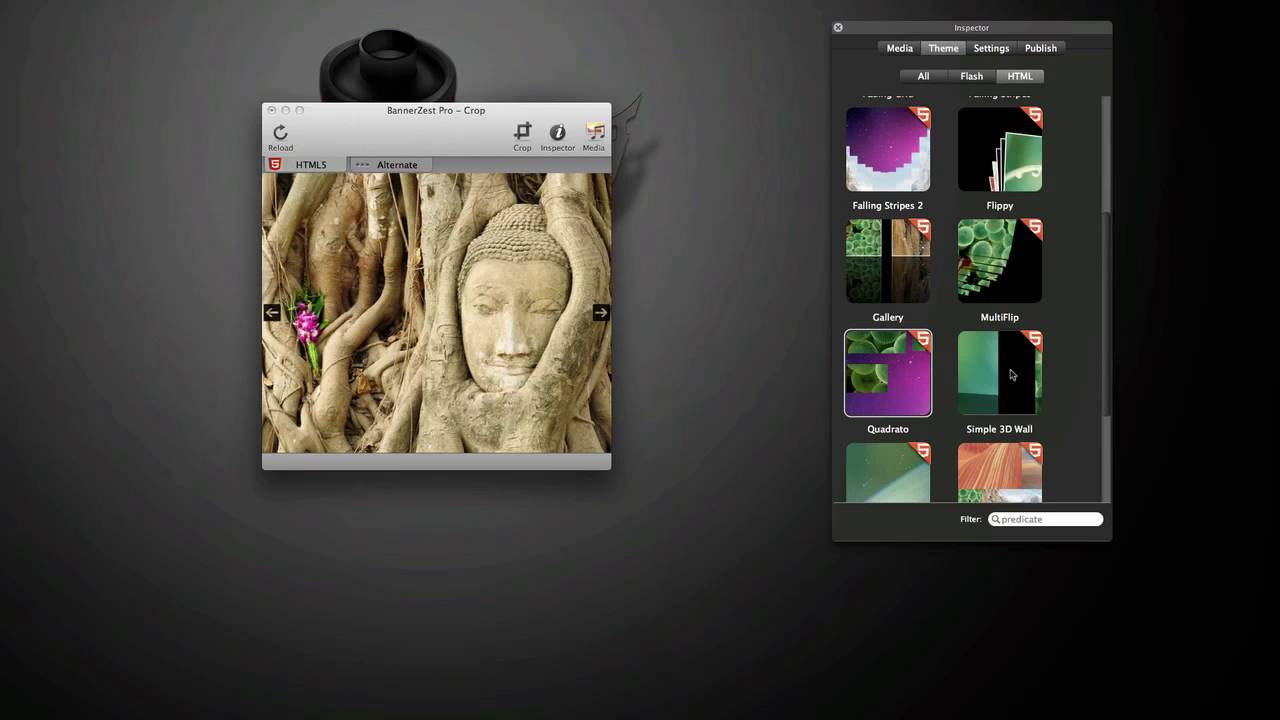
07:13 ahead and the next tab we in the
07:15 inspector we have our themes okay now if
07:18 you notice the themes um there there are
07:21 several tabs on here the first is all
07:23 the second tab is flash only themes okay
07:27 and the final tab is HTML so these are
07:31 themes that support html5 and will fall
07:35 back to flash when necessary okay there
07:38 are several themes that do not support
07:40 html5 so you know make sure that you you
07:44 pick a theme if you want to make sure
07:46 you're using html5 that you you go to
07:50 this HTML tab and you make sure that it
07:52 has this little 5 up here in the corner
07:54 let's cycle through some of these themes
07:56 to kind of see what's available in html
08:02 so as you pick a theme you'll see that
08:05 it they dynamically change over here on
08:07 the browser um so if you keep clicking
08:10 through your themes you can see exactly
08:13 what everything is okay so you have
08:15 cover flow we have kind of a fading grid
08:19 which images will display as a grid and
08:23 kind of fade out fade in things of that
08:25 nature um some falling stripes okay um
08:32 falling stripes to kind of different
08:38 effects again these are pretty amazing
08:41 because all of these are html5 and they
08:43 are not flash okay although again they
08:46 will have flash fallbacks for browsers
08:48 that don't support it okay gallery now
08:53 this is an interesting
08:54 because if you if you're familiar with
08:57 some of my stacks plugins you'll be able
09:00 to see that this is basically the scroll
09:03 stack I have a scroll stack that
09:05 basically does the same exact
09:08 functionality as this theme banners edge
09:12 theme here so that's kind of cool but
09:15 again available in banner zest multi
09:19 flip which is kind of cool see quadrato
09:26 we have quadrato which does what okay we
09:32 have a simple 3d wall which kind of
09:37 fades out and fades in very nice
09:46 slideshow again just a simple slideshow
09:50 snake grid unfold
10:01 and then last but not least the water
10:04 operation so this is actually really
10:06 nice when I'm pretty amazed that this
10:08 one actually works well in html5 so
10:11 that's pretty cool I I'm happy with that
10:14 so now that we've kind of reviewed some
10:16 of these themes I'm going to go ahead
10:18 and select a particular thing to play
10:21 with for you actually developing and
10:24 improving from our rapidweaver website
10:35 so I'm going to go ahead and select this
10:38 bouncy theme so we have a bouncy theme I
10:42 have all of my my images selected so now
10:48 that we've chosen a theme I'm going to
10:51 go ahead and let's go into settings okay
10:53 now i'm not going to go through all of
10:55 the settings but every single theme here
10:58 has settings okay where you can really
11:02 trick out everything define the colors
11:05 the background color the borders the
11:08 heights of each bars the site the actual
11:12 size of the the widget itself borders
11:16 gradients how do you want to style the
11:19 titles how do you want to style the
11:20 subtitles right you know speeds for
11:24 animations various filters for shadows
11:28 and things of that nature okay I'm not
11:30 going to dive through and go through
11:32 each of these but I'm sure all of you
11:34 are able to you know able to actually
11:36 play around with these yourselves so
11:38 that you know you can definitely uh you
11:40 know customize this as much as you want
11:43 okay you can also save your presets if
11:47 you have a particular if you get a theme
11:49 particularly how you like it you want to
11:51 save it for the future you can go ahead
11:53 and save that preset here okay and
11:56 finally the final tab is published okay
11:59 so this is what we're going to be going
12:00 into now we want to actually publish
12:02 this site okay or this particular widget
12:06 to our website okay um so to do that
12:10 you're going to have to actually
12:11 configure your web server so if you go
12:14 into server and then go down to edit
12:17 server list you can go ahead and add and
12:20 configure all of your your login
12:24 information I've already done that so
12:26 I'm going to go ahead and select my ftp
12:29 server okay um I'm then you have also
12:34 export functions so you know do you want
12:36 to export high quality JPEGs um you know
12:39 where do you want this media to show up
12:41 do you want to be in the same window you
12:43 can actually have with the pro version
12:45 of banner zest you can have it show up
12:47 in a if you click on any images that
12:49 will open those images in a light box or
12:51 a shadow box if you like I'm gonna leave
12:54 that as none okay um you can also for
12:57 flash you can merge everything into a
12:59 single swf file or have the swf file and
13:03 all the images separate apparently you
13:06 know if you have a one large file so of
13:09 course going to cause you no longer
13:11 download times so um you know I'm not an
13:15 expert but I would probably recommend
13:16 leaving that unchecked okay so once you
13:19 have all that set go ahead and click on
13:21 the publish button and it will publish
13:24 to your not I've already tested earlier
13:27 today so basically what i recommend you
13:30 do is you create a folder on your web
13:33 server okay i'm going to cancel this
13:34 create a folder on your web server so
13:37 this is the folder um so I said you we
13:39 select the server here then there's a
13:41 subfolder okay now if you click on that
13:44 it's going to automatically give you
13:46 it's going to ftp into your server and
13:48 give you a list of folders I've created
13:50 a be zest folder on my web server that I
13:53 want us publish to so you select that
13:55 then you simply click on the publish
13:57 button and it's going to say I already i
14:01 found data in here do we want to replace
14:03 and yes I want to replace so let's go
14:08 ahead and it's currently uploading all
14:10 of these files to my web server and and
14:13 we're done okay um now you can go ahead
14:16 and say show uh you know show banner and
14:18 it will you know open up that particular
14:21 banner on your website for you okay so
14:24 here's our banner okay so next let's go
14:27 ahead and I
14:28 we work on getting this into rapidweaver
14:33 so we want to actually have this inside
14:35 of our rapidweaver site so let's go
14:37 ahead and do that so I have my
14:39 rapidweaver file here and essentially
14:43 i'm going to show you how to do this on
14:45 a stock's page but you can literally do
14:48 this you know in a style text page or an
14:52 HTML page things of that nature so what
14:55 we're going to want to do is we're going
14:56 to want to drag out an HTML stack we
14:59 actually going to want to bring back
15:00 bring back banner zest pro and we're
15:04 going to want to go show HTML and then
15:09 as you see here um you know basically
15:12 for all of these you see the rapidweaver
15:14 logo up here on the top it gives you
15:17 some HTML code that you can just paste
15:18 directly into rapidweaver basically
15:21 you're just going to click this copy
15:21 this code button and now we can get out
15:25 of banner zest here and paste that code
15:30 directly into rapidweaver okay and if we
15:40 preview this here we notice that we have
15:42 our beautiful banner zest banner that we
15:46 had created um inside banner zest okay
15:51 and if we go ahead and publish this so
15:53 I'm going to publish this site ok so our
15:57 site is now published so let's go ahead
16:00 and view this so here we go our banners
16:03 s banner is loaded onto our website um
16:05 and all we had to do is copy and paste
16:08 some code from banner zest directly into
16:11 my rapidweaver page now you might think
16:14 because I'm in Safari that this is going
16:16 to show up in html5 ok that is exactly
16:20 what I have it I had expected however um
16:24 oh actually look at that it is I I had
16:28 ran some tests earlier today and and it
16:31 wasn't I must have done something
16:32 different but as you see BAM we we have
16:35 full-blown html5 inside Safari ok now if
16:40 we want to preview this inside
16:42 I Firefox so it it has gone ahead and
16:48 used a different slide show maybe the
16:52 html5 back that could be it as well so
16:55 the html5 that it's we're seeing here
16:59 inside wrap inside rapidweaver inside
17:03 Safari is is properly working however
17:06 inside Firefox it's defaulted down to a
17:11 more simpler slideshow very interesting
17:19 okay let's go ahead and try something
17:22 new um so if I go back into banner zest
17:27 let's go ahead and change our theme too
17:43 ah so here we go okay look I'm still
17:49 learning as well so we have here we have
17:51 the the alternate which is what we were
17:55 seeing in Firefox and then the html5
17:58 theme that we're seeing here ah ok so
18:07 this is where you can define three
18:10 different things I'm seeing this now
18:11 okay so we have a flat we I didn't
18:14 define a flash slideshow ok so for flash
18:17 slideshow we want to show this
18:21 particular thing ok for html5 you go and
18:27 you add what we want to use for html5
18:31 and then our alternate for any other
18:34 browsers that doesn't have flash and or
18:37 html5 ok so we're going to go ahead and
18:42 do that I'm now gonna let's go ahead and
18:44 save that and and let's go ahead and
18:47 publish just publish that again let's go
18:59 ahead and replace
19:12 if we go back into Safari let's go ahead
19:16 and reload okay we now have the we now
19:23 have the flash based which is what I was
19:28 seen earlier so because we had to find a
19:30 flash-based animation what i've
19:35 discovered is that it will use that
19:37 flash based animation in every way
19:40 possible so that you have it you know
19:43 the same look and feel across as many
19:45 browsers as possible okay now if we go
19:48 go into Firefox now and look oops so if
20:03 you were to look at this isn't there we
20:05 go if we were looking this in Firefox
20:07 now we'll see that you know our we
20:09 definitely have
20:17 you'll see that we definitely have flash
20:19 showing and in working however we want
20:22 to make sure that even though this is
20:24 using flash in both firefox it's also
20:27 using it in in Safari well what about
20:30 iOS okay so if we bring up our iOS
20:35 simulator and I've kind of I've reviewed
20:38 this iOS simulator in past shows so
20:41 please check my my podcast archive or my
20:44 arm I vimeo webcast pages to view those
20:48 so let's go ahead and go into bringing
20:52 up our iOS simulator and let's go into
20:55 sandbox dot Joe workman dotnet and we'll
21:04 see here that it has fallen back to our
21:08 html5 version of this particular theme
21:12 um so it / works perfectly in all iOS
21:17 devices however on all browsers that do
21:21 support flash it attempts to use flash
21:23 first so um you know that's really
21:31 killer I wish that it actually tried
21:33 html5 first and then fouled back to
21:37 flash however it seems to see whether or
21:40 not Flash's enabled if flash is enabled
21:42 on a particular browser it then uses
21:45 flash however if flash is not enabled
21:48 it'll then fall back to html5 or further
21:52 back to the alternative okay so you know
21:56 I I think this is you know it is it is
21:59 acceptable it's definitely better than
22:00 then not having flash at all or only
22:03 having flash not supporting anything so
22:06 this way you're you can actually define
22:07 what your website is going to look like
22:09 on an iOS device and have it look you
22:12 know strikingly similar to what it looks
22:15 like on the desktop so i think that i
22:17 think this is great i think it's a
22:19 perfect uh you know use you know and a
22:22 great update to banner zest so again if
22:25 you're interested in banner zest it
22:27 would be awesome if you know go ahead
22:29 and check out that
22:30 great Mac Legion bundle that we saw you
22:35 have eight days left to get to pick it
22:37 up for only 50 bucks is for the bundle
22:40 after that banner zest pro is a hundred
22:44 and thirty dollars so it's a little
22:46 pricey so you know if you if you like it
22:48 if you think it's great you know you're
22:51 going to want to snatch that up now I'm
22:54 going to switch gears a little bit and
22:55 we're not going to go over the second
22:57 part of our screencast here and we're
23:01 going to review a new feature in Lyon
23:04 and this is a network link conditioner
23:09 and it is a preference pane so if you
23:14 see here if you go to System Preferences
23:15 there is a network link conditioner now
23:19 this network link conditioner does not
23:21 get installed by default in Lyon okay
23:25 essentially it does come with the
23:27 developer tools so i I've praised the
23:32 use of developer tools basically Xcode
23:35 in the past even for non mac or iphone
23:40 developers okay there are a lot of
23:43 really great developer related tools
23:45 such as the iOS simulator that we saw
23:48 just a few minutes ago that all come
23:51 with Xcode so if you go to the mac app
23:54 store if a if you're a registered
23:56 developer you get xcode and everything
23:59 for free if you're not you can go to the
24:01 App Store and for I believe it's only
24:02 five dollars you can pick up Xcode and
24:05 all of these other great tools that come
24:07 with it for only five bucks ok so this
24:11 network link conditioner get sins gets
24:13 installed with Xcode and even then it
24:17 you have to actually find it to enable
24:19 it so to find it if you open up finder
24:24 and then you go into your Applications
24:27 you find your utilities folder I'll go
24:33 ahead and find where is utilities
24:36 utilities and inside here you're going
24:39 to find a folder called network link
24:41 conditioner okay and
24:44 inside there is a preference praying go
24:46 ahead and double click on that and it
24:48 will install it I already have it
24:49 installed okay uh and it will install
24:52 that network link conditioner for you
24:55 now it this is a really simple tool
24:58 essentially go ahead and let's go ahead
25:01 and enable that basically there's
25:04 already a bunch of default profile setup
25:07 here for you you can go ahead and say I
25:10 want I want to test 3g speed Spacely you
25:16 can test how your app or your website
25:18 okay is going to react once your your
25:22 network is limited to a potential speed
25:25 of 3g good connectivity okay you can see
25:28 what that means that means basically
25:30 you'll get 850 k down your upload is a
25:34 maximum of 420 k okay um if you can go
25:38 up kind of a worse 3g connection is 300
25:41 or 780 k down 330 k up okay i can go you
25:46 can go even further down you can go into
25:48 you know the edge network which is an
25:50 even slower connection um and now i'm
25:53 not going to turn it on because this is
25:55 probably going to really degrade my
25:56 network connectivity here for this
25:58 webcast but basically you go ahead and
26:00 select the connectivity of the that you
26:03 want go ahead and turn it on and once
26:06 you've turned it on um it will then
26:08 hijacked your network connection and and
26:10 limit the bandwidth for your network
26:12 connection to what you've defined you
26:16 can then go ahead and launch your
26:17 application and/or your website and see
26:21 how your wow fast your website will load
26:23 with the reduced network speed now you
26:28 can also go ahead and define custom
26:31 profiles so if you click on this manage
26:34 profiles button you can see all the
26:37 profiles that are here they can go ahead
26:39 and add your own i created a one here
26:43 for i called dial-up which is basically
26:46 you know the old 14 for cave modems you
26:50 can limit those okay so basically say
26:53 you define what your download speed is
26:54 um you know do you want how many packets
26:58 how you know it percentage packet loss
27:00 do you want okay so you know potential
27:02 you know how much noise on the line how
27:05 much you know you you know latency are
27:07 you gonna have here's your download link
27:10 delay so how long is it going to take to
27:12 actually ping your server and come back
27:14 things of that nature okay and again you
27:17 can define these links as kilobytes per
27:20 second or megabytes per second okay um
27:22 and then of course DNS delay so how long
27:25 is it going to actually take to actually
27:26 go ahead and is substantial your DNS
27:30 reply so that pretty much does it for
27:35 the network link conditioner it's a
27:37 really simple tool I think it's it's
27:40 definitely useful and easy to use um but
27:44 it's again it's a great tool and it's
27:46 free if you already have the developer
27:48 tools installed I think the network the
27:51 developer tools are something really
27:53 great that every even web developer
27:55 should have especially for the iOS
27:58 simulator and here's another gem in this
28:01 network link conditioner so that's
28:04 really going to do it for today guys
28:06 it's short webcast I wanted to kind of
28:09 go in and hit some some really great two
28:11 great points and I hope you enjoyed it
28:14 uh as always you can go ahead and check
28:17 out my recorded podcast in iTunes and so
28:21 please if you enjoy our podcast if you
28:23 like these please go ahead and give us
28:25 some great reviews and iTunes I really
28:27 appreciate it then we cannot you know
28:29 it'll kind of up our scores and everyone
28:32 even more people will get to enjoy these
28:34 um so please go ahead and go into itunes
28:36 and and give me a great review if you
28:40 like it um and please send us more
28:43 comments go to our contact page and send
28:46 me comments on on what you like what you
28:48 like what you want to hear in future
28:50 podcasts so thank you very much
28:53 everybody and I hope you have a great
28:55 day bye
29:04 you


