
Stacks Guru is born from the need to search the vast number of videos out there on stacks built for Stacks Pro and the Stacks 5 plugin for Rapidweaver.
We have scraped over 500 videos to get the transcripts for each in order to make the spoken word searchable.
Please use this free tool to help you learn and discover the awesome power that Stacks and the stacks made for Stacks have to offer.
00:08 hey everybody this Joe workman and what
00:11 can i say haystacks 2 is here and it is
00:14 amazing okay Isaiah has completely
00:17 outdone himself so I just wanted to do a
00:20 really quick tutorial I'm not going to
00:23 go too far in depth just gonna give you
00:24 the basics of what's changed between
00:27 stacks 1 and stacks too okay so if we
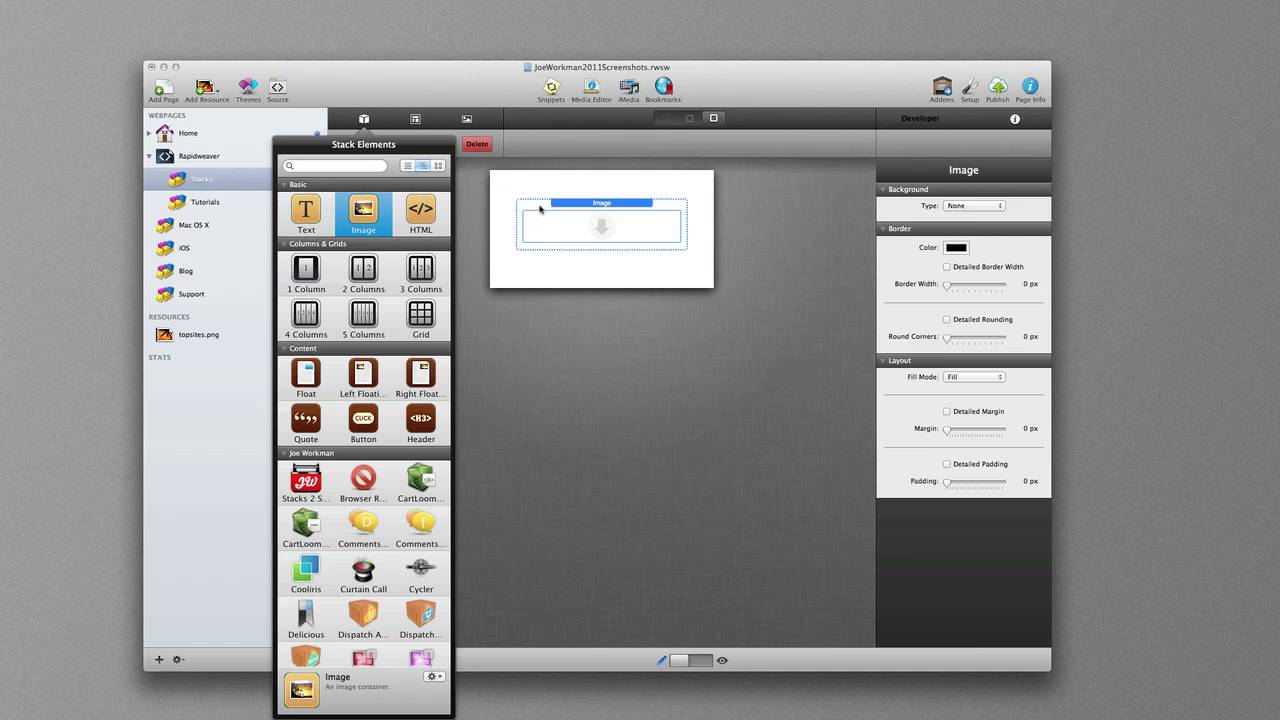
00:31 notice we have a new beautiful you I we
00:33 now have the same kind of style of
00:35 stacks drop zone in the center the noose
00:38 the settings Hut is gone we now have a a
00:41 nice settings pane on the right and our
00:45 stacks library where that used to be is
00:47 now has its own little HUD like window
00:50 okay it's now called the stack elements
00:53 library if you notice there's three
00:55 things here we have stack elements stack
00:58 templates and stacks media let me go
01:03 over oh these are so quickly stack
01:05 elements are what we used to know as the
01:07 stacks library as you'll notice there
01:09 are a lot of new default stacks Isaiah
01:12 really provided some really great new
01:14 default stacks here for us to use from
01:16 buttons to more grids to a nice little
01:20 quote stack things of that nature so
01:24 let's go ahead and look at some of the
01:25 new stack settings I'm going to go ahead
01:26 and add just a simple one one column
01:29 stack into here text deck and we
01:32 highlight that stack you'll see that
01:34 there is new default settings here
01:39 background type is none by default which
01:41 was the same before transparent
01:43 background you can also have a solid
01:44 color so if you want your background to
01:47 be a solid color or you can also have
01:50 tiled image which basically allows you
01:51 to drag and drop an image and that image
01:54 will be tiled in the background great
01:57 new feature that's an awesome feature
01:58 and one thing you've noticed is I've
02:00 flipped through these as I change these
02:02 settings the other settings change and
02:05 reflect or hide based on the setting
02:08 that I chose that's pretty revolutionary
02:10 actually
02:11 um now we have border as before you can
02:16 change the border color and border width
02:18 okay however there's now a great detail
02:21 border width option which allows you to
02:23 define a different width / border now
02:26 you could do this before but you had to
02:27 go into the advanced settings option
02:29 within stacks now it's all available
02:32 directly in the settings pane we do have
02:36 a new setting we have an option to add
02:37 rounded borders wrap rounded corners to
02:40 our our stacks which are nice and again
02:42 this is an option for every single stack
02:45 out there and of course just as borders
02:47 you can click on detailed rounding and
02:49 have a different rounded corner for
02:51 every single corner okay layout layout
02:56 this has to do with the width and size
03:00 of your stack the default which is what
03:03 most most time you're going to use is
03:05 fill which is basically one hundred
03:06 percent width however we do have other
03:09 options here we have flexible which
03:12 allows us to say we have the width at
03:14 fifty-nine percent and then we want that
03:17 left center or right okay we also have
03:21 fixed size which allows us to define a
03:25 fixed size so if we know we want our
03:27 stack to be exactly 250 pixels we can
03:31 definitely do that and last but not
03:34 least there's also a float option which
03:37 allows you to define your stack with and
03:41 then it will actually float that okay
03:46 and last but not least we have padding
03:51 and margins now previously in stacks one
03:54 the default margin was two pixels and
03:57 the default padding was five pixels that
04:00 is no longer the defaults are now always
04:02 going to be 0 and 0 so if you would like
04:05 to change the margin or the padding's of
04:07 your stacks you can definitely do that
04:08 and as before with other settings if you
04:11 click on the detailed margin you can
04:13 affect the margins of all the particular
04:16 areas top bottom left or right and the
04:18 same for patty so that is to do with the
04:22 new settings for every single stack
04:25 that's out there
04:25 every stack has these settings now
04:29 there's something also cool that
04:30 probably not a parent but and every text
04:33 box with Instax now has some new text
04:36 HTML formatting options so when you
04:39 select your text you'll notice that a
04:41 new setting pain has opened up on the
04:44 left on the right and here you can
04:47 adjust font size font weight a line
04:50 spacing if you want to double or triple
04:52 spaced do you want um letter spacing to
04:55 be you know large do you want the word
04:57 spacing to be extra big do you want it
04:59 to be automatically capitalized so when
05:02 you go we'll see that I've now affected
05:04 my text so that my letter spacing is
05:07 bigger my word spacing is bigger and
05:09 I've auto capitalized every single word
05:12 some great really great new settings to
05:15 help you guys out here now there's some
05:18 also great new settings for images so if
05:21 we have a look at the image stack in
05:23 here we'll drop this in really quick let
05:25 me add a new image into here okay now if
05:28 you double click on that image we now
05:30 enter the image editing zone within
05:33 stacks and here just as before you can
05:36 add border you can add a blur or offset
05:39 shadow you can add you can rotate your
05:42 image you can constrain the size you can
05:45 give it an alt tag all the things that
05:47 we used to be able to do before are now
05:49 available still inside this area along
05:52 with a couple other new options such as
05:54 max height than max width and when
05:59 you're done editing your your image just
06:01 go ahead and click done and you're back
06:04 to your stacks page now the next thing
06:06 that we're going to go over is templates
06:08 now these are completely new and all the
06:10 templates that you see here are out of a
06:12 box and basically they're there are a
06:14 way of providing a groups of stacks for
06:17 users so it's a way of doing maybe a
06:20 nice little um you know three column
06:24 text with headers or there's I
06:27 particularly like this little pull quote
06:29 template which allows you to have text
06:31 along with a little quote on the side so
06:34 developers can actually build templates
06:36 and save them for yourself
06:39 inside this template library now the
06:45 last option here is media now stacks
06:49 themselves can ship with their own media
06:52 gone are the days where whenever a stack
06:55 shipped with multiple images it would
06:57 publish all 200 of those images for
07:00 every single page now stacks if they
07:03 were upgraded to 20 can support stacks
07:06 media which allows me to insert media
07:08 into these into this pain that you can
07:12 use within any stack on your website so
07:15 for instance if i added let's say this
07:17 text act back in here let's add a little
07:19 bit more text okay um let's go ahead and
07:30 add a background tiled image so
07:35 basically for this tiled image that we I
07:38 showed you earlier you can go ahead and
07:40 drag one of these images directly in and
07:43 you'll notice that you now have that has
07:45 your background image for that stack
07:47 okay this is awesome it allows
07:50 developers such as my new Vimeo wall
07:53 stack I provide a different set of
07:55 navigation bullets if you wanted to
07:57 override the ones that actually are
07:59 default that ship with the stack so this
08:02 provides developers DV more options and
08:04 flexibilities for customizing stacks
08:07 with new with new and different images
08:12 now some other things that have changed
08:14 in stacks is you'll notice that there
08:17 are three different view modes up here
08:20 in the middle now the one I prefer is
08:23 the one on the far left it provides you
08:25 basically the name of the stack so when
08:28 you have multiple stacks on the page you
08:30 can kind of see what is what within your
08:31 page I think that's very very valuable
08:33 if you've purchased my stacks in the
08:36 past you notice that I used to actually
08:38 put the title of the stack itself with
08:41 in edit mode now with this new feature
08:43 in stacks to this is a lot cleaner it's
08:45 a better way and all of my new stacks
08:48 will will leverage this instead of
08:50 putting my own custom stack
08:52 title within the stack itself so the
08:55 other view modes this is the default
08:57 view mode where you still have the blue
08:59 outline for every single stack that's on
09:02 the page however uh you know you don't
09:05 have that you know the annoyance of
09:07 potentially seeing that title if you did
09:09 not want to see it and the last setting
09:13 here is probably the setting that you'll
09:16 get closest to what you see in preview
09:18 mode okay so if I were to look at this
09:21 stack or this page currently in preview
09:24 will see the content area here now if
09:28 you notice you know you remove all the
09:30 borders all the extra padding that
09:32 stacks ads and this is basically again
09:35 as close as you will get with without
09:38 switching over to preview mode now if
09:40 you do have stacks that are using
09:42 sliders or some fancy JavaScript that
09:44 will not work in edit mode okay so this
09:48 is a great way to potentially preview
09:50 static content on with in edit mode
09:53 without having to switch back and forth
09:54 to preview mode so this is a very useful
09:57 view um and and that about does it for
10:00 this video I just wanted to do a really
10:02 quick introductory two stacks to and
10:05 kind of what's changed and gabi give you
10:07 a quick feel of the awesomeness that is
10:10 coming your way so i hope you enjoyed
10:13 this screencast i hope you download and
10:15 and check out stacks to it is fabulous
10:18 it is available on special right now for
10:21 I believe the upgrade price is fifteen
10:23 dollars so you can't beat that with a
10:25 with the ten-foot pole their fabulous
10:27 price and I hope you enjoy it thank you
10:30 very much everybody I'll talk to you
10:32 later bye
10:34 you


