
Stacks Guru is born from the need to search the vast number of videos out there on stacks built for Stacks Pro and the Stacks 5 plugin for Rapidweaver.
We have scraped over 500 videos to get the transcripts for each in order to make the spoken word searchable.
Please use this free tool to help you learn and discover the awesome power that Stacks and the stacks made for Stacks have to offer.
00:06 hello everybody this is Joe workman and
00:09 it's been a while been busy writing my
00:12 right in my book and doing all kinds of
00:14 other great stuff but this is our first
00:16 we were cast in awhile and today we're
00:19 going to be reviewing the awesome page
00:21 line version to auto-update so let's
00:25 look what's in store for us the page
00:28 lime stacks got a huge overhaul um
00:30 they're much easier to use now I took
00:33 incorporated all of the feedback that I
00:35 got from you guys and and really made a
00:38 really great set of stacks here to begin
00:41 with the biggest new feature is you no
00:44 longer need to set the ID ok now the
00:47 setting still exists for backwards
00:49 compatibility and we'll go over that in
00:51 a little bit but if you're building a
00:53 new page with page lime stacks just
00:55 ignore the ID setting just build your
00:58 stacks is you're going to build a stacks
00:59 page and in your golden you're good to
01:02 go so that's an awesome new feature the
01:05 page log image stacks were rewritten so
01:07 you can drag and drop your images now
01:08 the images actually are responsive now
01:12 as well so if you're doing a responsive
01:14 web design no problem here the page on
01:16 stacks have you settled there are
01:18 actually a couple new stacks in the set
01:20 here a page line floats styled stack is
01:23 a the same as the float text SEC that we
01:26 had before but allows you to input style
01:28 text and the next is a page line list
01:30 stack it allows you to basically define
01:33 a basic list bullets or numbered lists
01:36 that your customers can actually add to
01:38 that list within page line the next all
01:41 text acts can now be justified so the
01:44 text can actually be justified within
01:46 the the window so that's really a nice
01:49 feature there repeating region stack got
01:52 a complete redone so they actually the
01:55 style of the stack itself of that
01:57 repeating region is repeated so if you
02:00 have a background color or a border that
02:02 you want to make sure it gets repeated
02:03 properly when you repeat that region um
02:06 you know it'll all get you know move
02:09 down into the newly
02:12 peated region so that's really cool a
02:15 couple really important fixes for
02:17 godaddy customers especially page line
02:20 actually works with godaddy now there
02:22 was a bunch of issues where if you had a
02:23 godaddy account your edits we're getting
02:28 overridden no matter what so that's been
02:30 fixed CSS Styles the inline styles that
02:35 you could define within the stack now
02:37 actually stay after you edit on page
02:41 line so that's really important all
02:43 those CSS styles are stored outside
02:45 externally to the from the HTML file
02:48 they're all stored in the CSS file now
02:49 so doesn't matter what you edit those
02:52 styles will will still take effect so
02:56 you does you don't need to worry about
02:57 that and lastly we got a full-blown
02:59 stacks to auto update so all of our
03:01 setting controls have a nice the news
03:03 the new look and feel of snacks too so
03:08 what we're going to do now is let's go
03:09 ahead and build a quick page line page
03:11 and then we're going to go and edit it
03:13 online so for right now let's just drag
03:16 out a couple stacks onto the page I'm
03:18 going to do a yeah let's do the new
03:20 style oops how about the be floated
03:27 styled okay and then we're going to add
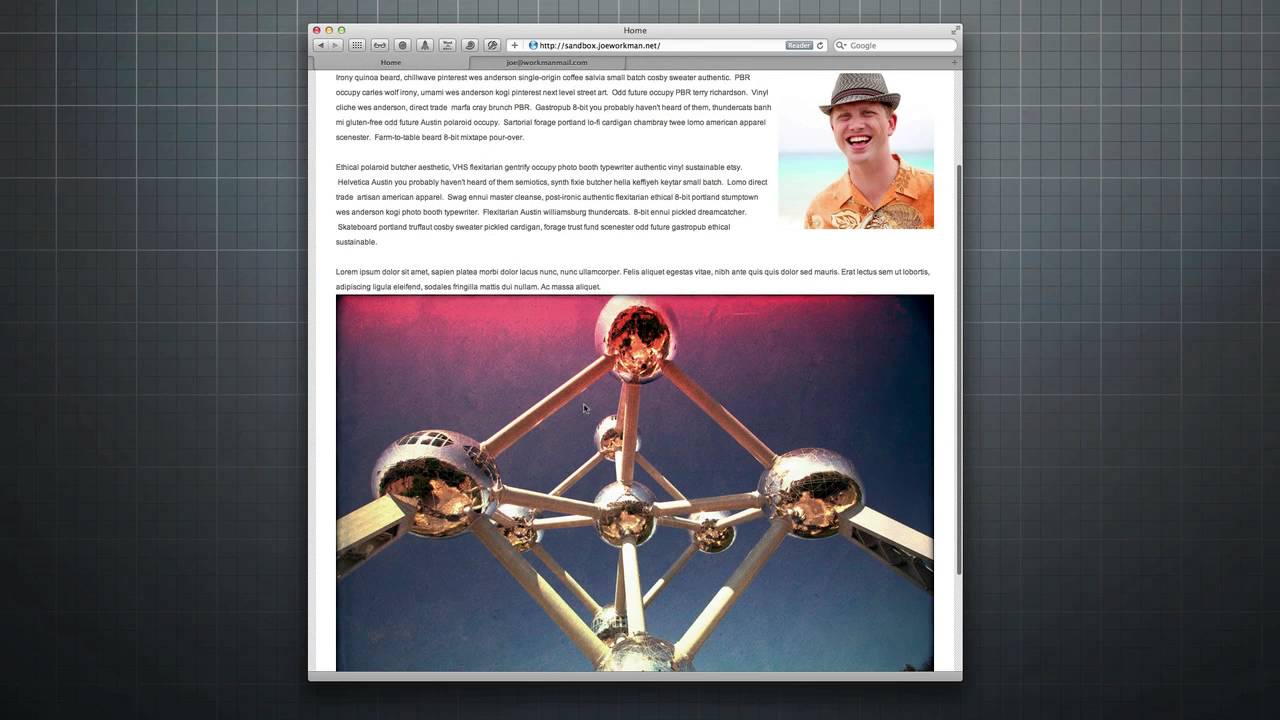
03:31 in an image over here and let's add my
03:35 beautiful gorgeous mug right there let's
03:39 get everything situated I'm going to
03:40 have my image yet to 50 s fine let's go
03:43 ahead and set this to 250 as well okay
03:48 so now i have my floated styled i have
03:51 some text and i can go ahead and publish
03:55 now if you notice I for the papal I'm 10
03:58 users no longer need to set any IDs
04:01 let's go ahead and publish so here we
04:06 have my published web page as you see
04:08 it's just a simple some text here on the
04:11 left and my image here on the right ok
04:14 now let's actually go online in two page
04:17 line and and edit this so here we are
04:20 inside the page line admin console and
04:22 this is where we can actually edit our
04:24 site so I've logged in
04:26 I've set up my site i will show you some
04:28 of the gotchas with the site set up
04:29 later on but for right now let's go
04:32 ahead and click Edit site and this is
04:34 where we can actually go in and edit our
04:36 content online so as you see here it's
04:40 loaded our page that we just created in
04:41 rapidweaver and i can either edit the
04:44 text or edit an image now I haven't
04:47 uploaded any images to my pages on
04:49 calorie gallery yet so I'm just going to
04:51 go ahead and let's edit some of this
04:52 text okay so I've added some text and
04:55 let's go ahead and save that and click
04:57 OK and at last but not least let's go
05:01 ahead and click publish so paige'll I'm
05:04 has published my newly edited file and
05:07 as you see here all of those edits that
05:11 we made to the texts are now on the live
05:13 website now one of the great features of
05:16 page lime is I can still publish from
05:19 rapidweaver and my edits that I made
05:22 online will not be overridden so let's
05:24 go ahead and have a look at that so I'm
05:27 back in my rapidweaver project and I'm
05:29 just going to quickly add in another
05:31 image so let's go ahead and add another
05:33 image to our site and what I'm going to
05:38 do is I'm actually going to since if you
05:40 notice we're using a responsive theme
05:42 I'm going to make this image responsive
05:44 so that means it's going to actually
05:46 take up the one hundred percent width of
05:47 this of the page site and as the browser
05:49 resizes the image will dynamically
05:51 resize as well so now that I've added
05:55 our image let's go ahead and publish our
05:57 changes to our web page so we've
06:00 published our website and as you can see
06:02 the our newly added image is right here
06:05 and all of the art edited text remains
06:08 unchanged it still takes in the text
06:12 that we edited from page line so that
06:14 means our edits to knock it over ridden
06:17 once we published and our images are
06:19 responsive as you see as I'm shrinking
06:22 the browser our new page line image
06:24 stack since it now supports
06:26 responsiveness it will resize them Glee
06:29 for the browser so very cool right now
06:32 I'm going to dip into some of the
06:34 nuances some setup for page lime and
06:37 some gotchas for transitioning
06:39 from 10 to 20 so to get your page line
06:43 account set up properly in order to work
06:46 with the page lime stacks let's look at
06:48 some of the gotchas here so once you log
06:50 into your page lime account go to site
06:52 settings within site settings you're
06:57 going to want to go to the Advanced tab
06:59 and you're going to want to make sure
07:01 that the ftp xml option is checked okay
07:06 then you're going to want to make sure
07:07 that you know either SFTP or ftp is
07:10 properly configured it depending on your
07:13 host and your port make sure your port
07:15 is configured to either 21 or 22 based
07:17 on your on your host okay so you're
07:20 gonna have to check with your host it's
07:22 probably gonna be the same settings that
07:23 you have set up in rapidweaver okay brie
07:26 were you are going to want to make sure
07:27 that that this is actually ftp dash xml
07:30 that is very important your the page on
07:32 stacks will not work if you don't have
07:34 this this option checked so for users
07:39 that are transitioning from pages i'm 12
07:41 page lime too i've made it really really
07:44 really simple for you the ID setting
07:46 still exists however it is hidden under
07:50 an advanced settings check box once you
07:53 check on advanced settings the your
07:55 custom ID that you had set up previously
07:58 will be used this means that all your
08:01 existing projects that you have can
08:04 still use the same ids and it will not
08:06 break any of the online edits that your
08:09 clients or customers have made now you
08:12 do need to make sure that you just check
08:13 this Advanced Settings tab to make sure
08:15 that you actually are using a custom ID
08:17 if you want to create new stacks to your
08:20 existing projects I recommend that you
08:23 just use the default if we look at at
08:25 this page line image stack that we added
08:28 in this project if you click on the
08:30 Advanced Settings tab you'll see that
08:32 the ID is now defaulted to don't use now
08:36 you can actually create an ID and add
08:38 one here and it will be used but I
08:41 recommend that you just leave it as
08:43 don't use if you if you leave it as that
08:46 page lime stacks will ignore it and it
08:49 will create its own unique ID structure
08:51 for you automatically
08:53 it will maintain that for you now one of
08:57 the features if you ever wanted to if
08:59 you did want to overwrite the user
09:01 content from rapidweaver you simply
09:04 changed the ID well since the stacks now
09:08 create these IDs for you and you can't
09:10 control what those IDs are set to it's
09:13 really simple to actually do that so
09:16 let's say for instance i wanted to
09:18 overwrite this image of me here okay
09:21 before you would just go ahead and
09:24 change the ID okay but now basically all
09:27 you need to do is just create a copy of
09:29 that stack so essentially we're creating
09:32 we're just going to hold down your
09:33 option key and drag the stack out delete
09:37 our original one and now the contents of
09:41 this stack will overwrite whatever is
09:44 edited by your user so if the user has
09:47 customized an image or maybe they
09:49 customize this text over here all you
09:52 need to do to overwrite their changes is
09:54 to basically duplicate the stack delete
09:57 your original one and whatever you
09:59 publish for that particular stack will
10:02 overwrite your users content so really
10:06 easy slam bam and you should be good to
10:09 go thank you very much for joining
10:12 everybody I hope you enjoy the video I
10:15 hope you enjoy the stacks page lime 20
10:18 is a huge leap forward in terms of ease
10:20 of use and feature set there's a bunch
10:23 of great new features and you know not
10:25 having to set that ID for every single
10:27 stack is going to be a huge time-saver
10:29 for you so thanks again everybody I hope
10:32 you enjoy the stacks and see you later
10:34 bye
10:42 I


