
Stacks Guru is born from the need to search the vast number of videos out there on stacks built for Stacks Pro and the Stacks 5 plugin for Rapidweaver.
We have scraped over 500 videos to get the transcripts for each in order to make the spoken word searchable.
Please use this free tool to help you learn and discover the awesome power that Stacks and the stacks made for Stacks have to offer.
00:00 you all heard this on why is six Afraid
00:02 of seven
00:04 cuz seven eight nine hey everyone jerk
00:13 menhir and in this video we're gonna be
00:14 reviewing some more advanced stuff with
00:17 PI right in PI you can provide your own
00:19 JavaScript functions that do some really
00:22 cool stuff and we're can I kind of dive
00:25 into how you can do that and some
00:27 resources to learn how you can maybe
00:30 write some JavaScript and things of that
00:31 nature right so let's dive in we're
00:35 gonna be looking at demos seven eight
00:38 and nine in this particular video so if
00:42 you're interested on how you know the
00:44 ins and outs of how those demos work
00:46 this is what we're gonna do in this
00:48 video again this is gonna be advanced
00:50 stuff we're gonna be looking at some
00:52 programming I'm not going to teach you
00:54 JavaScript but we're gonna look on how
00:56 you can maybe find the stuff that you
00:58 want so that you can accomplish what you
01:01 need with PI so to kick off this video
01:05 we're going to be looking at demo seven
01:07 and it's a pretty simple example
01:08 basically what it does is we have a
01:10 slider and what that slider does is it
01:13 returns the actual month so we're taking
01:16 a kind of a something that normally
01:18 gives us a number input and we're
01:20 actually selecting a month a textual
01:23 month value we're returning so let's see
01:26 how we can do that
01:27 so here we are in edit mode I should
01:30 mention that this is the demo project
01:32 that ships with Pi so you can see
01:35 everything and hopefully you've watched
01:37 a lot of the other videos for pi so
01:40 you're kind of familiar with how the
01:41 basics work so here we have a slider it
01:45 has a field name of month slider and
01:48 I've actually hidden the value of this
01:50 it could be inching that will uncheck
01:52 that and we'll see the actual value that
01:54 the slider returns so if we look at the
01:57 PI we'll see that PI does something
02:00 different here it uses it calls a
02:01 function here called pi month and then
02:04 we have parentheses and we're passing
02:05 the value from the month slider into it
02:09 so pi month isn't a built-in JavaScript
02:13 function it's something that we wrote
02:14 and basically inside PI you can go and
02:18 say custom JavaScript functions in the
02:20 PI Settings so when you check that it
02:23 gives you a little drop-down where you
02:25 can then type in your custom JavaScript
02:28 function now as we said in previous
02:30 videos a lot of times if you're gonna
02:32 want to do this you're not gonna want to
02:34 type this out directly inside
02:36 rapidweaver on this window is kind of
02:38 tiny I mean it's easy to make some
02:40 mistakes in here so what we're gonna do
02:42 is I'm gonna use vs code in this video
02:44 it's my code editor of choice but you
02:47 can feel free to use sublime text or
02:49 atom or coda or any other code editor
02:52 that you feel that you want to use so
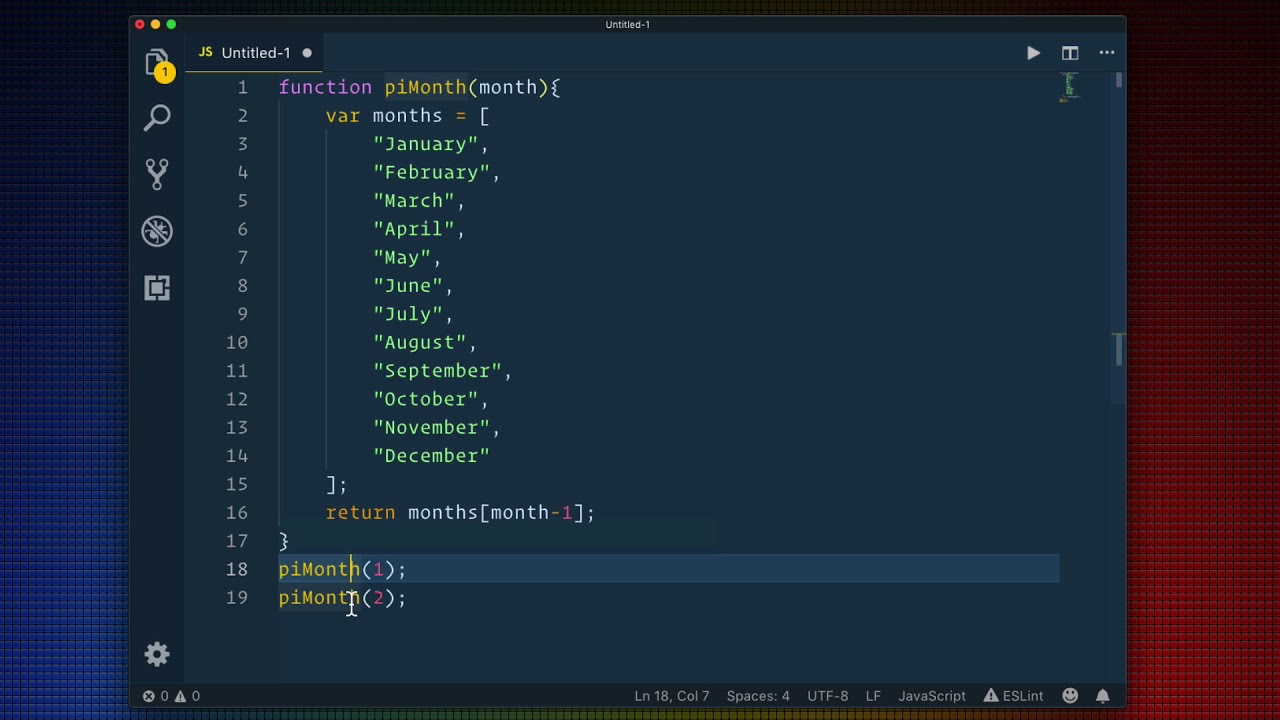
02:55 here i've pasted that function into vs
02:58 code and by default it's gonna do a new
03:01 document as plain text so i'm just gonna
03:03 go down to this little bad boy down here
03:05 click on the bottom we're gonna tell it
03:06 that it this is javascript now you might
03:09 want to save this locally right and it
03:11 may be you in your the same you know
03:13 folder that your project is in so you
03:15 can access this file and see this code
03:17 without having to copy/paste all the
03:18 time right but as you see here this is
03:21 really cool
03:22 it gives us a bunch of functionality um
03:24 it gives us kind of syntax highlighting
03:26 right and what's cool about this is if
03:29 you make a syntax error javascript is
03:31 very syntax error prone right so if you
03:34 have any issues it will immediately
03:37 alert you that hey there is a problem
03:40 here i was a
03:41 expecting and if you hover over it says
03:43 I was expecting a comma and I didn't see
03:45 one so I noticed I was missing a comma
03:49 right there now if you don't see any of
03:52 those little red squiggly lines you're
03:54 golden now this is this area is a little
03:57 bit different than in the PI formula
04:00 area remember in the PI formula area R
04:03 let me go to let's go back to
04:05 rapidweaver really quick and I'm going
04:07 to copy and paste this
04:14 okay if we notice here I pasted this
04:16 into the indy from our pi formula right
04:19 and Piatt remember has this special
04:22 syntax that has the squiggly lines right
04:24 that and then we have the name of our
04:27 form input field and this is the way we
04:29 we actually grabbed the form input and
04:32 then insert into our into our formula
04:35 now that is something that's special to
04:37 Pi and you are going to get little
04:39 syntax errors if you are doing that now
04:42 inside these custom functions you cannot
04:44 use these squiggly lines at all right so
04:48 I can't use month slider inside my
04:51 custom function okay you cannot do that
04:54 it won't work your custom function has
04:57 to be pure JavaScript so if you're doing
04:59 custom functions you have to make sure
05:02 you have absolutely zero squiggly lines
05:04 or your page will break okay
05:08 so let's go ahead and remove this if
05:10 basically what i'm doing here is i'm
05:12 taking a month slider and i'm passing it
05:16 as a parameter to a function pi month so
05:20 in here pi month i'm saying that we have
05:24 one argument it's called a month and
05:27 then i'm going to i can now use that as
05:30 a variable inside my function okay so
05:34 here I create a array an array of months
05:39 so I'm creating a variable called months
05:41 and it is an array that contains all the
05:44 month names and then at the very end
05:47 what I'm doing is I'm returning months
05:49 and then I'm taking month minus one
05:52 now the reason is if you've programmed
05:55 you know that arrays are zero one two
05:58 three four five six seven eight nine ten
06:01 right so it starts with zero the first
06:03 element index is zero so if I did months
06:07 zero
06:11 is gonna return January if I were you do
06:13 months one that's going to return
06:15 February okay
06:16 now remember we're passing the variable
06:19 from our input from our slider to this
06:24 function and that slider does one two
06:27 three four so when I pass one I want to
06:31 make sure I get January so if I were to
06:34 just do a month okay and I run here
06:40 let's just do this right if I were to do
06:42 PI month one
06:46 okay this would return in this
06:49 particular state it would return
06:51 February
06:53 right and if I wanted to do PI month
06:58 - okay pi month - would return March
07:04 because in this particular syntax I'm
07:08 asking I'm taking the number - it's
07:11 being passed to pi month and that
07:13 variable is then passed into here
07:17 so essentially what I want to do is if I
07:19 want pie month one to return January I
07:23 need to subtract one from the value
07:26 that's passed so now PI month one is
07:30 going to be this remember this value
07:32 here month is the number one but the
07:36 index of January is zero so I just do
07:39 one minus one is zero so essentially now
07:42 this is correct we're returning this
07:44 returns January this returns February so
07:48 on and so forth
07:50 so that pretty much wraps it up with how
07:53 demo 7 works now I want to note if you
07:56 add a custom function into PI you can
07:59 actually use that custom function in all
08:01 of the PI instances on the page right so
08:03 you only have to define a custom
08:05 function once and you're golden now if
08:08 there are other places that you can
08:10 define custom functions um if you don't
08:12 want to define it here in PI you can
08:14 actually let's say we turn that off you
08:17 can actually define that here in the
08:19 JavaScript tab of your page inspector
08:21 right oops so if I go ahead and it's not
08:26 that one either
08:33 so I can go ahead and paste that inside
08:36 the JavaScript tab here and then I can
08:39 use now I can use pi month inside my PI
08:42 instances because it's here locally on
08:44 the page now there's also one other
08:47 place that you can you can actually
08:49 define these functions if you wanted to
08:50 be maybe site wide so you can use this
08:52 function across multiple pages if you go
08:55 to the code area inside rapidweaver and
08:57 go to the javascript tab you can
08:59 actually define it there as well so
09:03 there's three different places you can
09:05 actually define these functions um if
09:07 you only need to have it you know for
09:09 one PI instance or maybe you know have
09:12 it within you know one page I do
09:15 recommend maybe you actually do it
09:17 inside pi that ray it's all encapsulated
09:19 into this one place you don't need to
09:22 worry about if you move this to another
09:24 project this is going to work because pi
09:27 month is embedded into this pi stack so
09:30 if you copy and paste it wherever it
09:31 will always work but you know you do
09:35 have the freedom to actually define
09:37 those and of in the other locations
09:39 within rapidweaver as well it is
09:41 perfectly valid so again if we preview
09:44 demo we'll notice that as I do this
09:45 slider again here's the value that the
09:47 slider actually has so it is five and
09:50 then it's again that five is being
09:53 passed to that pi month function which
09:56 is then returning the may value okay now
10:00 let's move on and look at demo eight now
10:04 this one is very complex
10:05 right essentially what it does is we
10:07 have a few different things and if you
10:10 insert your birthday so let me put in
10:12 mine if you insert your birthday it will
10:15 tell you the exact day of the week that
10:17 you were born on now this has some
10:20 pretty complex formulas and I have to
10:23 give full credit to Paul Russell who
10:25 helped me create this demo for you know
10:28 creating this it's it's a mad scientist
10:31 monstrosity that is pretty cool and he
10:34 documented here the Wikipedia article
10:37 that he used to actually you know find
10:40 the formula and kind of create all of
10:42 this stuff so here we are demo eight the
10:45 top part is mostly information
10:47 has an image of the actual mathematical
10:49 formula that we're going to be creating
10:51 and using and essentially here we have a
10:55 three column that has the various dates
10:57 okay so this first select box is going
11:00 to be the year this one is going to be
11:03 the month and this one is going to be
11:06 the day of the month
11:10 okay now next up you'll notice that this
11:14 has a slew of custom functions in here
11:17 so if we look at these pies there's
11:19 actually some complex formulas going on
11:21 and Paul actually broke all of these
11:24 down into individual components so it's
11:27 a little bit easier to manage because
11:29 you can break the formula down into very
11:31 small itty-bitty bits that you can then
11:34 name and then you can leverage pies from
11:36 other pies right so it's pretty cool if
11:39 you notice here he says get the K value
11:41 um that all represents here in this
11:44 formula so you can see which where he's
11:46 getting K and all the other value you
11:49 know variables within that equation and
11:52 at the very end right actually this one
11:55 here this is actually kind of where he
11:56 kind of puts it all together and then
11:59 that outputs a number which then he then
12:02 takes here divides it by seven and
12:06 rounds it and then here he's actually
12:08 then getting the day of the week based
12:10 off that right so this is a very complex
12:14 set of equations I'm not going to go
12:17 through the logic in this and waste your
12:18 time please go through the explanations
12:21 if you notice we have the get K value
12:23 here's another way of getting the K
12:25 value we get the J value and those all
12:28 reference the vacuole values here in
12:30 this equation so that's the J value that
12:34 you know we have one that does the 13 n
12:36 plus 1 so on and so forth right so it's
12:39 very it's broken down very granular Li
12:42 and at the end here this is where we
12:44 return the actual day of the week based
12:47 off the number that has passed to it but
12:50 the point here is that we can use
12:53 external functions and how we can take
12:55 something complex and break it up into
12:58 multiple different equations so that we
13:01 can ultimately get the results that we
13:03 want
13:05 now last step we're gonna look at demo
13:07 nine and if you watched vcss pie video
13:11 you probably saw about how we you know
13:13 did this to create you know use these
13:16 sliders to adjust the color values we're
13:18 gonna dive a little bit into how to
13:20 actually generate these color values and
13:23 how we convert them and things of that
13:24 nature so here we are at demo nine and
13:26 demo nine has three different sliders
13:28 for hue saturation and lightness and
13:31 those make up the HSL color value for a
13:34 particular color so if we look at this
13:36 first pi value for HSL this returns an
13:39 HSL string now with HSL values you
13:44 actually have to always have three
13:45 digits provided so if it's one it has to
13:48 be 0 0 1 so this fancy little function
13:51 here basically ensures that we always
13:55 have a three digit number so no matter
13:57 if you pass one or 100 they will always
14:01 do the 3 digit value of that so if we if
14:05 the number is less than 10 add 0 0 if
14:08 the number is less than 100 add a 0 to
14:11 the beginning and if it's greater than
14:13 100 it does nothing right it just
14:15 because that will obviously be a
14:17 three-digit number so this this fancy
14:21 little function here just does that
14:25 now this pie function here this one is
14:28 returns basically converts an h SL
14:31 string to RGB right so here we are we're
14:37 passing the H the s and the L values so
14:40 here in here we're taking the hue the
14:43 saturation and the lightness and we're
14:46 passing that to this function now it's
14:48 important here is now Paul helped me
14:51 create this as well and Paul didn't
14:54 write this JavaScript function
14:56 you might think how will then how did he
15:00 do it
15:00 well he googled it he said I have an HSN
15:04 value how do I convert that to RGB in
15:07 JavaScript and he found this fancy
15:09 little function I'm not even going to
15:11 try to explain all of this code to you
15:14 because we essentially copy pasted it
15:18 from online and another interesting
15:20 thing if you notice here at the very
15:21 bottom is it uses the ad Z function
15:25 which is actually up here ok so again
15:29 remember earlier I said that you can
15:31 actually call functions from other
15:33 functions right so we defined a function
15:36 in the HSL and we actually uses that
15:38 inside of another function
15:41 so this HSL to RGB is a great little
15:46 helper function that takes the HSL
15:49 values and converts it to RGB string
15:52 same thing here we have a hex PI that
15:57 returns it takes the HSL value and
16:00 converts that to a hex string again we
16:03 didn't write this javascript function we
16:05 just simply googled HSL to hex
16:08 javascript and we found this cool little
16:11 function so for fun let's just do that
16:13 let's do HSL to RGB javascript so we
16:19 google that and we have here we have a
16:21 stack overflow as a very popular online
16:23 forum for developers so HSL to RGB
16:27 conversion javascript and if you know it
16:32 this function here looks crazy similar
16:35 to the exact function that we used
16:38 inside our javascript i think we we
16:42 modified it slightly just to do that
16:44 that adds e so that we have that
16:46 function so we can always have you know
16:48 zero and stuff like that but very cool
16:50 as you see you can get a lot of bonus
16:53 here just by googling and finding some
16:55 JavaScript functions now obviously I
16:57 can't guarantee that these JavaScript
16:59 functions will do exactly what you want
17:00 and I can't support them but if you're
17:05 lucky you can find what you need and it
17:07 works pretty cool stuff and just to
17:11 further analyze this this HSL to hex hex
17:14 function remember it is here we have HSL
17:18 to hex and this takes three parameters
17:20 there all if you notice they are
17:22 separated by commas okay and we do
17:25 exactly that syntax here we do HSL to
17:28 hex and then we provide the hue comma
17:31 the saturation comma and the lightness
17:35 and then we close that with the
17:36 parentheses
17:39 so it's pretty simple right um again
17:42 finding these JavaScript functions and
17:44 maybe writing them and getting them to
17:46 work might not be so simple but um if
17:50 you can get over that hump there's a lot
17:52 that you can do with Pi now before we
17:55 close out I wanted to show you on the PI
17:57 product page if you go to the FAQ
17:59 section you'll go down and you'll see
18:01 there's a fake you here for external
18:03 resources for JavaScript and PI helpers
18:05 and here is a bunch of links that will
18:08 help you out so here we have one let's
18:10 say we were learning some JavaScript
18:11 functions you can here's a great
18:13 resource on how to learn how to write
18:15 your own JavaScript functions
18:19 now this site w3schools has a lot of
18:23 wonderful data and I just linked to a
18:26 few articles here's another one that I
18:27 linked to on that FAQ I'm kind of just
18:30 an overview of numbers number methods so
18:33 you know a number to a string to
18:36 exponents things of that nature right
18:38 there's also j/s math this has a lot of
18:41 stuff that if you watch some of the
18:42 previous videos you notice I math pie
18:45 and math around power here we have the
18:48 square root we have absolute values
18:51 right so an absolute value ceilings
18:54 floors sine cosine min/max values stuff
18:59 like that so there's a lot of really
19:01 great resources here for learning how to
19:03 build out your JavaScript and this
19:07 really cool it has like a try yourself
19:08 thing where you can kind of type out
19:10 your own things and kind of learn right
19:13 so you could type out your stuff here
19:15 and say run and it will run it over here
19:17 so this is a great resource again
19:20 they're all linked up here inside of the
19:23 FA cues for pie and I linked all these
19:26 link here to various articles on w3
19:29 schools and then we have some other
19:31 resources on some of the other external
19:34 libraries that PI supports we have extra
19:37 videos on just those so if you want if
19:40 you're interested in the finance and
19:41 math and moment date functions then make
19:45 sure you check out those videos so
19:47 hopefully I didn't explode your brain I
19:49 know I jumped straight into the 60 miles
19:52 an hour zone probably for most people
19:54 and it maybe made your brain hurt I'm
19:58 sorry but I hope that you see the power
20:01 of this right and you know it's just
20:03 gonna take some playing around if you're
20:04 gonna want to use some of these
20:05 JavaScript functions um and you're gonna
20:07 have to learn a little bit so I hope you
20:11 you you know play around with things and
20:13 you learn I love helping people learn so
20:16 make sure if you have questions post
20:18 them on to Weaver space and me and other
20:20 users I'll probably happy to help out if
20:22 we can and I'm excited to see what you
20:25 build with Pi again these advanced
20:28 JavaScript and custom functions they're
20:31 they're definitely a whole new
20:33 and it requires that you do a little bit
20:35 of work and programming on your side but
20:37 the benefit could be exactly what you've
20:41 always wanted and I hope that pie allows
20:44 you to do that
20:45 so up here enjoying pie and I look
20:47 forward to see what you're building with
20:48 it and make sure you share things that
20:50 you make on Weaver space and we will
20:53 talk to you soon


