
Stacks Guru is born from the need to search the vast number of videos out there on stacks built for Stacks Pro and the Stacks 5 plugin for Rapidweaver.
We have scraped over 500 videos to get the transcripts for each in order to make the spoken word searchable.
Please use this free tool to help you learn and discover the awesome power that Stacks and the stacks made for Stacks have to offer.
00:06 hey everybody Jordan here and in today's
00:09 video I wanted to quickly go over the
00:12 new agent stacks right so I'm just gonna
00:14 review the demoproject go over some of
00:16 the settings give you an idea of how to
00:18 use them so without further ado let's go
00:20 ahead and jump on in okay so here is the
00:23 agent demo file and this is the actual
00:25 file that was used to build the demo
00:28 site that you probably already saw for
00:31 agent okay so I'm going to go over all
00:33 the examples that we see inside that
00:37 demo file and teaching how I did it okay
00:40 so let's go ahead and and actually let's
00:43 look at the site really quick so here is
00:45 the actual site and we'll notice here
00:46 that the first example we are going to
00:49 hide content on mobile okay so here on
00:52 the desktop I'm showing a grid of
00:54 images but then on mobile we're only
00:56 gonna show one image right and it's
00:59 important to note here that you can't
01:01 just resize the browser okay and see
01:05 what it's going to look like on mobile
01:06 that is not what agent does right agent
01:09 does not use media queries or CSS to
01:11 hide things the whole point is that it
01:14 delivers customized content to the
01:18 browser based on the device and other
01:20 data that your user is actually using
01:23 okay so if we wanted to see what it
01:25 would actually look like on mobile so if
01:28 you have Xcode installed you can
01:29 actually use the iPhone simulator inside
01:31 Xcode okay and essentially you open up
01:34 it's just an iPhone right so you can
01:36 open up Safari go to your browser and
01:39 what we'll notice is if we scroll down
01:41 we only see a single image in this area
01:44 okay so again this is the iPhone
01:46 simulator that ships with Xcode you can
01:49 just download that from the from the App
01:51 Store and go ahead and it'll just launch
01:54 like an iPhone you can go ahead and up
01:56 in the hardware menu you can go device
01:59 you can choose the operating system and
02:01 as you see here you can choose iPads
02:03 iPhones iPhone esses iPhone plus sizes
02:06 right so there's a bunch of devices here
02:09 that you can choose and this is how you
02:11 can test as if it was a native
02:14 on your Mac so here's how we accomplish
02:17 that we'll see that we have this agent
02:19 stack now inside here I'm just using my
02:21 free placeholder image stack it just
02:23 like picks random images off online and
02:25 throws them in there for us okay so in
02:29 the agent stack go ahead and let's look
02:31 at the settings first you'll notice the
02:33 first few settings here are basically
02:37 only settings to help you preview things
02:40 in in rapidweaver so by default is gonna
02:43 be desktop Mac OS and Safari okay if we
02:46 wanted to potentially preview this and
02:48 let's go ahead and preview this page
02:50 so now we're gonna see if someone from a
02:53 desktop running Mac and Safari was
02:56 viewing this web page this is what they
02:58 would see okay now if we wanted to
03:00 potentially see what it would look like
03:02 if someone on a mobile was on there we
03:05 can go ahead and change the device to be
03:06 mobile okay
03:08 this will customize this basically
03:10 forces you to be able to preview the
03:13 content as if we were on a mobile device
03:15 inside rapidweaver okay so all of these
03:19 settings at the top they do not ever get
03:21 published they are only used for preview
03:24 okay so you can actually preview your
03:26 content right so that way if you're
03:29 previewing you know you want to make
03:30 sure something looks good before you
03:32 actually publish it right so this allows
03:34 us to actually preview that data
03:35 okay the next settings first is the
03:39 action okay now the action allows us to
03:42 show content hide content or both okay
03:47 in this particular instance I'm using
03:48 both and when you use both what you'll
03:52 notice is we have an if-else statement
03:55 so it's essentially if my condition is
03:58 true display this content else display
04:02 the content below so in this particular
04:04 case my condition is mobile device
04:07 that's it
04:08 so here I have device set to mobile if
04:11 that is true okay it's gonna display
04:14 what is in this drop area which here I
04:16 have a single image if that is not true
04:19 it's gonna go ahead and display the grid
04:23 of images okay now if I wanted to target
04:26 mobile and tablet users I could do that
04:29 and I could do this I could check mobile
04:31 and tablet and then for mobile and
04:34 tablet users it's gonna show a single
04:36 image and then for desktop users it will
04:38 show a grid very simple right very easy
04:41 now if you're wondering what bots are
04:43 that is basically search engines and
04:46 other sort of BOTS on the internet that
04:48 are going to troll your website now
04:53 go into a little bit more advanced
04:55 settings here if we click on this plus
04:57 button you'll notice that we have some
04:59 more detailed things that we can look at
05:00 we can go for platform and browser ok so
05:06 inside platform you can say I want to
05:07 target Mac OS or whatever OS is you want
05:10 to target ok and these add to your
05:12 condition now you can ignore devices so
05:15 if we go ahead and say basically accept
05:17 all devices that are running Mac OS we
05:20 can do that ok or all devices that are
05:23 running iOS or something of that or
05:26 Linux ok and then you can also target
05:29 browsers so I can target Safari in
05:32 chrome so right now we would we would be
05:35 targeting all iOS devices in this
05:38 example that are running Safari and
05:40 chrome ok so it really gives us some
05:43 very granular uhm data now I really
05:47 don't think many people are gonna be
05:48 targeting specific platforms and
05:50 browsers very often ok I think a
05:53 majority of the time we're simply going
05:55 to be targeting a device right so all
05:57 mobile all tablet all desktop or a
05:59 mixture of those ok that's probably what
06:03 we're gonna be doing a majority of the
06:04 time
06:06 now if you only wanted to you know
06:09 change this up let's go down a little
06:11 bit okay and let's look at here's an
06:14 example of using that platform specific
06:17 data so here in this example I'm
06:19 actually gonna display a specific
06:22 download button based on whether or not
06:24 my users are run on Mac on a Windows
06:26 machine on an iOS device or an Android
06:30 device okay so if we go ahead and look
06:33 at this download for Mac button you'll
06:35 see that I have it set to show because I
06:37 only want to show data um if my
06:40 condition is true so here I'm gonna show
06:43 if they're on a desktop running Mac OS
06:49 that's it next off if we look at the
06:52 windows we'll see that we're gonna show
06:54 data if it's on the desktop running
06:56 Windows and of course pretty simple
06:59 right iOS is gonna be show on any device
07:03 that's running iOS and then further on
07:06 on Android we can you know show any on
07:08 any device on something running Android
07:11 so here's a good use case for you know
07:14 finding the platform and delivering
07:17 specific content to those users on that
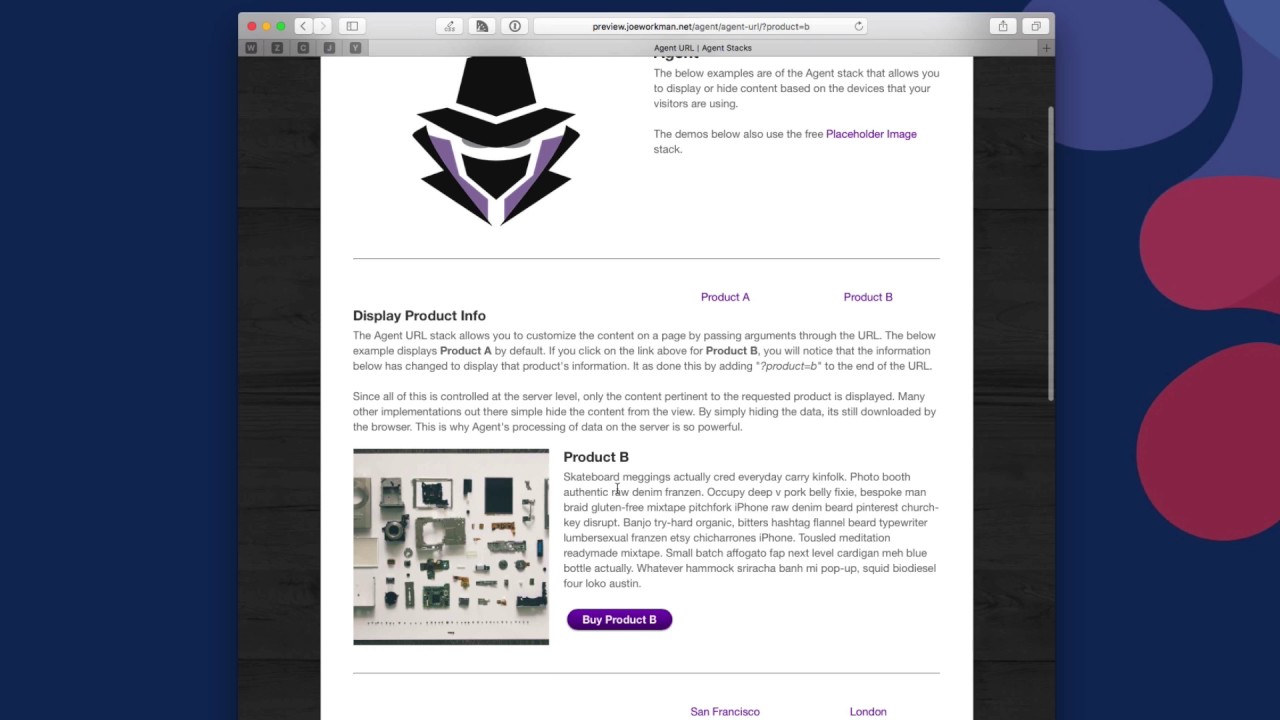
07:20 platform now let's look at the agent URL
07:22 stacks these are pretty cool because
07:24 they allow you to customize the content
07:25 based on purely passing parameters to
07:28 the URL okay so in this instance if we
07:32 look at displaying this Product data
07:34 okay we're by default displaying product
07:38 a if I wanted to display product B I
07:40 could click this button okay here and if
07:44 you'll notice all it all that button did
07:45 was added a little parameter to the URL
07:49 it added question mark product equals B
07:52 okay and when it did that it displayed
07:55 the information for product B here we no
07:57 longer see information for product a
07:58 which we could go back to right click on
08:01 product a and we get our information for
08:03 product a okay and what's cool all of
08:05 this is done inside of a single wrap
08:08 mover page okay let's go to this another
08:11 example here is custom locations right
08:14 same thing if we click on London it's
08:16 going to take us to location equals
08:18 London okay and same thing for San
08:21 Francisco so it allows us to you know
08:25 customize the content that users are
08:27 gonna see on the page now next up is a
08:30 very real-world situation that I know a
08:32 lot of you actually use and that's
08:34 building multi-language web sites okay
08:36 so by default if we look at this quote
08:38 we'll see that it is in English I'm
08:41 going to go ahead and click on German
08:43 and we'll see that this quote has been
08:46 changed to German and you'll notice that
08:48 all I did is added some parameters to
08:51 the end of the URL very easy let's go
08:54 ahead and look at this page in
08:55 rapidweaver and see how we built it so
08:59 here we are on the agent URL page and
09:00 what you'll notice is let's look at
09:03 the Asian URL stack that's controlling
09:05 product a if you look at the settings
09:07 you'll notice that the settings are
09:09 exactly the same in terms of the action
09:11 for the agent stack we can show hide or
09:14 do both right
09:15 so both is gonna give you that if else
09:17 logic but for this instance I just want
09:20 to show okay the rule is gonna be we
09:23 want to parse a URL parameters okay
09:25 we're going to give it a key and a value
09:28 now this key and value is what gets
09:31 passed to the URL right so as you saw it
09:34 was product equals B or product equals a
09:36 right so that's exactly that key value
09:38 payer that you're gonna be setting here
09:40 now this particular stack has this
09:44 setting checked set as default value
09:46 what that does is if no parameters are
09:51 passed to the URL at all it's actually
09:54 going to display this one as the default
09:56 so basically it's defaulting product
09:59 equals a on the page so if we set
10:02 product equals B in the URL this one
10:04 won't be displayed but since nothing is
10:06 set product a will be displayed okay um
10:09 then we have the persistence settings
10:11 we're gonna ignore those for right now
10:13 okay we're gonna review those in just a
10:15 few minutes and this preview button is
10:17 only for inside rapidweaver preview
10:19 again this is gives you a way to
10:21 actually preview your layouts and
10:23 content without actually having to open
10:25 it up in a browser and add some URL
10:27 parameters now before we go on let's
10:30 look at some of these other rules as you
10:31 saw the default rule was URL parameters
10:34 okay we can also have logic based on URL
10:38 parameter not present what this does is
10:41 if basically it's allowing you to define
10:45 a default basically what this does is it
10:48 gives you another way to define a
10:49 default for your page so for this
10:53 example I set the key to product so if
10:56 no product was defined basically in the
10:59 URL
11:00 okay this content would be displayed now
11:04 in this particular example I wanted to
11:06 display product a by default so instead
11:09 of using that setting I just check this
11:11 box saying set as default value but if
11:14 you want to separate that default value
11:16 out
11:17 you can do that simply by using that URL
11:21 parameters not present rule now the last
11:24 rule which I'm I don't have an example
11:26 of a use case inside this demo file but
11:29 it's pretty simple right
11:31 you can basically parse the sub domain
11:33 so if you have let's say um this is
11:36 great for like language based things
11:38 maybe you have um or even location let's
11:41 say you have English stop my website
11:43 comm right basically what this could do
11:47 is it could parse that English out and
11:49 say oh we're on the English sub domain
11:52 I'm gonna be displaying this data okay
11:55 or maybe you're doing London dot my
11:57 company comm and you want to have some
12:00 specific data just for London okay um
12:04 and you can control all of that via the
12:06 agent URL stack very powerful very
12:09 simple concept that you can go very far
12:11 with so further down the page we'll
12:13 notice that we have the product be stack
12:15 it's very similar here only I set the
12:18 product value to be be in the settings
12:20 and obviously I don't have it set as
12:22 default value because I have product a
12:24 as my default and if we look at the
12:27 location data its same exact thing as
12:29 the product right we're displaying the
12:31 San Francisco data by default and then
12:33 we have our London data which is
12:35 location equals London okay as the URL
12:37 parameters so now let's look at the
12:40 website localization the multi-language
12:41 options some very cool things are
12:44 possible here okay if you notice I have
12:47 three different quote stacks all three
12:50 have different languages we have English
12:51 German and Portuguese okay
12:55 and if you look at the URL settings we
12:57 have lang equals English which is set to
12:59 a default value okay and on the German
13:02 one we have lang equals de which is
13:04 German okay and then on the Portuguese
13:07 one we have laying equals PT which is
13:09 Portuguese and then at the bottom here
13:13 we just have some buttons that we can
13:14 use to switch um now I didn't show you
13:18 how you can actually you know have a
13:19 button really easily and switch and add
13:22 URL parameters via button if you notice
13:25 here for let's just look at the English
13:26 one let's look at the set link if you
13:28 notice all I did was add a question mark
13:30 Lang equals en which is my key value
13:34 pair okay and what that does is gonna
13:36 basically refresh the page and add those
13:39 parameters to the URL for you very very
13:42 simple so as you see here with the
13:44 language concepts um it's very simple
13:47 it's exactly like we did the products in
13:49 the cities I have different content for
13:51 different languages okay and based on
13:53 the URL parameters passed I can change
13:57 the language of this particular content
13:59 area now what about that persistence
14:02 setting okay so here we have um if you
14:06 notice the quote stacks for it all of
14:08 these languages have a persistent set to
14:11 session let's jump over to Safari and
14:14 see what that actually does so here I'm
14:17 on the agent URL page and I've set my
14:19 language to be German we can see that in
14:21 the URL I've clicked this German button
14:23 okay now know since I've now set my
14:27 language as German that is set as a PHP
14:30 session variable what's called a PHP
14:32 session variable and it will be
14:34 remembered across all the web pages from
14:37 the entire web site and I don't need to
14:39 switch my language again so we can see
14:42 that by going over to the agent persist
14:44 page now once I click on this page we'll
14:47 notice that the language here is set to
14:49 German even though there are no URL
14:52 parameters and the reason is we have
14:55 that persistence set to be session
14:58 inside the agent URL stack now I can
15:01 easily switch my language preference by
15:04 just passing another URL argument so if
15:07 I want to change the Portuguese I can go
15:08 ahead and click on
15:09 it's gonna change this page to be
15:11 Portuguese okay but since I have
15:14 persistence set I can go back to the
15:16 agent URL page if we scroll down we'll
15:19 see that we have Portuguese here on this
15:21 page as well
15:23 this is very powerful it allows you to
15:26 control basically user preferences
15:29 across multiple pages across your entire
15:32 site now if we look back at the agent
15:36 URL stack you'll notice that there is
15:38 another persistence and that's set to
15:40 and that is links okay if you set this
15:43 to link okay essentially what its gonna
15:46 do is when a user passes a URL parameter
15:49 in this case um English or German okay
15:53 what it's gonna do is it's going to
15:54 actually append those URL parameters to
15:59 every single link on your web page so
16:03 that way if anyone clicks on those links
16:05 we can ensure that those URL parameters
16:07 will also be passed to those web pages
16:10 that they link to okay the session is a
16:14 little bit more magic right you don't
16:16 really see it happening because it
16:17 happens all in the background links are
16:20 very apparent because when you click on
16:22 the link you'll actually see the URL
16:24 parameters when you click on different
16:26 links and the URL parameters will be
16:28 passed around your website okay but the
16:31 session stuff is pretty cool it's kind
16:33 of like magic that's the ins and outs of
16:36 the agent stacks I hope that you you
16:39 know you found this useful I hope you
16:40 understand how you know as you see
16:42 they're very simple but by taking those
16:44 simple ideas we can really make some
16:47 really cool complex situations on our
16:50 web designs and really leveraging single
16:53 web pages instead of having to create
16:55 multiple web pages or even multiple
16:58 websites right so I'm really excited to
17:02 see what you guys do with this um I love
17:04 the agent stacks because as I as in the
17:07 other agent video we talked about how it
17:10 will improve your website performance
17:12 because it customizes the data and only
17:16 supplies the data that you want on a per
17:18 device basis and not only that we can
17:21 get granular and get it to customize
17:23 data for that user right depending on
17:26 what device he's using these using
17:27 Windows or iOS or Android right this
17:30 really getting towards customized data
17:33 for our visitors very exciting stuff now
17:37 it may have blown your mind that you
17:40 didn't know that the agent stack does
17:43 something differently than other user
17:45 the other stacks that we've normally
17:47 seen like the visibility stacks or
17:48 they're responsive settings inside that
17:51 are baked into every single stack right
17:53 those just hide your data all that data
17:58 is still downloaded from the server it
18:00 still exists if you look at the source
18:03 code and everything that's downloaded
18:05 but it's just hidden okay
18:09 so just because you're not seeing it
18:10 doesn't mean it's there but with the
18:12 agent stack the content isn't there at
18:15 all
18:15 it only downloads what it needs right it
18:20 has to be in obviously it has to be
18:21 inside the agent stack right
18:23 but it only downloads the content that
18:25 is needed for that particular region
18:28 right or that rule so that's cool now if
18:31 you didn't know we actually have a bunch
18:33 of other stacks that do similar things
18:34 in terms of you know hiding stuff and
18:37 not downloading on the server okay that
18:39 are different some from many of the
18:41 other competitor stacks out there okay
18:44 such as TARDIS TARDIS is a a server
18:47 based rules where you can time you know
18:49 have control of time right so you know
18:52 the content will only be downloaded
18:54 during a specific time window that you
18:56 set inside this TARDIS tax we have slot
18:59 machine and that allows you to randomly
19:01 display data right so you can give it
19:03 ten you know ten potential things to
19:06 display and it will only display one
19:08 okay but only one is downloaded right
19:13 not all ten like some other things out
19:15 there okay other things will down a
19:17 little all ten and show one my slot
19:20 machine only downloads one so slot
19:22 machines a really cool stack for
19:24 randomly displaying data it's cool um we
19:27 have geo target which allows you to
19:29 display data based on the location or IP
19:32 address of your user so that's a really
19:34 good thing in terms of if you want to
19:36 show something to your particular
19:38 country or your city or locale right
19:40 your state that is a great stack for
19:44 targeting those users um so yeah so
19:47 again displaying things on the server
19:49 and downloading exactly
19:51 what you need will definitely improve
19:53 web web performance right
19:55 especially with images right images are
19:57 big and they take a while to download so
20:00 I hope you found this video useful um I
20:03 hope you enjoy agent and check out some
20:05 of those other stacks on I mentioned
20:06 right slot-machine TARDIS geo-target I
20:10 think those are the three that are that
20:13 are kind of very strongly related to
20:14 agent and in terms of controlling
20:17 content and only sending that the
20:19 necessary content down to the browser so
20:22 again thank you very much for watching I
20:24 am off to our Friday hangouts I'll see
20:27 you later bye


