
Stacks Guru is born from the need to search the vast number of videos out there on stacks built for Stacks Pro and the Stacks 5 plugin for Rapidweaver.
We have scraped over 500 videos to get the transcripts for each in order to make the spoken word searchable.
Please use this free tool to help you learn and discover the awesome power that Stacks and the stacks made for Stacks have to offer.
00:00 hey this is Isaiah from your head software and I'm gonna start off by
00:05 doing a video about this forum post this forum post asks a question about about
00:16 the add ons folder and them trying to organize it but it keeps having more
00:22 problems I don't know the answer to this question but I know that we're gonna
00:29 need a little bit more information from the user before we can answer it so with
00:38 that in mind I'm gonna try to leave this behind and not answer this question
00:43 immediately so yeah I'm just gonna put this guy away and I'm gonna give you
00:52 guys a crash course in what the rapidweaver Adams folder is you know
01:00 what its purpose is what all the files inside of it are for and yeah show you guys how to
01:09 how to manage it on your own if you want to so um here's my add ons folder you
01:18 notice that I keep it right there on my desktop I mean obviously you're probably
01:23 not using rapidweaver quite as much as I am but keeping it in an obvious location is a great thing it solves a lot of
01:31 problems that that might show up so that's a little tip before we even get
01:37 going so this is my add ons folder you notice that it's not super complex
01:44 there's not a lot of stuff going on in there I know I've seen a lot of people
01:50 have you know pages and pages of stuff and not all of its working some of its
01:57 for ancient versions of rapidweaver that they just inherited and they just keep it going so I want to encourage you to
02:05 yeah simplify it and keep it as light as possible everything that's any
02:11 becomes a part of rapidweaver as soon as rapidweaver launches and when you're
02:19 running with lots of plugins and lots of other add-ons snippets and theme styles
02:25 and whatever all that stuff is you know has a burden on rapidweaver so if you
02:33 want to run rapidweaver as fast as possible you know only use the add-ons that you need all right so yeah I'd like to walk
02:45 through these things but I want to walk through them with rapidweaver open and
02:50 running - so see if we can do that um I put this way over here and then get out
02:59 my rapidweaver window see go like that
03:07 what if I no that's not what I wanted to do that
03:15 way no how about that all right so now
03:25 we have an add-on add-ons window that you can see over here and we have
03:31 rapidweaver open to a nice empty file and we're gonna see what we can do to
03:38 see if we can walk through each of these little pieces and see what they all do
03:44 all right I'm gonna do let's see the
03:49 stacks bit last I think that that tends to be the most complicated part but
03:57 other than that lets just walk top to bottom all right so bookmarks the bookmarks database
04:05 yours if you open up your your add-ons folder it might not say you know dot DB
04:11 that depends on your finder settings if you have your finder set to display file
04:16 extensions then it'll show that dot DB but the bookmarks are sort of hidden
04:24 inside rapidweaver um I know when I first saw bookmarks there I thought oh
04:31 wow bookmarks that must be like Safari you know or Chrome but it's not quite
04:38 the same same sort of bookmarks they are places out on the internet but they're
04:45 used for a one really specific purpose inside of rapidweaver which is publishing locations so if you look in
04:53 your little publish pop-up here you'll see a hint manage bookmarks
05:02 there's also I think in view manage bookmarks command 6 so if we open up
05:11 that guy you can see I have two bookmarks here yeah I don't think I have
05:17 anything in this one but I normally keep you know for any project I'm gonna keep
05:24 usually two different two different
05:30 locations number one is I'm gonna have a location
05:40 that's local to my hard drive so that I can quickly publish and check stuff
05:45 before I send it out to the rest of the world and then I'm gonna have a location where I publish everything else and so
05:53 you can set these up if with bookmarks I have one set up with bookmarks my local
05:58 folder and that's because I share that between all of my projects and that's a
06:05 key here is everything in this add-ons folder is shared between projects so
06:17 yeah I'm gonna I'll probably harp on that like over and over again because I
06:23 mean that is the whole point of the add-ons folder everything else in your
06:29 rapidweaver experience you save inside of a project and that's fine but every
06:37 now and again there's things that you want to carry from one project to another and all of that stuff everything
06:44 that you want to be you know an umbrella over all of your projects all that stuff
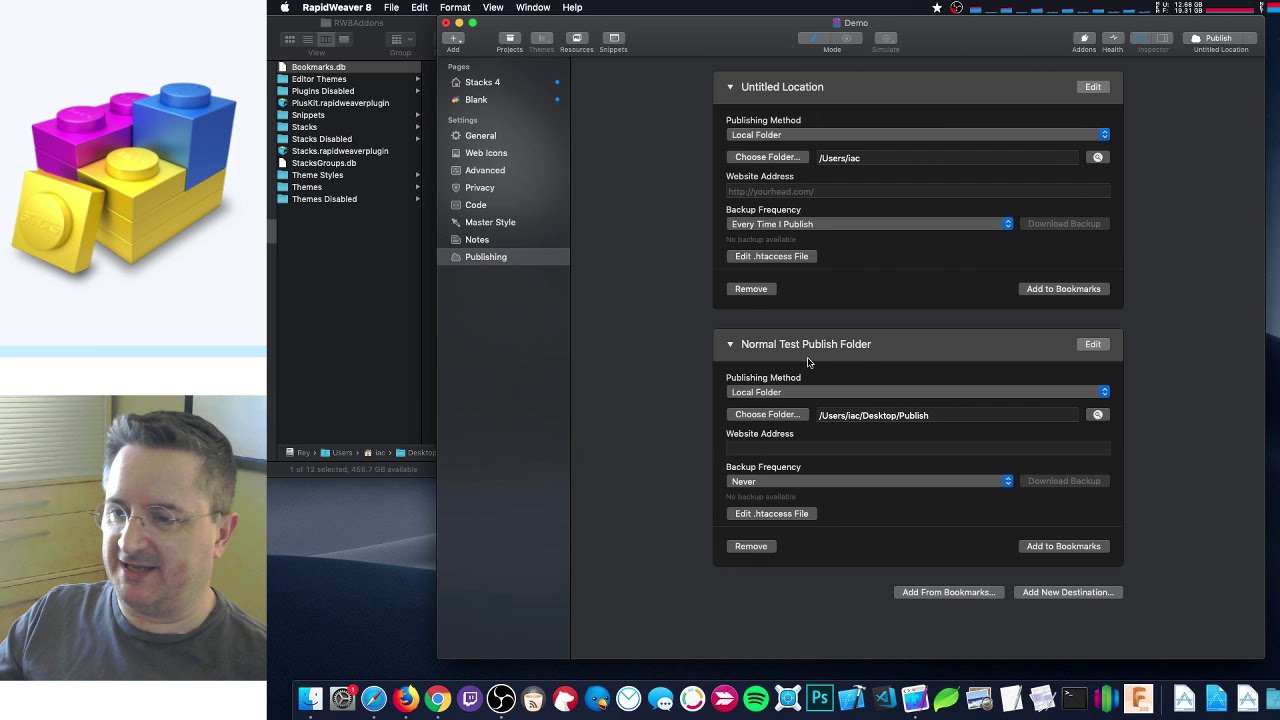
06:51 goes in the add-ons folder so in this case we have bookmarks and bookmarks are publishing locations so I'll show you
06:58 how to use them if you go inside your publishing locations publishing setup
07:05 um so I just have a default location here but you can say add from bookmarks
07:12 and sure enough there's those two bookmarks that I had and I can set up my normal normal test publish folder so it
07:21 publishes to publish and then I can get rid of this garbage you won all right so
07:29 that's bookmarks and your bookmarks database stores that so if you wanted to
07:35 take your publishing locations and move it to another computer you can just grab your bookmarks database copy it over and
07:42 bam there you go and if for whatever
07:48 reason your your add-ons folder gets crazy you know that's one of the things
07:57 that not a lot of people use people don't normally set up too many bookmarks
08:04 you know if you wanted to delete that file and recreate your bookmarks it
08:09 probably wouldn't be too tough all right okay here is the second thing and okay
08:19 I spent a solid 45 minutes before doing this stream trying to figure out what
08:26 editor themes are and I know a lot about rapidweaver I know some nitty gritty
08:33 detail internal stuff I've been using it
08:39 for 15 years now or whatever I have no idea what editor themes are so if
08:45 anybody knows what an editor theme is please shout it out yeah send me a forum
08:51 post I'm peein email tweet it do whatever I don't know what an editor fee
08:57 mez I I have a hunch because I know one
09:03 of the things that rapidweaver is built upon for its HTML code editor
09:10 is it actually has inside of it an open source editor called
09:16 oh boy I'm not gonna remember the name of it it means strawberry and some like
09:21 Finnish or something like that anyway that for for Jerry it for Jerry ax maybe
09:31 something like that anyway that that editor that code editor actually has
09:36 themes that you can apply to it and I'm betting I'm betting editor themes is
09:42 somehow related to that but I can't figure out how to create one or how to
09:47 save one or for me this folder is always
09:53 empty but it's always there i I really don't know what it's for so if anybody has anything in there or
10:00 knows what this is for or how to create one shout it out I kind of think nobody
10:06 does alright that's the only thing I don't know though okay let's let's move on from there okay so plugins disabled
10:14 there's actually three disabled things there's plugins disabled stacks disabled and themes disabled so all these
10:24 disabled things and they're enabled counterpart come from the add-ons
10:32 manager window so you get to that either by clicking this tab here it's also in
10:38 the Preferences you can open up the Preferences and it's just the last tab in in the Preferences add-ons so if you
10:48 click this button it goes to the exact same place okay so the add-ons manager it shows
10:57 three different things plugins themes and stacks and yeah you can resize it
11:06 which is good because well some people have bajillions of stacks right now this
11:15 only shows the very top level stack so if you look if you look inside of the
11:22 stacks folder you'll only see you know those few guys and they're directly
11:28 correspond to these the ones that I have unselected here me shrink this down so
11:36 it's more visible these guys those are
11:44 the things that show up in stacks disabled there they are
11:50 so the three disabled things are things that you have disabled in this
11:57 environment in this little manager so I'm gonna do one right now I'm gonna
12:04 uninstall plus kit using so these are
12:10 the built-ins and here is plus kitten stacks I wrote stacks John McLoughlin
12:19 wrote plus kit and kind of handed it off to me gave me the baton to keep it up
12:27 I've given it one big rewrite since then but yeah we're not going to use it today
12:33 and so that's the whole moral of this add-ons directory cleanup is yeah if
12:42 you're not using it uninstall it so I'm gonna uncheck it here notice when I uncheck it here it doesn't immediately
12:50 disappear out of the folder and the reason is because your add-ons folder
12:56 well you should never move things around Wow rapidweaver is running because if
13:05 you do then you're like yanking stuff out from the guts of of rapidweaver and
13:13 it's gonna go look for that stuff while it's trying to run and it's not gonna be
13:19 there and yeah bad things happen so really when you're moving things around
13:25 in your add-ons folder quit static quit rapidweaver entirely and yeah so when I
13:33 uncheck it here it doesn't immediately do anything it's gonna it's only gonna do something like right before it shuts
13:40 down right before rapidweaver quits so
13:46 notice also this little black dot there I can't make it into an arrow but
13:53 there's a black dot in the red red circle and the black dot means the file
13:59 is dirty that means something needs to be saved or changed so that's telling us
14:05 when we close this window it's gonna do something so close the window
14:11 it says relaunch required so that's when it's actually going to act and move
14:17 things around so as soon as I hit save from relaunch hopefully plus kit will disappear there goes oh this is a this
14:30 is a frustrating bug and it's actually good that I made it happen it's not my
14:35 bug so I don't I don't care about that anyway notice I had unsafe changes in my
14:45 document and so it popped up do you want to save changes but it did that and it
14:53 didn't like pause the process of restarting rapidweaver so what happened
14:59 is look at my doc check it out I have rapidweaver here and I've rapidweaver
15:04 there ah it's running rapidweaver twice at the same time and with two different
15:10 sets of plugins that is so awful anyway
15:16 I'm gonna say don't save here I don't want to save those changes and I'm not
15:22 even going to keep this open I'm just gonna quit I don't even know what that's gonna do I'm guessing it's just going to
15:28 crash and burn so yeah if you ever catch yourself there's a couple places where
15:35 rapidweaver needs to restart itself when you change plugins and when you change
15:42 when you update rapidweaver in both cases it like reboots itself
15:50 and in both cases there are ways to like
15:56 pause one and then the other one pops up and yeah if you catch yourself in that
16:01 situation shut everything down do you know just yeah start over okay so
16:08 here we go starting starting over we have plus KITT disabled and hopefully it
16:14 it should be in this plugins disabled there it is there's one more little file
16:21 in here built-in plist that's kind of a weird thing and the whole point there is if
16:31 you if you go back to the add-ons folder I don't know if you noticed this one of
16:37 the things that you can enable and disable are all of the built in plugins
16:43 and some of these are the old plugins from rapidweaver 7 and some of them
16:51 won't be enabled by default I have them all enabled but that's just because I
16:57 need to test all this stuff so yeah only enable what you need that's the moral of
17:04 the story today okay so yeah the the
17:13 things that you enable are disable that setting gets saved in this little file called built in dot P list so the if we
17:22 uncheck some stuff here it's gonna write it to that built in dot P list so if you
17:27 lose that built in dot P list it's not the end of the world really so um you know it's it's going to enable or
17:34 disable a few of those things but you can go turn them back on it's just the built in stuff alright so we did
17:42 bookmarks we really didn't do editor because I have no idea what that does we
17:49 did the disabled and we'll just call it all three done snippets okay snippets
17:55 are fun and easy you might know about this one I mean it's a it's a toolbar
18:01 it's a toolbar button so yeah snippets snippets are pretty easy
18:09 you can have HTML or style text snippets of course so let's take a sneak peek at
18:18 something stacks for e I will get out well let's go to this blank page a text
18:25 box and I'm going to edit this text box so that's new in stacks for if you want
18:33 to use a snippet you can drag some text from your snippet over into your text
18:39 text box and it just goes and the same goes in Reverse so say if we have
18:48 something here and I don't know let's make it centered and bold and we can
18:57 drag select all drag that back into the snippets no we add a new snippet rich
19:05 text a bit and then we drag it drag it into here all right so now we have a new
19:13 snippet we can give it a name name and
19:19 now you can use that and just like I said before you can use this across multiple projects that's the the name of
19:26 the game here for the add-ons folder is the snippets the bookmarks these things
19:32 don't just work in this project but now that I've made a snippet from that text
19:38 I can use use those things in every
19:43 project and yeah it's not just saved
19:49 inside of my project inside of my project file anymore it's actually saved
19:57 inside of of your add-ons folder so this this new little snippet that I I i just
20:05 created lives right there
20:10 all right I said I'm gonna skip over the stacked section we'll do that last cuz
20:16 it tends to be a little bit more complicated themes is pretty easy I mean I'm sure you know this is where the
20:24 themes go and themes disabled that's pretty obvious you know those are things
20:29 again that are managed through the add-ons manager it's the themes you'll find lots more
20:36 themes in here because these are all the built-in guys um well not that one
20:44 foundation and I think I found REE installed those are that - - that I have
20:49 installed but you know you can drag a
20:55 new theme in here and if you reboot rapidweaver and you don't have to manage
21:00 things through the add-ons the add-ons manager you can just drag things in here
21:06 restart rapidweaver and you're good to go so this theme styles this is one that
21:13 um I think a lot of people overlook and actually I love theme Styles it's a nice
21:20 little easy feature to use so if I have
21:26 let's see a theme I'm using alpha it's I
21:31 know this really boring grey old theme it's not responsive it doesn't but
21:38 that's the best for testing because I want things that are as simple as possible when I'm when I'm running
21:45 complex tests because I don't want anything else complicating
21:51 complicating my setup when something goes wrong so I used off a lot and if we
21:57 preview alpha well let's put something on the page um yeah it's not very nice
22:04 page but let's say make it a little bit wider so this content fits so I'll bring
22:10 up the sidebar and choose the theme section and I'm gonna switch back to the
22:23 other view so you can see the pop-ups when they happen okay so yeah right now
22:32 we're using the master style which is 700 pixels wide but that's not wide
22:38 enough for this content really so I'm gonna uncheck that and we'll choose
22:43 something else like about 900 that's tad better I guess maybe a thousand all
22:52 right and then hide the sidebar sure and
22:58 then we can save this set of theme
23:04 settings and you do that by clicking the little gear menu here and you say save
23:10 custom style and we'll say extra-wide
23:16 and we'll save that and hopefully that guy lives right here
23:23 now extra-wide as part of our add-ons folder now and
23:30 just like with the snippets and with the bookmarks the best thing about themed
23:38 Styles is they live outside your project file so once I've saved this extra-wide
23:43 if I open up a new project I can use that theme style there too so it's it's
23:50 saved just in this add-ons folder it's not saved as part of your project at all really I mean you apply it to your project but
23:59 but yeah it's really part of your add-ons folder okay somebody has a
24:07 question it says don't let me interrupt your current task well I was kind of in-between by going back to your
24:13 previous tip about disabling page types will that speed up rapidweaver sorry for
24:19 the delay absolutely disabling the the built-in
24:25 ones not enough to worry about it just enable those guys the built-in ones are
24:30 really simple and they've been part of rapidweaver forever so you know the
24:37 rapidweaver api and the built-in plugins are yeah they work really well together but um especially with any complex
24:45 plugins collage plus kit sitemap if
24:51 you're not using those things definitely disable them uninstall them entirely
24:57 drag them away from rapidweaver because those things yeah they actually inject
25:05 code into the running app of rapidweaver and so even when they're not in use they
25:14 actually have changes like let's say plus cat sitemap and
25:20 oh there's one more I know there is but
25:25 there's one more they inject code and start operating even if you don't add a
25:34 one of those page styles and that's it's pretty powerful I mean that you know if
25:41 there are bugs in that thing it's those bugs are getting injected
25:46 there too if they're slowing things down by five percent then they're slowing
25:51 things down by five percent whether or not you even add a page so yes absolutely
25:57 uninstall things yet you aren't using you know I mean I don't get in the
26:04 process of dragging things in and out all the time but yeah keep it as Spartan
26:11 as you can definitely the more stuff that's in there the slower rapidweaver will run all right so that's theme
26:22 styles and we kind of went over themes and disabled themes okay so we've hit on all of this stuff except first acts so
26:30 let's talk about stacks so first off I
26:36 mean I know it's obvious there's stacks and there's a folder called stacks right
26:44 next to it and that's where you put your stacks sorry for the verbage I believe me I did not name stacks and stacks I
26:53 didn't name everything that way it's just yeah everything gravitated that way
26:59 and I kind of had to go with the flow but so we have a folder called stacks
27:06 and it's got all these things in it called stacks and that folder is always right next to
27:17 the Stax plugin always it has to be so
27:25 if you have another folder somewhere
27:31 else called Stax then the Stax plugging cannot see that other folder it can only
27:39 see Stax that live inside of a folder called capital S Stax that is right next
27:49 to the Stax plug-in any any other folder is overlooked is you know somewhere else
27:59 okay so um yeah I mean for for example I
28:05 have a temp folder over here that I just dragged junk to when you know I need to
28:11 put something somewhere and yeah yeah it
28:16 has lots of like I have stacks many so sometimes I keep this guy in here
28:25 because if it's not named stacks then it
28:30 won't be looked in it won't affect anything so stacks many it's just a
28:36 folder full of stuff rapidweaver doesn't care about it stacks doesn't care about it nobody will look in it so even though
28:43 there's yeah a lot how many are in here oh boy one thousand five hundred and
28:53 seventy two stacks that is a lot of stacks anyway so even though I have
29:03 fifteen hundred stacks in there they're gonna they're not going to be looked at and that's a quick way to swap back and
29:09 forth I can shut rapidweaver down remember always shut rapidweaver down
29:14 when you're going to make changes I can name this stacks simple
29:23 and then call my stacks many call that
29:29 stacks and now this is my stacks folder so the next time I start up all of these stacks are gonna be installed so let's
29:37 test it out see if it worked oh and we can watch and see how much slower it is to cuz yeah
29:43 fifteen hundred stacks that's about as many as there are and you'll notice that
29:49 the boot up time is yeah considerable if if the page that we were going to used a
29:56 lot of those stacks if it had a lot of complex that would actually be a part of
30:03 that boot up time would be slower too and believe me I work on that boot up time home but we do need to get some
30:12 information from from all of these little files how much we cash and and
30:21 reading as little as possible is those are all really big deals so we we try to
30:28 do it as fast as possible but um yeah it is uh if you have 1500 and you're
30:34 reading 1500 files it doesn't really matter how small they are it takes a little while okay
30:43 so yeah that's where the stats folder is is is kind of important let's um let's
30:52 put it back to the the other one there I'm gonna rename this stacks mini
31:01 and my stack simple here just call it stacks and I'm gonna put my mini back in
31:09 my temp folder all right so now we're back to our simple set up here nice and
31:21 so diving in inside of this folder you
31:27 can see I just have a few here 1 2 3 4 5 6 I have 6 yellow stacks here but check
31:37 it out how many are actually installed it's like I don't know 100 or so so what
31:49 gives six stacks 100 let's see what the add-ons manager says oh no those are
31:58 plugins stacks ok well these aren't installed so it's just these that's 1 2
32:06 3 4 5 6 so 6 in the add-ons manager 6 in
32:12 the folder 100 in the stacks library
32:18 what the hell the answer is that some
32:26 stacks are grouped together in sort of a little bundle and I've put a few in here
32:34 that I I knew would have this property so if you know exacerbates that that
32:40 circumstance so foundry for instance is
32:48 is one of these yeah larger stacks that
32:53 contains lots of tiny little components so if I search for foundry here it'll
33:03 just come up with all of the foundry stacks plus these alloy stacks which are designed to work directly with foundry
33:12 but all of these stacks this through that all the ones that look pretty close
33:19 to each other all of these guys these are all contained in this one icon here
33:27 in the finder now you can pop this open you can say show package contents and oh
33:37 boy Adam is probably you know not liking that I showed you how to do that but
33:42 anyway yeah don't mess with the contents inside of here but that's where they
33:47 live they are inside of there
33:54 and that's why there's a discrepancy between this list here and yeah the list
34:03 inside of your Stax library hopefully your Stax library should have more things than are ever in your finder and
34:12 the add-ons manager it always should agree with the finder it should always
34:19 be exactly the same stuff
34:24 but the stuff that you see inside of the Stax library that that's definitely yeah
34:33 you're gonna go and see all of those child's stacks as well as the parent so
34:39 the parent stack is foundry dot stack and I think there should be one here somewhere called foundry and so what why
34:49 do they do that though I mean is it just to confuse you know the answer is it simplifies things so it means that
34:59 there's one thing to download after you purchase that stack so one download you
35:04 get 100 stacks and then when it comes time time to update you update that one
35:14 stack and then all 100 of those other things get updated and if you need to
35:23 uninstall or reinstall things then same deal one thing so one thing to install
35:30 one thing to download one thing to update and it manages all 100 of those
35:36 things all together because you wouldn't want to have like you know your header
35:42 stack be a different version than your column stack or I have to worry about that that would be insane so in this way
35:51 you update foundry and it has well I
35:56 think I must have like a debug version because there's just no way that it has
36:02 one
03:37 that's the old leet-speak
36:07 hacker 'is that that's that's a fake version number anyway
36:15 yeah you update one thing it updates everything that's its good thing um yeah
36:25 with that the foundry stacks in fact Joe
36:31 has three stacks I will find them that
36:38 he basically just keeps there just as like well they're the dummy wrappers around things they don't actually have
36:44 any purpose but their purpose is to help
36:50 you update things so it says the only purpose of this stack is to show updates there you go but it makes updating lots
37:00 easier because you know each one of these updates you know a dozen or so
37:06 stacks underneath it all right um so that is why there's a
37:19 discrepancy between all these things that was sort of a key point in in the
37:24 question that was asked to me so um yeah I wanted to make sure and touch on that topic in depth there is one more thing
37:33 over here though we have this one last file here the stack stacks groups
37:41 database so what are stacks groups so
37:47 this library here has a lot of stuff on
37:53 the side here and this is a little bit different now in stacks four there's some extra items here some color but
38:02 essentially that the top the top button here is everything that's kind of the
38:09 one giant list of all the stacks and the rest of these are different sorts of
38:15 stack groups so this one's full of partials these two are new its externals
38:21 and templates this is any image that's in any images that come built into
38:29 stacks so these stacks are a part of the
38:34 foundation stacks and you can use them as textures in in some foundation
38:45 favorites you can favorite any stack you like and it's just a quick way to make
38:50 yeah if you need if you know you're gonna be using this a lot you just hit
38:57 the heart button now it's favorited and if you jump over to the favorites it'll be there so it's a quick way to yeah
39:04 have a little group of the things that you're using right now and the star is
39:10 just the built-in stuff cuz yeah unless you're using foundation or foundry
39:15 you're probably using the built-in stacks quite a bit and so it can be nice
39:21 to have an extra group like that but that doesn't explain the stacks groups file the stacks groups file is for
39:28 anything else so we can make our own so for instance let's yeah let's do foundry
39:38 again so here's all these foundry stacks and we're gonna select those yeah an
39:46 alloy too so we'll select all these guys and nothing else and so you can either
39:55 do this through this gear menu or no this gear menu you can say create new
40:04 group or you can control click you hold
40:09 down the control key and click and you get a contextual menu I like to right-click I'm a three-button Mouse
40:15 person I I know not everybody is Oh hands left at everything
40:21 all right try that again there we go okay so right click Add to group create
40:29 new group boom okay this is all new in stacks four is more group customization
40:37 which is kind of cool so I will call this the founder group and I don't know
40:45 we can give it a birthday cake is my favorite one and we'll make a blue
40:51 birthday cake okay so now we have a blue birthday cake in stacks three if you're
40:57 still using step three which you probably are there's only a handful of people using stacks for right now most
41:04 of them are stack developers if you're using stacks three you can make custom
41:10 groups but you can't color code them and they always look like folders but the
41:16 point is you can make a custom group and now it's just got your foundry stacks in it so if you're using foundry a lot then
41:24 you can do this one I know some people who switch back and forth between foundry and foundation and so it's nice
41:30 to have one group for each and then you know you don't have to worry about did I
41:36 drag the right button stack for the right framework into my layout so yeah
41:45 that's a custom group the custom groups are stored in this custom groups file stacks groups database and the nice
41:54 thing about that is that again that that they're saved outside of your project so
42:01 I've created this group in this project but every project now will have a blue
42:08 birthday cake and that's because that group information isn't saved anywhere
42:15 in this project it's not it's not part of this project at all it's saved only in the add-ons folder so
42:25 yeah anything that you want outside of your project get saved here to the
42:32 add-ons folder and with that I show you a cool feature of stacks for we have a
42:44 new way of saving stuff outside of your project folder so I can create something
42:54 let's go to our blank page here and make a three column stack and I'll add some
43:00 stuff to it and we'll just pretend this is really complex and interesting even
43:06 though it's not right there is our
43:13 complex interesting stack and normally I would say hey let's make partial out of this because then you can reuse it but a
43:22 partial you can only reuse within a project and you know that that's great
43:29 you can copy and paste it to another project but then it sort of becomes another partial it's it's completely
43:34 independent at that point it has the same content but you know if you make a change in one it's not gonna come over
43:41 to the other one but just like the bookmarks database the stacks groups and
43:49 the snippets and the theme styles there's now a way to save a partial
43:56 external to your project and so what did we call it it's called an external so if
44:02 you click the external button it creates an external and
44:10 externals live in your library over here this orange button and there's the
44:19 external that I just created and they nicely live outside of your project in
44:27 your add-ons folder there it is so the
44:33 nice thing about that is we can make changes to this guy here and any project
44:40 that refers to this will soak up those changes the next time that's opened that
44:49 information is being saved outside of your project folder with a little caveat
44:56 that I put in for safety so if you lose
45:01 this file or if you send this file to somebody else that's a good example if you send this file to somebody else
45:07 and they don't have your add-ons folder so they don't have your external well we just treat it like a partial so it just
45:14 becomes you know embedded to that project you don't lose anything so I
45:19 like stuff that is you know kind of failsafe it makes me happy all right and
45:26 templates they work pretty much exactly the same but you can't make changes to
45:32 them so if you you know make something that's really great and you know you
45:37 never want to change it you don't want to risk ever changing that that that
45:44 content then you can stuff it in your templates folder and it's fixed in place
45:54 and you you can't edit it so you know just like any any partial you can go
46:00 edit an external but you can't edit a template it won't edit all right so
46:08 that's enough I think about stacks for there's lots more cool stuff in there like I can double click right there now
46:14 to see that edits even if there's nothing even if I don't have one of
46:20 those that's kind of cool all right that's new
46:29 so yeah what do we learn we learned about all the different parts of the
46:35 add-ons folder and that's pretty important we learned that the add-ons
46:43 folder is for storing things that are outside of the project and we learned an
46:49 important question that oh it's J Bostic J Bo stick I don't know
46:59 I always see them as towards smashed together so I I'm thinking it's J Bostic
47:06 maybe I don't know um anyway he asked oh
47:13 that's correct all right good okay so he asked you know is it is it good to remove some of the
47:22 stuff that's in in the out of the add-ons folder and yes is the answer
47:28 especially plugins plugins are the things that can slow things down and gum things up the most but the other big one
47:36 is Stax you know every now and again I do run into somebody who has over a thousand stacks installed which is a
47:44 considerable investment and I just want to say thank you from me and all of the
47:49 stack developers for investing and believing in us because it's a really big deal you know you're buying shoes
48:00 for my kids and help them pay my mortgage and I really appreciate that um but yeah aside from that keeping a
48:09 clean add ons folder is is essential to you know the fastest most sleek version
48:19 of rapidweaver that you can get and if you can remove a few of those old
48:24 stacks that you're not using then definitely a few things will will improve I mean it if you're not using
48:31 them it's not like it slows down your publishing or anything but I will if you
48:40 remove a few it will speed up launch time and it'll speed up file opens so
48:46 you know that's that's something it's it's not huge but you know if you're
48:53 launching rapidweaver three times a day that's enough you know it could be a few
48:59 minutes of your day all right so we've gone over those things I just want to cover go you know
49:07 full circle and go back to the original question that we used as a springboard
49:13 for this whole big deal here and I had these guys yeah I'll hide that too
49:22 excuse me and have a drink of water
49:29 all right so here's the original question
49:34 it would appear my Mac slash rapidweaver made a Stax directory within a Stax
49:42 directory if I move the Stax to the root Stax directory it will be visible within
49:50 the add-on stack interface but not in the library okay that's like the key
49:58 sentence right there
50:04 and I think what he's implying here is that if he moves things around in one
50:15 way then they show up in the add-ons folder and if he moves things around in
50:22 the other way they show up in the stacks library and if you move things around
50:28 too much it's creating other stacks folders well okay I have a few comments
50:35 on that one is the add-ons folder and
50:41 the stacks library don't always show the same thing in fact they usually won't
50:46 the add-ons manager only shows what's in the finder it shows those top-level
50:54 parents tax that we looked at so for
50:59 instance we have foundry here it's the
51:04 parent of what like 30 or so 40 I really
51:10 have no idea but a whole bunch of child stacks underneath it little teeny bits
51:17 of of the of the whole system and foundry is just sort of the umbrella the
51:23 parent of that all right hey thanks for
51:31 stopping by I was just saying goodbye to J Bostick
51:40 hopefully um so yeah the addons folder
51:46 and the add-ons manager agree but the
51:51 Stax library is going to show all of those child stacks too so yeah don't try
51:57 to get those things to line up because maybe they never will they probably won't okay the second thing is um keep
52:06 in mind that the Stax plug-in and the
52:13 Stax folder always live next to each other you can't get them apart if you
52:21 launch rapidweaver and open a Stax page and there's no stats folder there Stax
52:28 is just going to create it it'll be an empty one but it's going to create it
52:33 whether you like it or not all right so
52:46 that's like the educational portion of this I want to give the person who has
52:52 this problem a couple tools to try to help themselves okay number one is put
53:01 your add-ons folder in a really simple location so I've put mine here on the
53:07 desktop you don't have to do the desktop if you don't like that your home folder is fine your Documents folder is a good
53:13 place but you know keep it out of Dropbox and iCloud and Google Drive you
53:21 know those things are complicated and there's other systems that are you know
53:27 moving things around or copying things or who knows what you know if you're if
53:32 you're running into problems keep it simple put it on your desktop or in your home folder somewhere where you always
53:40 configure it out and you do that see we'll bring this guy to the front
53:47 you open up your add-ons manager and down here at the bottom you say add-ons
53:54 location and you choose other and then you specify a location I'm not going to
54:00 do it because it'll mess things up but um you know I've specified this location
54:06 right here and it shows you the path to that location if you choose a really
54:12 complex thing that's too long you won't be able to read it all and you know
54:18 that's a drag because you know part of choosing a simple location is to try to
54:24 be able to read the entire thing so you can verify is this folder that I am
54:32 looking into that I'm cleaning up is that really the folder that rapidweaver
54:37 is currently using and so that's the second point here so
54:44 we're gonna try to comment this at two directions sort of like um like when
54:50 your math teacher tells you to verify your work so you do your multiplication in one direction and you get an answer
54:56 and then you use your answer and you do division to see if you can get back to
55:02 the original question so in this case we're going to set our add-ons location
55:12 with the add-ons manager so that we can get it in one way but then we're going
55:20 to ask rapidweaver where is your add-ons folder in fact we won't even ask
55:27 rapidweaver it will directly ask Stax to do that and we can do that by going to
55:33 this gear menu way down here at the bottom and we choose show Stax library
55:40 and finder and hopefully it should open
55:45 up that exact same window and if you want to verify well you can look at this
55:53 bottom bar here I think that's view see it's this one
55:59 hide status bar show status bar the status bar is is that right no path bar
56:05 status bar is the very bottom thing the path bar so we have to show the path bar and if you have the path bar shown then
56:13 you can see that okay there's my home folder there's desktop there's the
56:18 add-ons thing there's my stacks folder you can also command click and click on
56:26 the title that shows you the whole path to alright one last thing so I showed
56:40 you one way to yeah ask stacks
56:45 what is the add-ons folder you're currently using right now by doing the
56:51 show stacks librarian finder but I think I know at least five more ways to ask
56:59 rapidweaver to open up that folder so yeah this is live challenge to myself
57:08 let's see if I can do it here we go number one oh yeah well we'll just ctrl click on
57:16 one of these guys like that foundry let's type it foundry okay and I'll
57:25 choose show and finder so that opens up that that guy so that's two or I said
57:33 five more ok so that's one we can go to the add-ons folder add-ons manager and
57:40 we can say reveal in finder and that opens up the the root of the add-ons
57:45 folder so that's that's two we can click
57:53 on one of these guys and say reveal stack and that opens up that exact same
58:00 thing so that's three
58:09 all right we can go oh we can go to the
58:16 view menu and choose reveal add-ons folder that's four we can do command
58:28 seven oh you have to actually be in rapidweaver command seven so that's the same as
58:34 going to that menu that's sort of a cheat so that's kind of five but there is one more it's in the rapidweaver menu
58:42 reveal add-ons folder so that is six so
58:51 yeah there's lots of ways to ask rapidweaver which add-ons folder am i
58:56 using right now hopefully they all say the same thing I mean they really should and if they don't boy file that as a bug
59:04 because that's a bad one but yeah double check if you're having
59:10 trouble like if you're installing add-ons and they just go nowhere I see
59:15 this question yeah five times a week or something people install add-ons and
59:23 it's usually that they have multiple versions of rapidweaver installed and so
59:29 the add-ons are going into the rapidweaver seven add-ons folder or maybe they bought rapidweaver on the App
59:38 Store and downloaded it and so it's going to one of those places and not the other so yeah this is a way to verify
59:47 that the add-ons folder that you're really using is the same one that you see in the finder and you are managing
59:57 okay so with that information and with you know those key tips one put your
60:07 add-ons folder in a really obvious location to verify the location of it
60:17 and three do some spring cleaning make sure that the only things that are in
60:24 there are the things that you need absolutely and you know really if if
60:33 you're running into problems yeah you can temporarily move some stuff out make
60:39 your add-ons folder look pretty much just like this if it's got more things
60:44 than this in it then you know maybe those things are the problem so drag them out at least
60:51 temporarily restart rapidweaver and see where you go okay so with those three
60:57 things spring cleaning put it in a
61:02 simple location verify the location then
61:08 open it up see what's in your stacks folder if it seems like the wrong things
61:14 report back your findings report back what is in your add-ons folder and we'll
61:20 go from there


