
Stacks Guru is born from the need to search the vast number of videos out there on stacks built for Stacks Pro and the Stacks 5 plugin for Rapidweaver.
We have scraped over 500 videos to get the transcripts for each in order to make the spoken word searchable.
Please use this free tool to help you learn and discover the awesome power that Stacks and the stacks made for Stacks have to offer.
00:08 so now I'm gonna demonstrate how we can
00:11 use the alternate color styles better
00:14 defined directly inside sight styles
00:17 okay remember inside side styles in the
00:19 text colors we have our normal kind of
00:21 default colors for various text
00:23 components but we also have alternate
00:25 colors how can we use these alternate
00:28 colors now if we look at my page you'll
00:31 notice that I have some content now a
00:35 lot of times a strategy that we will
00:37 have inside of our websites is we'll
00:38 have kind of bands we'll have maybe a
00:40 section of our pages that are light
00:42 colored and then we will have different
00:44 parts of our section that are dark
00:45 colored a lot of times on those darker
00:47 sections we want to have different color
00:50 text right so let's say for example I
00:54 wanted to use the alternate color scheme
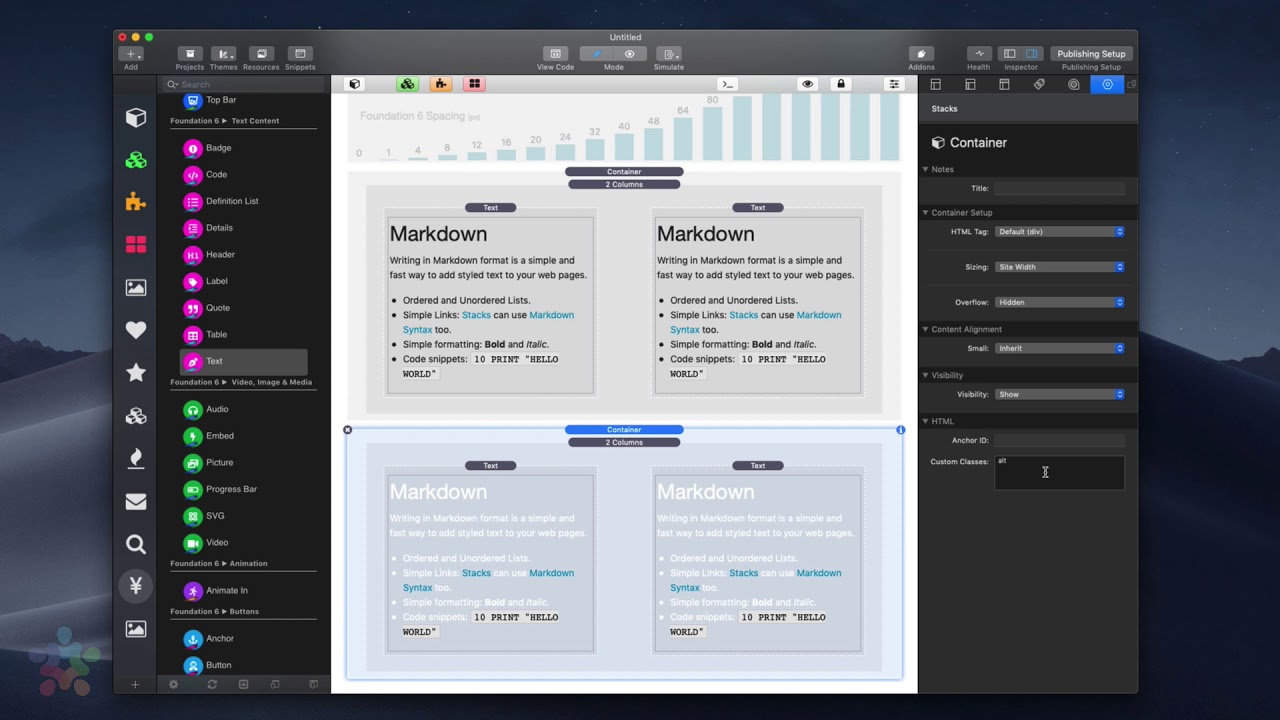
00:56 in this container really simple if I
00:59 want to apply the alternate colors to
01:01 everything that's within this container
01:02 all we need to do is click on this
01:05 container go to the custom classes and
01:06 type the word Alt alt
01:12 and what you'll notice is once I applied
01:14 this alt class to the container all the
01:17 text within it became white be it used
01:19 our alternate colors now the text became
01:22 white because inside of site Styles we
01:24 defined our alternate colors as being
01:26 white color so white or shades of white
01:28 and our links are still blue now what
01:31 you'll notice when we preview this page
01:33 is it's not really useful having you
01:36 know white text on a white background so
01:38 let's quickly show you how you can add
01:40 on top of the alternate styles so if we
01:43 add a background swatch let's go ahead
01:46 and do a background let's change the
01:48 class to be alt because we want to apply
01:50 on this background to everything that
01:53 has the alt class I'm going to simply go
01:56 to background and let's choose a darker
01:59 color there we go now if we scroll down
02:02 well you'll notice directly inside edit
02:04 mode that style has already been applied
02:08 again it's really simple to add the
02:11 alternate class if I just delete that
02:13 you'll notice that it reverts to the
02:15 default styles all I needed to do is add
02:17 that alt class and I get all of the
02:20 benefits of using the alternate colors
02:22 that are defined directly inside site
02:24 styles now if you're familiar with
02:27 swatches you probably are aware that the
02:30 alternate colors that are within site
02:32 Styles is essentially the same exact
02:34 thing is that I were to add a text color
02:37 swatch and then create the class for alt
02:41 right it's the same exact thing it's
02:44 just kind of an ICD to have it baked
02:46 into site styles for us


