
Stacks Guru is born from the need to search the vast number of videos out there on stacks built for Stacks Pro and the Stacks 5 plugin for Rapidweaver.
We have scraped over 500 videos to get the transcripts for each in order to make the spoken word searchable.
Please use this free tool to help you learn and discover the awesome power that Stacks and the stacks made for Stacks have to offer.
00:00 okay so it's time for the meat and
00:02 potatoes how do we apply our font
00:04 families and our styles to our actual
00:07 content
00:15 hey everybody Jordan here and in this
00:18 video we're gonna look over how do we
00:19 actually take our font families and our
00:22 font styles that we've defined and
00:24 actually apply that to our content right
00:27 because there's no fun and creating
00:30 definitions and styles and not applying
00:33 it to our content so let's learn all the
00:35 ins and outs on how we can take our
00:37 styles and apply that to the theme and
00:41 to all of our content so here's a simple
00:49 represent some font styles that I've
00:52 defined on the page now the easiest way
00:55 and what I normally do and probably
00:57 normally what you're gonna use the most
00:58 is using for font families you're gonna
01:01 use a vault and then in font styles
01:04 you're gonna use a style so essentially
01:08 with with these they behave the same a
01:11 font vault is for families and then a
01:14 style is obviously for styles okay and
01:16 the reason these are simple is because
01:19 they're baked into a lot of stacks for
01:22 us okay especially if you use foundation
01:25 or total CMS so here you can choose a
01:29 vault or a family or a vault or a style
01:32 you can assign it to one of eight
01:34 predefined styles or predefined vaults
01:37 and then inside a lot of your foundation
01:40 or total CMS stacks you can easily just
01:44 simply select that font vault or the
01:48 font style straight inside that stack
01:50 settings again this is the foundation
01:53 header stack and then in the foundation
01:55 paragraph stack it supports it as well
01:57 as well as many other stacks throughout
02:00 Foundation and total CMS now you're
02:02 probably thinking oh great Joe that's
02:04 all fine and dandy but what if I want to
02:06 modify the style or apply a style or a
02:10 vault to something
02:12 not in foundation or troublesome as some
02:14 other stack or a default tech stack
02:16 right let's show you how to do that so
02:19 I'm going to go ahead and duplicate this
02:21 content right here and just for easiness
02:24 I'm gonna leave it the same I'm just
02:25 gonna set the styles and the font vaults
02:28 to be default so it's just taking things
02:31 from the theme there is a stack that
02:34 shipped with fought Pro called font box
02:36 and if we add this to our page okay well
02:40 you notice is it's just a simple stack
02:42 that you can drag anything you want into
02:43 it now inside font box you can go ahead
02:47 and assign a vault or assign a style to
02:53 that text okay and let's go ahead and do
02:56 that for paragraph as well this was fun
03:02 all too and style one okay great so
03:06 let's go ahead and preview this page
03:07 what you'll notice here is that well my
03:10 paragraphs look pretty much the same but
03:13 my headers are completely different okay
03:17 now the reason this happens is because
03:21 of the way stacks are structured right
03:25 um every stack is different and font box
03:28 does its best to try to apply a style or
03:32 a family to a particular font box but
03:37 it's not perfect as I said so what can
03:40 we do how can we resolve this how can I
03:42 make this this header here be the same
03:45 is if I were to you know define it and
03:47 to find it inside the header stack like
03:49 we did in foundation header so one thing
03:53 that we can do is inside font box you'll
03:55 notice that there is a custom class
03:57 option and what I'm going to do is I'm
03:59 going to go ahead and create a custom
04:01 class here I'm just gonna add let's add
04:04 my header so I've added a custom class
04:09 of my header
04:10 now this particular header I know is an
04:13 h3 tag because I specified that I want
04:15 this to be an h3 now we're gonna
04:18 leverage that in a little bit here so I
04:20 set my class to be my header and then I
04:23 know the header inside of it is an h
04:25 so what we're gonna do is we're gonna
04:27 target that okay so inside my style
04:30 we'll notice that in the apply to
04:32 settings we have at the very last one we
04:36 have something called a custom selector
04:39 and what you do here is you put in your
04:43 custom selector here so what I've done
04:45 is now this obviously relies that you
04:48 know a little bit of CSS here right so
04:50 if this confuses you this is might not
04:54 be for you okay but this is what we can
04:57 do I can do dot and then my class
05:00 because that's how we classify a class
05:02 inside CSS with a dot so we do dot my
05:06 header space h3 because we want to
05:09 target in h3 tag inside my header let's
05:14 go ahead and preview that sweet okay so
05:18 I got my style okay but if you notice
05:20 the the font is actually different right
05:23 so this header up here has a font and
05:27 this one doesn't okay it doesn't have my
05:29 nice Google font that I was importing so
05:32 inside the font family stack I'm gonna
05:35 go ahead and in my headers I'm gonna
05:37 apply that custom selector there as well
05:39 so dot my header h3 and there we go
05:43 I now have used font box properly to
05:46 apply the same exact styles using font
05:50 box I kind of jumped into an advanced
05:53 topic a little bit early with the custom
05:55 CSS selectors right but you can use them
05:58 in combination with font box to target
06:01 the exact elements that you want inside
06:04 of the font box which is very convenient
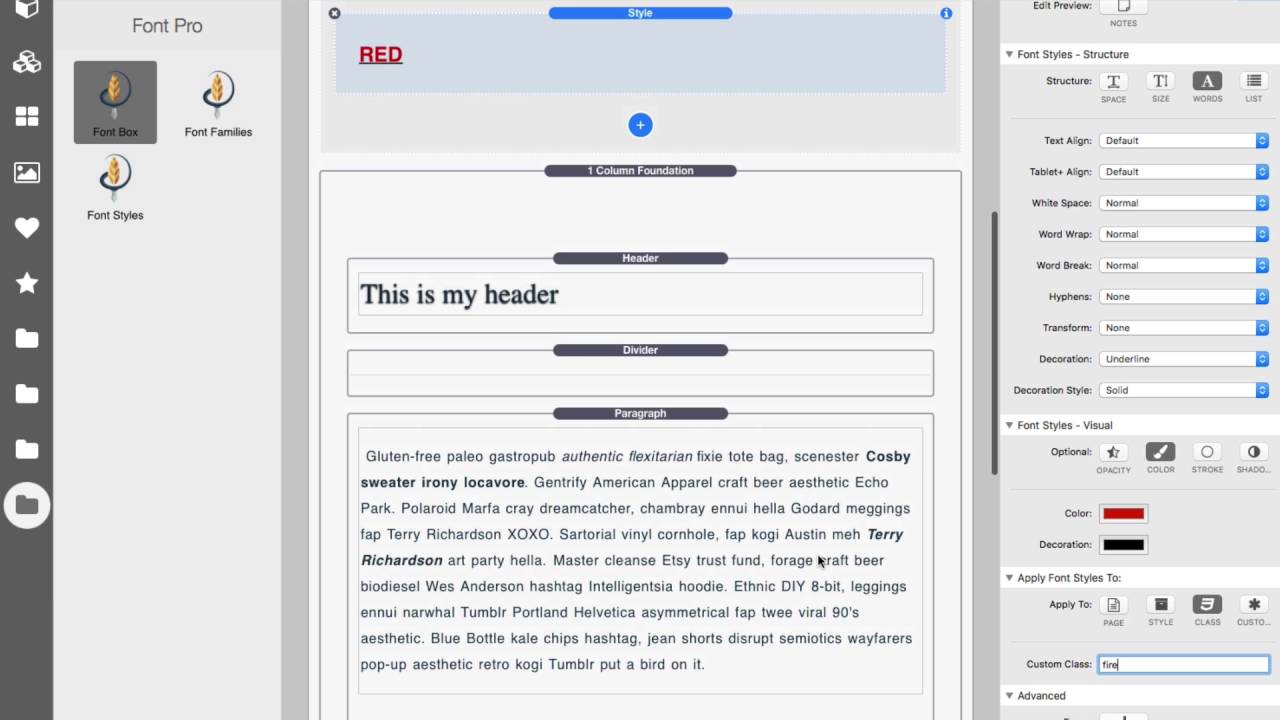
06:09 so what I've done now is I've created a
06:11 style that I'm gonna call red okay and
06:14 essentially all it does is it it defines
06:17 the text color is red and then it
06:19 underlines that with a black underline
06:22 that's all that this style does it
06:25 doesn't change text sizes it doesn't
06:27 modify spacing that doesn't do anything
06:28 else it just colors it red and
06:31 underlines it okay so how do we apply
06:35 this to anything that we want okay
06:39 so what I've done here is instead of
06:42 applying this to a style okay what I've
06:44 done is I've applied this to a class now
06:47 I could apply this to a style if I
06:50 wanted to okay and then that would get
06:52 applied to anything that I added that
06:54 style to however by using a class it
06:59 gives us a little bit more flexibility
07:01 because I can then name this class
07:03 whatever I want and here I've called the
07:05 custom class for this style fire so how
07:11 can we use that I can go ahead and
07:14 inside let's say this header stack it
07:17 has the ability to add a class to the
07:20 header okay and what I'm gonna do is I'm
07:23 going to set that custom class to be
07:26 fire so I'm adding the fire custom class
07:29 to this header now remember we're also
07:32 inheriting the styles from font styles
07:35 number two okay
07:37 so let's preview this and see what
07:38 happens as you see I it did sort of work
07:41 right I got my underlined but I didn't
07:44 have my some my other attributes the
07:47 text is still white I still have a text
07:49 shadow right so let's go ahead and
07:51 change something so I didn't go into my
07:55 style and what I'm gonna do is I'm gonna
07:57 go ahead and click on the force button
07:59 so I'm gonna say bang important yes I
08:02 want this to override anything else so
08:06 we're gonna do is we're gonna preview
08:07 that now you see now we have made this
08:12 header red with a black underlined right
08:16 just by simply creating that fire class
08:19 inside the style and assigning it to the
08:22 header now why this is great is because
08:25 this header is still inheriting some of
08:28 the styles such as the drop shadow from
08:32 the style vault number two right from
08:34 here okay but I'm just overriding other
08:38 key factors with this red style so this
08:42 allows you to do some inheritance and
08:44 other things which is really cool and it
08:46 once you get used to this this will
08:49 provide you a lot of flexibility and a
08:51 lot of power
08:51 and of course I can add that red class
08:54 to anything so you see if I want to add
08:56 it to this paragraph I can go and add a
08:58 custom class here type in fire I can
09:02 preview that and obviously that's gonna
09:06 look like it's not gonna look nice right
09:09 but it did the job it applied the red
09:11 text and the black text decoration to
09:15 that entire paragraph just shows you how
09:17 powerful and easy it is to kind of
09:20 create your own styles and apply those
09:21 styles to other elements now the last
09:25 piece that we haven't reviewed yet in
09:27 terms of applying your font styles and
09:30 font families is the page selectors so
09:34 if you click on the page button you'll
09:37 notice a grid of buttons displays and
09:39 this contains various elements HTML
09:43 elements that we use across our entire
09:45 site whether that be paragraphs h1s h2s
09:49 h3 s block quotes forms bullets links
09:55 and buttons ok so what you could do is
09:59 you can create a style and assign that
10:02 style to let's say all h1 h2 and h3 s
10:07 up on this page right or let's say you
10:11 want to apply it to paragraphs and
10:13 buttons ok and as you see you can click
10:16 as many of these as you want and it will
10:18 apply that style to that element on the
10:22 page now what you may want to make sure
10:26 is let's say maybe you want to use font
10:29 Pro to define your page styles as
10:31 defaults so what you could do is you
10:34 would add these first then you could
10:37 override those defaults with font vaults
10:41 and font styles ok
10:43 so this gives you a way of providing
10:45 nice defaults and more granularity for
10:49 styles and families across your entire
10:53 site now before we go I wanted to make
10:56 one quick note about foundation site
10:59 Styles because in foundation site Styles
11:03 you have the ability to define
11:05 it's an h1 font h2 through six and then
11:08 your default paragraph font now if
11:11 you're gonna be using thought pro
11:13 especially if you wanted to fine all the
11:15 defaults in font Pro what I recommend
11:17 you do is inside these you set the font
11:20 to be font Pro and what this does is it
11:23 tells foundation that you don't need to
11:26 worry about the style defaults for text
11:29 in terms of sizing and what fonts to use
11:31 font Pro is gonna manage this for us so
11:35 this is a nice step to make sure that
11:38 foundation actually passes the
11:40 responsibility of managing the default
11:43 styles for your fonts all the way to
11:46 font Pro and there we have it everybody
11:48 that is kind of the ins and outs of how
11:51 we can use font Pro to apply our font
11:56 styles to our content now obviously I
12:01 didn't dive too much into like CSS I
12:03 told you the CSS selector right there's
12:05 a lot of possibilities there right and
12:07 if you want to customize you know a
12:10 particular component in a theme like you
12:12 want to target that particular element
12:14 right you're gonna have to know a little
12:16 bit of CSS right because you need to be
12:18 able to find that selector and then you
12:21 know put it inside that setting now
12:23 obviously you can use commas and you can
12:25 put multiple selectors it is just like
12:27 defining a CSS selector inside your CSS
12:30 files now that probably scares a lot of
12:34 people right so if that's not for you
12:37 then it might not be for you okay or go
12:39 on the forums and ask for some help and
12:42 learn right um it's not too complex okay
12:45 I do have some tutorial videos on CSS
12:48 and stacks and how you could potentially
12:51 figure out a selector okay if you want
12:55 to do stuff like that in you know small
12:56 tweaks and customizations learning that
12:59 is gonna be very beneficial and powerful
13:02 for you now we can go really far with
13:06 the little simple things that I did like
13:07 adding the class and then you know
13:10 figuring out the class name and each
13:11 three inside of there right that's kind
13:14 of the the beginner basics right and I
13:15 hope that I showed a good example of
13:18 that
13:18 so as you see you know having all of
13:21 these styles to our fonts um it can Bri
13:24 elaborate and I'm sure has the more you
13:26 use font Pro the better you're gonna get
13:28 at it
13:29 right and strategies in terms of how you
13:31 can define some defaults and then you
13:33 can define classes that kind of maybe
13:34 override them or you have styles for you
13:37 know this is my header this is my
13:39 paragraph then you can have small things
13:41 like accents like that red that we had
13:42 and maybe it's not a color maybe it's um
13:45 I want to make a particular paragraph
13:50 smaller maybe it's like a quote right
13:52 and we want to make sure that those are
13:54 maybe styled slightly differently than a
13:58 normal paragraph is right
14:00 so really thought pro gives you all the
14:02 powerful tools that we need to
14:04 modularize that's a word right
14:08 modularize all of our styles for our
14:11 text very powerful um I'll stop blogging
14:15 I hope you use this I hope font Pro and
14:18 applying these Styles really makes um
14:21 you know styling your text easier more
14:23 powerful so thank you very much
14:25 everybody I hope you enjoyed this video
14:27 and take care love font Pro


