
Stacks Guru is born from the need to search the vast number of videos out there on stacks built for Stacks Pro and the Stacks 5 plugin for Rapidweaver.
We have scraped over 500 videos to get the transcripts for each in order to make the spoken word searchable.
Please use this free tool to help you learn and discover the awesome power that Stacks and the stacks made for Stacks have to offer.
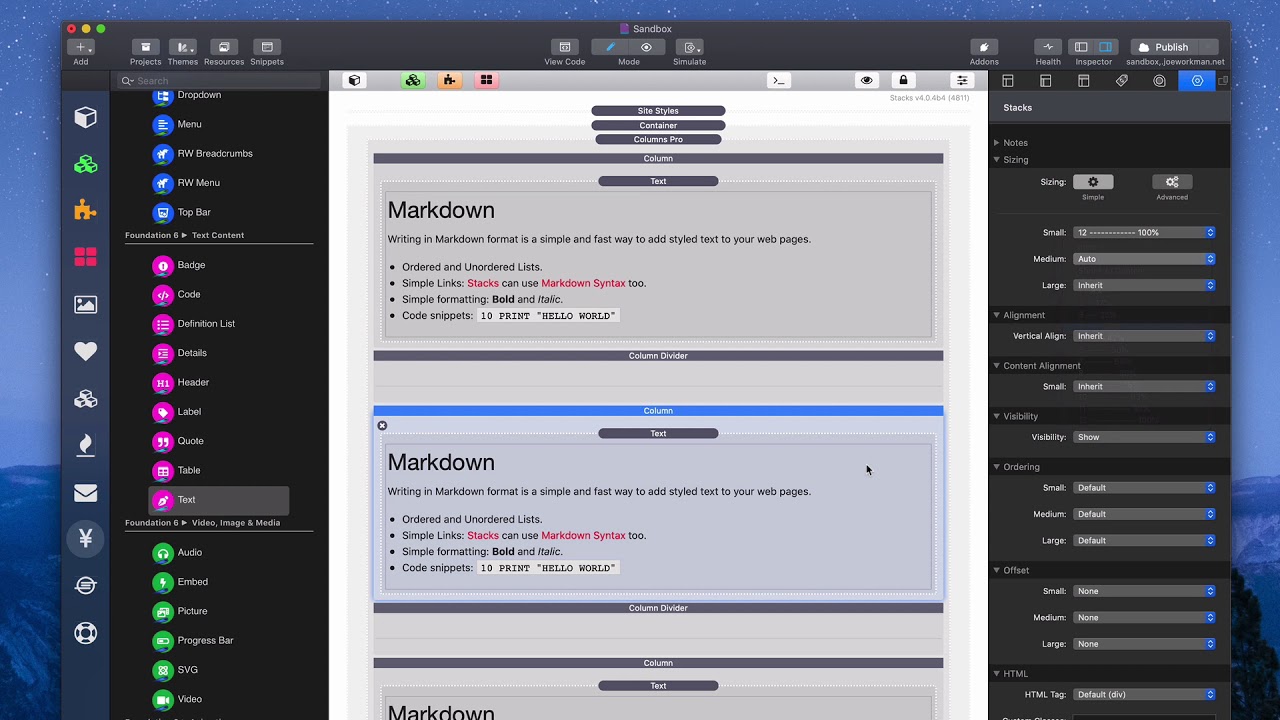
00:10 so columns pro has a great feature
00:13 that allows us to add dividers within
00:15 our columns
00:16 so let me go ahead and create a really
00:18 quick layout here
00:19 i'm just going to add some text in this
00:20 column and
00:22 let's do a three column layout so i'm
00:23 just going to copy and paste this column
00:26 three times
00:27 now remember columns pro even though we
00:29 want our columns to be
00:30 um in three columns it's always vertical
00:32 it's always horizontal
00:34 they take up the full width inside of
00:35 edit mode now if we add this plus button
00:38 you'll notice that we have another
00:39 option here called for column divider
00:41 let's go ahead and add a column divider
00:43 and what i'm going to do is i'm going to
00:44 add column divider right there
00:46 and let's go ahead and add another one
00:48 and i'm going to add it right
00:50 there okay so let's go ahead and preview
00:52 this so if you notice in preview
00:55 we have our dividers but it's all very
00:56 crowded so let's go ahead and fix that
00:58 we're just going to go
00:59 into the columns pro and add a little
01:02 bit of margin
01:02 and padding preview that
01:06 and there we go i have three nice
01:08 columns with dividers
01:10 now what's really cool is inside the
01:12 dividers you can actually um
01:14 display visibility right so if we were
01:16 to go ahead and look at this
01:18 um on mobile so if we were to look at
01:21 this webpage on mobile
01:22 what you'll notice is that there's quite
01:23 a large gap here probably a bigger gap
01:26 than you might want and that's actually
01:27 caused by the divider
01:29 so what we can do is inside the divider
01:31 we can go ahead and say hide for small
01:33 only and let's go ahead and do that on
01:35 both
01:36 if we preview again you'll see that that
01:39 gap is now
01:41 tamed right um this is the natural gap
01:43 between the columns
01:44 um and that larger gap is caused by the
01:47 dividers is gone because we're hiding
01:48 the divider
01:49 on mobile even though we couldn't really
01:51 see it
01:52 now another issue you might run into is
01:54 if you were to explicitly set
01:57 um column widths so by default on at
01:59 tablet
02:00 size um all columns are set to auto
02:03 let's go ahead and set them to four so
02:05 we're going to explicitly set
02:07 each column to be 33 percent
02:15 and let's go ahead and preview that we
02:17 might ex we would expect that this to be
02:19 actually work and be 100 percent the
02:20 same
02:21 but if we preview this we'll notice that
02:23 it's not the same
02:24 our our third column is actually going
02:27 down
02:28 why is that well the reason is
02:31 we actually have these dividers are
02:34 creating kind of like a five
02:36 column layout okay where essentially
02:39 these columns that contain the dividers
02:42 are actually like one pixel wide
02:46 therefore if we use thirty three point
02:48 three percent one third and one third
02:50 there's no room for the two pixels so
02:54 the reason the way we fix that is you
02:56 need to
02:57 at least set one column to be auto
03:00 okay um so if we set this middle column
03:03 to be auto
03:05 you'll see that now it works and the
03:07 reason is the way auto works
03:08 auto basically says take this column and
03:11 fit the rest of the space
03:13 so we're ensuring that this first column
03:15 is 3
03:17 the second column is 33 these dividers
03:20 are taking up one pixel a piece
03:22 and then this middle column is going to
03:24 be auto now if you're going to do
03:26 all three columns even you can just set
03:28 them all to auto and that works
03:30 right but if you wanted a different
03:32 column split for example let's say i
03:34 wanted this
03:34 first one to be um three
03:38 and the last one to be um
03:41 six right the middle one instead of
03:44 you know setting a value just set it to
03:46 auto and it will fill that space
03:48 automatically for us and keep our three
03:50 column layout
03:51 now a really quick note on styling your
03:53 dividers because i know we're going to
03:54 want to do that
03:55 you can quickly style the height of the
03:58 divider
03:59 with the height swatch um so in this
04:01 example i've set the height to 5
04:03 percent
04:03 and then you can also style the color
04:05 and the and the style of the border as
04:07 well
04:07 so let's quickly look at this if we
04:09 preview our page we'll notice that
04:11 i've made the dividers 5
04:14 height now dividers will always auto
04:16 center within the columns
04:18 um but you can adjust the height really
04:19 easily so that way if you don't want you
04:21 know i think having uh
04:23 not 100 height probably looks the best
04:26 um next up is color so you can change
04:29 the color to be whatever you want
04:30 um now you can also change the style but
04:33 one caveat with the style is
04:35 you need to make sure that you use the
04:36 detailed border style
04:38 and the reason for this is you need to
04:40 set top bottom
04:42 and left to none um because only the
04:45 right border is used
04:47 um with the divider so if you if i for
04:49 example
04:50 set the left border to be solid um
04:53 you'll actually see the left border be
04:55 created
04:56 for that divider and we don't want that
04:57 right so um
04:59 go ahead and do that and then you can
05:00 also use anything so we have dotted
05:02 so there's a lot of various nice effects
05:05 that you can use i think
05:05 dosh dashed solid and dotted probably
05:09 look
05:10 the best and the easiest way to define
05:14 your swatch selector is simply to go to
05:16 the element and then choose column
05:19 divider
05:19 and this will quickly assign all
05:22 dividers in your entire page with
05:24 the same style


