
Stacks Guru is born from the need to search the vast number of videos out there on stacks built for Stacks Pro and the Stacks 5 plugin for Rapidweaver.
We have scraped over 500 videos to get the transcripts for each in order to make the spoken word searchable.
Please use this free tool to help you learn and discover the awesome power that Stacks and the stacks made for Stacks have to offer.
00:09 okay so in this video are you to be
00:11 playing around with um alignment
00:14 vertical alignment within columns to
00:16 kind of give you an idea of how that is
00:18 now I'm using columns pro in this
00:22 example purely because columns Pro
00:24 allows me to add some styles to
00:26 individual columns so that we can more
00:27 easily see what the vertical align
00:30 option is actually doing okay um so what
00:33 I've done here is inside site Styles
00:35 just to help visualize I created three
00:38 background swatches a red green and blue
00:41 just simply to add red green and blue
00:42 backgrounds and then I applied those to
00:45 each columns
00:46 so inside column one I just added the
00:48 class red column two has class green and
00:52 guess what columns three has class blue
00:54 right um now another thing I do this I
00:58 added some content to here to make sure
01:00 that all three columns were different
01:03 sizes okay so let's go ahead and preview
01:04 this
01:07 we preview this you'll notice that um
01:09 you know we have three columns with our
01:12 column backgrounds they're all the
01:14 content is all different sizes but what
01:17 you'll notice is you column itself by
01:21 default matches height so that's really
01:25 powerful to know and by adding
01:26 background colors we can visually see
01:28 that this happens inside the normal
01:31 column stacks as well um it's just
01:33 inside normal column stacks you can't
01:35 add classes to individual columns so
01:37 it's harder to see okay but visually
01:40 speaking um all columns by default are
01:44 actually set to the vertical alignment
01:47 mode of stretch so if we look at the
01:50 default which is set to inherit
01:52 essentially inherit means stretch as
01:54 well so you can explicitly set it to
01:56 stretch you'll notice it's the same
01:58 let's play around with some of these
01:59 settings here though we set this to be
02:01 top okay
02:03 we you'll notice is the columns no
02:05 longer match height they match the
02:08 height of their content and then all the
02:10 actual columns are aligned to the top
02:15 now if we wanted to do a line middle
02:17 what you'll notice is this is really
02:20 powerful to visually see this the actual
02:24 container that contains the content here
02:26 is going to be a shrunk down to the size
02:30 of the content and then we can
02:31 vertically align them to the middle okay
02:35 um then if we do bottom you notice that
02:39 all the content is the line to the
02:40 bottom and then if you do stretch again
02:42 that's the default which is everything
02:44 to be match height now again we can in
02:47 the columns Pro this is a feature
02:49 specifically the columns Pro we can
02:51 override that on an individual column
02:53 basis so right now it's set to stretch
02:55 let's say a column one I wanted it to be
02:57 on the bottom right so when we preview
02:59 this essentially they're all stretch
03:02 except for column one which is set to be
03:04 bottom so that's how we can use the
03:06 override options in columns Pro to
03:09 define different vertical alignment for
03:11 different columns now you're probably
03:14 wondering okay cool Joe now how do I get
03:17 stretch alignment with my content
03:20 aligned to the middle right that is a
03:23 little bit trickier um and I'll show you
03:25 a quick example of how you can do that
03:27 right now essentially you have to know
03:30 what your highest column is so right now
03:33 my tallest column is this third column
03:35 okay and I'm going to add a couple extra
03:38 elements into the first two columns so
03:42 that we can actually equal the height of
03:45 the third column okay so this does
03:48 require that you actually know what the
03:50 tallest column is um in order to achieve
03:53 this otherwise you can use something
03:56 like my match height stack to then
03:59 incorporate that into the columns and no
04:01 matter which column it'll make sure that
04:04 they're all even as well
04:06 so in order to achieve this essentially
04:08 what I'm gonna do is I'm gonna add a one
04:10 column stack into column one and I'm
04:13 gonna add the same thing in a column two
04:15 and then we're going to add our content
04:17 into these one column
04:20 then inside that one column we're gonna
04:22 set the vertical alignment to be middle
04:32 now one thing I've done here is I've
04:34 also created a swatch a height swatch
04:38 and I gave it a class a full height and
04:40 what it did is it set the height to be
04:43 simple and it's set to be full container
04:46 height so essentially we're telling the
04:48 one column to grow to the size of the
04:52 container that you're within
04:54 so we're gonna add that full height
04:56 class to each of these columns it's
04:59 going to grow to the height of that
05:00 column and then it's going to vertically
05:02 align its content to the middle
05:12 you
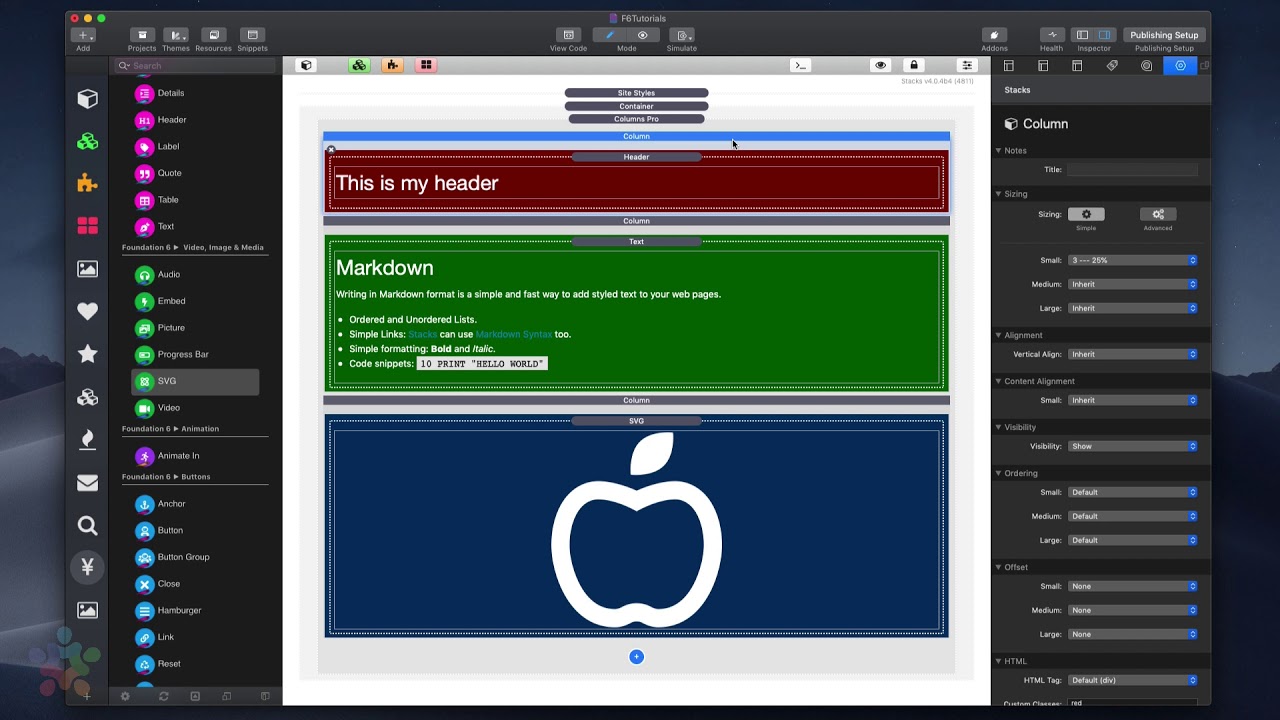
05:20 now when we preview that you'll notice
05:22 that the header and the markdown
05:25 paragraph here are vertically aligned to
05:28 our tallest column which is our SVG
05:31 Apple
05:43 you


