
Stacks Guru is born from the need to search the vast number of videos out there on stacks built for Stacks Pro and the Stacks 5 plugin for Rapidweaver.
We have scraped over 500 videos to get the transcripts for each in order to make the spoken word searchable.
Please use this free tool to help you learn and discover the awesome power that Stacks and the stacks made for Stacks have to offer.
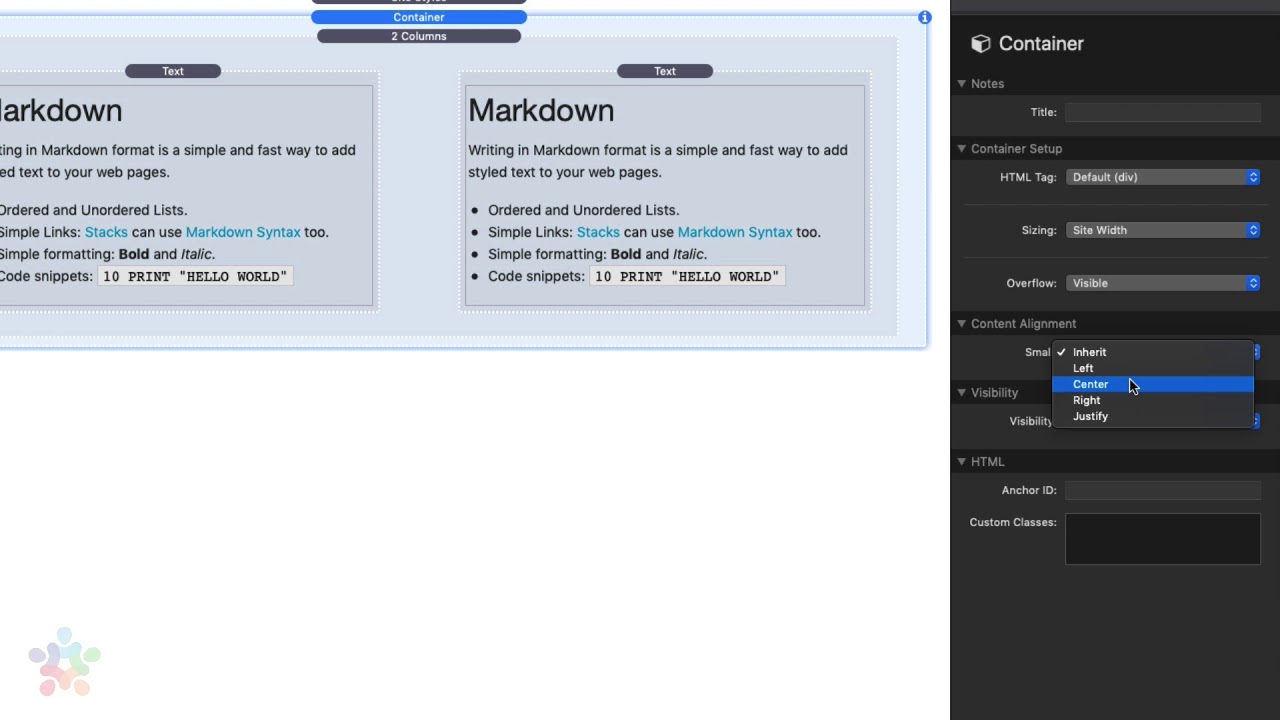
00:09 so what is a container a container is a
00:11 very important aspect of the layout
00:14 structure within foundation six and its
00:18 initial probably most important feature
00:21 is that it's if it's in charge of
00:24 constraining the width of your content
00:26 to the maximum site with that set inside
00:30 sight styles so if we look inside site
00:32 style settings you'll notice that here
00:34 we have a maximum width set of 120
00:37 pixels essentially what this setting
00:39 does is that it actually controls the
00:42 maximum width of the container stack of
00:45 all container stacks on the entire page
00:48 so if we were to look at this content
00:50 here if I preview this you'll notice
00:53 that my content is actually a maximum
00:55 1200 pixels wide
00:58 now if I were to take these let's take a
01:01 copy of these two columns and put it
01:02 above so now I have a two column stack
01:04 above and a in a two column inside my
01:07 container we preview this what you'll
01:11 notice is um that two column stack now
01:14 goes the entire width of the browser
01:16 window you'll notice up here it goes
01:18 over here whereas the one that's inside
01:20 the container stack actually is
01:21 contained and it is actually has a
01:24 maximum width of what we have set inside
01:26 site Styles so let's look at the
01:29 settings on what else we can do with the
01:30 container stack if we look at the
01:33 settings here the HTML tag um allows us
01:36 to define for accessibility reasons um
01:40 what this is right so if you're familiar
01:44 with from foundation one days this is
01:46 similar to the structure stack where we
01:48 can define this as a header or this is a
01:50 nav or it's our main right main tends to
01:55 be like the main body our main content
01:57 of the page right so a lot of times we
01:59 can do header for the header of the page
02:01 like our banners and stuff like that
02:03 there is a footer right that defines
02:06 where the footer is this helps again for
02:09 accessibility reasons as well as search
02:11 engines to define what the parts of the
02:14 pages are right another popular one is a
02:17 side which is a sidebar okay we'll have
02:21 more info on a lot of these other
02:23 settings when we do some videos on
02:25 accessibility in foundation says
02:29 next up if you want to make the
02:32 container go full with or have full with
02:34 plus a little gutter on the outside you
02:36 can do that as well it'll basically not
02:38 obey the setting inside sight styles if
02:41 you set this to full width next thing is
02:44 overflow and most of time hidden is
02:47 probably the setting that we want
02:48 however if you're gonna have something
02:51 like a drop-down menu or something that
02:53 is a potential it needs to break outside
02:56 of the bounds of the box you're gonna
02:58 want to make sure that this is set to
02:59 overflow visible now a lot of times
03:03 wouldn't we're defining alignment or a
03:05 content we want the alignment in an
03:07 entire section to be similar so as a
03:09 convenience you can actually define the
03:12 content alignment um or everything
03:15 within a container so for example let's
03:17 say I wanted this to be centered right
03:20 if you notice right here in edit mode
03:22 everything that is inside the container
03:24 is now text-align:center
03:26 okay and when you define a and alignment
03:30 on small devices you can also define
03:32 different alignments or medium and large
03:36 sizes as well next up is visibility you
03:40 can define you know all kinds of
03:42 visibility this is the standard
03:43 visibility that is used across all of
03:46 fundation six stacks
03:48 now this next feature is actually really
03:50 handy um and this allows us to define an
03:52 anchor ID directly in a container
03:55 there's a lot of times when we're
03:57 building out our websites and we want to
03:58 link to particular sections in our page
04:01 so for example if I just call this
04:03 anchor ID section one now linking to or
04:07 your container is actually really simple
04:09 we have an anchor button stack that
04:11 allows you to if you add this to the
04:12 page simply type in your anchor ID in
04:15 here and this button will now link
04:18 directly to that particular section on
04:21 your page now let's say we wanted to
04:24 link to this via a link or a menu item
04:26 that's really simple to do as well um if
04:29 we just add a menu item in here and we
04:31 click on our link item now when we click
04:36 on the set link and this is the same for
04:38 menus or if you just have text links on
04:39 the page just put in a hash tag and your
04:43 section ID or your anchor ID in there on
04:46 that's configured in container and now
04:48 that particular menu item our link will
04:51 link directly to that container


