
Stacks Guru is born from the need to search the vast number of videos out there on stacks built for Stacks Pro and the Stacks 5 plugin for Rapidweaver.
We have scraped over 500 videos to get the transcripts for each in order to make the spoken word searchable.
Please use this free tool to help you learn and discover the awesome power that Stacks and the stacks made for Stacks have to offer.
00:06 hello everybody this is Joe workman and
00:09 today I would like to introduce you to
00:11 the new cookie jar stack now the
00:13 European Union has a new law called the
00:16 cookies directive where they require
00:19 that you display a message to your users
00:21 of your website whether or not they want
00:23 to accept or decline the use of cookies
00:26 on your website well cookie jar helps
00:29 you do that it has a customizable
00:31 message along with customizable buttons
00:33 that allow you to either accept or
00:35 decline the use of cookies on your
00:38 website so let's jump on in and see how
00:41 easy it is to configure the new cookie
00:42 jar stack so here we are on a new stacks
00:46 page and we've added our cookie jar
00:48 stack to the page let's look at some of
00:50 the settings that we have so at the top
00:54 you can either position the cookie jar
00:56 stack to be display at the top of the
00:58 website like we saw earlier or you can
01:00 also display at the bottom the display
01:03 time settings defines the number of
01:05 times per day that you're alert will be
01:08 shown to users before they either accept
01:10 or decline the cookies the display
01:13 length defines the number of seconds
01:15 before the alert is hidden now for both
01:18 of these if you set the value to 0 it
01:20 will essentially set that value to be
01:23 unlimited so display times will be
01:25 unlimited display length will be
01:27 unlimited so if we look further down we
01:31 have the ability to add our own custom
01:32 clothes image to the stack and we also
01:35 have the ability to change the text for
01:36 both the accept and decline buttons now
01:40 we can also use the style buttons and
01:42 we'll come back to that in a little bit
01:43 also further down we have text size text
01:47 color background color and then we have
01:50 the opacity of the background now at the
01:53 bottom we have show sample statement
01:54 when you check this it displays a sample
01:58 text that you can use or modify it
02:00 basically is a starter kit or you can
02:03 start off with your alert to your users
02:05 okay now inside this we recommend that
02:08 you actually have like a privacy policy
02:10 on your website and then you link to
02:12 that privacy policy
02:13 that's definitely best practice in this
02:15 case so to get our stack working
02:19 essentially are we need to do is add
02:21 some text so now you can add anything
02:23 that you want but I've already pre-done
02:26 some text so I'm just going to add some
02:27 text in there I'm happy with the default
02:30 cookies for right now um if we preview
02:33 our page we will see i now have um you
02:37 know my text that i added accept cookies
02:39 and my decline cookies button now you
02:44 would think that we might be done
02:45 however the cookie jar stack does have
02:48 limitations it does not have control
02:51 over the cookie generations of every
02:54 single plugin or stack that is possible
02:56 within rapidweaver now luckily pretty
03:00 much most rapidweaver add-ons aren't
03:03 going to be collecting user data so the
03:06 cookie is that they generate are
03:07 actually not applicable to the EU
03:09 directive but analytics which pretty
03:13 much all of us use Google Analytics or
03:15 go squared or whatever Google or
03:17 whatever analytics service that you tend
03:19 to use those do fall into this law so we
03:24 need to be basically take our Google
03:26 Analytics code and add some stuff to it
03:29 so that it works with the cookie jar
03:31 stack so here we are in our Rapid River
03:35 project where we configure our Google
03:37 Analytics now one feature cookie jar
03:40 that we actually haven't talked about is
03:41 that it ships with a full set of
03:43 snippets that allow you to complete
03:45 implementation of cookie jar outside of
03:48 a stacks page however one of these
03:51 snippets actually is adding analytics so
03:55 what I'm going to do right now is I'm
03:56 going to open up a text editor that has
03:58 my analytics code that I got directly
04:01 from Google in it so here we have my
04:03 analytics code that I got directly from
04:05 Google and let's go ahead and get the
04:07 analytics snippet and integrate it in
04:10 with our Google Analytics code so we
04:15 double click on our snippet control all
04:20 copy it
04:24 going to cancel out of that don't need
04:27 our snippets window I'm going to go
04:30 ahead and add it below this okay so
04:35 essentially what we have here is we have
04:36 our google analytics code and then i
04:39 have my snippet down here now what i can
04:41 do is I'm going to grab select all of my
04:43 google analytics code between the two
04:46 script tags so there's going to be an
04:48 open script tag and an ending script tag
04:50 ok we're going to copy that and then
04:55 we're going to replace this these two
04:57 comments right there in the middle okay
05:01 so I've gone ahead and pasted the code
05:03 that we just copied I'm not you can
05:05 actually go ahead and delete that and
05:08 this snippet that we have left is what
05:11 we're going to paste into rapidweaver
05:13 Senate we're all going to copy this I'm
05:19 going to go into rapidweaver and I'm
05:21 going to paste it directly into there
05:23 and that's it that's all you have to do
05:26 in order to configure a cookie jar to
05:30 work with your Google Analytics now this
05:33 is going to cover probably ninety nine
05:36 percent of the rapidweaver cookie
05:39 generations out there like I said most
05:42 plugins or add-ons do not actually
05:44 gather user data which is the only thing
05:47 that's applicable with the cookie
05:49 directive okay but if you happen to be
05:52 using a plug-in or maybe some code that
05:54 you got off the internet you're going to
05:55 want to talk with those developers of
05:57 those add-ons or plugins that you're
05:59 using to ensure that their products are
06:01 updated to support the cookie directive
06:04 and I have full documentation on my
06:06 website on how they can do that so
06:09 that's basically it for the general
06:10 overview of cookie jar let's jump in and
06:13 show you how we could actually customize
06:15 this to use styled buttons so that
06:17 covers the basic overview of the cookie
06:19 jar stack now let's jump back into using
06:22 styled buttons that I mentioned earlier
06:24 so if we go back to our cookie adarsh
06:27 stack and in the settings pane select
06:30 the you styled buttons setting well
06:33 notice to drop areas have now appeared
06:36 now in these drop areas you can drop in
06:38 any button stack that you'd like for
06:41 instance we can add a default stack
06:44 button so you can go here and then you
06:47 can customize the text to be except okay
06:51 and the button over here would be
06:53 decline and when you use this those
06:57 buttons would actually be used now
06:59 another great example of this is with my
07:01 sweet button stack let's have a look at
07:03 that so here we have a beautiful example
07:05 of cookie jar using my too sweet button
07:08 stacks we have one that says accept
07:11 cookies with the little thumbs up and
07:12 then over here we have a decline
07:14 function to say you know instead of
07:16 decline cookies I said let's you're
07:18 getting less functionality of my website
07:20 so decline functionality with a thumbs
07:22 down okay and if we preview that we see
07:25 that it's actually very attractive look
07:27 and feel we have really nice attractive
07:29 buttons green is obviously except red as
07:32 decline so you see this is really
07:35 flexible so that you could actually
07:36 customize it really great to look
07:38 awesome on your website now earlier in
07:41 this screencast I had mentioned that
07:42 cookie jar ships with a full-blown set
07:45 of snippets that allow you to implement
07:48 cookie jar on any rapidweaver page not
07:51 just stacks let's jump in and see how
07:54 easy that is to do now if we open our
07:57 snippet editor will notice that there
07:59 are a bunch of out-of-the-box cookie jar
08:01 snippets that we can use now the first
08:05 one we're going to look at is the cookie
08:06 jar HTML snippet essentially let's just
08:09 copy that we're going to go into our web
08:13 page and paste it directly in the next
08:17 thing that we need to do is ensure that
08:19 we select our code since this is a style
08:21 text page we need to go to format ignore
08:25 formatting so that all this formatting
08:28 is ignored on the style text page now if
08:32 you'd like you can actually go through
08:33 and edit the text within this HTML to
08:37 customize it to your liking so this is
08:39 the same default snippet that I have in
08:42 the stack so you can go ahead and edit
08:44 that snippet and it will customize it
08:46 for you inside the cookie jar alarm
08:50 now there's two more aspects that we
08:52 need to add to the page the CSS which is
08:56 that essentially the styling of it and
08:58 there's obviously a snippet for that if
09:02 we open up the snippet will notice that
09:03 there are two CSS snippets there is a
09:06 position bottom snippet and a position
09:08 top snippet so if we want to position
09:12 see cookie jar at the top we would use
09:14 the position top snippet so let's go
09:16 ahead and take that we're going to paste
09:21 that directly into the CSS tab in our
09:23 page inspector now if you're familiar
09:26 with CSS at all you can actually go
09:29 through and edit some of these values
09:31 for opacity background color text color
09:35 and things of that nature so you know if
09:38 you're familiar with the CSS go ahead
09:40 and edit those things now last thing we
09:45 have javascript in this JavaScript there
09:48 is a JavaScript snippet in the snippets
09:50 let's go ahead and copy that and paste
09:52 that directly into the JavaScript window
09:57 now most of this JavaScript I recommend
10:00 you do not touch how are there there are
10:02 a few variables that you are able to go
10:04 ahead and edit towards the end there is
10:08 a block of text here and you'll notice
10:12 that there is a declaration of a
10:13 variable and a value this is where you
10:16 can actually configure whether or not
10:17 you want your position to be at the top
10:19 or the bottom as well your display
10:22 seconds similar to the setting in the
10:24 stacks hood and then display times and
10:27 then your opacity so there are four
10:31 options here that you can configure
10:32 please do not touch anything else in
10:35 this you can just configure these
10:37 particular variables that will be used
10:41 now once we've done that we can now
10:43 close our window and if we preview this
10:47 everything should work so we have our
10:50 texts we have our buttons and actually
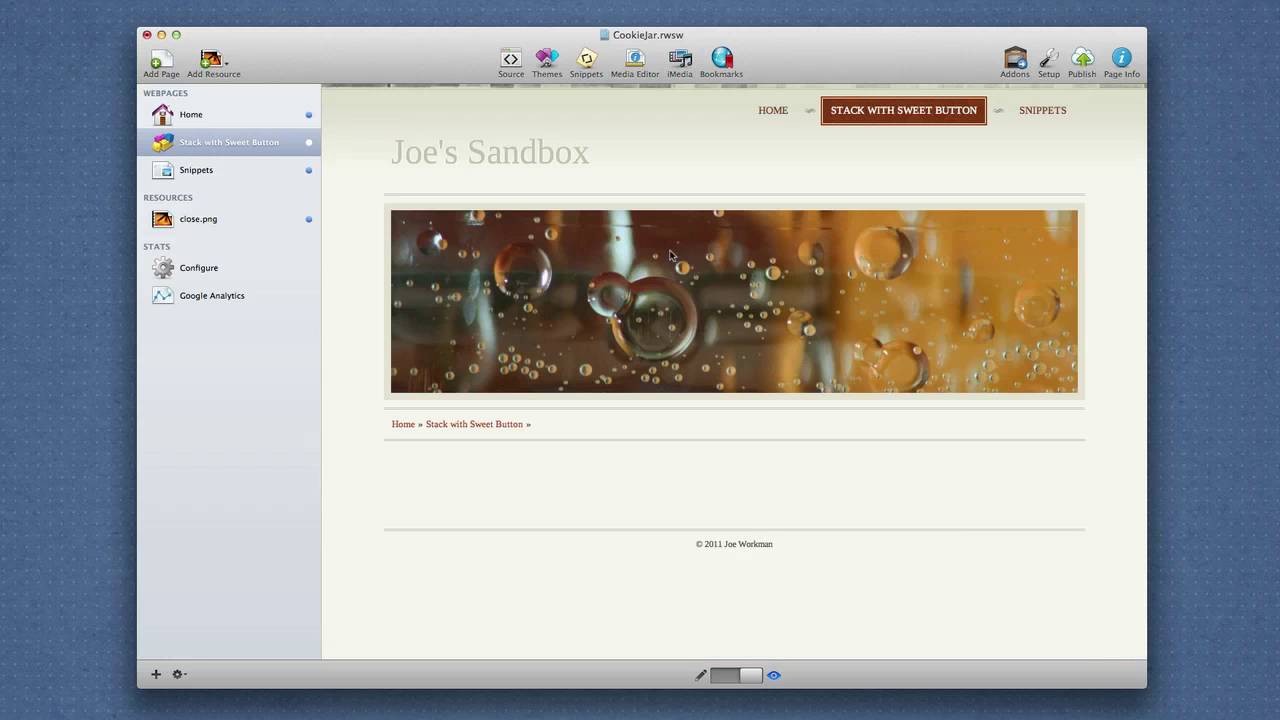
10:54 if you notice our close button is not
10:56 here that's easy to fix essentially once
11:00 you have a close button you defined
11:03 you can go ahead and add that close
11:05 button to your resources so just add an
11:08 image that's called closed PNG t the top
11:12 level of your resources that's all that
11:15 you need to do and once you do that if
11:17 we preview our page again will notice
11:20 that we now have a nice clothes image
11:23 there that we added into our resources
11:26 so that is the cookie jar stack
11:29 everybody on and the set of snippets I
11:32 hope you enjoy it it is a great stack
11:35 and thank you very much bye-bye


