
Stacks Guru is born from the need to search the vast number of videos out there on stacks built for Stacks Pro and the Stacks 5 plugin for Rapidweaver.
We have scraped over 500 videos to get the transcripts for each in order to make the spoken word searchable.
Please use this free tool to help you learn and discover the awesome power that Stacks and the stacks made for Stacks have to offer.
00:00 why is a math book always unhappy
00:03 because it's got lots of problems
00:11 hey everyone Jordan here and in this
00:14 video we're gonna be looking at the new
00:16 date functions that are added into pi
00:19 now these allow you to take basically
00:22 date fields and do some math based on
00:25 them so we can you know maybe do a
00:27 difference between two dates or we could
00:30 take a date and then you know add 2
00:33 hours to it and get the new time and so
00:36 there's some very interesting stuff work
00:37 so we're gonna look at two different
00:38 demos for pi we're gonna look at demos
00:41 11 and 12 and let's jump in and have a
00:46 look so hopefully by now you've watched
00:49 a bunch of the other PI videos and you
00:50 have an understanding I'm gonna glaze
00:53 over some of the basics of Pi and we're
00:55 just gonna dive into you how you can use
00:57 some of the date functions within it so
01:00 right now we're gonna look at demo
01:02 eleven and essentially what we're doing
01:04 is we're just taking the local time and
01:06 then we're adding or subtracting hours
01:09 to that and we're calculating nu times
01:12 so we have Harry's time Fred's time
01:14 Bob's time and Jane's time so it's
01:17 pretty interesting how we can use dates
01:20 let's have a look so here at the top we
01:22 have a slider that's just simply called
01:24 hours and it is a plus or minus a number
01:28 of hours that we're going to be using
01:29 inside pi so here in the first PI this
01:33 is the one that actually takes the local
01:35 our local time the current time and then
01:37 adds a certain number of hours to that
01:39 in the Advanced Settings of Pi you can
01:42 add load external libraries and what
01:44 that does is that that shows us a little
01:46 blue plus button here and you can add a
01:48 few things right now we're gonna add
01:50 date functions so here's the date
01:53 functions external library and what this
01:56 does is you only need to load this once
01:58 on a page you don't need to add this to
02:00 every single one once it's loaded onto
02:02 the page you can use it to all your
02:04 heart's content in as many PI stacks on
02:06 that page as you want now it does have
02:09 its own cheat sheet so if you go ahead
02:10 and click on show cheat sheet there are
02:13 some really
02:14 good examples here on how you can use
02:16 moment which is the library that we're
02:19 using for this it's called moment J s
02:22 and we'll look at that's webpage in a
02:24 little bit but right now the cheat sheet
02:26 shows you shows you a few examples we're
02:28 actually going to be using these
02:29 examples right here in these videos
02:32 today
02:34 ciara free look it gives us a new
02:37 function called moment and basically
02:40 moment with just by itself just moment
02:43 with parentheses gives us the current
02:45 time and then based on that we can then
02:47 add do stuff to it so we can add so here
02:50 we do dot add and then we're passing in
02:53 the hours from the slider so if I if the
02:56 slider value is 1 we're gonna add one
02:58 hour to the current time and then this
03:01 dot calendar function gives us just a
03:04 nice pretty output so let's have a look
03:06 at that in the in preview again just so
03:08 we could see so currently as I'm
03:11 recording this
03:11 it is oops if we do let's go back to
03:16 it is 219 in the afternoon it that is
03:20 the time right now it is 219 and if I
03:23 add one two hours it's gonna be 419 so
03:27 what that dot calendar does is it takes
03:30 the time and then we added to and
03:32 basically it formats it to today at 41
93:35 so it does that automatically for us
03:38 it's a cool little function there's a
03:39 lot of other output formats for for
03:42 moment
03:42 it's a powerful library that I use in a
03:45 lot of my time based stacks in total CMS
03:47 and in Foundation and TARDIS and things
03:50 of that nature if we need to display
03:52 time I'm using moment because it has
03:54 it's very powerful and it gives us a lot
03:57 of flexibility for displaying time in a
03:59 lot of different ways so here in that
04:02 dot calendar function it just creates
04:03 this nice little automatically thing
04:05 today at
04:00 for 19 it also does things
04:08 like tomorrow at
03:19 a.m. right so it
04:11 kind of just formats that in a nice
04:13 English way so really if we look at some
04:16 of the other ones we're just doing
04:17 moment dot add and then we're adding the
04:19 number of hours and then we're
04:21 subtracting seven to it from that
04:23 because for zone number one
04:25 I know it's seven times seven hours
04:28 before mine
04:31 right so that's a way of just kind of
04:33 how we're adjusting the time zones here
04:36 in this one I'm doing hours plus four
04:38 hours plus eleven hours minus ten right
04:42 and then we're doing the dot calendar at
04:44 the end so we get that nice pretty
04:46 formatted look and we're done right um
04:49 so this might look simple but we're
04:52 doing a lot here we're taking the
04:53 current time we're adding a certain
04:56 number of hours to that and then we're
04:58 outputting it with the calendar function
04:59 so it looks pretty so now let's go ahead
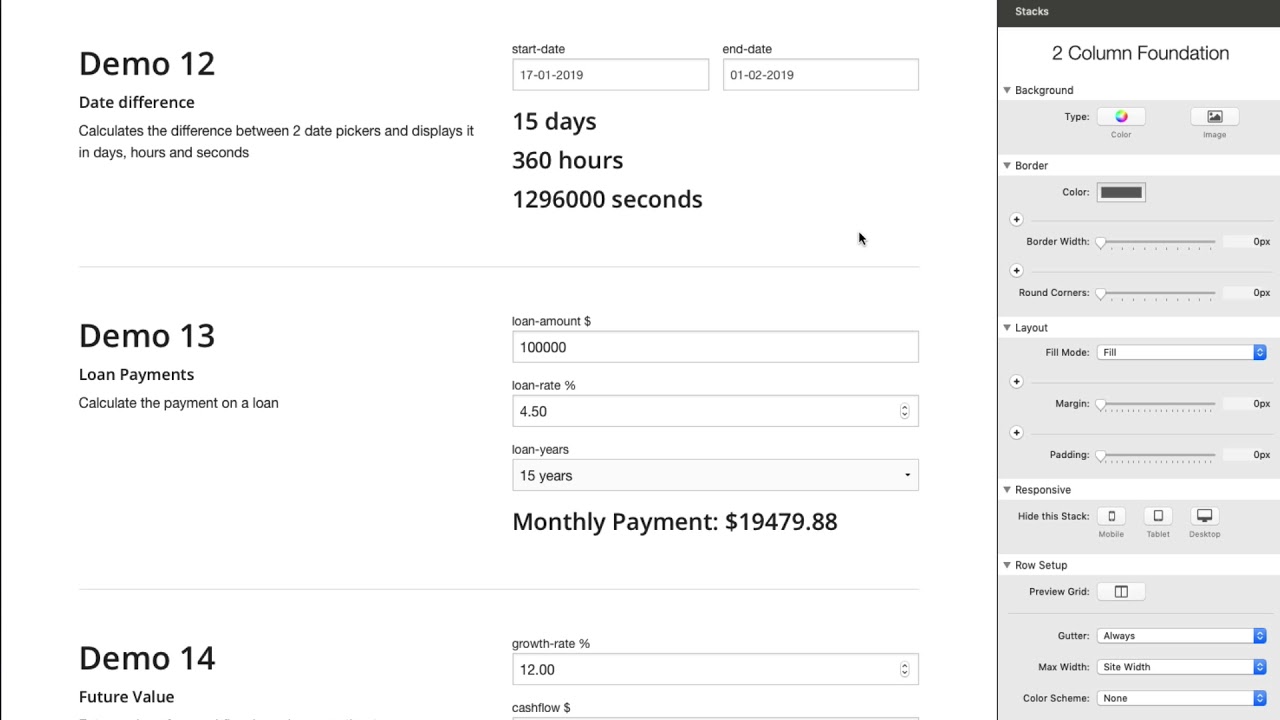
05:02 and look at demo twelve what demo twelve
05:05 does it actually takes to date fields
05:08 from foundation so these are foundation
05:09 date fields from the foundation form
05:11 stacks and it calculates the difference
05:14 between them right so this is negative
05:16 one days if I go ahead and say February
05:18 first
05:19 this is fifteen days three hundred and
05:21 sixty hours and a lot of seconds right
05:24 and this is really simple to use as well
05:27 let's go ahead and see how to do this
05:29 so here's demo 12 and I have the start
05:32 date and the end date fields and these
05:34 are date fields from foundation forms
05:36 and if you notice I give them name of
05:38 start - date and end - date now here is
05:42 an example of how we do the day
05:44 difference what I'm going to do is I'm
05:47 actually just gonna copy this and we're
05:49 gonna open this up and vs code so it's a
05:52 little bit easier to read so here we
05:54 have this code now I format it a little
05:56 bit so it's easier for us to read and
05:58 process so we can see everything so
06:00 first off we have moment duration and
06:03 then we have a parenthesis and one
06:05 little advance note here if you're using
06:07 something like vs code as you notice it
06:09 it shows you it highlights the matching
06:12 parentheses so I know this parenthesis
06:14 goes with that parenthesis okay so we're
06:17 doing a duration which is a time period
06:20 and at the end we're gonna say we're
06:22 gonna display as the number of days so
06:24 we're gonna get the number of days right
06:26 because this is going to return a bunch
06:28 of seconds and we need to automatically
06:30 translate that in two days so we have
06:33 duration and then this gives us the
06:35 duration that we need and then we're
06:37 gonna display it as days so let's look
06:39 at this inner part of duration
06:42 here we're doing we're getting a moment
06:45 element so we're creating a date object
06:48 from the end date so we're passing the
06:52 the the actual end date from the form
06:54 and we actually we have to provide the
06:58 format of that date so what is that date
07:00 format is it here we're doing day day
07:02 month month and then the four-digit year
07:05 so if depending on how your settings are
07:08 in the date picker you're gonna want to
07:10 modify this to be the actual format that
07:12 that date is displayed in and then we're
07:15 using the dot diff function because we
07:18 want to get the difference between two
07:19 dates so we're doing end date diff and
07:23 we're doing a diff from the start date
07:26 so here we create a date object from
07:29 moment that uses the start date and we
07:32 pass the format as well which is the
07:34 same format as the end date so we're
07:36 doing we're finding the difference again
07:38 between the end date and the start date
07:40 and that outputs the difference in time
07:43 and duration we'll take that difference
07:46 in time and then output at as days
07:49 because we that's what we defined so
07:52 this is a little complex right um but
07:55 it's not too far fetched where you can't
07:57 follow it
07:58 right so we're taking the duration doing
08:00 end date start date finding the
08:02 difference and then formatting that as
08:04 the number of days so that's pretty cool
08:07 and if we look at the hours we do the
08:09 same it's the same exact formula we're
08:11 just outputting it as hours and the next
08:14 one is we're out putting it as seconds
08:17 so it's pretty simple and output this
08:20 you're probably already familiar here
08:22 we're actually using the snippets so
08:24 we're just taking the snippets from
08:26 these right just show snippet copy that
08:28 span and plop that right in the header
08:30 and it will display that value for us so
08:33 the two functions that we learned here
08:35 are duration and diff now moment is a
08:38 very powerful library that allows us to
08:40 do a lot of various things let's go
08:43 ahead and check out some of the
08:44 documentation for it so if we go to the
08:47 Prai product page we go to the FAQ s and
08:51 we can go down and do date functions
08:54 we go external resources for pi and
08:57 javascript and then we do moment so here
09:01 we can manipulate dates
09:03 so here's some stuff that we saw here we
09:06 did moment and we remembered here we
09:08 this looks familiar we did add you can
09:10 also subtract you can do a particular
09:12 year you can modify the minutes hours
09:14 and seconds so a lot of this allows you
09:17 to manipulate time so you could take the
09:19 same you know this basically adds seven
09:22 days subtracts one month it goes to the
09:25 year of 2009 so on and so forth so it
09:28 allows us to really provide us some
09:30 function for really manipulating a
09:32 particular date to do a lot of what you
09:35 want and all of those are definitely
09:38 documented here so you can go through
09:40 and read the documentation they have a
09:41 lot of settings and a lot of examples of
09:44 how you can use these various methods
09:47 now if we go to some stuff on how we can
09:50 display dates this is a lot of stuff on
09:53 how you can format the output of the
09:55 dates so remember there was that really
09:57 cool thing that was just docked calendar
09:58 give us kind of our human readable
10:00 format it was just like today at this
10:02 time or tomorrow at this time here it
10:05 allows us fine grain control over the
10:07 exact format that you want so it's just
10:10 dot format and then you have to pass it
10:13 the actual format that you need and as
10:15 you see there's a lot of control so you
10:17 can do here's a lot of examples of how
10:19 you need to pass the format in so
10:22 basically you you create your format
10:24 inside this string and these little
10:26 characters the map it here so the tokens
10:28 are here and here's an example of what
10:31 those tokens will give you so this
10:33 format is very powerful you can also do
10:35 stuff like like here's that calendar
10:38 right so this is what we did here so is
10:40 tomorrow at Sunday at things of that
10:42 nature there's also time too so it
10:46 provoke you know in a day five days ago
10:49 five days from now things of that nature
10:51 so there's a lot of really powerful ways
10:55 that you can output time using moment
11:02 and the last one that we we kind of
11:04 looked at was duration and this allows
11:06 us to take something and display it as a
11:10 particular duration so here you can pass
11:12 it a particular amount of time and then
11:15 you get displayed I seconds as minutes
11:17 hours days weeks months years so on and
11:20 so forth so I hope you enjoyed that kind
11:23 of overview of how you can use dates and
11:25 manipulate dates using PI or actually
11:28 using moment that PI can load for you
11:31 right definitely need to have a little
11:34 bit of knowledge of JavaScript here
11:36 right or you know be able to read the
11:37 examples and copy and paste and do some
11:39 experimentation um and as you see you
11:42 can get some powerful stuff you know
11:45 displaying dates in particular formats
11:46 you know doing some durations and
11:49 differences and I'm calculating stuff
11:51 you can manipulate dates by you know say
11:53 this day in 2010 stuff like that right
11:56 some really cool stuff I can't wait to
11:59 see what you build with it I'm excited
12:00 of the possibilities that PI can give us
12:03 a particularly with in this examples of
12:06 dates since it's there's nothing else
12:09 really out there that I'm aware of that
12:10 can kind of do exactly what that what PI
12:12 can do with dates so I'm really excited
12:14 I'm happy that we can start doing some
12:17 of these more advanced mathematical
12:19 functions you know especially with dates
12:22 it's pretty cool stuff so share what
12:24 you're doing on Weaver space I'd love to
12:26 see it I can't wait if you have any
12:28 questions go ahead and post there and we
12:30 can help you um you know with your
12:32 functions and stuff like that so take
12:35 care I hope you enjoy Pi and we'll see
12:37 you soon


