
Stacks Guru is born from the need to search the vast number of videos out there on stacks built for Stacks Pro and the Stacks 5 plugin for Rapidweaver.
We have scraped over 500 videos to get the transcripts for each in order to make the spoken word searchable.
Please use this free tool to help you learn and discover the awesome power that Stacks and the stacks made for Stacks have to offer.
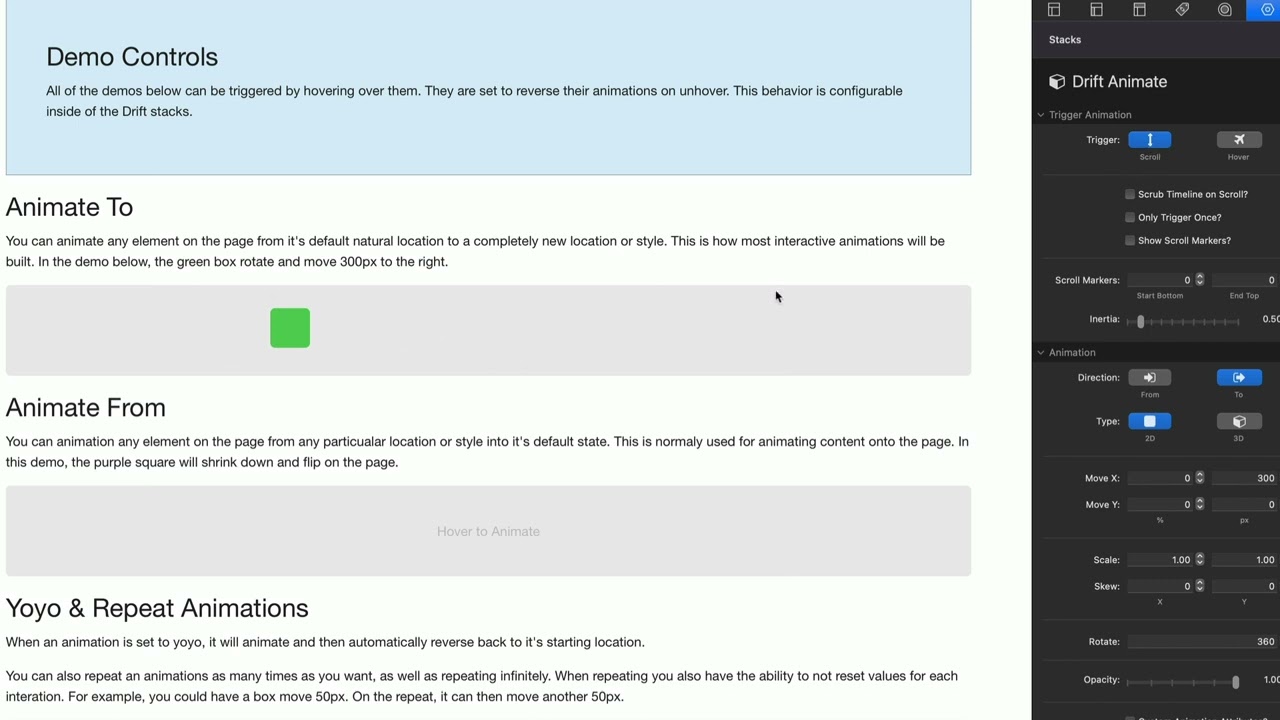
00:10 okay guys so in this video we're going
00:11 to be talking about the triggers for
00:13 animations with the drift stack now it
00:16 doesn't matter which drift stack you're
00:18 looking at whether or not it's drift
00:19 drift scrambles split text or type
00:22 they all have the same type of animation
00:24 triggers
00:25 now drift timeline aka drift pro has
00:29 completely more elaborate different
00:31 trigger settings we're gonna have a
00:32 completely separate video for that so
00:34 make sure you look for that if you want
00:36 a video for drift pro triggers so in
00:38 this video we're gonna be targeting the
00:40 drift animate stack
00:42 and by
00:43 in this demo i already have hover turned
00:45 on so let's go ahead and look at that
00:47 interaction
00:49 so you'll notice when i hover over this
00:50 particular demo it animates and when i
00:52 hover out
00:53 it goes in reverse
00:56 the reverse action is obviously
00:57 configurable with this checkbox so if we
00:59 uncheck this we'll notice when i hover
01:01 over the animation happens
01:03 but this time when i unhover
01:06 the animation doesn't go in reverse
01:08 because i have that turned off
01:11 now the second checkbox in this setting
01:13 is called tap and hold on touch
01:15 and that has to do with
01:17 touch devices
01:19 where it it's the type of hover event or
01:22 pointer event that happens with those
01:24 devices so by default if you have this
01:27 check box enabled you have to actually
01:30 tap and hold and while you're holding
01:32 the animation will happen and when you
01:34 let go at any point it will trigger the
01:36 unhove the hover out
01:38 effect right so when this checkbox is
01:42 turned off
01:43 it's basically simply a tap
01:45 so the tap will trigger the animation
01:48 versus the actual holding down of the
01:50 finger
01:51 okay so now let's go ahead and look at
01:53 these scroll based triggers this is
01:55 actually the default trigger
01:57 and you'll notice that i have this
01:58 enabled it actually animated by default
02:01 because
02:02 this green box is already in the
02:05 viewport
02:06 so that's one important note
02:08 is uh with scroll based animations if
02:11 the element is on the page on page load
02:14 it being on the page will trigger the
02:16 animation
02:18 so one important tool when configuring
02:20 scroll based animations is the scroll
02:23 markers or the locations of when the
02:26 animations are going to stop and start
02:29 and that's this check box this show
02:31 scroll markers
02:33 and here we have the settings sent to
02:36 the start is at 10 from the bottom
02:38 and the end of the animation is 10 from
02:41 the top
02:43 so if i go ahead and let's scroll this
02:45 content all the way down to the bottom
02:48 okay now you'll notice if i were to
02:50 scroll up
02:52 now once this start indicator this is
02:56 the starting position of the drift
02:58 animate stack once that start
03:01 hits this
03:02 the animation is going to start
03:05 and there we go
03:07 so that triggers the starting point of
03:09 the animation when it reaches the
03:12 scroller start position
03:14 now if we notice we we go now once the
03:17 end position once the bottom of our
03:20 drift animate stack reaches the end
03:23 position
03:24 it's going to animate in reverse
03:29 that way you can kind of scroll out of
03:30 the page and conversely if we scroll
03:33 down when the end reaches the end the
03:36 animation is going to be triggered again
03:40 and as we scroll down the page when the
03:42 start position reaches the start
03:44 scroller start position it's going to
03:46 animate in reverse
03:52 now if you only want to trigger this
03:53 animation one time go ahead and set the
03:55 only trigger once option
03:58 now the last setting here in the scroll
04:00 triggers is this scrub timeline on
04:03 scroll
04:04 let's go ahead and turn that on
04:08 now what this does is so far all of our
04:10 animations were
04:13 timed so we had set this particular
04:16 animation to run 300 pixels to the right
04:20 as well as rotate over two seconds
04:23 however when we turn on the scrubbing of
04:26 the timeline what happens is the
04:29 animation is tied to the scrolling of
04:33 the website
04:35 so once the start position hits the
04:37 scroller start the animation is going to
04:39 start
04:42 and it's going to continue until the end
04:45 position
04:46 reaches the scroller end
04:52 and if we go in reverse oh i have
04:53 trigger only once turned on
04:56 go ahead and if we go in reverse we'll
04:59 see that it goes backwards
05:02 so i can scroll up and down and as i'm
05:06 and that animation is tracking my
05:09 scrolling now what is inertia inertia
05:12 allows the animation continue to
05:14 continue for a certain amount of time
05:16 after my scrolling has stopped
05:19 so if i go ahead and set this to a
05:20 larger value just so we can kind of see
05:23 i'm going to set this to almost three
05:24 seconds here so if i scroll
05:27 we'll see that the animation continues
05:30 even though my scrolling has stopped
05:34 this allows us to add some some life
05:37 into some movement into our web pages
05:39 it's really exciting i think this
05:41 inertia feature can really add some
05:43 really great parallaxy effects uh to our
05:46 websites
05:56 you


