
Stacks Guru is born from the need to search the vast number of videos out there on stacks built for Stacks Pro and the Stacks 5 plugin for Rapidweaver.
We have scraped over 500 videos to get the transcripts for each in order to make the spoken word searchable.
Please use this free tool to help you learn and discover the awesome power that Stacks and the stacks made for Stacks have to offer.
00:10 hey guys so in this video we are going
00:11 to be looking at the motion path now
00:14 this is
00:15 an animation that's only available in
00:16 drift pro
00:18 and so without further ado let's see
00:19 what this does so um here the default
00:22 animation here is just a circle
00:24 so as you see here i have a circle
00:27 and it animated one time now obviously
00:30 we could do uh repeat you know negative
00:32 one and then it's just going to kind of
00:34 continuously go in a circle now for
00:36 circles you know we probably want to
00:39 have a zero delay here and i think
00:42 linear actually linear easing looks best
00:45 for circles so
00:47 um there's just a quick
00:49 snip
00:51 so there's just a few tips for circles
00:53 uh again which is the default uh motion
00:55 here it's a pre-baked path
00:58 um i hope to eventually have more
00:59 pre-baked paths but uh further on you'll
01:02 see that you'll be able to not wait for
01:03 me and do your own custom ones um
01:06 anytime you want so
01:08 again to just kind of have something
01:10 that's kind of hovering there
01:12 on
01:13 page load you just do repeat negative
01:15 one so it's infinite
01:17 set the repeat delay to zero because you
01:19 don't want to do a circle then delay and
01:20 then do another circle right you just
01:22 want to have to be continuous
01:24 and lastly i think linear looks best for
01:28 um if you just want something to kind of
01:30 um
01:31 go in a continuous motion or else it's
01:33 going to be like a
01:35 it's going to go like here's an example
01:37 of it
01:37 you know it doesn't really look all that
01:39 great i don't know maybe that's effect
01:41 you want maybe if you were to go a lot
01:42 slower right so if you do a really slow
01:45 animation here like 20 seconds
01:47 okay
01:48 um you can get this you know it takes 2
01:51 seconds to go all the way around
01:53 so at that point you know maybe you
01:55 could do something other than linear but
01:57 if you're going to have a
01:58 faster animation for that circle i think
02:00 linear is just going to really look the
02:01 best but
02:03 um play around you can do u
02:07 all right so let's say you don't want to
02:09 have this a circle um let's look at this
02:11 so first off let's look at kind of the
02:14 implementation here a little bit
02:16 so inside obviously i have a class here
02:19 i'm animating ws logo
02:22 and what i've done here is actually
02:24 actually this is my svg i've added that
02:27 class directly onto the svg itself that
02:30 way i'm i'm actually animating the
02:33 actual svg okay and what's kind of cool
02:37 i'm not going to do this here but you
02:38 know if you want to animate parts of an
02:40 svg you could do that as well just by
02:42 simply going ahead and adding classes to
02:44 the exact
02:45 path or you know element within your svg
02:49 you can add a class to parts of an svg
02:51 and only animate that one part of the
02:53 entire svg image really cool
02:56 awesome stuff there you can use that in
02:58 any trick in all of drift pro so
03:02 definitely play with that trick
03:04 now that we see kind of how everything's
03:06 linked up how i'm linking this motion
03:08 path to the svg let's go ahead and take
03:11 things to the next level
03:13 so outside of circle we also have the
03:15 ability to to define an svg path id that
03:19 we can follow
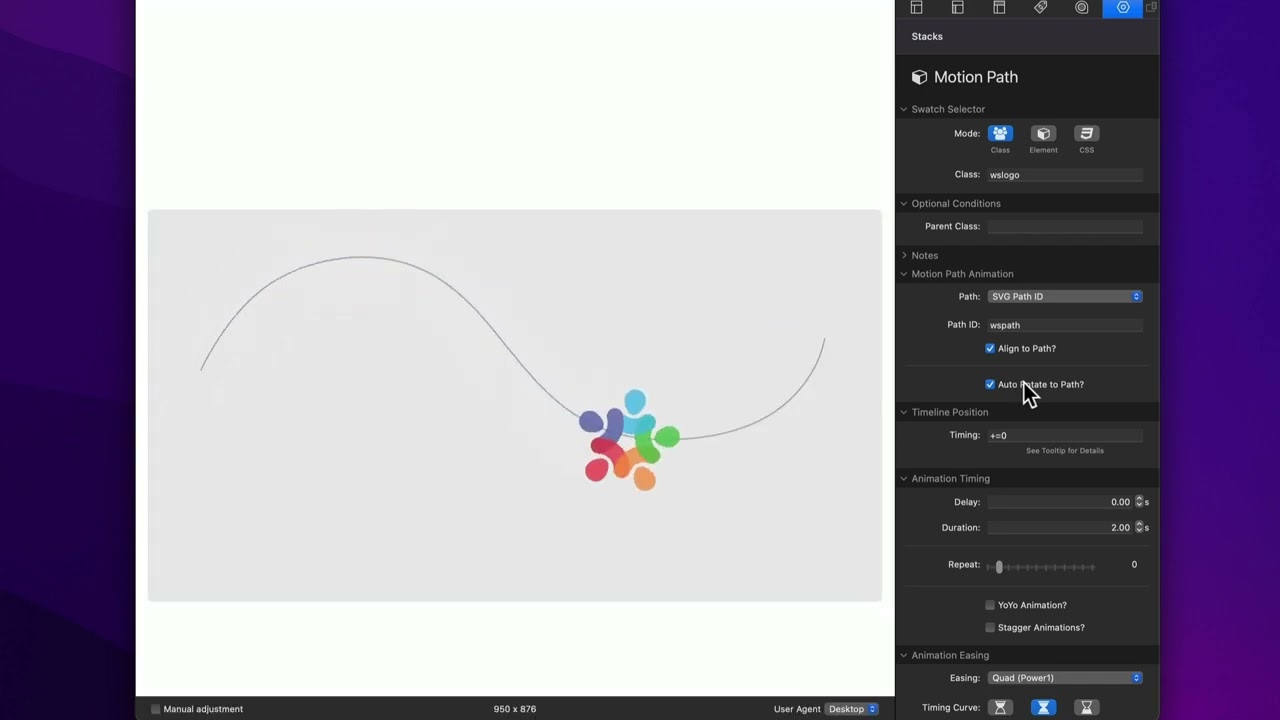
03:21 and so what i've done here is i have an
03:23 svg
03:24 and i do have to say i think that this
03:26 is the best route that i'm about to show
03:28 you right now to do custom paths
03:31 i have an svg that is this path
03:34 okay
03:35 um inside the actual path here
03:38 okay i have an id
03:40 and it's set to ws path
03:46 so i'm i have an id not on the svg on
03:49 the actual path
03:51 that this is going to follow
03:53 that's very important the id must be on
03:55 the path
03:58 okay so here i have a svg path it's just
04:01 a standard s-curve
04:04 and i i made sure that that id is inside
04:06 the svg and assigned to the path
04:10 essentially all i need to do is pass
04:12 that id to motion
04:14 we can also and then
04:16 we want to align to the path and let's
04:18 go ahead and preview that
04:20 and there we go our svg animates along
04:23 that path
04:24 now
04:25 you might want to want to have the
04:27 actual svg path
04:29 on your page right i mean
04:31 i have this here because so we can
04:33 visualize and visually see the path that
04:36 the icon is actually going along
04:39 but
04:40 if you're using a foundation 6 svg stack
04:42 for this
04:44 you can easily
04:45 either override the stroke if your svg
04:47 has one here i'm actually adding a
04:49 stroke because my svg has none
04:52 okay so i'm going to turn off the stroke
04:55 and let's preview that again
04:57 so now
04:58 the path exists on the page it's just
05:01 invisible
05:03 and our icon is animating along that
05:06 path
05:07 i think that this is definitely the best
05:09 way to go
05:10 now if you want to have let's say this
05:12 icon going along a path that is
05:15 on top of maybe something else
05:17 you would potentially take this svg and
05:20 maybe use a position swatch to position
05:22 it somewhere so that it's exactly where
05:25 you want it on the page
05:26 then
05:27 obviously while you're doing that you'll
05:29 probably turn on some strokes so you can
05:31 see it
05:32 and once you have everything enabled and
05:34 aligned to where you want you will turn
05:36 off all stroke and all fill on that svg
05:41 that way
05:42 um you know your thing animates exactly
05:46 where you want it
05:47 now this could be cool as well if you
05:49 have you know some sort of actual icon
05:51 svg and you want to animate something
05:53 maybe around that you know this could be
05:55 an interesting feature for that as well
05:57 i don't have an example of that but um
05:59 yeah that you can do really imagination
06:02 is your only limits here right
06:04 so
06:05 what's next oh we also have auto rotate
06:07 to path um let's let's just show you
06:09 what this auto rotates path does
06:12 that essentially if you notice the icon
06:14 rotates along with the path so if you
06:17 were to have let's say like a little car
06:19 that's you know driving over these hills
06:21 you would want to have this auto rotate
06:23 path enabled so that the car actually
06:25 rotates with the road so it looks like
06:27 it's driving on it
06:29 now there's one last way to accomplish
06:33 motion path and that's defining a custom
06:36 path
06:37 and this essentially the path that is
06:39 inside of the svg that we used earlier
06:43 but i want to show you a cool tool that
06:45 we have that's now this feature is still
06:48 somewhat a little bit under development
06:50 um over time it'll will refine it and
06:52 make it nicer but this is pretty cool
06:55 so i'm going to go ahead and there's a
06:57 helper stack here called motion path
06:59 builder
07:01 okay if you notice here there's a bunch
07:03 of instructions on how to use the
07:05 builder
07:06 but essentially what we're going to do
07:07 is i'm going to delete all our motion
07:09 svg path animations
07:12 i'm going to take this builder and i'm
07:13 going to plop it directly above where my
07:15 svg is where i potentially want to
07:17 animate that
07:20 uh i'm going to put in the class of the
07:22 logo that i want to animate so i'm going
07:23 to do ws logo because that's what we're
07:26 going to animate
07:27 and let's go ahead and preview this
07:32 and what you'll notice here is it starts
07:34 off with an s curve by default
07:37 but what's awesome here is we can go
07:39 ahead and modify this path
07:42 to be whatever we want
07:49 you know so we can really start making
07:52 this a custom
07:53 path here
07:57 and when we're happy with that path
08:00 and you can go ahead and if you hold
08:01 down the option key you can click on the
08:03 line oops click on the line and you can
08:05 add a new point so you can kind of drag
08:08 that out and kind of do all kinds of
08:10 stuff
08:13 this is a really interesting intriguing
08:15 way to kind of have a builder okay and
08:18 when we're happy you just go ahead and
08:20 click copy motion path
08:23 okay now now that i've copied that
08:25 motion path we're going to go ahead and
08:27 we're going to add a motion path
08:28 animation
08:29 uh we're going to animate the ws logo
08:32 and we're going to do a custom path
08:35 and i'm going to
08:36 paste in
08:39 this when i click that copy path this is
08:42 the path to that to the path that we
08:44 built inside preview
08:46 pretty cool right so let's go ahead and
08:49 now that i've built my path we're gonna
08:51 get rid of that and let's go ahead and
08:53 preview this
08:55 and that's a little fast let's go ahead
08:57 and slow that down a little bit
09:03 and there we go
09:04 as you see
09:05 my svg followed that path
09:08 now something that i am currently still
09:11 working on is the path
09:14 sizing okay so
09:17 if you notice here let's go ahead and
09:18 make this icon left
09:21 so that it's over here
09:24 if you notice like it that that it did
09:26 animate in that path and it's that's
09:28 probably not the best
09:30 the best path right example but it
09:32 didn't necessarily grow to the full
09:34 width i i might have expected it to kind
09:36 of grow and animate all the way out to
09:38 the outside so i'm still working on some
09:40 of those controls
09:41 but it gives us a lot of
09:44 really interesting things uh to play
09:47 with here so we can kind of build our
09:49 own path
09:50 and
09:51 if this path builder doesn't give you
09:53 exactly what you want the ultimate way
09:56 is definitely the example we did before
09:58 we were where we were doing the svg path
10:00 that way that svg lives within your dom
10:02 you can position it wherever you want
10:05 and we can ensure that it's going to
10:07 follow that exact svg path right so um
10:11 while the custom path is interesting and
10:13 it's cool and that path builder is
10:16 mind-blowingly awesome
10:18 um i think the most reliable way to go
10:21 is the svg path
10:23 and you'll be building those svgs in
10:25 your favorite
10:26 vector editor whether that's affinity
10:28 designer
10:29 um sketch
10:31 um
10:32 i don't know what else i would recommend
10:34 one of those two adobe illustrator i
10:35 guess if you're an adobe fan okay um i
10:38 have both sketch and
10:40 affinity designer they're both great
10:42 apps and will work perfect for designing
10:45 you know custom svg images


