
Stacks Guru is born from the need to search the vast number of videos out there on stacks built for Stacks Pro and the Stacks 5 plugin for Rapidweaver.
We have scraped over 500 videos to get the transcripts for each in order to make the spoken word searchable.
Please use this free tool to help you learn and discover the awesome power that Stacks and the stacks made for Stacks have to offer.
00:10 hey so in this video we are going to
00:11 learn how to stagger our animations so
00:14 what does that mean what does mean
00:16 staggering our animations
00:18 so here i have a simple animation that
00:20 we're basically just going to move a box
00:22 um 300 pixels to the right
00:24 and i'm targeting the class of box
00:28 but here on this page i have one two
00:31 three items
00:33 that have a class of box
00:36 so when i trigger this animation
00:39 what we'll see is that all three boxes
00:43 will animate at the same time because
00:45 i'm triggering that animation on
00:48 everything that has the box class
00:52 but that doesn't necessarily look great
00:54 right maybe i don't want all three to
00:57 animate at the same time maybe that does
00:59 and boom we're done
01:00 but what if i wanted to stagger them i
01:02 wanted to animate them at the same time
01:04 but i wanted them to have more
01:06 randomness
01:08 now inside of our animation timing
01:10 settings
01:11 now i should note that these are
01:12 primarily inside drift pro
01:15 only the split text stack inside drift
01:18 supports stagger
01:20 you will need drift pro in order to
01:22 stagger
01:23 your other animations okay
01:26 so if we turn on stagger essentially
01:29 what this means is i can now stagger the
01:32 start times you define your time here so
01:34 here i have it set to 0.25 seconds so a
01:37 quarter second the animation is going to
01:40 then happen if you notice now they don't
01:42 all animate at the same time any longer
01:44 they take a quarter second before they
01:46 start
01:47 now what's great is you can also choose
01:50 where you want that stagger to go from
01:52 so if we do start going from the start
01:55 it's going to go one two three
01:58 and if we do random we could do random
02:00 we could do end which in this case will
02:02 be three two one
02:04 right so there's a lot of great
02:06 intelligence here that allows us to
02:09 define
02:10 how not only that we can stagger but how
02:12 those staggerings are going to happen
02:13 and how that timing is going to work
02:15 right so really cool stuff there okay so
02:18 let's jump into a slightly more advanced
02:20 situation here here i have an entire
02:23 grid of squares
02:26 okay now this isn't necessarily you know
02:27 something you would have maybe you have
02:29 a grid of elements maybe even some
02:32 thumbnails
02:34 okay and we want to animate them in some
02:36 fancy way maybe on page load or as you
02:39 scroll up into the page
02:41 this is
02:43 amazing right look at this how this
02:45 everything just kind of grows and
02:47 animates and we have this grid of things
02:49 to animate from
02:50 so how do we do that
02:52 now i should note if you're looking at
02:54 this demo inside of the drift pro
02:56 project file um there is a stack here
02:58 that you probably don't own yet it's
03:00 called particle generator it's going to
03:02 be a part of slot machine
03:05 which will be our next stack release
03:07 it's coming soon essentially what this
03:09 does is this particular stack allows us
03:11 to generate
03:12 7
03:14 of these
03:15 boxes
03:17 okay so if you really want to play with
03:19 this right now just go ahead and copy
03:21 and paste these um multiple times
03:24 okay this particle generator again all
03:26 it does is just take what we have here
03:28 and creates
03:30 a number of copies of them
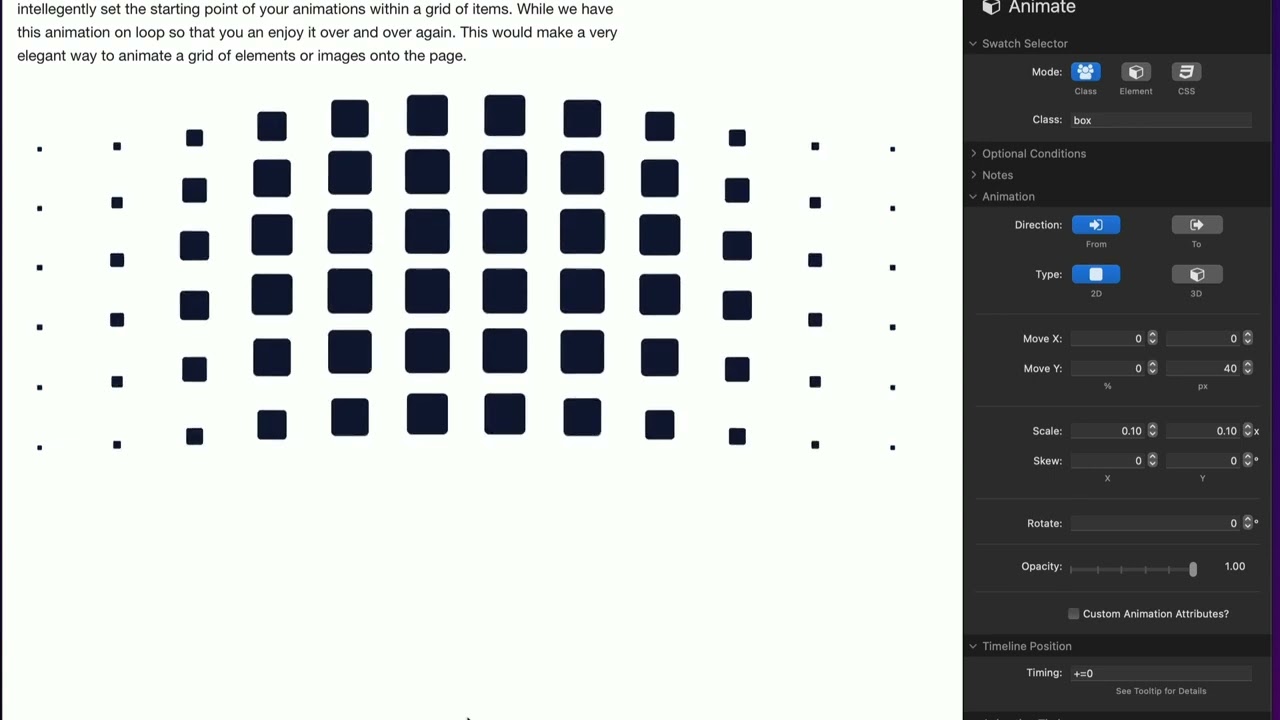
03:33 so let's look at our animation though so
03:35 here i'm animating box and obviously all
03:38 of those 72 boxes have a class of box
03:42 and we don't want them to all animate at
03:43 the same time so we're staggering them
03:46 uh and the stagger is set to 0.1 seconds
03:50 and then we have the from center and
03:53 that's if you notice it animates from
03:54 the center of the grid
03:56 and we also set to grid to auto okay
03:59 let's play with some of these settings
04:00 let's go to start
04:02 we'll see that it always goes from the
04:04 top left
04:06 and center we already saw what center
04:07 does if we do random that's more kind of
04:10 interesting where it kind of randomly
04:12 chooses items from the grid to animate
04:14 in we do edges and that goes from the
04:16 outside in kind of the opposite of
04:18 center actually
04:20 and then we have end which will go from
04:22 the right to the left
04:26 now we can also do grid right so uh the
04:29 default is auto it'll kind of you know
04:31 default it'll figure out how it wants to
04:34 animate things um but we can also do
04:36 like animate based on the x-axis so it's
04:39 going to animate everything up and then
04:41 out essentially
04:43 and then we can do the y-axis which will
04:45 basically be vertically right so a
04:47 slightly different animation maybe you
04:49 do start with that that kind of gives us
04:52 a different animation so play around
04:54 with these um there's a lot of really
04:56 great cool staggering logic here and
04:59 what's mind-boggling is that it's all
05:02 dynamically generated and you know
05:04 figured out for us so it's really cool
05:06 drift does a really great job with this
05:08 stagger stuff


