
Stacks Guru is born from the need to search the vast number of videos out there on stacks built for Stacks Pro and the Stacks 5 plugin for Rapidweaver.
We have scraped over 500 videos to get the transcripts for each in order to make the spoken word searchable.
Please use this free tool to help you learn and discover the awesome power that Stacks and the stacks made for Stacks have to offer.
00:10 okay so let's dive into type text
00:14 and there's a couple different uh
00:16 nuances between drift and drift pro with
00:19 type text so we're going to go over a
00:21 couple different examples it's a pretty
00:23 simple stack though so
00:25 um we are just going to go over the
00:27 basically the animation settings within
00:29 here a lot of the other settings are
00:31 common throughout
00:34 the drift stacks so we are just going to
00:36 be focusing on the type text features in
00:38 this video
00:39 let's start off with previewing just
00:41 kind of show you what type text does
00:43 essentially here i have hover animations
00:46 and when we hover over we see that the
00:47 text is typed and here we start with
00:49 nothing and when we hover over it types
00:52 the text out
00:54 and this example down here at the bottom
00:56 is with drift pro where when we hover
00:59 over it actually
01:01 changes the same words and kind of types
01:03 out a part of a sentence
01:05 okay so we're going to be looking at
01:06 these three particular demos here uh
01:09 today
01:10 so first off we're going to start off
01:11 with the drift type stack this is uh
01:13 from the drift stack so when you add
01:16 this text to the page um it's just some
01:18 text that you can type in whatever you
01:20 like in the html settings for this stack
01:22 you'll notice that you can change the
01:23 tags so the header or paragraph or
01:25 whatever and then you can add some
01:27 custom classes to that
01:29 now let's look at the animation settings
01:32 for type text
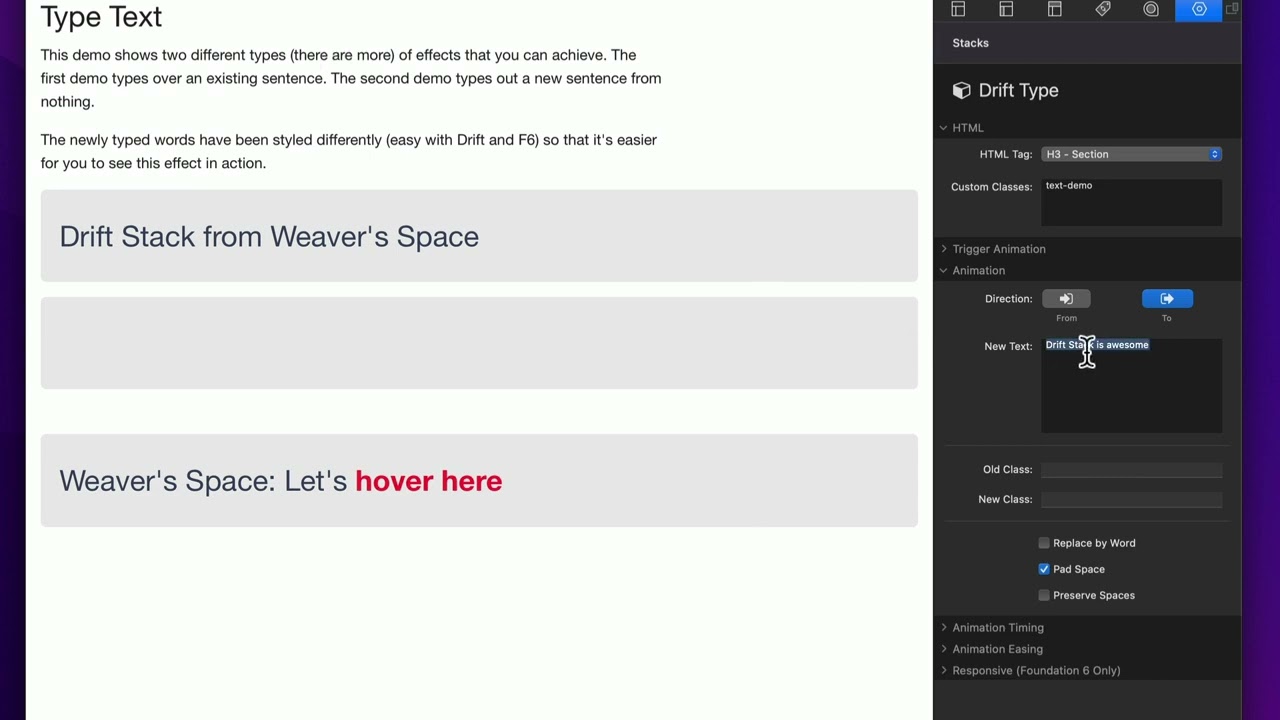
01:34 so this first example is a two animation
01:38 so basically the text that is inside the
01:41 stack here inside edit mode is going to
01:43 be the default text on the page and then
01:45 the animation is going to override that
01:47 text with what we type in here
01:50 okay so we're going from the default
01:52 text to this text
01:55 now the old class and new class that
01:57 allows you to basically apply some
01:59 classes to just the characters as they
02:02 are animating
02:03 um so you can you know again maybe use
02:06 foundation six swatches or whatever to
02:08 then you know apply special styles to
02:11 those if you'd like we'll see a little
02:12 bit of that inside the drift pro
02:14 settings
02:16 um next let's let's go ahead and show
02:18 you the differences with uh replace word
02:21 okay so here we'll notice that by
02:24 default um
02:26 this is drift stack is awesome and it is
02:29 drift spec
02:30 drift stack from weaver space
02:33 now
02:35 let's go ahead and just change that a
02:36 little bit let's just make it a little
02:37 bit different
02:38 uh let's do it the drift stack is
02:42 totally awesome
02:52 so the setting for replace by word if
02:54 you turn this on essentially what it's
02:56 going to do is instead of changing
02:57 character by character it basically
03:00 blocks and changes
03:01 a word at a time okay
03:04 um you know for certain effects that be
03:06 okay
03:07 i think most time you're probably not
03:08 going to use that though
03:11 next is pad space you probably want this
03:14 on but what this does
03:16 is let's say that um
03:19 let's reduce so when the new text is
03:22 shorter than the old text
03:25 okay
03:26 uh let's show you what this looks like
03:30 so there we go if you notice it animated
03:32 out here
03:33 okay now check out the difference in the
03:35 animation if we turn off the pad space
03:40 what it does is it kind of goes in at
03:43 the end right i think pad space is
03:45 probably something you're going to want
03:46 all the time um but you know i it's a
03:49 setting in case you want to turn that
03:50 off
03:51 um and then preserve spaces this is a
03:53 setting if you actually have
03:55 multiple spaces it's probably another
03:57 edge case one that you're probably never
03:59 going to turn on to be honest um but if
04:02 you have multiple spaces maybe with a
04:04 non-breaking space character inside your
04:06 html and you want to make sure ensure
04:09 all of those are preserved and they're
04:10 not animated you can go ahead and turn
04:12 this on again it's a very edge case sort
04:14 of scenario if you want to make sure
04:16 that um extra spaces if you have more
04:19 than one space after another that those
04:22 are preserved
04:23 now the second example um if you notice
04:26 it starts off with nothing okay and
04:28 let's look at this one
04:30 in this example we are going it is a
04:33 from animation
04:34 the new text here is empty so we're
04:36 going from and then the text that we're
04:38 going to overwrite the text that's here
04:41 with is empty
04:42 if you want
04:44 to animate text onto the page like this
04:47 this is what you're going to want to do
04:50 you're not going to want to start with
04:51 an empty header and then go to
04:54 this sentence
04:55 the reason is for seo
04:57 because this text is in your html by
05:00 default on page load so if you want this
05:02 typing effect where it goes from nothing
05:05 to something
05:06 definitely make sure that you use the
05:08 from effect and then make sure that the
05:11 the text area here is blank
05:14 okay so really important there that's a
05:16 good distinction
05:18 so that's really all we have for the
05:20 type text it's pretty simple um let's go
05:22 look at a more uh sort of advanced
05:24 scenario using drift timeline with drift
05:27 pro
05:28 so we'll notice here i have drift
05:29 timeline and down here i have multiple
05:32 animations
05:34 and basically these animations are going
05:36 to be changing the text it actually goes
05:38 from text to blank to text to blank
05:42 and we're just going one after another
05:44 here
05:45 and what we've done here in this header
05:47 you'll notice that i'm actually doing a
05:49 span tag in here
05:51 and this is a cool little trick where i
05:53 have a class called ws-2
05:56 okay
05:57 and this is the class that i'm targeting
05:59 inside all of my animations
06:02 so
06:03 inside the header i have a span and then
06:05 i use some swatches here from foundation
06:07 6 to make that particular span red just
06:10 so we can see it and it's kind of bold
06:13 okay
06:14 um
06:15 so inside all of these type text
06:17 animations i'm just animating the same
06:20 class the ws-2
06:22 and then i'm going to either a different
06:25 text and then two blank and then two now
06:28 it's possible that i could have done
06:29 some yoyos here so that it actually
06:31 animated this text and then goes back
06:34 but um there's just some slight nuances
06:36 that this for doing it setting it up
06:38 this way is just slightly different okay
06:41 and that gives us this effect here where
06:43 i have this static sentence and then the
06:47 ending words are what's changing
06:54 so i hope you enjoy type text um and
06:57 enjoy the rest of the drift take care
06:58 everyone bye
07:08 you


