
Stacks Guru is born from the need to search the vast number of videos out there on stacks built for Stacks Pro and the Stacks 5 plugin for Rapidweaver.
We have scraped over 500 videos to get the transcripts for each in order to make the spoken word searchable.
Please use this free tool to help you learn and discover the awesome power that Stacks and the stacks made for Stacks have to offer.
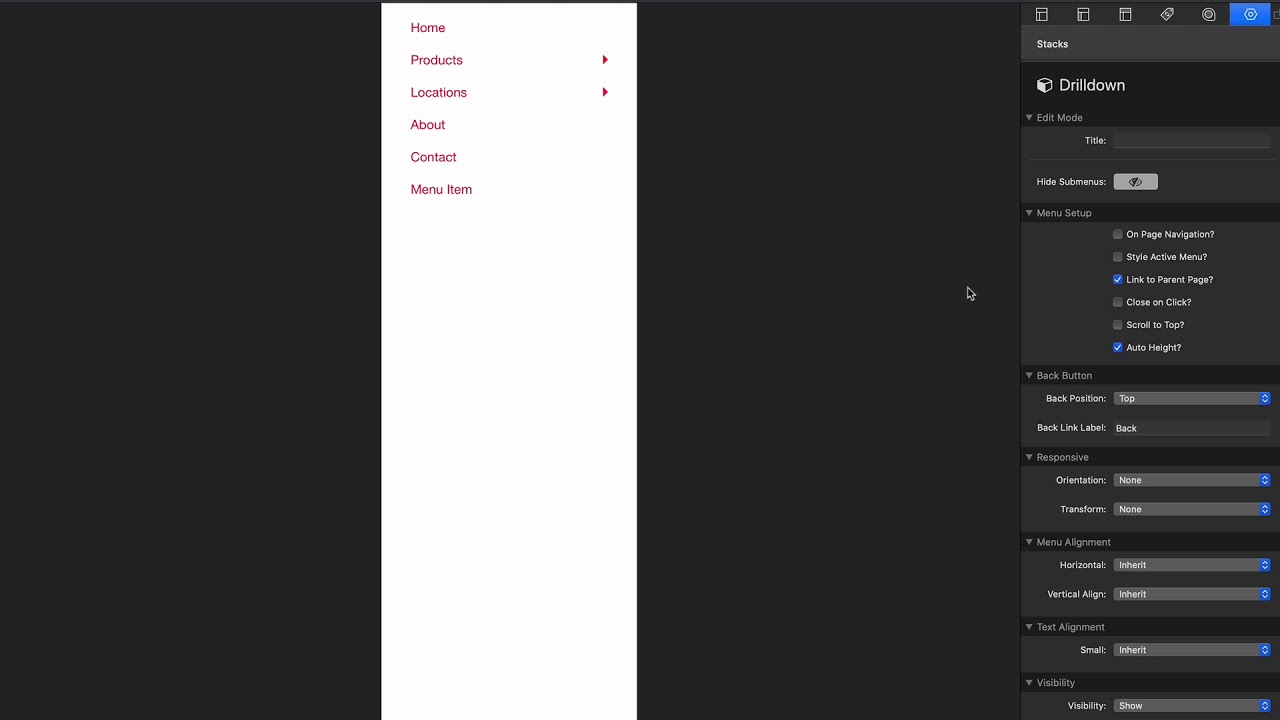
00:09 so this is the drill down menu and this
00:11 part going to be a very commonly used
00:13 menu on mobile it's a very popular menu
00:15 on mobile um yet it's not very very much
00:20 used on desktop and larger devices let's
00:23 see why right so if you look at preview
00:25 we'll see that on mobile this type of
00:28 menu really makes sense
00:29 because we can drill down and we can go
00:31 multi layers deep click the back button
00:33 to get up a level um it's just kind of
00:36 very intuitive um and it's a variation
00:38 if you have a lot of menu items it's
00:40 great for mobile okay but as we get
00:43 larger um it just doesn't make sense
00:45 because there's all this empty space and
00:47 when you click on it just kind of
00:49 navigates out it's just a little bit
00:52 awkward on desktop unless maybe you know
00:54 you have it inside of an off canvas um
00:56 in a sidebar or something like that that
00:59 could make sense again where the width
01:02 of it is constricted so that people are
01:05 really aware of what's going on but
01:09 let's look at some of the options for
01:10 drill down so we have a lot of the same
01:12 options that we have in all the menu
01:14 options right so we have on page
01:16 navigation style active menu check out
01:18 those videos on those um we can link to
01:21 the parent page okay so what does that
01:23 mean okay um that means like if this
01:28 button here let's say products was
01:30 actually a link to something do we want
01:33 that to be a link or do we want to drill
01:35 down right so what we could do is um if
01:38 we set link to parent page preview this
01:40 really again really quick
01:43 what it does is it adds that parent link
01:46 into this into the child stack right so
01:50 here I have products but when I click on
01:52 that it goes to the submenu then I have
01:54 products again which allows me to click
01:56 on that link to page so that's a way of
02:00 dynamically building things out
02:03 because when we if we were to transform
02:05 this into a drop-down menu on desktop
02:10 we'd be able to click on this hopefully
02:13 that makes sense
02:14 well we'll show an example of that so we
02:16 can see that in action
02:18 um next is close on click so if you
02:20 don't want um you know the ability to
02:22 close it unclick rather than on anything
02:24 else
02:26 you can also do a scroll to top um this
02:29 is a very very edge case scenario scroll
02:33 to top is only useful if you have a huge
02:35 drill down menu and basically what that
02:37 does is if you have a lot of menu items
02:39 it'll scroll to the top on every single
02:41 time right because by default it kind of
02:44 stays remembers the position that you
02:46 are on the page but if you turn scroll
02:48 the top whenever you navigate between
02:50 menus inside drill down it'll scroll to
02:53 the top in very edge case scenario next
02:57 is auto height what that does is let's
03:00 go ahead and add some content to the
03:02 page so what we'll notice is we preview
03:05 this um
03:06 as I'm navigating through the various
03:08 menus um it actually dynamically changes
03:11 the - mud oh there goes as you see kind
03:13 of slides the content down to make room
03:15 for the new menu items right so it's
03:18 just a way of dynamically um you know
03:20 auto height theme that container or else
03:22 if you turn that off it'll always be a
03:25 static height so if I click there you'll
03:27 see that there's now white space in this
03:29 menu next is we have some ability to
03:32 customize the back button so that's this
03:35 back button up here we can either
03:37 display it at the top or the bottom so
03:39 you can have it displayed at the bottom
03:41 so if we set at the bottom and go to
03:42 products we'll see that the back button
03:44 is down here and then you can also
03:46 change the label so if you don't want it
03:47 to be back you can change the label to
03:49 be whatever you like
03:51 now the next set of settings is going to
03:55 be very popular when using drill down
03:56 because drill down is not as I said many
03:59 times it's not great on medium and large
04:02 devices depending on your layouts but
04:04 here what we're gonna do is by default
04:07 drill downs are always vertical so what
04:09 we're going to do is on medium we're
04:11 gonna transform it to be a horizontal
04:12 menu and then we're gonna also transform
04:15 it to be a drop-down menu so what this
04:18 will give us is on mobile or on here on
04:21 large we have a drop-down right so here
04:24 I have my drop-down menu and then if we
04:26 change down we'll see that once we hit
04:29 mobile we have transformed the menu into
04:33 our drill down and I also wanted to show
04:36 you remember we chose that link to
04:39 parent page you'll see on large devices
04:42 when we're in drop-down mode we can see
04:45 that that products button I could
04:47 actually click on it and it would take
04:49 me to the product page but because I'm
04:51 hovering it will show the product menu
04:53 but when we go down to mobile and I
04:56 click on the products you'll see that
04:57 that products link is inside the submenu
05:00 when we're inside of a drill down so
05:02 that's what that the power of that link
05:04 to parent page is


