
Stacks Guru is born from the need to search the vast number of videos out there on stacks built for Stacks Pro and the Stacks 5 plugin for Rapidweaver.
We have scraped over 500 videos to get the transcripts for each in order to make the spoken word searchable.
Please use this free tool to help you learn and discover the awesome power that Stacks and the stacks made for Stacks have to offer.
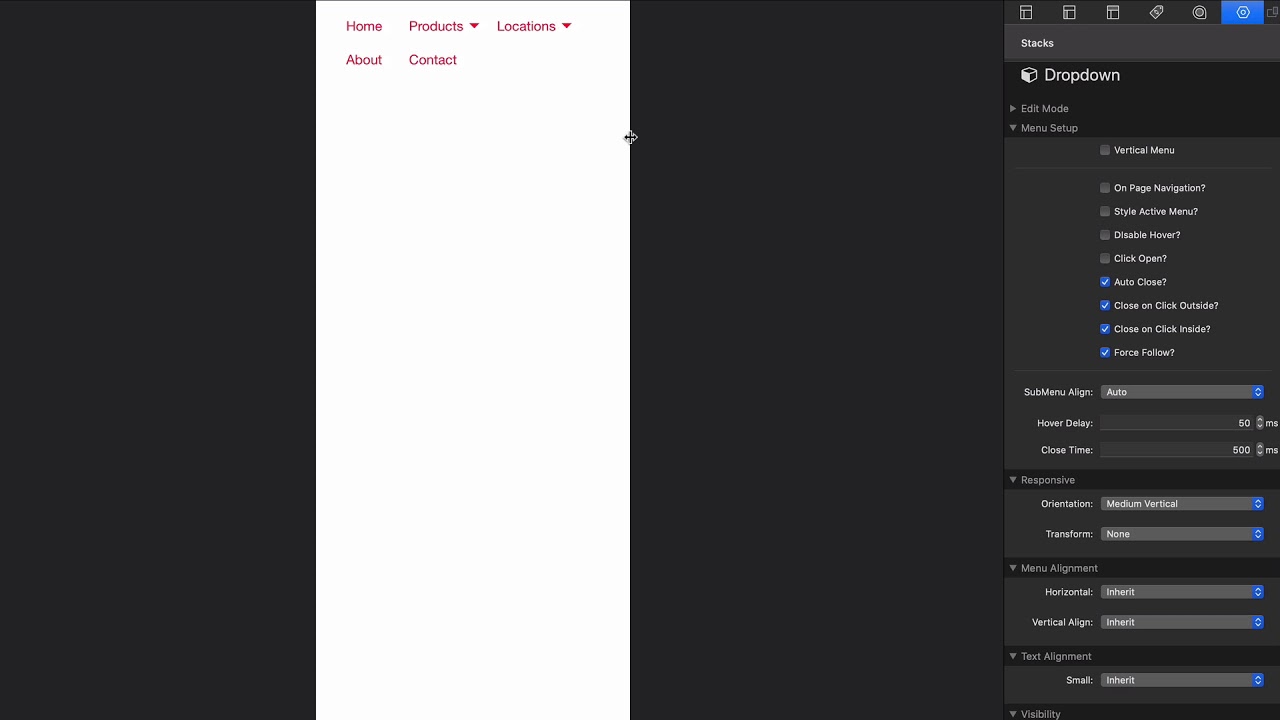
00:09 so right now we're gonna dive into the
00:11 drop-down menu and this probably gonna
00:13 be the number one used menu in
00:15 foundation six so um there's a lot of
00:18 really great customization options in
00:19 here to customize its behavior so let's
00:22 dive in I've kind of pre-built a little
00:25 menu that has a couple drop-down so we
00:27 can kind of look to see how things are
00:28 um and in the settings of the firt the
00:31 first few are gonna be settings that are
00:32 common to everything right you can have
00:33 a vertical drop down versus a horizontal
00:36 I think most people are gonna have a
00:37 horizontal menu um vertical would be
00:39 good if your again if you're in a
00:41 sidebar or something like that I mean
00:43 you wanted to have still have that
00:44 drop-down ability okay next is on page
00:48 navigation make sure you check out the
00:50 video on that we can still style the
00:52 active page and that's kind of reviewed
00:55 in the menu builder a video if you want
00:59 to check that out now we're starting to
01:01 get into the more specific options for
01:03 drop-down I think most of you're gonna
01:05 are going to be good with the default
01:08 options right um we probably want to
01:10 hover over the menus and have them open
01:12 you can disable that option though you
01:15 can also make it so it's you have to
01:16 click the click the menu to open it
01:18 instead of hovering and then we have
01:21 Auto close um normally you want your sub
01:23 menus to auto close once the mouse
01:25 leaves them but you can leave them open
01:27 if you like right um next is click click
01:31 on close me out so if you click outside
01:33 the menu do you want it to automatically
01:34 close yes um close on click inside
01:38 meaning if you click an item inside the
01:40 menu you want to close that menu and
01:43 then you can force follow things right
01:45 so this allows you to override clicks
01:48 and stuff like that um and touch events
01:50 on mobile so I I think these menus these
01:53 settings are gonna be most likely set as
01:56 the default it's gonna be good you're
01:57 just gonna edge case scenarios for you a
02:00 sub menu alignment this is actually
02:02 really good one right so this allows us
02:04 to adjust where the sub minis are
02:07 aligned let's have a look at that let's
02:08 preview this page really quick and right
02:10 now if we hover over these menus you'll
02:12 notice that I do
02:13 fault the menus are aligned on the left
02:16 or it's automatic right so um the
02:19 framework or foundation will determine
02:21 where to line the menus up act well you
02:24 can force it you can be like I want my
02:26 sub minis aligned to the left regardless
02:28 right so those are obviously that's
02:29 still the same but if we go ahead and do
02:31 right okay this one now aligns to the
02:34 right and so does products now what
02:37 happens is products product B has a
02:41 submenu and it it knows it can't go
02:43 farther to the left so it changes the
02:47 position of it so that it never injects
02:51 a menu off the screen
02:57 next is hover delay this is the this is
03:00 the amount of milliseconds where a hover
03:03 event will be delayed so if you're just
03:05 like quickly going over a menu you know
03:07 you don't want a submenu to be triggered
03:10 by accident so you can you have you can
03:12 fine-tune that that number if you if you
03:15 like don't like the default value and
03:17 the next is closed timelike how many
03:19 milliseconds do i hover off before the
03:22 menus closed right so that gives us some
03:25 flexibility you can keep it sub mini
03:27 there a little bit longer if you like or
03:29 a little bit less
03:31 next is the responsive and this is gonna
03:34 be used a lot probably because the
03:36 drop-down menu isn't great on mobile
03:38 right so you can actually transform and
03:42 again the orientation you can change so
03:44 if you want it to be vertical on medium
03:47 or you know so on and so forth
03:49 you can change that so right now it's a
03:51 horizontal menu on on mobile but on our
03:56 on medium actually and then when once it
03:58 goes large it will go vertical right so
04:02 there we go then you can also transform
04:05 right so if you wanted to use an
04:07 accordion on let's say large let's do
04:11 that so unlearn - - accordion and on
04:14 medium it goes to drop-down right so
04:16 this is just a convenience these
04:18 settings are convenient so that you
04:19 don't have to have too many stacks you
04:21 can have one menu that kind of
04:23 transforms um into another to be honest
04:26 you're probably gonna transform into a
04:29 drop-down more than you'll transform the
04:31 drop-down into something and the reason
04:34 for that is you your base that your base
04:37 menu stack you always want that to be
04:39 what you want it to be on mobile right
04:41 so chances are mobile you might want an
04:44 accordion or a drill down okay uh and
04:47 then you're gonna transform that to be a
04:50 drop-down on tablet or desktop hopefully
04:54 that makes sense
04:56 again you want to start with the menu
04:58 that you want to have on small devices
05:02 now obviously you could have completely
05:05 different menu structures so maybe in
05:08 this example I want to have a drop-down
05:09 menu on large but I'm just gonna hide it
05:12 for small right so I could just say hide
05:14 for small only then I can implement a
05:17 different menu stack on small devices
05:20 and of course lastly we have the menu
05:22 alignment which gives us a lot of
05:24 flexibility for aligning sort of like we
05:27 wanted to justify this menu out we just
05:29 look at some of the menu options so we
05:31 could say we could justify we can space
05:33 and then there's a new one for menus
05:36 called autofill which will allow allow
05:41 it to take up the entire you know same
05:43 thing actually let's do like texts if we
05:45 did text center there I think it would
05:46 look a little bit better right there we
05:48 go
05:48 doesn't look that doesn't look great
05:50 what's up with a submenu but that that
05:52 could look great with a normal menu
05:54 right there's the dropdowns here a
05:56 little bit smaller so yeah but that
06:00 that's really cool I like some of these
06:02 these menu alignment options that we
06:04 have here and of course if we want to do
06:06 a menu right which is the big one right
06:09 so we align the menu oops that's text
06:11 right
06:13 I want horizontal right here we can have
06:16 a right aligned menu


