
Stacks Guru is born from the need to search the vast number of videos out there on stacks built for Stacks Pro and the Stacks 5 plugin for Rapidweaver.
We have scraped over 500 videos to get the transcripts for each in order to make the spoken word searchable.
Please use this free tool to help you learn and discover the awesome power that Stacks and the stacks made for Stacks have to offer.
00:08 so in this video we're going to be
00:10 talking about the feeds template layouts
00:12 and how to build them
00:14 now you've probably seen this demo
00:17 and talked her probably heard me talking
00:19 about it quite a bit now
00:21 all of these particular layouts in this
00:23 demo file are built with foundation 6.
00:26 i'm not going to be reviewing any of
00:28 these in this particular video
00:31 i already did a live stream on feeds and
00:33 i actually went into detail on how each
00:36 one of these layouts is built
00:39 so
00:39 please if you're curious on how these
00:42 feeds are built with foundation
00:44 layouts go ahead and watch that live
00:46 stream
00:48 in today's video
00:50 what i'm going to be doing is i'm going
00:52 to be building a basic one
00:55 feed
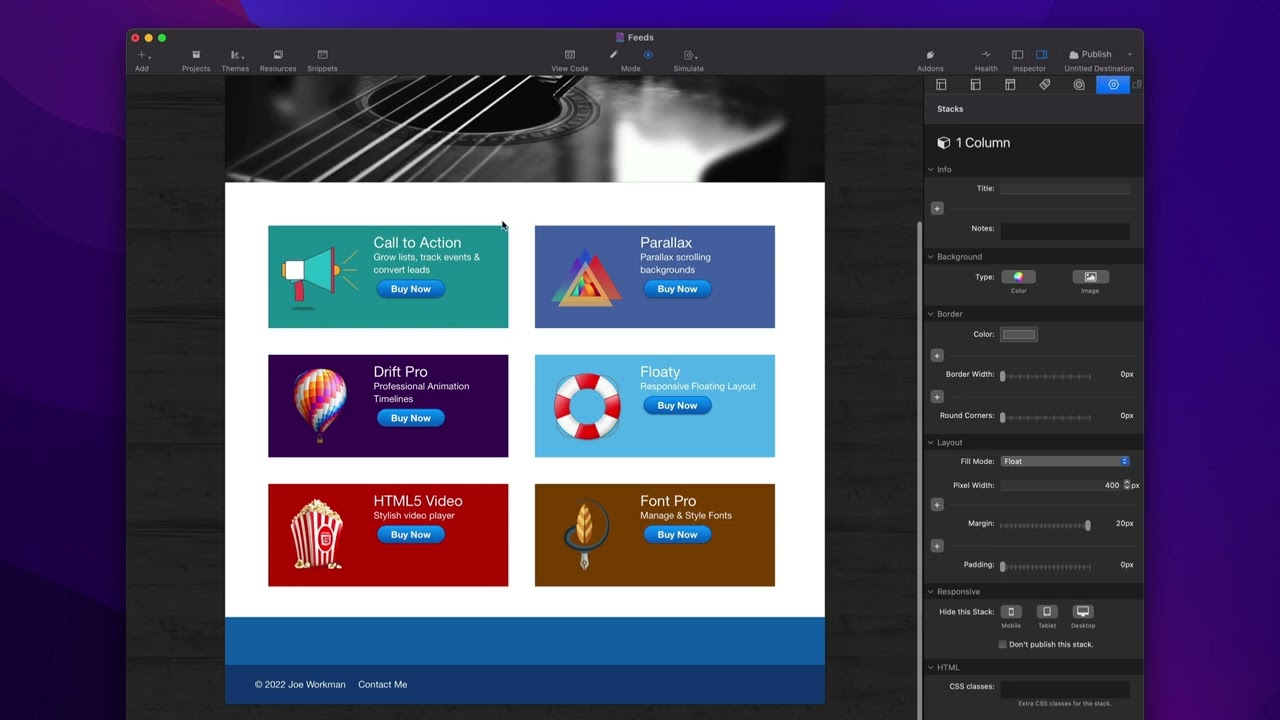
00:57 very similar to this online store but
00:59 guess what this uses
01:01 all basic stacks um it does use two of
01:05 my free stacks okay so two of these the
01:07 css box and warehouse image
01:10 are freebies so you can get those on my
01:13 website
01:14 but the rest of them are just the
01:16 straight up default stacks that come
01:19 with stacks so we have a regular one
01:21 column
01:21 a regular two column and some text okay
01:25 and a button
01:26 all of these come with
01:29 stacks
01:30 so let's go ahead again let's just see
01:32 this i have it's bringing in csv data
01:36 and we have the icons we have
01:39 our title we have uh the summary and a
01:43 buy now button
01:44 okay so let's see how we can actually
01:47 how we're building this
01:49 and how we're going to integrate the
01:50 data
01:51 so first off we have this csv feeds and
01:54 it already has the csv data but let's
01:56 let's look at that data right so we know
01:58 what data we have available to us
02:01 so i'm going to go ahead and click in
02:02 the feed stack data preview
02:05 and we'll see here that i have access to
02:07 all of these fields i've id
02:10 name
02:11 cart loom which is an id
02:13 um color
02:15 and summary
02:18 all right so i've accessed all these
02:19 fields to build that layout
02:22 so if we look here
02:24 what i'm doing is uh let's look at this
02:26 what i want is i want to have this is a
02:29 one column this is another one column
02:31 this is another one column
02:33 and you cannot build a grid
02:36 unfortunately using the out of the box
02:38 stacks grid stack this one right here um
02:42 you cannot use this particular stack
02:43 with feeds it just won't work with the
02:45 way that stack is designed
02:48 so what we're gonna do is we're gonna
02:49 create something similar to that with
02:50 the one column
02:52 so here i have a one column and what i
02:54 did is i set it to be fill mode float
02:57 and i set it to be 400 pixels
02:59 and that's going to float to the left
03:01 and then i added 20 pixels of margin
03:04 across the entire thing
03:06 and that basically gives us some margin
03:08 in between each one and they all kind of
03:10 build this grid like layout
03:15 okay
03:17 so that is the one column
03:19 and inside here we have a css box this
03:22 actually gets the background color we'll
03:24 come back to this one after
03:26 this gives us the background color
03:28 inside of the box
03:29 then we have a two column which is a
03:31 straight stacks two column because i
03:33 want to have my image on the left and
03:35 the text and button on the right
03:38 so we'll see here in the this is the
03:40 free warehouse image stack from my
03:41 website you'll see that in the image url
03:44 here what i'm doing is i'm taking that
03:46 id from the settings
03:48 okay so if we look here
03:50 uh there it is so i have this image
03:53 uploaded to my web server
03:55 and every and it's standardized where i
03:58 know the exact image url
04:01 just by knowing the id of this product
04:05 so here i'm injecting the id field into
04:08 that
04:09 url to an image and i know that that
04:12 will always resolve the
04:14 url to that image
04:16 now i could just have in my csv data the
04:18 full url um you could do that as well
04:22 and then you could just put in you know
04:24 like something like
04:25 image here
04:27 okay so if you are storing the full url
04:30 to an image um you can inject that just
04:33 by putting that in there assuming it was
04:35 inside of an image
04:37 field
04:38 and then in my alt tag what i'm doing is
04:39 i'm i'm just going ahead and inserting
04:42 the name of the product in the alt tag
04:44 and we can easily do that with this
04:46 syntax
04:48 so i've kind of skipped some
04:50 an important piece here i've injected
04:52 some of this data but i haven't shown
04:54 you how to do it so let's look at this
04:57 this field right here this is a text
04:59 field and stacks and essentially what
05:01 you'll notice this special syntax here
05:04 this curly brace curly brace
05:06 and then the name of the field from my
05:09 data
05:10 and then close that with two curly
05:12 braces
05:13 we just add that everywhere you'll saw
05:15 in the image one i wanted to use the id
05:17 it was just curly brace curly brace id
05:20 curly brace curly brace
05:22 we'll see in the summary guess what it's
05:24 just curly brace curly brace summary
05:27 and closing my curly braces and that's
05:29 how i inject the summary field
05:33 same thing in my button here if we
05:35 scroll down to the button we'll see i
05:36 have a link and guess what that link
05:40 it contains this little macro
05:43 for the cart loom id
05:47 because i use cart loom as my store so
05:49 this is an easy way of injecting the
05:51 cart loom id which is really the only
05:53 unique thing i need to add to this url
05:57 so the standard the standard url for
05:59 cart loom add to cart is this
06:01 and basically all i need to do is add
06:03 the cart loom id for each item
06:08 into the url
06:11 now i skipped css box earlier if we look
06:14 at that
06:15 css box allows us to add some inline
06:17 styles and you'll notice here that all i
06:19 really do is i add background color and
06:21 then i inject that color variable that
06:23 comes from the data
06:27 so let's go ahead and let's look at this
06:28 layout again
06:30 and uh we'll see here again that
06:33 background color is coming from the data
06:36 i'm building this image url from the id
06:40 i'm injecting the name i'm injecting the
06:42 summary
06:43 and this buy now button contains the
06:45 cart loom id
06:47 that if you were on a cartoon supported
06:49 site it would add that item to the cart
06:53 this entire thing is built from csv data
06:58 just so we can see that data let's go
06:59 ahead and preview that again again i'm
07:01 taking the id
07:03 here's the name here's my curtloom id
07:06 here's the color value that gets
07:07 injected into the css box for the
07:10 background color
07:12 and then here's my summary
07:15 so i hope i hope you enjoyed this
07:17 overview of how you can use even the
07:19 basics stack stacks out there
07:22 um to create layouts using feeds
07:25 uh there is more to the templating
07:27 language that we have i just showed you
07:29 the basics of getting the raw data into
07:32 there
07:32 and we'll have more um videos on that in
07:35 the future
07:36 if you'd like to see more about the
07:38 template syntax and some of the more
07:39 advanced features you can do go ahead
07:41 and go to the twig cheat sheet and that
07:44 will show you uh some other things that
07:46 you can start dabbling with where you
07:47 can have like if statements you can do
07:49 some text manipulation by like making it
07:51 all uppercase or all lowercase and
07:53 things of that nature you can format
07:55 dates it's a really powerful um
07:58 templating language so you can do a lot
08:00 with it so we'll probably do a video
08:02 just on twig in the in the near future
08:04 but until then go ahead and check out
08:06 the twig cheat sheet as well as we have
08:08 a link to the actual online docs for
08:11 this template system as well


