
Stacks Guru is born from the need to search the vast number of videos out there on stacks built for Stacks Pro and the Stacks 5 plugin for Rapidweaver.
We have scraped over 500 videos to get the transcripts for each in order to make the spoken word searchable.
Please use this free tool to help you learn and discover the awesome power that Stacks and the stacks made for Stacks have to offer.
00:06 hello everyone this is Joe workman and
00:08 in this video we're going to go over
00:10 foundations awesome new flexible
00:12 navigation system now what did I mean by
00:15 you know flexible navigation within
00:18 foundation how does it differ than what
00:21 I can do with existing themes and rapid
00:23 oversights essentially it allows you to
00:28 do a lot of things that people have been
00:29 begging me to figure out how to do for
00:32 years and the first thing is placeholder
00:36 navigation so for example if you go to
00:38 foundation's website and you notice this
00:41 top-level Stax learning samples if you
00:43 click on those they don't do anything
00:46 they're just placeholder values where
00:49 you hover over and it shows then the
00:51 submenu so we can easily do that with
00:54 this new flexible navigation built in
00:56 now another thing we can do is if you
00:59 look at the learn we have little labels
01:01 inside of our menus so we can easily add
01:05 these labels to kind of divide our sub
01:08 menus into sections and lastly if you
01:11 look at the bottom of this well notice
01:13 that I have a nice divider to kind of
01:15 create another section that doesn't have
01:18 a label but it's accented by because it
01:20 has a divider there and I also will
01:23 notice that I have a divider right here
01:25 between my menu and my Buy Now button
01:28 okay so how can we do these things oh
01:31 and before I forget there's one more
01:34 thing we can also have awesome font
01:36 awesome icons in our menu so if you
01:39 don't want to have words or you want
01:41 words and a font awesome icon I'll show
01:44 you how to do that right now now luckily
01:47 it's really easy to figure out how to do
01:49 this because we've supplied you the
01:51 actual project file used to build a
01:53 foundation website so once you open up
01:56 the demo project that ships with the
01:58 starter pack you will see some of these
02:02 page names here are a little bit
02:04 different so my home page what I've done
02:07 here is I've actually inserted the font
02:10 awesome code
02:12 now check out we've done a great podcast
02:14 on font awesome and how to figure out
02:16 and use the font awesome code
02:18 okay so please go ahead and check that
02:21 out
02:21 however it's just a really quick snippet
02:25 in this instance I'm using the font
02:26 awesome home icon and I don't want any
02:30 text so I just simply do FA home snippet
02:35 and then I'm good to go I have my Home
02:37 icon so that covers the font awesome
02:39 really simple again check out our Weaver
02:42 cache podcast that we did on font
02:45 awesome and we actually show you exactly
02:47 how to do this inside the navigation now
02:52 how do we do placeholders if we notice I
02:54 hovered over the stacks menu inside the
02:57 website and it actually didn't do
03:00 anything
03:00 it was just a placeholder so the syntax
03:04 for this is simply do the name that you
03:07 want and wrap it inside of a header tag
03:11 now the page itself can be anything you
03:14 want I use an off-site page just so it
03:17 kind of stands out but it could be an
03:19 HTML page or a Stax page or whatever
03:21 it's actually not going to get linked to
03:23 that particular page is going to be
03:24 disabled in the menu so it's not gonna
03:27 do anything but in this instance I like
03:30 using the off-site page and you simply
03:32 add open tag header the label that you
03:36 want to have in there so in - in this
03:38 instance I wanted stacks and then then
03:41 you close your tag with slash header
03:43 really simple to do now inside of the
03:47 learn submenu we had a bunch of
03:49 interesting objects here so first we had
03:52 labels and that was so we can actually
03:56 kind of define a little section or in
03:58 our sub menus right so here you just add
04:01 similar to header you just add label and
04:04 then the name that you want to be inside
04:07 that option or the name of your label
04:09 and then you close that with a you know
04:11 brackets closed label and as you can
04:14 have as many of these as you want so I
04:16 have features and I have the details now
04:19 further down if you notice we actually
04:21 had a divider and to do that you simply
04:25 have
04:25 this code here where you have basically
04:28 in HR now in the pages slightly below
04:31 those dividers this is a perfect use
04:33 case of how we actually can use both an
04:36 icon and text so the little arrows that
04:41 we saw inside of these sub navigation
04:42 for online manual and ZURB Docs actually
04:46 is the word online manual and then the
04:49 font awesome arrow icon so this is a
04:53 perfect example of how you can mix a
04:55 font awesome icon and text inside your
04:58 navigation menus now as if those awesome
05:02 features weren't enough we actually have
05:05 even more power with flexible navigation
05:08 now in this example we're going to be
05:10 looking at top bar however these same
05:14 exact settings are available in all of
05:16 our navigation stacks throughout
05:18 foundation now if you notice in the menu
05:22 we can do rapid Weavers menu or we can
05:24 actually define a custom HTML menu if we
05:28 were to find a custom HTML menu well
05:31 notice that we now have an HTML box that
05:34 comes up and you can actually type the
05:36 actual HTML code that you want to use to
05:39 generate your menu now we have a quick
05:42 sample here that you can definitely
05:44 build off of now also remember that if
05:48 you are going to be using this option
05:49 that you can use stacks awesome new
05:53 global content feature to actually sync
05:55 that HTML across multiple web pages this
05:59 way you can define your HTML once and
06:02 have it synced across all of your pages
06:05 just like you can with the global
06:06 template settings now most users are
06:09 going to stick with the rapidweaver menu
06:11 so how can we customize that even more
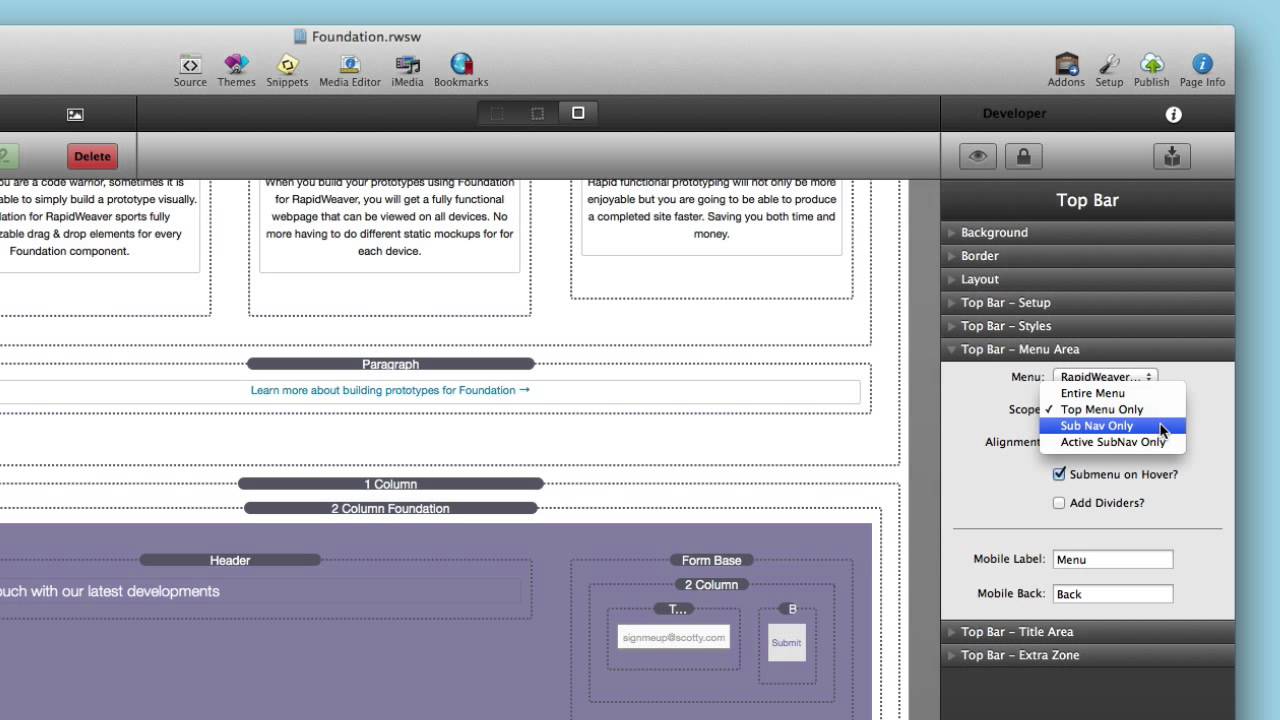
06:15 so by default you have the scope is
06:18 entire menu so that's gonna show the
06:20 entire menu not by default these scope
06:23 is entire menu and this means that you
06:25 actually have the entire menu showed up
06:28 inside the web page however we have a
06:34 lot of other options for example top
06:38 menu only
06:39 we'll show you just the top level
06:41 elements in that menu sub nav only
06:45 allows you to define a sub navigation
06:48 menu of your choice and then the last
06:53 option is active sub nav only and we'll
06:56 go over what that is in just a little
06:58 bit but let's see what we can do with
07:00 top menu only so if I were to change
07:02 this menu to be just use the top menu we
07:06 will see that my stack has actually
07:08 changed I no longer have dropdowns
07:10 because I've told top bar to only use
07:14 the top-level menu attributes now
07:18 looking we do with sub nav menu only
07:21 when we select sub navigation
07:38 I want to make sure that my sub nav
07:40 index is set to 1 2 3 so in this example
07:45 let's actually show you how we can do
07:46 that inside the inline nav stack so I've
07:49 set my scope to be so nav only and I've
07:52 set my sub nav index to be 3 which is
07:55 the index that we wanted if we preview
07:58 this page we'll see that we get the
08:00 exact sub many that we wanted we wanted
08:03 that stack submenu to be the actual menu
08:06 used on this page now what about the
08:09 active sub nav only option what does
08:12 that mean
08:13 so what that means is it's going to look
08:17 at your existing page and it's gonna see
08:21 where the page lies inside the
08:24 navigation hierarchy it's then going to
08:27 display the sub navigation that that
08:30 page is contained within so for example
08:34 in this particular page that we're
08:36 looking at is the float page that is
08:39 inside these samples navigation
08:42 hierarchy so by choosing active sub nav
08:46 only it's going to choose the sub
08:50 navigation that my page is
08:53 Leigha part of so free preview this page
08:56 we will see that the navigation provided
09:00 here is the sub navigation for my
09:03 samples menu tree so how are these sub
09:07 nav menu options interesting what are
09:11 the use cases some real live world use
09:13 cases for these especially the active
09:15 sub nav menu how can we use that well if
09:19 we look at this option using pillar and
09:22 off canvas we'll see that I have an
09:25 inline nav stack at the top and it's set
09:27 to have the scope of top menu only then
09:31 if we look at the side I have a side nav
09:35 stack that is set to the active sub nav
09:39 menu only what will that accomplish for
09:43 us so what this has done is we now have
09:46 two navigation options on our page at
09:49 the top we have our active our top-level
09:53 menu items okay and as you see it knows
09:56 we are underneath the samples tree
09:58 because it is underlined so we know we
10:01 are on that part of the website then it
10:03 also lists the sub navigation for that
10:06 top-level page on the side and it
10:10 automatically selected this because it
10:13 knew that we are a part of the samples
10:15 menu tree this is a great way to have
10:20 side navigation as well as top level
10:23 navigation across your entire site so I
10:28 hope you've learned a little bit about
10:29 the awesome flexible navigation that
10:31 foundation provides you and it allows
10:34 you to really have flexible navigation
10:36 options for all of your website designs
10:38 really sky's the limit in terms of what
10:41 you can achieve because this allows you
10:44 pinpoint accuracy to get to exact menu
10:47 items that you want so I look forward to
10:50 seeing what you can accomplish this and
10:52 go forth and make your websites great
10:54 thank you very much everybody have a
10:56 great day bye bye
10:58 you


