
Stacks Guru is born from the need to search the vast number of videos out there on stacks built for Stacks Pro and the Stacks 5 plugin for Rapidweaver.
We have scraped over 500 videos to get the transcripts for each in order to make the spoken word searchable.
Please use this free tool to help you learn and discover the awesome power that Stacks and the stacks made for Stacks have to offer.
00:07 hello everyone this is Joe workman and
00:09 today I would like to introduce you to
00:11 our great new font awesome stack now I'm
00:14 sure you've heard of font awesome it's a
00:15 great way of embedding great-looking
00:18 icons throughout your web pages and
00:21 what's unique about it is that it
00:23 actually doesn't use image files what it
00:26 does is it has a font and basically why
00:29 don't this allows us to do because it's
00:33 a font these icons can be scaled to any
00:36 size whether or not they're eight pixels
00:38 tall or 500 pixels tall the images will
00:44 be displayed crisp and sharp and because
00:48 it's one single font file the asset will
00:51 be downloaded once and most often cashed
00:53 in the browser so that it's a lot faster
00:57 than having a lot of multiple smaller
00:59 images on your webpage now let's look at
01:02 some of the great designs that we can do
01:05 now first off there's so many icons
01:07 available this is just a small little
01:09 preview make sure that you check out the
01:12 font awesome website will go there in a
01:14 little bit to see that there are
01:16 actually over 360 icons available and
01:19 they're always adding more as you see we
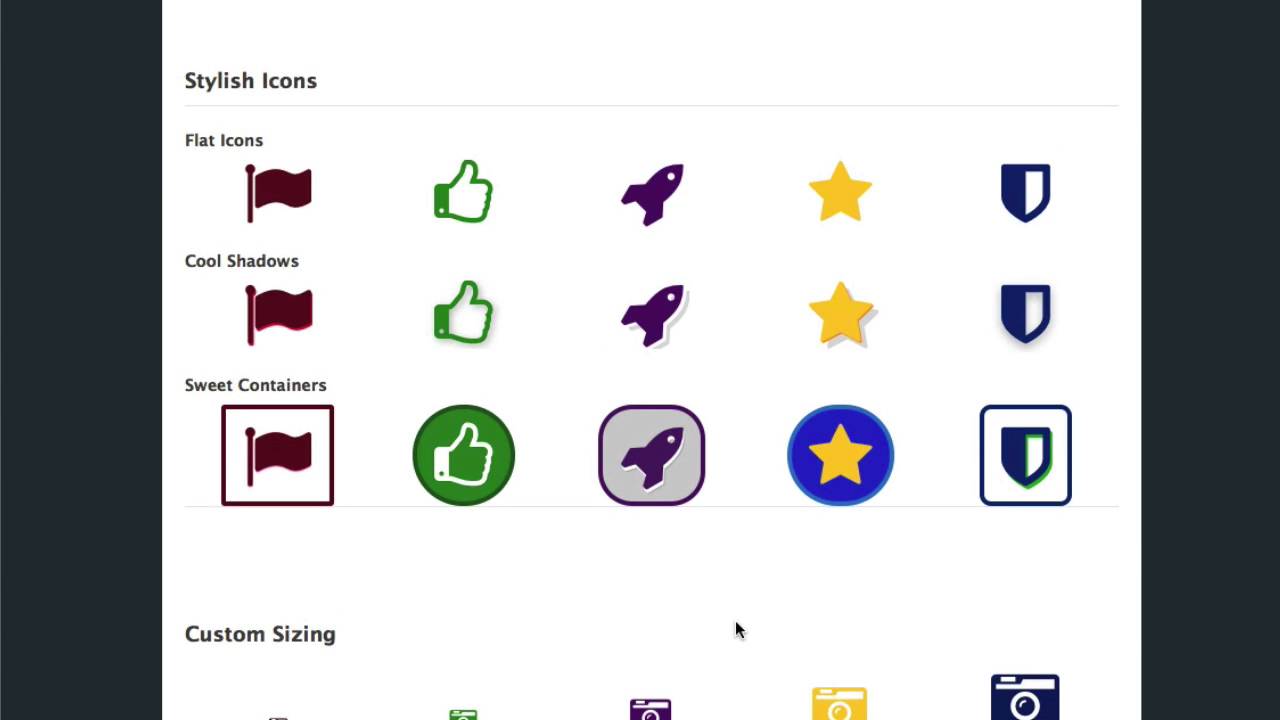
01:24 can add some great styles to our icons
01:27 we can just have straight flat icons
01:29 that are colored we can add a bunch of
01:32 cool shadows there are some really great
01:34 like these two tone shadows that we see
01:36 here on the rocket and then we can add
01:39 borders and background colors and
01:41 whatnot to really make our icons pop
01:44 making them maybe uses use them as
01:45 buttons and so on and so forth we have
01:49 as I said we can size these without loss
01:52 of resolution at all even on retina
01:54 devices so we can really easily
01:56 customize the size of the icons we can
02:00 then rotate so if you wanted to you like
02:03 to particular icon but you wanted to
02:04 rotated it within 45 degrees all the way
02:07 up to 360 degrees okay so you can easily
02:11 rotate and and flip your eye
02:14 bones and then you can add some nice
02:15 animations now obviously spinning won't
02:19 look great on every icon but some of
02:21 these will really look good like this
02:23 cog wheel or the refresh button and so
02:25 on and so forth then we can stack our
02:29 icons so if there is two icons that you
02:31 liked for example we have a folder icon
02:34 and the home icon we can actually
02:36 overlay both of those on top of each
02:38 other and if maybe you are building a
02:40 website for a museum and they wanted no
02:42 photography you can easily add a band
02:44 icon on top of the camera this is a
02:47 great way of combining icons to create
02:50 your own custom look and lastly we have
02:55 really great some contem content accent
02:58 features where you can actually have a
03:01 icon float to the right or left of some
03:04 textual content so that you can really
03:06 get a great maybe a quote look um and
03:09 then you can also build some
03:10 great-looking lists where the icons are
03:13 used as the list bullet points so this
03:17 is a great maybe you on a simple
03:18 checklist or you want to have kind of a
03:21 more of a I con based navigation ok
03:25 really the your imagination is is your
03:27 own limit here on what you can do with
03:30 these stacks this is just a small subset
03:32 of what you can do and as you see it's
03:34 already very powerful and very easy to
03:37 do let's jump on in and see exactly how
03:39 easy it is to use now the font awesome
03:43 stack has a lot of style options and
03:45 we're just going to go over a few key
03:47 ones right now that we think you're
03:49 going to want to know about so first off
03:52 you're going on define your icon name
03:54 now since there are so many icons we
03:58 figure it's a lot easier for you to
04:00 visually look at a grid of icons and
04:02 decide which one you'd like to use so
04:05 what we've done is we've conveniently
04:06 provided a link to the actual web
04:09 address that you're going to use to find
04:11 the icon that you want simply copy this
04:14 URL and visit that URL in your favorite
04:18 web browser now what this will do is
04:20 it'll take you to the font awesome icon
04:22 page where you can easily browse through
04:25 and see all of the latest icon
04:28 when you find an icon that you'd like
04:30 just simply take note of the icon name
04:34 and type it directly into the stack it
04:38 really couldn't be any easier than that
04:41 now let's look at some of the content
04:43 accent features let's see how we can
04:45 actually use use it in conjunction with
04:47 some paragraphs so inside the font
04:50 awesome stack you'll notice that we have
04:52 an append content feature and we click
04:55 this it adds a text box after your icon
05:00 simply then select the alignment of the
05:03 font awesome stack to be float left and
05:07 what this will do is it will make the
05:09 icon itself float on the left side of
05:13 your content and what this allows it to
05:16 do is the content will wrap around the
05:18 icon as it grows and this particularly
05:23 answer example we added a border around
05:26 our quotes and that gave us a nice
05:29 beautiful floating content around our
05:32 quote icons very nicely done now another
05:38 use case for using a penned content is
05:40 to actually create a list of things with
05:44 multiple font awesome stacks so let's
05:48 say we wanted to create headings a kind
05:50 of maybe a link style navigation and for
05:55 example we have home and library in
05:57 applications and settings here i have
06:00 done append content and then I've added
06:03 my label that I want for each menu item
06:06 now because I'm using multiple font
06:09 awesome stacks here with different icons
06:11 you're going to make sure that you have
06:13 the fixed width setting set what this
06:16 will do is it ensures that the icons are
06:20 have the same exact width so this way
06:24 all of our text lines up perfectly along
06:26 the left edge if we had turned off this
06:30 fixed with icon we would notice that our
06:32 text would not line up perfectly because
06:35 some of these icons are wider than
06:36 others now last but definitely not
06:40 least font awesome comes with a second
06:43 stack called awesome list and what this
06:46 allows you to do is you simply say how
06:49 many list items you would like define
06:52 your size and a custom color and then
06:55 inside edit mode you will actually
06:58 define the icon that you would like to
07:00 use for that particular list item and
07:02 then the text for that particular list
07:05 item and then if you would like to add a
07:08 link simply double click on this and it
07:10 will open up a text editor that you like
07:13 any normal stack tech stack that you
07:15 then you can add a link but simply add
07:19 your icon and then the text for each
07:21 link preview and you're done and that's
07:27 the font awesome stack everyone I hope
07:29 that you enjoyed I hope you get a lot of
07:30 great use out of it thank you very much
07:32 everybody i hope you have a great day
07:33 bye


