
Stacks Guru is born from the need to search the vast number of videos out there on stacks built for Stacks Pro and the Stacks 5 plugin for Rapidweaver.
We have scraped over 500 videos to get the transcripts for each in order to make the spoken word searchable.
Please use this free tool to help you learn and discover the awesome power that Stacks and the stacks made for Stacks have to offer.
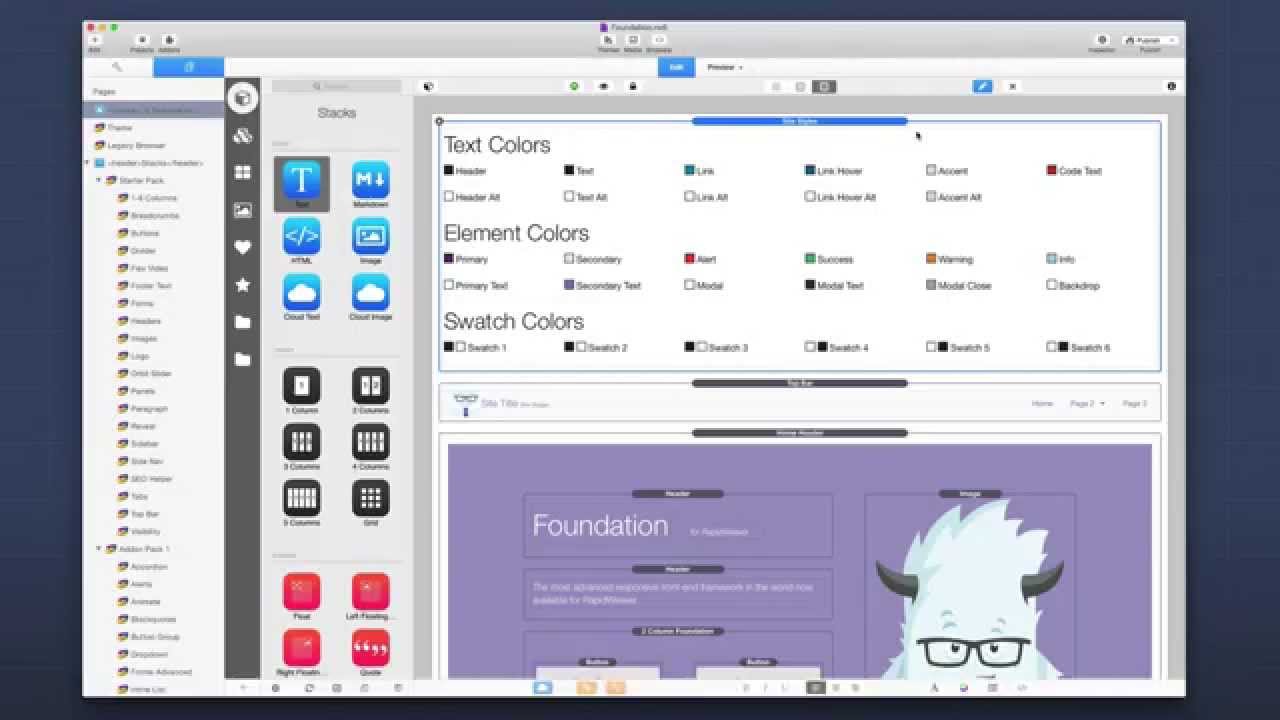
00:07 hey everybody Joe Workman and today is an exciting day because stacks three has
00:12 dropped and that means foundation 1.5 is now live for the world right now I've
00:19 already done a video on stacks three through foundation 1.5 so if you haven't
00:24 watched that and you're not familiar with the stacks 3 interface go ahead and check that out ok this video we're gonna be going over
00:30 how awesome the foundation 1.5 update is and all of the new great new features that really I was actually kind of
00:38 surprised I thought foundation 1.5 was gonna be I do a small update 2 stacks 3 and the more I worked on it the more it
00:45 happened and it was just like turned out to be like almost like a 50% rewrite not
00:51 really rewrite but like a complete overhaul of about half the stacks so um it's huge right huge update but what's
00:59 important is that everything is a hundred percent backwards compatible so don't be scared of opening and updating
01:05 the foundation 1.5 because everything will still work your old sites will still work and I'll kind of go over that
01:12 process now and without further ado let's go ahead and jump on in and look
01:18 at some of the new awesome features in foundation 1.5 ok so here we have the
01:25 foundation demo project and I've completely revamped this for foundation 1.5 and using the new Stax three
01:32 partials and whatnot so if you want this go ahead and go to my doctoral and download it it's available from Doc so
01:39 we're not net foundation and there's a link there for the demo project ok so
01:46 first things first you'll notice that site Styles is new right it is awesome
01:53 ok now let's quickly look at what fad what site Styles used to look like right here's site Styles and what we'll
02:00 notice is that the old version of site Styles says site Styles legacy ok if you
02:07 didn't see I had quotes ok legacy and what this means is that this
02:13 style stack will completely still work okay however there is a new version of
02:19 site styles inside your stacks library okay and when you add a new instance of
02:24 site styles to your page you'll get the new site styles okay and the new site
02:32 styles is very similar with a lot of amazing new features now another thing
02:38 you'll notice is that the site Styles global templates are now gone they will still work you'll see the quote unquote
02:45 legacy label to those and we should use partials from now on so we really want
02:51 to embrace stacks threes partials interface but let's go over some of the
02:57 new site style settings now first thing you'll notice is that we have access to this new thing called swatch colors and
03:05 that's really exciting okay now what swatch colors is is before we had access
03:13 to things like primary and secondary color schemes for let's say buttons okay
03:19 I'm gonna add a button here just to show us an example so inside this button I
03:25 have my primary color scheme set for the style of this button and that is a dark
03:32 purple background and a white text we can then change that to be secondary color scheme
03:38 okay now if you'll notice in this style we now have access to not only primary and secondary and success and alert
03:45 which were there before but we also have access to all six swatch color schemes
03:50 for my button so if I go to swatch one it's gonna be black and white right if I
03:57 go to a swatch five that's gonna be you know white on black and you can change
04:02 all of these swatch colors so if I go ahead and I have it set to swatch five if I change that now to be a purple
04:12 button okay with you know white text or kind of a gray text okay that will all
04:19 change and that's using the swatches okay so now you can now these swatches
04:26 are available not only four buttons but they're available four buttons they're available for text they're available for headers they're
04:31 available in panels an icon bar and everything throughout foundation we have
04:37 access to these swatches now and if you ever want to change everything that's
04:43 assigned to a particular swatch all you have to do is adjust the colors and site styles this is really gonna allow you a
04:51 lot more flexibility in terms of color schemes and setting up your swatches now
04:57 I set up the default swatches to be simple black and white on purpose because I wanted you to be able to set
05:04 the color swatches for your site okay so really go ahead and check out color
05:09 schemes there are a lot of great sites out there to help you you know find new colors that work that work together okay
05:16 and then assign those to your swatches now if we go further down inside site
05:22 Styles will notice a few other new settings first off we now have the ability to adjust the column gutter okay
05:30 this is the gutter in between the columns now this is a global setting so
05:36 it's gonna change the gutter across all columns in your entire site okay so only
05:43 adjust this if you really know that you're doing it right I added a lot of power user features in foundation 1.
05:49 for things that a lot of more advanced users really wanted control of so this
05:55 is one of them people wanted to adjust the actual column size in between or the
06:01 gutter size in between the columns if we scroll down a little bit further we'll
06:07 notice that our text colors section has been revamped we now have header and
06:14 alternate header colors for primary and alt alternate colors we have text in the
06:19 alt text color accent colors in the alternate accent color right you kind of get the the drift here we have link in
06:25 alt links link hover and alternate link hover okay and then color first code
06:31 snippets now we also have the ability to define whether or not you want links to
06:36 be underlined on defaults as well as alternate style so this gives us a little bit more
06:43 granular control than what we had before
06:48 now in text sizing we'll notice that this is also nicely compacted as well
06:53 because we have now have mobile and tablet plus sizing for h1 through h6 now
07:01 hold your applause till after this video but we'll also see that we now have the ability to customize the paragraph size
07:09 so this allows you to change the pair just the size of paragraphs on the page
07:15 I know a lot of people wanted to potentially make the paragraph text even bigger now I have strong opinions about
07:23 paragraph size and I have made the minimum size to be one remm okay so you
07:30 can gladly make things larger however by default you cannot go smaller than one
07:36 rim now if we go down to element Styles one of us that we still have the same
07:41 settings here it's just a lot more compact because it allows us to define multiple colors so we have primary the
07:49 background and text same thing for secondary our accent colors are all in one row and our modal colors are all in
07:56 one row as well and then below that we have access to all those swatches that we saw earlier so we have six swatches
08:03 that we now have the ability to customize so now let's jump into everyone's favorite menu bar and that is
08:10 top bar now top bar will have the same legacy stack that you saw with site
08:16 Styles so if you wanted to leverage these new settings that you're gonna see right now you're gonna have to add a new
08:21 instance of top bar to the page and replicate your settings okay so if we look at top bar settings we'll
08:28 notice that the first things that have changed is the background in the styling okay we'll see that we have a little bit
08:36 more access in terms of the accent color and the hover colors right instead of just like light or dark settings we can
08:43 actually define the actual color okay and what's powerful is not only can we
08:49 provide the color but we have access to change the opacity as well
08:54 now this is something I forgot to mention in the site style settings but every color setting throughout all
09:00 foundation stacks now support opacity so inside any color just go ahead and open
09:07 up the color palette you'll see you should see an opacity slider where you can actually define an opacity to that
09:13 color now you can tell when a setting has an opacity set because instead of a
09:18 solid color inside this color wheel or color box it is basically split in half
09:24 so you can tell that this particular one like this hover one has an opacity set on it now top are we also have a little
09:32 bit more granular control over the font sizing now so if you go to custom sizing we actually have a little bit more
09:38 control and a nicer layout for setting these sizes of top bar now really the
09:47 other major feature that has changed in this latest top bar is the extra zone so
09:55 for if you add a drop zone into top bar you'll notice that we have this new
10:01 child of feature so that instead of predefined I have five or you know two
10:08 three four drop zones you can go ahead and just add a new top bar drop zone and
10:13 then you add your content into here okay so really there's just a new way of
10:18 adding drop zones and this is great because you can easily reorder them as
10:23 well so that's really great now the next pivotal update for foundation 1.5 are
10:30 all of the foundation column stacks now you'll notice here that inside my demo
10:36 file almost all of the column stacks here are set to be Foundation and you'll
10:42 see the legacy feature here and that is because um all the stacks are still
10:50 working right I didn't need to update these stacks because the old version was
10:56 still working so from now on if I wanted to use you know add a new column stack I can go ahead and do that basically what
11:02 I'm saying is you don't need to retrofit all of your legacy stacks just
11:07 because you can okay um this particular one-column foundation stack still works
11:13 on this page I don't need any of the new features so I don't need to replace it
11:18 you can if you want but you don't have to with that said let's jump in and look
11:24 at some of the new features in the foundation one column stack so I've
11:32 added any foundation one column stack here and we'll notice that we can still preview the grid we have a cool little
11:38 button now to do that okay you can now still turn on overflow:hidden um
11:44 equalize is now have been revamped we can now have what's called nested
11:49 equalizing okay well we'll do a more advanced viewing of using nested
11:56 equalizers in the future but right now if you want to set to equalize just go ahead and choose that and you know use
12:03 it as it was before it is a little bit more robust and reliable than it was in
12:08 the previous foundation versions the gutter we now have the ability before
12:14 this was called the collapse setting but now we have the ability of when to collapse to basically get rid for the
12:21 one column stack that means get rid of just the gutter on the outsides so we can say never show the gutter okay or
12:29 show the gutter on desktop + or show it on tablet + okay or always show it which
12:35 is the default okay we also have more elaborate max-width settings so with the
12:43 site width that's default right it's gonna grow to whatever the site with we define inside site styles but we can
12:50 also make it go full width and this is basically gonna make the content that
12:56 entire content container go the entire width of the browser window okay now
13:02 we'll do that if it's not inside of another column stack because if it's inside of another column sack it'll only
13:08 grow to as big as that column will go right but this allows us now to actually
13:16 have a foundation column stack that actually goes the full width of the browser instead of you know always respecting
13:23 the site width we can also now set a custom max width and we can set the
13:29 alignment and max width for that particular column now if we look at the
13:38 padding we definitely have a lot more responsive padding now so before we we
13:43 had just you know padding top and bottom and we have that still okay but if we go to detailed padding we'll see that we
13:50 have a lot of granular control over responsive padding we have different
13:55 settings for vertical and horizontal so you can set different units for vertical
14:00 versus different units for horizontal and then for horizontal padding you also
14:06 have the ability to collapse that padding on a particular device so do you
14:12 want to always show the padding do you want to show it only on tablet Plus or do you want to show it on desktop and
14:17 plus okay so that gives us a lot of control on when to show this padding
14:24 this is useful if let's say you want to have the padding on desktop but on
14:29 mobile you want things to go edge to edge so in that case you would set the
14:35 show patty into tablet plus and then you know define your padding to be whatever you'd like that way on mobile devices
14:42 the padding is cut off so that you your content actually has a little bit more space in room to grow so now let's go
14:51 ahead and look at the foundation to column stack now it's new settings are a little bit different than the foundation
14:58 one column stack so here I've a two column stack and I've added a little bit of content so that we can see a little
15:04 bit more of what's going on here okay next let's go ahead and hide our stacks
15:10 library so that we can see a little bit more width within our content area so here we have the preview grid is the
15:17 same the gutter is the same as well we can you know only show the gutter never
15:22 okay which you see that that content actually expanded a little bit okay and
15:28 then we can actually do a full width if we wanted so that means that these two
15:33 columns now break out and go full with okay now if I
15:38 already go to a quick preview mode we'll see that we actually have we don't have any gutter and the two columns are going
15:45 full width now right so let's leave this so we can kind of see a little bit more in preview so I can then set a custom
15:53 max width so that our two columns only go and max width of 500 pixels okay and
15:59 then we can set the alignment if you want so it's aligned left aligned centered so on and so forth or we can
16:05 have our site width which is gonna respect our site with which on this is a thousand pixels and then if we wanted to
16:12 put the gutter back we can say you know put the gutter back so that on desktop plus we have a gutter and then on mobile
16:19 and below or tablet and blow wouldn't show the gutter so we have a lot of control with these gutters and max width
16:26 settings over our stacks so let's go back to full blown venti edit mode now
16:36 the responsive padding here we have a little bit more control than we did before we have row padding okay which if
16:44 we let's go ahead and add a background color to our two column stack okay let's
16:50 change that to be I don't know something annoying like orange okay you go to a
16:56 quick preview mode again okay what we'll see here is that row padding okay we'll
17:04 add padding to the top across all stacks
17:10 okay so it's across the entire row and then bottom obviously adds padding to
17:17 the entire bottom okay now column
17:24 padding is a little bit different this adds padding to the top of each column
17:32 the reason that is different is because if I go ahead and turn off tablet sizing
17:38 for right now we'll see that I have zero padding in between my two columns
17:45 because I only added it to the in the bottom of each row but if I go
17:51 ahead and add one REM to the top of each we'll see that I now have two REM at the
17:58 top of both because I have one REM for the row one REM for the column and one REM for this and then I can also add one
18:05 to the bottom if I wanted okay so we have a lot of go for all of these so now
18:12 I have two REM here to REM here and two REM here okay now if you wanted you could have zero at the top zero at the
18:19 bottom for each row and then now we'll notice that we have one REM here to REM
18:25 in the middle which is the gap in between and one REM at the bottom so it
18:30 really depends on what your layout is and what you want but we really we have all possibilities here okay for
18:36 determining the padding and between each column okay we have a lot of flexibility
18:42 here now call an equalizer as I said before in the last one column overview
18:49 equalizer has been completely redone and revamped so now we can equalize okay and
18:55 then not only that but we can specify when to equalize okay and what's great
19:00 is now in equalize you can go ahead and throw in a jack and set that to be 100% height and it'll take up the entire
19:07 height of the column right or if you use a target throw a target in there and it will target that particular position
19:14 properly as long as both you know the other column has content in it right so
19:20 though this equalizer is is very powerful and we'll have to do a video on this specifically so that you can kind
19:28 of see how it's done especially with nested equalizers basically the basics
19:35 of nested equalizer is you can actually define an equalizer ID so you can have multiple equalizers across your page and
19:41 have them be the same height which is very powerful okay last is the column
19:49 divider before this was kind of a simple checkbox if you wanted it or not but now
19:55 you can define when to show the divider so you could say only show the divider on desktop
20:01 okay and if I add a one pixel divider we'll see that we have a one pixel
20:07 divider okay you can define the color now you probably want maybe you know define an opacity for that color so that
20:14 it's not as in-your-face right and you see this live right here in edit
20:19 mode and then we have the indents and we can indent from the top okay if you
20:24 notice as I'm increasing that it's coming down from the top and I can also indent from the bottom this allows us to
20:30 kind of have you know the content larger than our column divider this is very
20:36 powerful it allows us a lot more control in terms of adding little accent dividers in between our columns so I'm
20:44 really excited about this I think 1.5 and stacks 3 really allowed me to make Calm dividers a lot better now I should
20:53 note that the sizing setups haven't changed at all from the previous foundation one not
21:00 four or prior okay it's identical the way you set up your grid for columns and
21:05 you can do you know source ordering and all that none of that has changed all the settings are still identical to what
21:11 they were before so but all of these other settings have changed now I'm not
21:17 going to go over the two through twelve column stacks because they all reflect the exactly what we see here in the two
21:23 column stack so um they just have more sizing options for every single column
21:28 okay but the basic setup at the top here is identical well hey I just want to
21:33 make sure you're still with me because you know we've gone over a lot of stuff so in this next bit I'm gonna rapid-fire
21:40 through just a few stacks that kind of got a big overhaul um and have legacy versions so I just want to show you and
21:47 introduce you to the new version there's not a lot of I mean I think everything is pretty intuitive there's not a lot of
21:52 you know crazy changes but there's just a few things that you know you'll see as
21:58 a difference especially with some child of stuff so let's go ahead and then make sure to go to the end stay for the end
22:05 because at the end we're gonna go over the two new stacks that came in foundation 1.5 yes we got two new ones
22:11 so hold on hold on to your horses rapid-fire session of new overview really quick go so first up
22:19 in this rapid-fire session is block grid and block grid as you probably know is an amazing way to have equal guarantee
22:26 equal sized columns across your entire browser right so if you want five columns equalized right sometimes that
22:35 could be a little bit tricky with with columns right with a five column because you can't have all the columns the same
22:41 size but block grid fixes that for us so here on block red we have desktop five
22:46 columns and as you see the way to add new block items okay is just by clicking
22:52 this plus and we can add those new block items and as you see everything works in
22:57 edit mode so if I set my desktop to four columns wide boom it's three structures
23:04 the entire grid for me okay if I want to add in you know if I want to make it six
23:10 wide boom it doesn't for me automatically right and what's awesome is we can you know we have full reorder
23:16 capabilities which we didn't have in the last version right so this is pretty huge this is a big win for block grid
23:22 this new child of layout so I hope you'll love it next next up is divider now divider just
23:29 got a minor update okay but I think it's pretty cool um it has a new color setting so instead of defining a color
23:35 you can actually define colors from site Styles so you can you can choose the
23:40 swatches or secondary colors or any of that right see so you can nicely you
23:45 know customize your dividers okay and of course all of those colors and you could still have the the custom so if you
23:53 wanted a custom color and of course that can have an opacity right and so can all the colors and site site styles so
23:59 that's really nice next up is panel and panel also got on the swatch update
24:06 right which is really cool because now you can style your panels with swatches which is pretty cool
24:12 and it also supports the new equalized height options next up icon bar icon bar
24:19 similar thing to block grid has a new child of feature so we can easily add new icons to our bar and then if you go
24:27 to the icon you can easily configure the icon that you want set it to do you want it to be a link do
24:33 you want it to launch a reveal open a lightbox or what do you want right
24:38 okay so or you can actually have a custom image where you can drag and drop your own image in there okay so this new
24:44 icon bar is extremely flexible and very powerful last up very similar to the
24:51 icon bar is button group and button group allows you to add multiple buttons to a bar and then as you see we can then
24:59 configure each button individually and what's cool about that with with the bar
25:04 with button groups I mean is we can actually style each button to be
25:09 different right so that's pretty cool we can now have now all the styles need to
25:15 be from site styles so you can use their swatches to kind of define all of the various colors that you want okay but
25:21 then you can define each one individually and then of course as I said before you can reorder these
25:27 buttons right so if you want to order reorder them you can reorder these buttons with ease okay and just like
25:34 before like icon bar you can add it link open or reveal lightbox or open a drop-down okay and each button is
25:41 configured individually so that makes this stack a lot more powerful okay so
25:46 now we're gonna talk about a new stack and the first one we're gonna review is
25:51 a stack called structure and the structure stack is included in foundation pack 2 I believe and it is a
25:59 free update obviously for foundation 1.5 now structure does multiple things and
26:07 we're going to go over the first thing off with structure and that is to help with accessibility okay if we go ahead
26:14 and look at this partial I have a structure stack inside of here now
26:19 traditionally web pages contain three areas you have the header the main content and the footer so inside this my
26:28 home header partial I have a structure stack and inside there I have my
26:34 structure set to header okay now
26:40 they're for accessibility reasons there are more advanced accessibility roles
26:46 that you can add okay and we'll have more on this in the structure specific
26:51 video that will do okay so if you want to enable Aria a specific aria role for
26:57 the data within this structure stack you can go ahead and do that okay however you can also just set the
27:05 structure to be a header and that's the most basic thing right there's gonna be header as you see footer and then main
27:13 now all the foundation stacks such as top bar or any other menu bar or were to
27:18 use things like the nav structure built in so you don't need to make sure that you add those into a structure already
27:24 okay Foundation does that for you but we have the ability so if you want to you know
27:30 add them to other things you can okay but to start off you're probably gonna do things like header footer main and
27:37 maybe a side which is gonna be like your sidebar okay so if you have a sidebar on
27:44 your site you can add that to an aside structure okay and I've done that
27:51 already on my site so if we look at my foundation site we saw in here I have a header okay if you look further down I
27:57 have this main structure partial if we look at that all that is is a structure stack that contains a structure of main
28:05 okay and if we go a little bit further down on my page I have a site footer and
28:10 if we look at that partial and here I have a structure stack that is set to be a structure of footer okay so that's
28:20 what the structure stack does default okay there are other uses use cases for
28:27 structure and that is for SEO now Google
28:33 will potentially look at your page and see these basic structure settings such
28:38 as this is the footer of the site this is the main container this is the header
28:43 so maybe Google for if it's indexing things it may look at the main container and weight that okay content within
28:51 there a little higher or whatnot or it's gonna look for maybe the page the title or a header inside the page header right but there are
28:59 other use cases for structure and that is for googled structured data now I'm
29:07 not going to go over all of this because this is a very complex topic and I'm gonna do a video just on using the
29:13 structure stack for structured data okay but let me give you a glimpse of what
29:20 this does for us here I've defined a structure and I just set the default
29:27 structure as a div and that's fine for this okay but then what I do is I define
29:32 something called a schema and I'm gonna tell search engines that inside of this
29:39 contains a schema that is a product okay
29:45 then inside all of my I can now provide data about that product inside of my
29:51 other foundation stacks so for image I go ahead and enable the schema for image
29:58 and I set the property to image header I find that as the name of my product the
30:04 paragraph here has a schema and this property is set to be the description of my product I then have things like sub
30:13 structures within my product that contain offers and this particular offer
30:18 is a a button and I have the data property of for that set to be the price
30:24 and then these two structures stacks here define a structured metadata which
30:31 defines that this particular is price currency is set to US dollars and the
30:37 URL for my product or for my offer is gonna be the following URL so if we look
30:45 at this particular structure product page on my website we'll see that this is my product structure that I created
30:52 that has all the data here's the product image the product name the description the price and I have a few hidden fields
30:59 such as currency in url okay now if we were to throw this data into this URL
31:05 okay and pass this to Google's structured data testing tool we'll see that Google
31:11 now finds all of the data for my product this is very powerful and that it can
31:18 give your Google much more in-depth search results and you know so this is
31:25 pretty awesome now the next new stack that we've added to foundation 1.5 also helps us out with
31:31 SEO and this is going to be our SEO helper stack and when you add this to
31:38 your page you'll notice that when we click on the plus button we can actually add meta tags to our web page what's
31:47 great about this is that many users don't really know they know that they need meta tags but they don't know
31:52 exactly which meta tags to add so this tells you exactly the meta tags that you
31:58 may want to add to your web page so we can add as we see facebook open graph we
32:07 can add geolocation now maybe you don't want geolocation maybe maybe like my
32:12 personal self the name this location of my company is my house and I don't want people to know where that is but if you
32:18 have a copy a coffee shop or something of that nature adding the geolocation of for your
32:24 website to where the physical place is is going to be huge and it will really vastly improve you know your SEO
32:32 searches especially for local google searches we have generic meta tags for
32:37 title and description we have robots so do you want you know search engines to index your site now we also have
32:45 structured metadata which this strongly relates to structured data that we saw from the structure stack and this is
32:51 just a different way of adding it to your site and we'll go over this more in
32:57 depth when we do the structured tutorial video the structured data tutorial video and the last type of metadata that we
33:05 can add or our Twitter cards so if people share your websites on Twitter
33:10 they'll you'll have a more rich you know Twitter card and you know data about
33:17 your website when people share stuff on Twitter so that's very powerful now it's great
33:22 with SEO helpers that since it is a stack you can add this to a partial so
33:28 if you want to make sure that all your pages have facebook SEO or geolocation or the same structured data or the same
33:34 twitter card information right you can add all of that to a partial and then if
33:42 you wanted you can then add you know a separate instance that is specific to each page that can contain something
33:49 like meta tags okay now this is no different from adding meta tags directly
33:56 into rapidweaver so you could potentially go ahead and add all of these into rapid Weavers meta tags here
34:04 okay that works and I suggest you use maybe one or the other right you don't
34:10 want to add the same meta tags here that you're then gonna add also via SEO
34:15 helper because then you'll have duplicate tags okay but this is just a easy convenient way for you to add these
34:23 new meta tags and it really gives you a leg up in terms of what do I need to add
34:29 right because a lot of people don't know that so this does all that work for you so you have to be excited about stacks
34:35 three in foundation 1.5 right I mean the power that all of this brings I mean I
34:40 have to be honest I when I I thought foundation was kind of as good as it was
34:46 gonna get at foundation 1.4 right I was like what could I possibly do to make this better
34:51 and then stacks three you know kind of came out and I was been obviously been beta testing it for a while and man I am
34:59 flabbergasted and floored on how awesome foundation 1.5 is it really brings in a
35:06 lot of huge power user features right with a lot of the the granular gutter and settings and padding's controls and
35:12 you know the new swatches are gonna be awesome okay but really I think the new
35:19 structure and the SEO helper stacks Wow I mean I think that that will allow you
35:26 to bring your rapidweaver websites into a completely new level because you're
35:32 gonna help yourself or your customers right just to really rank better on Google like i-i've been
35:39 floored at how rich we can make you know searches on Google now with this data right the locations I've seen you know
35:46 some of the beta testers had their cafe and when he google searched for it the map of it came up because he had the
35:53 geolocation tags right when you search for a product with the structured data you actually see the product information
36:00 you see the the the image and you see the price and you see the name in the description right I mean that's that is
36:08 rich that is so that really gives our visitors are people searching for us the
36:15 a much better possibility of discovering us right and that excites me that makes
36:21 me really really excited I'm I can't wait to see what you guys do with it I can't wait to see how this improves your
36:28 business so please let me know how much it improves show me examples please I am
36:35 really excited to see how you use all this new stuff I hope you enjoy it again if you don't have stacks three yet
36:41 go get it now partials will change your life as well as foundation 1.5 structure
36:47 and SEO right so anyway I won't keep you any longer I hope you enjoyed this video um I will have more videos um
36:55 specifically for structured metadata and the SEO helper stacked to kind of give
37:00 you a little bit more in-depth look and tutorials on what we do and what we're looking for there and some strategies on
37:06 what you can implement okay so thanks everybody I appreciate it bye
37:17 you


