
Stacks Guru is born from the need to search the vast number of videos out there on stacks built for Stacks Pro and the Stacks 5 plugin for Rapidweaver.
We have scraped over 500 videos to get the transcripts for each in order to make the spoken word searchable.
Please use this free tool to help you learn and discover the awesome power that Stacks and the stacks made for Stacks have to offer.
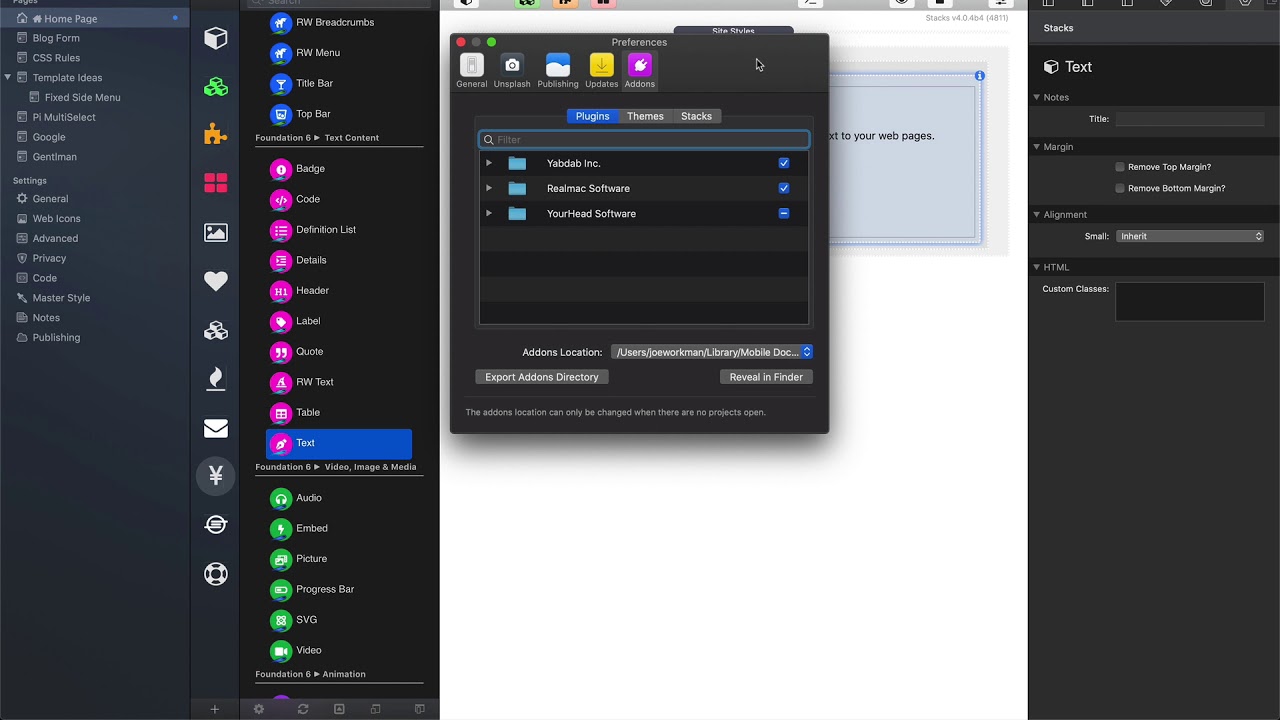
00:08 so if you're previewing your foundation
00:11 six site you notice this foundation
00:12 version warning inside preview what this
00:15 means is that your foundation six theme
00:17 and Stax versions are not in sync with
00:20 foundation six they're version numbers
00:22 for both the theme and the Stax should
00:24 always be in sync that ensures that your
00:27 site is always going to function
00:28 properly so in this case what we can do
00:32 is we can need to verify that our theme
00:34 and our stacks are both running the same
00:35 version in order to check for the Stax
00:38 update simply go to their Stax
00:40 update button on the Stax library and
00:42 what you can do is you can say check now
00:44 now on this machine I know that I
00:46 actually have the latest version of the
00:48 foundation six stacks installed but
00:51 let's go ahead and let this run through
00:52 so here I let the foundation stacks it
00:54 found no updates because I actually did
00:56 have the latest version of the
00:57 foundation six stacks installed now if
01:00 you want to know exactly what version of
01:01 the stack is installed you can there's a
01:03 couple ways to do that you can go ahead
01:05 and click on the stack inside the
01:07 library and then open up the info pane
01:09 and what you'll notice is down here on
01:11 the bottom corner there is the stack
01:13 version number so this particular stack
01:15 is at version six four three another way
01:18 to do this is inside the rapidweaver
01:19 preferences if we view your stacks
01:22 add-ons and we simply just search for
01:23 Foundation six
01:26 you notice here that it actually says
01:28 that we have Foundation six and the
01:30 version is six four three now the same
01:32 is true for themes if we search in the
01:34 themes and our wrapping for add-ons
01:35 preferences will see that the theme is
01:38 currently at version six four zero so
01:41 that is our issue
01:43 let's now figure out how we can actually
01:45 update the theme so to update the theme
01:48 inside wrap we were it's really simple
01:49 just go to your rapidweaver menu here
01:51 and click check for updates
01:53 now Red River is telling us that here we
01:55 have a actual theme update available for
01:59 foundation just click update add-on and
02:02 now wrapping will prompt you to relaunch
02:04 now what's really important is that if
02:07 you update any stack or any theme any
02:09 time not just foundation you should
02:12 always restart rapidweaver okay so if
02:15 you ever update any wrapper t4 add-on
02:17 you should always update wrap Weaver
02:19 whether or not it prompts you or not so
02:21 if you even if you update stacks make
02:23 sure that you're actually restarting
02:24 rapid either after these stacks have
02:26 been updated and now that we're all to
02:29 date will notice that the version
02:30 warning inside rapidweaver is all gone


