
Stacks Guru is born from the need to search the vast number of videos out there on stacks built for Stacks Pro and the Stacks 5 plugin for Rapidweaver.
We have scraped over 500 videos to get the transcripts for each in order to make the spoken word searchable.
Please use this free tool to help you learn and discover the awesome power that Stacks and the stacks made for Stacks have to offer.
00:07 hi this is ryan from wrap Weaver
00:09 classroom calm and I'd like to introduce
00:11 you to the google map stack from joe
00:13 Ortman the google map stack will let you
00:15 embed a Google map on your site but the
00:17 stack converts it to a static image
00:19 instead of using flash that way it's
00:21 compatible with iOS devices that do not
00:24 use flash and so in this example I've
00:26 got the map of the u.s. added with some
00:29 markers dropped onto the map now I want
00:31 to show you how to set that up in edit
00:32 mode so let's jump over to edit or you
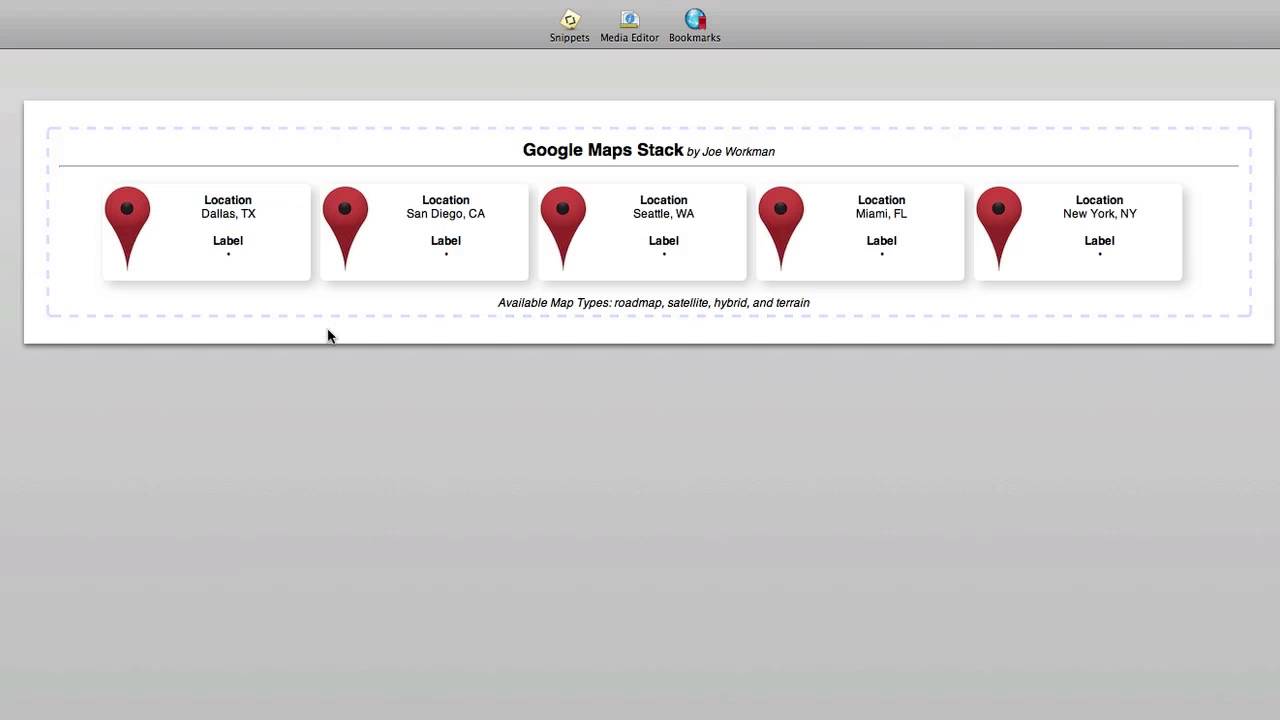
00:34 will see the google map stack added to
00:36 the page right now there are five
00:37 locations added and you can see the five
00:39 different markers if you double click
00:41 into the location field you can simply
00:43 type the location that you want to drop
00:46 a marker on and that's all you have to
00:48 do it can display up to 20 different
00:50 markers using the stack and to do that
00:52 go into the inspector HUD so let's take
00:54 a look there the options for width and
00:58 height are available to set the size of
01:00 the image that will be displayed you can
01:02 zoom in very closely to locations or
01:04 more zoomed out for something like an
01:07 entire map of the u.s. like we have in
01:09 this example you can also choose the
01:11 area for the center of your map and the
01:13 type of map that's displayed available
01:15 types our road map satellite hybrid and
01:18 terrain and we saw the road map view you
01:21 can choose to show or hide the markers
01:23 on the page and then finally the number
01:25 of markers that you want to add as I
01:27 said you can display up to 20 different
01:29 markers on your map in in this example I
01:32 have it set to 5 you can set the marker
01:34 color and also choose to display large
01:37 or small markers on the map and so
01:40 there's a number of options here that
01:41 are available for customizing the look
01:43 and feel of your map and this is the
01:46 result so this is the google maps stack
01:48 from Joe workman


