
Stacks Guru is born from the need to search the vast number of videos out there on stacks built for Stacks Pro and the Stacks 5 plugin for Rapidweaver.
We have scraped over 500 videos to get the transcripts for each in order to make the spoken word searchable.
Please use this free tool to help you learn and discover the awesome power that Stacks and the stacks made for Stacks have to offer.
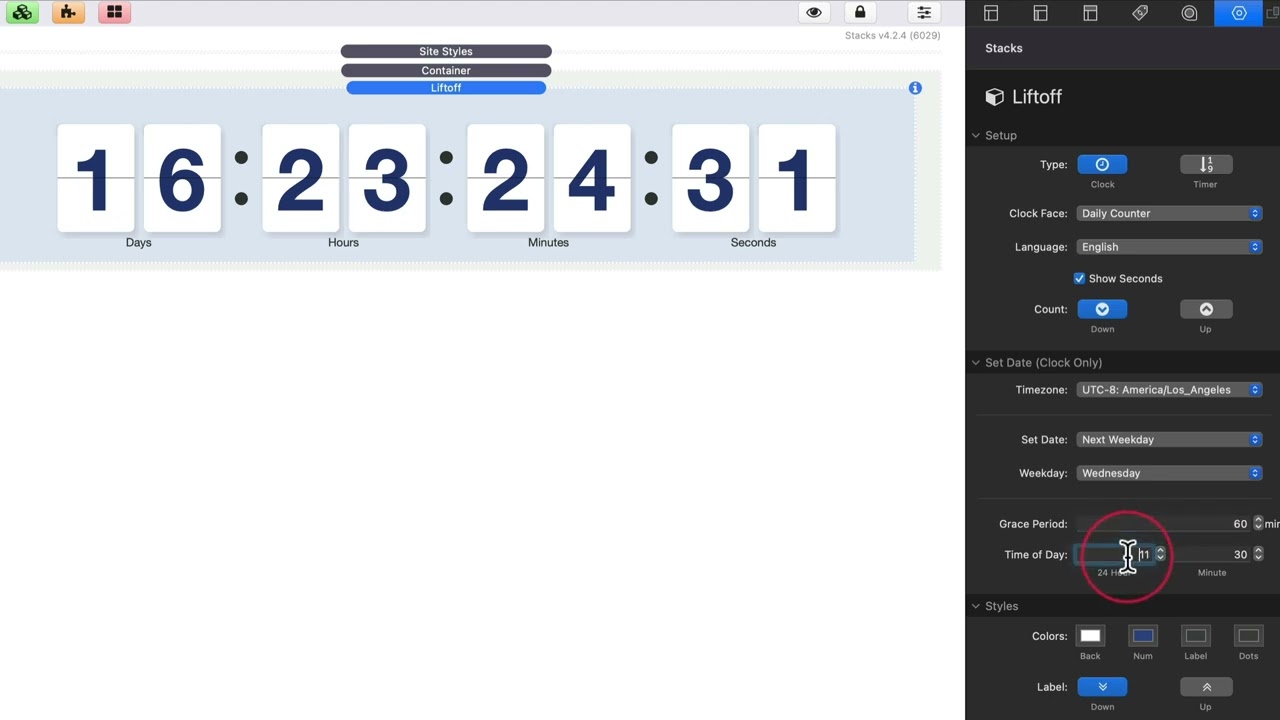
00:10 hey everybody so in this video we're
00:11 going to be looking at the liftoff
00:13 stack and how to implement it it's a
00:15 really simple stack to use so when you
00:18 add it to the page you'll notice at the
00:19 very top you can set up the type of
00:22 timer that you want to set up the
00:23 default is a clock and let's go through
00:25 through the clock-based settings that we
00:27 have we have different faces so this is
00:29 the daily clock which shows you
00:31 basically days hours minutes and seconds
00:34 and then you can also have an hourly
00:36 clock which basically doesn't show you
00:38 days the hours just keep ticking up
00:41 and we have a 12-hour clock that shows
00:45 us the actual time okay so this gives us
00:48 the actual time but in a flip clock
00:50 setting
00:51 and then there that is a 12-hour clock
00:54 and their other option is a 24-hour
00:57 clock
00:58 okay
01:00 you also notice that there's a language
01:01 option so you can choose the language
01:04 that will automatically set up the days
01:06 hours basically the labels so it'll
01:08 localize those labels for you
01:10 automatically
01:12 we can show or hide the seconds
01:15 and lastly we can configure whether or
01:17 not we want to count up or count down
01:20 for this particular timer
01:23 now while we're on the clock so let's
01:24 look at how we can set up our various
01:27 dates
01:29 so one important thing with dates is we
01:31 want to ensure
01:32 the proper time zone
01:34 so what you do is when you set up
01:36 liftoff you set the time zone that you
01:38 want it to be and this is a global
01:40 setting
01:41 so that way
01:43 everybody across the entire world has
01:45 the same exact countdown because it's
01:47 all going off the time
01:50 of
01:50 that particular time zone
01:53 by default we set manually so we set the
01:55 exact date and time
01:58 that we want to track our liftoff
02:00 countdown or count up to or from
02:03 okay
02:04 now what are other options obviously if
02:07 we have total cms you can use total cms
02:09 and this needs to put in the cms id of
02:12 the date field within total cms
02:17 next is we have the ability to do
02:18 dynamic dates
02:20 and this is whether or not you want the
02:22 next weekday okay and when you choose
02:25 that you can choose the next monday or
02:27 the next tuesday or the next wednesday
02:30 so for example i have a live stream
02:33 every wednesday at 11 30.
02:36 so what i would do is i would set it up
02:39 exactly like this
02:41 i would say next weekday
02:43 the next wednesday is on wednesday
02:46 i'll go over grace period in a minute
02:48 and then 11 30 is the time of day on
02:51 wednesday
02:52 so no matter when i am throughout the
02:54 week it's always going to count down to
02:56 the following wednesday
02:58 now
03:00 i skipped over grace period what does
03:02 that mean
03:03 essentially that means well let's say it
03:06 is wednesday at 11 30 exactly
03:09 i don't necessarily want to start
03:11 immediately counting to the following
03:13 wednesday even though i'm at wednesday
03:16 11 31.
03:18 this grace period gives you
03:20 some time
03:22 where it will give you a break and not
03:24 start counting to the following
03:26 wednesday
03:28 so in this case not until wednesday at
03:30 12 3
03:32 it will start counting to the following
03:34 wednesday let's say i want to give
03:36 myself two hours i would put 120 minutes
03:38 in there
03:39 and that means at 1 3
03:42 on wednesday it's going to then start
03:45 counting to the following wednesday so
03:48 again this gives you a little bit of
03:49 grace period so that at exmedia at 11 3
03:52 and one second it's not going to start
03:54 counting to the next iteration of the
03:57 weekday
04:00 so let's go to next day of month very
04:03 similar topic this is just going to be
04:05 instead of the next day it's going to be
04:06 the actual next day of the month
04:08 so this is um the first or the second do
04:11 you want to go to the 15th of next month
04:14 okay and then you can also define the
04:16 time of day and grace period for that as
04:18 well
04:20 then we have next day of year which is
04:22 counting down to the next day maybe that
04:24 is
04:25 next year christmas next year okay so
04:28 maybe we want to we want to do that
04:29 maybe we want to count down to chinese
04:31 new year or christmas or easter or
04:34 whatever holiday right this allows you
04:36 to have a countdown timer for that
04:39 and what's great about this is you don't
04:40 need to remember once you set it up it's
04:42 going to be completely automatic you
04:44 don't need to remember to
04:46 if we had set up a manual date you don't
04:47 need to remember to come back
04:49 afterwards and set a new date for the
04:52 future it's all automatic
04:56 now styling the clock is super easy um
04:59 it just simply you can set up the colors
05:01 for the back which is the background of
05:02 the digits the actual number colors then
05:05 we have separate colors for the labels
05:08 which are down below and the dots which
05:11 separate them so we have colors for all
05:12 those you can also set up whether or not
05:14 you want the labels at the top or the
05:15 bottom
05:18 and next is the ability to set the
05:20 sizing for both the labels and the clock
05:23 digits
05:24 okay so this gives us some responsive
05:26 sizing for small medium large and extra
05:29 large
05:30 now if you're a foundation 6 user this
05:32 does follow the foundation
05:34 framework although extra large is going
05:36 to give us 1200 pixels okay so we added
05:39 an extra little bit for us there
05:43 now when our clock is complete okay we
05:46 have various actions that we can do
05:48 you could potentially just simply hide
05:50 the clock and for every action we also
05:53 have a delay so you can configure by
05:55 default it's 1.5 seconds
05:57 so once this countdown hits zero
06:00 it's going to actually activate this
06:02 particular action in this case it's just
06:04 going to hide the clock next we can hide
06:06 the clock and reveal content
06:09 so when you reveal content it will
06:11 actually show you a drop zone and you
06:13 can add whatever stack content you want
06:15 inside of it and by default that content
06:17 will be hidden
06:19 and only when the clock reaches zero
06:21 would actually be displayed to the user
06:26 next you can refresh the page
06:29 and then you can also redirect to a url
06:32 okay so this gives us you can you you
06:34 can give a url and then it'll redirect
06:36 to that url
06:39 now here we have an advanced css
06:41 reference that allows us some advanced
06:42 styling i'm going to do a separate video
06:44 on how we can use foundation 6 along
06:47 with these css references to then style
06:50 our lift off even farther
06:52 so i hope you enjoy liftoff it's a super
06:55 powerful stack um it's gives us a lot of
06:58 flexibility for all kinds of different
07:00 situations whether or not we want to
07:02 count up to from a launch of an event
07:05 count down to a big launch that we have
07:08 um there's a lot of really great things
07:10 you could do with liftoff and i can't
07:11 wait to see what you do please share it
07:13 on weaverspace and we'll see you soon
07:15 bye


