
Stacks Guru is born from the need to search the vast number of videos out there on stacks built for Stacks Pro and the Stacks 5 plugin for Rapidweaver.
We have scraped over 500 videos to get the transcripts for each in order to make the spoken word searchable.
Please use this free tool to help you learn and discover the awesome power that Stacks and the stacks made for Stacks have to offer.
00:06 hello everybody this is Joe workman and
00:08 today we're gonna look at feeds in total
00:11 CMS now feeds they're kind of a
00:15 multi-purpose tool right um when we
00:18 think outside the box now when I started
00:21 developing the CMS everyone said they
00:23 wanted a blog and first off let me say
00:25 blogs are coming or if you've watched
00:27 this in the future blogs are here okay
00:30 blogs are gonna be a feature of total
00:32 CMS but I wanted to ship something a
00:36 little bit different when I originally
00:39 deployed total CMS and that's because I
00:41 don't feel most people really require a
00:44 blog okay I think most people just need
00:48 a news feed they need a feed of items on
00:51 their web page maybe it's events maybe
00:54 it's you know whatever you want to post
00:56 about okay but that most of these things
00:59 are time related right
01:02 it's what are this week specials or
01:04 things of that nature
01:06 right and really a blog for those sort
01:09 of things just doesn't really make sense
01:11 because a lot of the things that people
01:15 use blogs for our content that a year
01:19 from now doesn't make any sense at all
01:22 okay there's no no use to really have it
01:26 any longer
01:26 so this is where feeds are powerful you
01:29 can display the last ten items in the
01:32 feed
01:32 you can display random things in a feed
01:34 right now with that said you can use
01:38 things for other things besides a news
01:41 feed right you can use them for let's
01:45 say you want to store tons of quotes and
01:47 you want to display a random quote on
01:50 your page you can use feeds for that
01:52 let's say you want to have some sort of
01:56 like a looping feature right some
01:58 features of CMS are looping right of
02:01 other CMS's now a lot of times with the
02:05 use case for that is a client wants to
02:07 have a particular template of something
02:09 they want to fill that out and post a
02:12 new one in
02:13 inside their order right or on their
02:16 page you can do that with feeds okay so
02:20 really there's a lot of uses for feeds
02:23 it's basically a way of adding new
02:25 content to your site okay and then you
02:29 can display X number of those on your
02:32 page and there are different various
02:34 layouts to display them and we're gonna
02:37 jump into those right now so let's go
02:39 ahead and jump into feeds and see
02:42 exactly where we're using them for now
02:44 in this particular use cases we're kind
02:46 of using them for news feeds okay but
02:49 remember think outside the box we can
02:51 use them for more than just a feed of
02:53 news items so here we are inside the
02:56 total CMS demo project that ships with
02:58 total CMS and we're gonna scroll down
03:00 and let's start looking at some of the
03:03 layouts that we have for feeds the first
03:05 thing we have the first layout that we
03:07 have is called a feed list okay and it's
03:10 essentially a way of just blatantly
03:12 listing out the number of posts on the
03:15 page
03:16 okay now post can consists of an image
03:19 and text or just text okay so in this
03:23 example I have the images on the
03:25 right-hand side of the post okay but you
03:28 can have them on the left you can have
03:30 them you know basically centered at the
03:33 top of the post and then the text is
03:35 below it right so there there's some
03:37 flexibility here and we'll look at some
03:38 of those options in a little bit now
03:40 another option that we have is if you
03:42 click on the thumbnail it'll actually
03:44 auto lightbox the image to the full
03:46 resolution image so that's a nice
03:48 feature right we can go ahead and click
03:50 on the thumbnail and see the full
03:52 resolution image automatically out of
03:54 the box okay now if we scroll down
03:57 you'll see that we have a feed grid okay
04:01 and this is a very great layout because
04:04 you can define kind of how how many
04:06 columns you want okay and then the CMS
04:10 will automatically layout your posts in
04:14 a masonary style okay and as you see we
04:17 have all of the images take up the
04:19 entire top of the post and when you
04:21 click on these you'll also get the auto
04:23 lightbox image okay so it's very nice we
04:26 also have
04:27 some read more features that you can
04:28 enable so that if a text is really long
04:30 it'll actually shrink that down and you
04:33 can click on the read more and it'll
04:35 expand that out okay um and what you'll
04:38 notice here is that we can actually
04:39 display to change it based on the device
04:43 how many columns are displayed so here
04:45 on a smaller width I'm actually showing
04:47 less posts as well as a different number
04:50 of columns right so that's a very
04:53 flexible way of displaying our feed
04:56 content now on the admin area we
05:00 essentially have two stacks we have the
05:02 total feed post or the form stack and
05:04 then we have the total feed list stack
05:07 that lists all of our existing posts
05:10 okay so if we want to create a new post
05:15 this is what we would do we would type
05:17 in our post here drag and drop an image
05:20 if we wanted one save it and then that
05:23 new post will be dynamically added to
05:26 our existing feed list on the right now
05:30 the reason that we have this feed list
05:32 on the right is that we can actually
05:34 edit things okay so if we click on a
05:37 particular post we can actually edit
05:39 that post okay we can drag and drop a
05:42 new image to replace the image for that
05:44 post okay we can configure the alt tags
05:50 for that particular image we can get the
05:52 RSS feed for this feed okay so this is
05:57 very powerful with RSS feeds this really
06:01 if we start thinking out of a box we can
06:04 use this RSS feed to integrate into
06:06 other things maybe RSS stacks for
06:09 displaying content in different ways we
06:12 can integrate things into if this than
06:14 that com - maybe automatically post
06:18 things to Facebook or Twitter so really
06:20 this RSS feed allows us a lot of
06:23 expandability since it's a standard
06:25 format that a lot of things out on the
06:27 web already understand now because the
06:31 list and the post stack are separate
06:33 this gives you a lot of flexibility in
06:36 terms of layout this way if you don't
06:39 want to have this two column look
06:40 don't need to okay if you only want to
06:42 have just the post you can do that as
06:45 well okay so because these are two
06:47 different stacks you have a lot of
06:49 flexibility in terms of how you want the
06:51 admin page laid out okay so here we are
06:54 in edit mode on the admin page and what
06:57 we'll notice here is I have the two
06:58 stacks I have the feed stack which is
06:59 our posting gener our post generation
07:02 tool and then we have our feed list
07:04 which shows all of our existing feed
07:06 items okay so let's go ahead and look at
07:09 the settings for the feed stack
07:11 obviously the first one is gonna be CMS
07:13 ID which is the same across all CMS
07:16 stacks then you have your image
07:18 placeholders and then your text
07:20 placeholder text okay you can also hide
07:23 the feed image this is great if you
07:25 don't want to have a image with your
07:27 feed and you only want to have text okay
07:31 you can obviously also show a Save
07:33 button just like you can with the text
07:35 stacks as well
07:38 the next settings here I'll deal with
07:40 the RSS feed and this is going to be the
07:42 title of your RSS feed the description
07:44 and then the item link now in RSS feeds
07:48 each item in your feed is always
07:51 associated with a link now since each
07:54 individual feed item doesn't have a
07:56 unique URL you can actually provide a
07:59 centralized URL that this can go to
08:02 maybe this is a news page or maybe it's
08:04 just your home page okay but this is
08:06 gonna be a URL to the actual web page
08:11 that you want the RSS feed to link to
08:15 next is going to be all the things that
08:18 have to do with the feed image and these
08:20 settings are exactly the same as we saw
08:22 in our images so I'm not going to go
08:24 through all of these it's the same thing
08:25 as galleries and images you can define
08:29 the size for your thumbnails for the
08:31 full image the resize logic and all that
08:34 stuff okay and then the feed text is
08:37 this is also the same thing as the text
08:40 stacks okay we can have the simple text
08:44 or the markdown editor and then we can
08:46 also have the hip wig editor which is
08:48 our WYSIWYG editor okay you can strip
08:51 HTML and save have form height and what
08:53 now there is one extra setting at the
08:56 bottom and that is defined default
08:58 template okay
08:59 now when you turn this on what will
09:03 happen is if I preview this page what
09:06 you'll see here is that the template
09:09 text that I typed into this setting is
09:12 automatically inserted into the feed
09:15 post form this is great if you want to
09:19 actually define a template for your
09:21 customers okay now if you're using hip
09:24 way given what you're gonna want to make
09:25 sure that the template is the template
09:27 text is HTML and then hip wig will
09:29 translate that for you okay so you can
09:32 put in markdown or HTML or just plain
09:35 text into the template and then it will
09:37 it will default that inside this box and
09:40 then your users can then maybe you know
09:43 change that text to be what they want so
09:46 it's a way of giving your users a
09:47 template of what they should be adding
09:49 then they can customize that and then
09:52 when they submit it it'll then be added
09:54 to the list this just ensures that each
09:57 feed item potentially has the same
09:59 formatting that the other ones do so
10:01 using this template feature is really
10:04 great for if you wanted to kind of use
10:06 that looping mechanism that I talked
10:08 about earlier so you can kind of define
10:10 your template of what your customer is
10:12 going to have and then when they save it
10:15 it's gonna be you can ensure that it's
10:16 gonna be the same for every single post
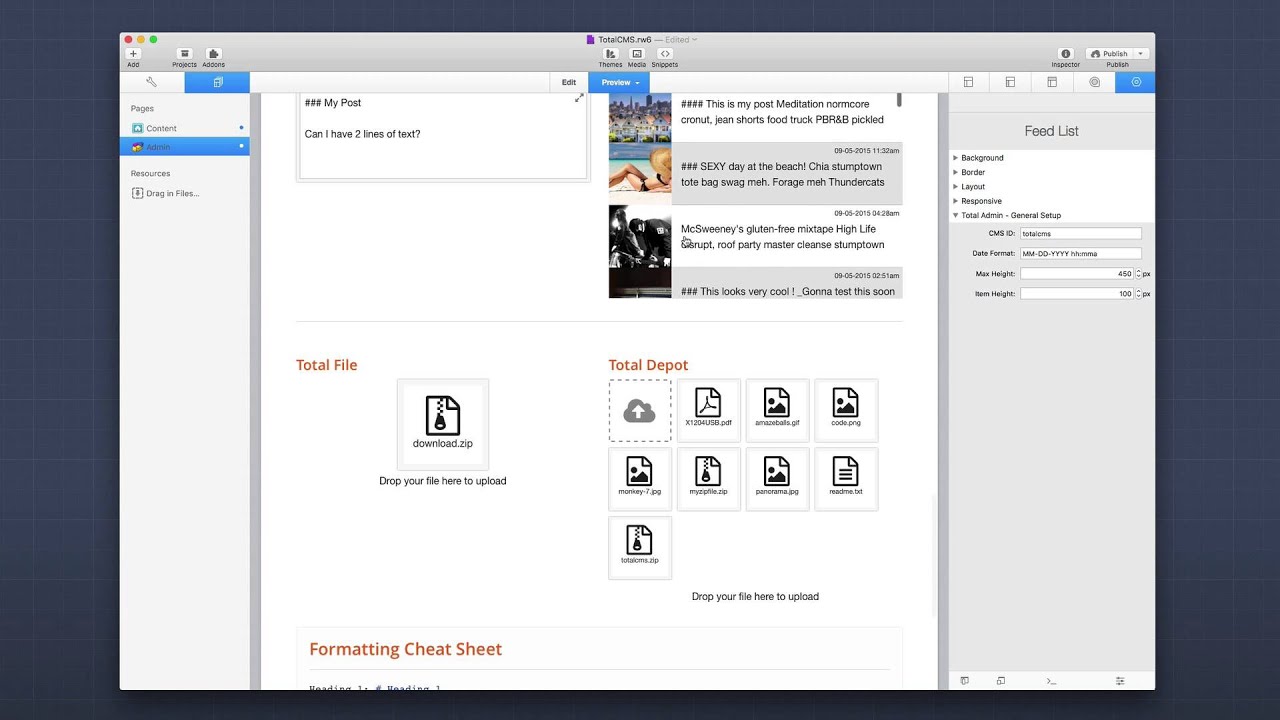
10:19 now if we jump over to the feed list
10:21 we'll see that it's very generic right
10:24 you have the CMS ID okay that is
10:27 obviously tied to that feed then you
10:30 have the date format and this is the
10:32 format of the date that shows up inside
10:35 the list okay and then you have a
10:37 maximum height and an item height now
10:40 the maximum height defines the actual
10:42 container as you see here I've have a
10:44 lot of posts but I want this feed
10:46 container to be no more than 450 pixels
10:49 high okay and then so we have a nice
10:53 scroll box so this provides us a nice
10:56 little scroll box so our users can
10:58 actually scroll through all their posts
11:01 okay now item height this is the height
11:05 of each individual item
11:07 okay by default it's 100 pixels and
11:10 that's probably enough to show you the
11:12 first couple lines okay but if you want
11:14 to make that larger you can now just a
11:17 caveat the higher that you make your
11:19 item height the bigger that the image is
11:21 going to be on the left okay so you know
11:25 I don't recommend doing too much larger
11:27 than 100 but you know if you want to
11:29 make me show 120 or 130 pixels
11:32 um it's not going to look horrible and
11:33 you know maybe your your it'll show a
11:36 few more lines of text okay so now we're
11:39 gonna jump over to the content side so
11:41 now I'm on the content page inside edit
11:43 mode and this is going to be the feed
11:46 the list that we saw earlier so I've
11:49 selected the feed content stack and
11:50 let's go ahead and look at some of the
11:51 settings here obviously the first
11:53 setting is gonna be your CMS ID as with
11:55 every other CMS stack next you have the
11:58 counts and this allows us to define how
12:02 many feed items we want to show based on
12:06 the device so on desktop so we're going
12:08 to show three tablets we have it set to
12:11 two and mobile we will only want to show
12:13 one right this gives us a lot of
12:15 flexibility in terms of obviously on
12:18 desktop we have a lot more so we can
12:20 display more right so this is a nice
12:23 little feature next we have shuffle feed
12:25 and when you shuffle the feed it's
12:27 basically gonna randomly select items
12:31 from within the feed and display those
12:33 so by default it'll obviously show the
12:36 newest to oldest
12:38 but this shuffle feed is a nice feature
12:40 like earlier I said you can use feeds to
12:43 display quotes or maybe customer
12:45 testimonials right and this is a way of
12:48 easily submitting those and then
12:50 randomly showing them on the page next
12:53 is the image so as you know we can have
12:56 images as well as text for each item and
12:59 you here you can just you know define
13:02 which actual image you want to display
13:03 do you want to show the original full
13:05 resolution image the thumbnail or the
13:07 square thumbnail
13:08 now remember automatically out of the
13:11 box you get that lightbox so when you
13:13 click on the thumbnail it'll actually
13:14 auto lightbox to the full resolution
13:16 image okay now by default the show date
13:20 is turned off but you can
13:21 actually show the date as well and then
13:23 define the format and where you want
13:25 that date aligned next for the layout
13:30 tier yet we have the ability to actually
13:34 to have the list or the cards okay
13:37 so right now I'm actually flipped the
13:40 preview mode so that when I start
13:42 changing some of these layout settings
13:43 you'll kind of see exactly what they do
13:45 right so here as you see here I've
13:47 actually changed the image alignment to
13:49 Center I also did the image as a
13:52 thumbnail and I showed the date just to
13:54 kind of show you potentially another
13:56 layout that could be used nicely right
13:59 so we have the image on top again if you
14:01 click on it you get the full resolution
14:02 image we then have our post date okay
14:06 and then our item our text now other
14:09 options here is we can control the width
14:11 of the image so when the image is set to
14:14 align left or right you know how why do
14:17 you want it the image to take up okay we
14:20 obviously have padding for the padding
14:23 around the post so we have vertical and
14:25 horizontal padding the flow text setting
14:29 allows us to if you look at this post
14:31 here the text flows around the image if
14:34 you don't like that and you want the
14:36 actual text and the image to kind of be
14:38 in two separate columns you can disable
14:41 flow text and what you'll notice is that
14:43 the text and the image are definitely
14:46 inside two separate columns now next we
14:49 have the style options and by default
14:51 it'll inherit these styles from the
14:54 theme okay now if you're using
14:56 foundation it also supports a lot of
15:00 these site style settings so we have the
15:02 alternate styles for headers and text as
15:04 well as all of our swatches okay and
15:07 then if you use custom style tip ever
15:10 whether or not you're using foundation
15:12 or any theme you can customize the
15:14 colors for your headers your text and
15:16 your links using the custom style option
15:20 now the next settings here allow you to
15:23 define the background colors for your
15:25 posts and you can have a background and
15:27 a border for each item okay
15:30 so basically it allows you to kind of
15:32 encapsulate
15:33 each item into its own little block okay
15:36 now you can also alternate the colors so
15:38 if you don't want every single post to
15:40 have the same color you can alternate
15:43 them so as you see here I have a dark
15:46 gray background and then I have white ok
15:48 then I've added some border radius as
15:50 well to each post okay you can if you
15:54 don't want a particular background color
15:56 just go ahead in the in the color swatch
15:59 and select opacity 0 and that will
16:01 basically make that background color for
16:03 that particular item
16:05 completely transparent now last but not
16:07 least feeds support read more I had
16:11 mentioned this earlier and when you
16:13 enable read more you'll see that we have
16:15 the ability to essentially define the
16:19 minimum size or the maximum size that
16:21 content can grow to so for this first
16:23 item it's only a small amount of text so
16:26 the read more wasn't actually used but
16:29 for the 2nd and 3rd options the text is
16:32 larger than what we've defined as the
16:35 actual height okay so if I click on the
16:38 read more button what it will do is it
16:40 will actually expand out and display all
16:43 of the text for that post and then if
16:45 you collapse it you can then collapse
16:47 that again and we have various options
16:50 you can change the the border you can
16:53 make it you know change the link from
16:55 read more and collapse to whatever you
16:57 like you can change the font size as
17:00 well as the actual height and the kind
17:03 of variation what the variation is is
17:06 basically let's say I have a height of
17:10 200 pixels as my my maximum height that
17:14 I want my content but if the content
17:17 goes to 220 pixels okay basically this
17:22 variation gives it a 24 pixel variant so
17:25 if it's 220 up to 224 pixels it won't
17:31 actually create the read more link but
17:34 when it does create the reboard link
17:36 it'll do it at 200 pixels now let's jump
17:39 in and look at the other feed layout we
17:42 have which is called cards so here I
17:45 have my layout set to car
17:47 and let's preview this now when you set
17:50 your feed layout to be cards you'll
17:52 notice that we have various sizing
17:53 abilities okay and this helps us define
17:56 the width of each post so for a desktop
18:01 I have my width set to 30% okay and what
18:06 the offset is it's the percentage offset
18:08 that it is from the side of the of the
18:11 content area okay so right now I have
18:14 30% with with a 5% offset and the offset
18:19 you're going to want to maybe just tweak
18:21 it a little bit until it looks kind of
18:22 the way that you think it should be
18:24 centered okay because by default with
18:26 this sort of layout we actually have to
18:29 make everything float to the left so we
18:31 have to kind of add a left margin of a
18:35 percentage to kind of evolve and Center
18:38 things properly so here we have desktop
18:41 sizing set to 30% so that means I'm
18:43 going to get at least three posts on
18:46 desktop because it's gonna be 30 each
18:48 one's gonna take up 30% with okay then
18:52 on tablet I get set my width to be 44%
18:55 which is going to give me two posts
18:57 okay per you know column and then on
19:02 mobile sizing I set the width to be 98%
19:04 which obviously is going to give me a
19:08 one post per column okay basically one
19:12 post per width on the screen now
19:15 remember in card layout we can also
19:17 adjust the numbers just like we could
19:20 with lists so here in this example on
19:23 desktop I'm displaying 10 on tablet I
19:25 display four and then a mobile I'm only
19:28 displaying two okay
19:30 so all of the same settings that we saw
19:32 on the list options are also pertinent
19:35 with the card layout same thing for the
19:38 rounded corners as well as the
19:40 alternating colors for cards and
19:44 obviously the read more support is also
19:47 fully supported in the card layout and
19:49 it work it Lexie looks really nice so
19:52 here we see an example with the read
19:54 more where if I click on the read more
19:56 it actually dynamically
19:58 you know adjusted the size of the card
20:00 for me and even repositioned some
20:02 existing cards so that our masonary
20:05 layout was perfect so as you see feeds
20:08 are very powerful because we can use
20:11 them for so many different things they
20:14 don't need to be just for our news feeds
20:17 they could be for displaying random
20:19 content Kuster testimonials quotes right
20:21 with the templates that we can add to
20:24 the feed post form you can then create
20:27 kind of a looping mechanism where your
20:29 customer can fill out the template post
20:32 it and then it's just another item that
20:34 they have right so this gives us some
20:37 simple looping it gives us a news feed
20:40 with RSS right it gives us the ability
20:42 to have customer testimonials or quotes
20:45 that we can randomly display on our
20:47 pages that contain both text and images
20:51 we have two great layouts that ship with
20:54 total CMS this is our list feed list
20:58 feed right as well as our card layout
21:00 which is really beautiful I think it's
21:03 it's pretty exceptional
21:04 I love the masonary layout with the read
21:07 more how it dynamically changes
21:08 everything right it's just very very
21:11 very powerful now there's one other way
21:15 we can lay out our feeds right now and
21:18 I'm sure there's gonna be more in the
21:20 future
21:20 but if you own our impact stack make
21:24 sure to check out the integration video
21:26 with impact because you can now with
21:28 impact display your feeds in a beautiful
21:31 slideshow where you have the post
21:34 picture as the background and then the
21:36 content of the post is laid on top of it
21:39 right so it's just a really beautiful
21:41 way to display your feeds in a
21:44 non-traditional format right so I hope
21:48 you enjoy feeds I'm excited to see how
21:50 you use them and if you come up with
21:52 great more great ideas on how to use
21:55 feeds please let us know because I'm I'm
21:58 willing to share with everybody and kind
22:01 of you know improve how we use feeds so
22:05 thank you very much for watching
22:06 everybody I hope you enjoyed total CMS I
22:08 know I hope you use it to its fullest
22:10 and thanks for watching
22:12 by
22:20 you


