
Stacks Guru is born from the need to search the vast number of videos out there on stacks built for Stacks Pro and the Stacks 5 plugin for Rapidweaver.
We have scraped over 500 videos to get the transcripts for each in order to make the spoken word searchable.
Please use this free tool to help you learn and discover the awesome power that Stacks and the stacks made for Stacks have to offer.
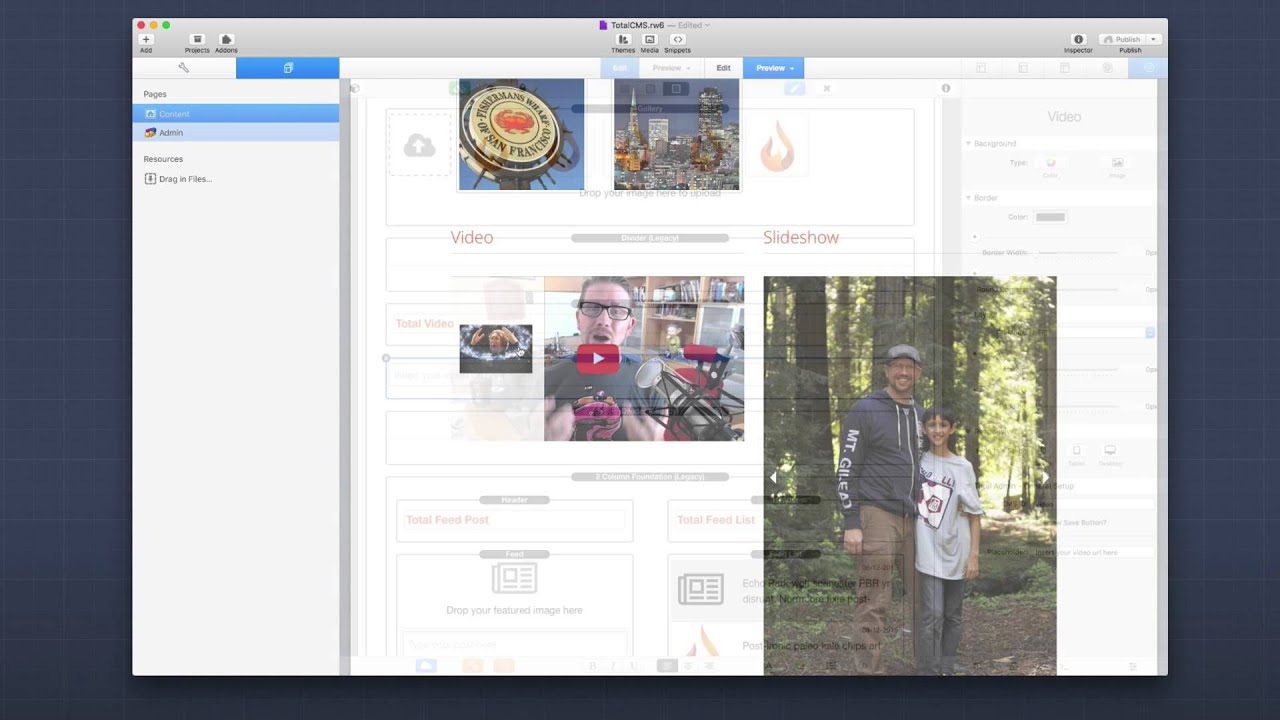
00:05 everybody Joe workmen here and in this
00:08 video we're going to be looking over the
00:10 total CMS video feature it's going to be
00:13 really short and sweet because the
00:14 videos are really super easy to use so
00:18 let's jump in and see how easy it is so
00:21 here we have the total CMS demo project
00:23 that ships with total CMS and you can
00:25 download any time from our documentation
00:27 portal and if we look at this page and
00:30 we scroll down we'll see that we have a
00:31 video here okay and this video is
00:34 embedded it is a YouTube video and it is
00:36 embedded via the CMS and we can
00:40 configure that really easily via the
00:42 admin page so if we go over to the admin
00:44 page now and if we scroll down we will
00:48 see that this is where we can edit the
00:50 total video it's just a simple easy text
00:54 input area and you can paste in the URL
00:57 to three different types of URLs you can
00:59 have a YouTube playlist which we have
01:02 here okay we can go ahead and put in a
01:05 YouTube video URL okay which i will save
01:09 now and you can also use vimeo video
01:12 URLs as well all you need to do is paste
01:15 the URL in here and as we see here I
01:18 changed and saved a new video here and
01:21 if we look at our content area you'll
01:23 see that that video has changed to the
01:25 new vimeo video that i posted ok so as
01:29 you see it's really simple and let's see
01:31 how the actual video stacks are used to
01:34 do all this so here we are in edit mode
01:37 for the admin page that we were looking
01:38 at and if we look at this you'll see
01:41 that the settings are really simple for
01:43 the video stack it's just simple text
01:45 input and you configure the CMS ID just
01:48 as you do with edit every other CMS
01:50 stack ok you can show or not show the
01:53 Save button ok just like the normal text
01:55 acts and then you have the ability to
01:58 have a placeholder right so it's really
02:00 not much to the admin side of this it's
02:03 just the CMS ID you can customize the
02:05 placeholder text if you want ok and that
02:08 basically that's it that's all you need
02:10 to do on the admin side now if we were
02:12 to look at the contents
02:13 here we are in the edit mode for the
02:15 content page if you notice here i have
02:18 the content video stack and if we look
02:20 at the settings you'll notice that
02:21 there's a little bit more settings than
02:23 in the admin side so essentially the
02:25 first thing is going to be the CMS ID
02:27 you need to tie those together just as
02:29 any other CMS stack then you have the
02:32 ability to set the video to be Auto
02:33 played or looped so if you want the
02:36 video to keep looping or restarting okay
02:38 and then the other settings here are for
02:41 styling the player now since the players
02:45 are styled differently between Vimeo and
02:47 YouTube you're gonna have to set up
02:50 color schemes for both um if you want
02:53 your customer to know that they can put
02:55 in both URLs right but Vimeo you can
02:58 pass an explicit color for their player
03:00 but then for YouTube we just have access
03:03 to say you know dark or light theme and
03:05 then the progress color do we want it to
03:07 be red or white so YouTube has less
03:09 player options um in terms of
03:12 flexibility for color but you can set
03:15 them differently um depending on your
03:17 preference so really that's it for the
03:19 video stack right I mean it's really
03:21 simple but powerful all you have to do
03:23 is put in the URL copy and paste it from
03:25 the browser paste it in the admin area
03:27 save it and the video magically shows up
03:31 in your content side right and the
03:33 content side we have a few settings for
03:35 colors and options for the video players
03:37 right but the cmas does all the work in
03:40 terms of getting the embed code creating
03:42 the embed code customizing those player
03:45 options for us and then dynamically
03:47 creating and showing that video on our
03:49 web pages right it really couldn't be
03:51 any easier so I hope you enjoy the CMS I
03:54 hope you're utilizing it to make your
03:57 websites very powerful and have a great
04:00 day thanks for watching bye
04:08 you


