
Stacks Guru is born from the need to search the vast number of videos out there on stacks built for Stacks Pro and the Stacks 5 plugin for Rapidweaver.
We have scraped over 500 videos to get the transcripts for each in order to make the spoken word searchable.
Please use this free tool to help you learn and discover the awesome power that Stacks and the stacks made for Stacks have to offer.
00:08 in this video we're going to be going
00:10 through the menu builder that's built
00:13 inside the specific menu stacks on
00:16 inside foundation 6 so in this
00:19 particular one it's a accordion a
00:21 breadcrumbs drill down drop down the
00:24 menu stack all of those have the same
00:28 exact menu builder ok so if you're using
00:31 any of those stacks you're gonna want to
00:32 make sure you check out this and learn
00:34 how we're gonna use the menu builder in
00:36 this video I'm not gonna go or any other
00:38 specific menu settings we're just going
00:41 to be going over how to build a menu
00:45 so if you notice here we have the
00:47 ability to UM create our own menu with
00:50 this menu builder and by default we it
00:53 starts off with one link and we can go
00:56 ahead and type in our link names here so
00:59 I'm gonna go ahead and say like add like
01:01 homepage right so we'll do home ok enter
01:05 and if we want to add a new menu item oh
01:08 also before that we want to go to home
01:10 and we're gonna set our link so we click
01:12 set link and then we can set that to the
01:14 page that we want so I wanna that was
01:16 the link to the home page and then if
01:20 you notice inside here we can add a
01:21 submenu or make it an active menu item
01:23 we're gonna leave that alone for right
01:25 now let's just go ahead and add a couple
01:27 other menu items well you'll notice we
01:29 we have we can add another menu item so
01:31 maybe this is like a products page
01:36 okay I'm not gonna link let's just
01:39 pretend I'm gonna link all these to the
01:40 various pages and then go ahead I'm
01:43 gonna add another menu item and this
01:45 could be like contact
01:48 and then maybe one last one and you can
01:52 do about about cool now if you notice in
01:58 this drop-down we have a few other items
02:00 in here okay and we're gonna go over
02:02 those in a little bit um but right now
02:05 here I just have a basic menu with four
02:07 menu items okay and let's let's go a
02:11 little bit step further let's say our
02:13 products page actually has a submenu so
02:16 if you notice if we go to this products
02:17 I want to add a submenu to this so I'm
02:19 gonna do is I'm going to go over here
02:20 and I'm going to say add submenu
02:23 okay now if this is a drop-down menu I
02:26 recommend that you do check is drop-down
02:29 so if you are using a drop-down menu go
02:33 ahead and make sure that you select is
02:34 drop-down okay what that does is it just
02:38 kind of makes things look a little bit
02:39 nicer on page load okay that's the only
02:41 thing it will work 100% the same whether
02:44 or not you check it or not
02:45 um this is purely for how things look on
02:48 page load this just gives us a little
02:50 helper saying that hey yeah this really
02:52 is a drop-down menu um let's go ahead
02:54 and specify this so that the sub menus
02:57 are hidden while the page is loading
02:59 okay um so again that's good convenience
03:03 and now that we've done that we can go
03:06 ahead and click on the menu item here
03:08 and we can just say you know product
03:12 a okay and also I can copy and paste
03:16 things right so I can hit select this go
03:18 ctrl C command C command V and there we
03:22 go
03:22 I can do product B and of course for
03:26 each of these I'd go and set the link to
03:28 the page okay and again if I wanted a
03:30 tertiary or a third level menu I can
03:33 then add a submenu to that
03:36 okay so that allows us to do that okay
03:39 so we can add we can this can go
03:41 infinite you can have as many levels as
03:42 you want with this builder as we want
03:45 okay
03:45 also if you want to copy like an entire
03:48 like this entire products menu I could
03:50 just ctrl command C command V and I
03:54 paste copied and pasted it it's really
03:56 cool right and you can you can reorder
03:58 these menu items just by dragging and
04:00 dropping them around right
04:02 so really really convenient very
04:04 powerful
04:06 okay so where were some of those other
04:08 menu options that we had we click on the
04:12 plus button here um let's do menu
04:15 heading and what this is is the menu
04:17 heading is basically like some some
04:19 static text that we can have within
04:21 right maybe this could be good within a
04:24 submenu right allow you to like
04:26 categorize your various menus and within
04:28 a submenu
04:30 okay so maybe you have you know product
04:33 a a and B and then if we you know copy
04:35 that down here and then we have maybe
04:38 product C and D below that right um you
04:42 know this allows us to kind of break up
04:43 our break up our menus into with labels
04:46 yeah that's nice cool um what are some
04:51 of the things that we have we also have
04:53 a menu drop zone well what is that Joe
04:56 well this allows us to really integrate
04:58 whatever we want inside of a menu
05:02 let me let me go ahead and let's go
05:05 ahead and do something that I know a lot
05:07 of you are gonna want to do
05:09 so this is a very common thing where we
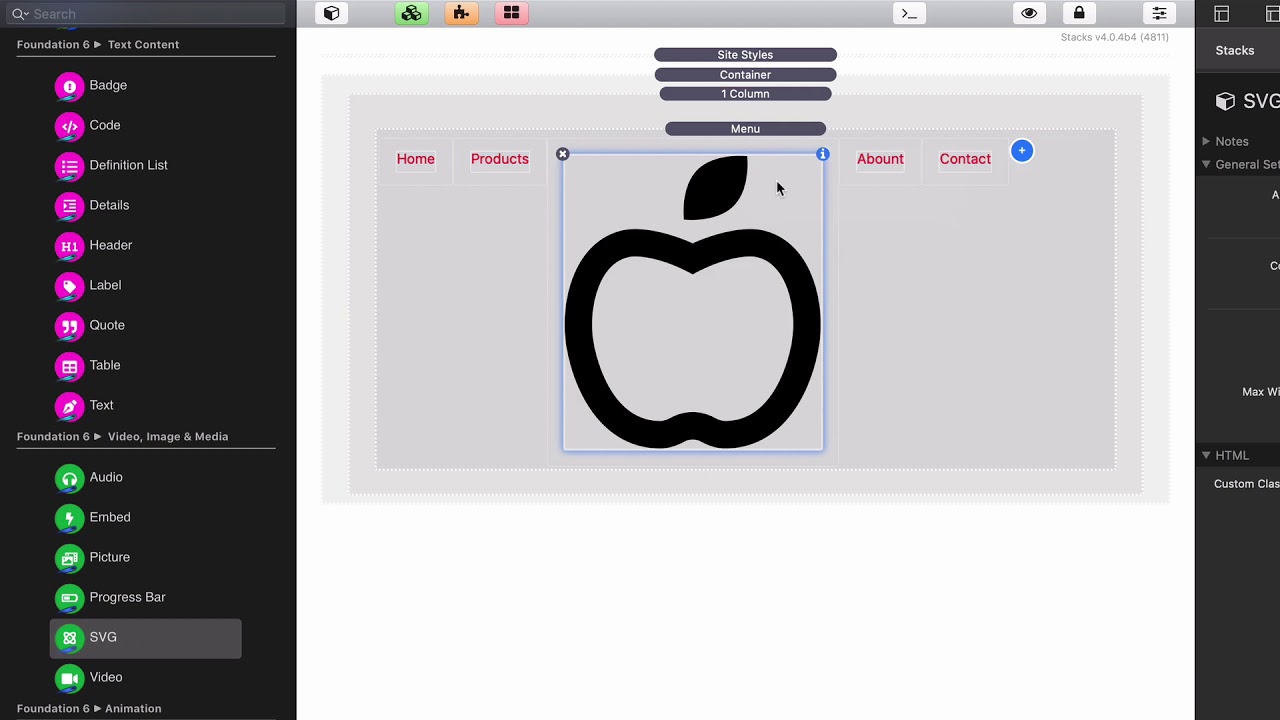
05:12 want to have a menu and right in the
05:15 middle of our menu is we want to have
05:17 our company logo or icon right well just
05:21 for right now I'm just going to go ahead
05:22 and add an SVG in there and now let's
05:25 scale it down to like 40 pixels
05:29 voila there we go right and if we go
05:33 ahead in our in our menu stack I said I
05:36 wasn't going to be going into many
05:38 options but if I just do
05:39 vertical-align:middle okay and it would
05:41 reap review this will see that we have a
05:44 nice menu with our logo in the middle
05:47 and let's just do horizontal alignment
05:50 oops
05:50 center justify and there we go
05:54 right we have a simple menu that we've
05:57 built okay and we have a logo right
06:01 there in the middle
06:04 really really powerful stuff awesome um
06:08 now if you notice there was one other
06:10 one its CMS blog menus and this is
06:14 really cool
06:14 maybe we'll probably do a separate video
06:17 on this but if you use total CMS blog um
06:20 you can actually dynamically generate
06:22 menus based on the blog categories the
06:26 blog tags the blog authors you can even
06:29 do posts right this is a really powerful
06:32 very powerful stack and you can even do
06:35 like categories with as a submenu and
06:38 authors and posts as a submenu
06:40 this is a really really powerful stack
06:43 that can dynamically generate menus
06:45 inside foundation 6 so if you're a total
06:48 CMS user you need to check this out
06:50 it's really really powerful
06:53 so that's pretty much it for the menu
06:55 builder itself now once you manually
06:58 build your menus you can just partial
07:01 this out and then I had that partial
07:03 every single page now one feature of the
07:07 menus that are is actual common as well
07:09 is the ability to style the active menu
07:12 so if you choose style active menu this
07:15 will style the active page so if you
07:20 notice here um it has styled the active
07:22 menu it used purple as you see here
07:25 because we are currently on the home
07:26 page now one caveat if you are if you
07:30 want to style the active menu item okay
07:34 um when you link to the pages you cannot
07:37 put a URL in the link tool you must
07:40 actually link to the actual page using
07:44 this page builder okay so on that is one
07:47 caveat if you want a style um we'll the
07:50 active page you have to use the link
07:53 tool so that home page works because I
07:55 actually chose the home page from here
07:57 right so that is one caveat in the menu
08:01 you have to check style active menu and
08:03 then in order to properly identify the
08:06 current page um you need to use that
08:08 link tool and browse and find the page
08:11 you cannot use the menu
08:14 now sometimes your menus can get quite
08:16 complex and sometimes like it takes up a
08:19 lot of space in edit mode sometimes
08:21 especially if you do in a vertical menu
08:23 right if I take this and do a vertical
08:25 menu you'll notice that wow this takes
08:27 up a lot of space inside edit mode um
08:29 what can I do about that well every menu
08:32 stack has a hide sub menu button and
08:34 once you're done building your menu you
08:37 can go ahead and hide that sub menu and
08:39 it nicely collapses all those sub menus
08:42 you can kind of see that there's an
08:43 indicator that it has sub menus but at
08:46 least they're all hidden right and I can
08:48 quickly access them again just by
08:49 turning the that back on and then you
08:52 can see all the sub menus again but
08:54 that's just a nice little trick to help
08:56 us you know hide and actually shrink the
09:00 amount of content that we have to scroll
09:01 through while we're using our site in
09:03 edit mode
09:05 and next these menus are completely
09:08 transferable between the different menu
09:10 types so let's say you spent tons of
09:12 time building out this menu and you're
09:14 like you know what I really changed my
09:16 mind
09:16 and I want to use a drop-down so what
09:19 you do is you simply drag and drop your
09:21 drop-down menu and let's go ahead and
09:24 delete that default menu item and then
09:25 what we're gonna do is we're just going
09:26 to go ahead and small towns in here and
09:31 we're just going to drag and drop into
09:34 the drop-down stack
09:36 and there we go we've now converted our
09:39 entire menu into a drop-down menu


