
Stacks Guru is born from the need to search the vast number of videos out there on stacks built for Stacks Pro and the Stacks 5 plugin for Rapidweaver.
We have scraped over 500 videos to get the transcripts for each in order to make the spoken word searchable.
Please use this free tool to help you learn and discover the awesome power that Stacks and the stacks made for Stacks have to offer.
00:00 come on
00:09 hey so in this video we're going to be
00:10 looking at the basics the getting
00:13 started of moving box three so you'll
00:15 notice when you first add moving box to
00:17 the page
00:18 you will initially get two slides
00:21 and you will notice there's a blue
00:23 button this blue button when you click
00:24 on it you'll be able to add a bunch of
00:26 more features
00:28 um now in this video I'm not going to be
00:29 going through all of these things you
00:31 might see a couple things in here and
00:32 there but I won't be diving into the
00:34 details of each of these individual
00:36 slides here okay now obviously we can
00:39 add in our slide content so let's just
00:41 go ahead and add a little bit of content
00:43 for us here
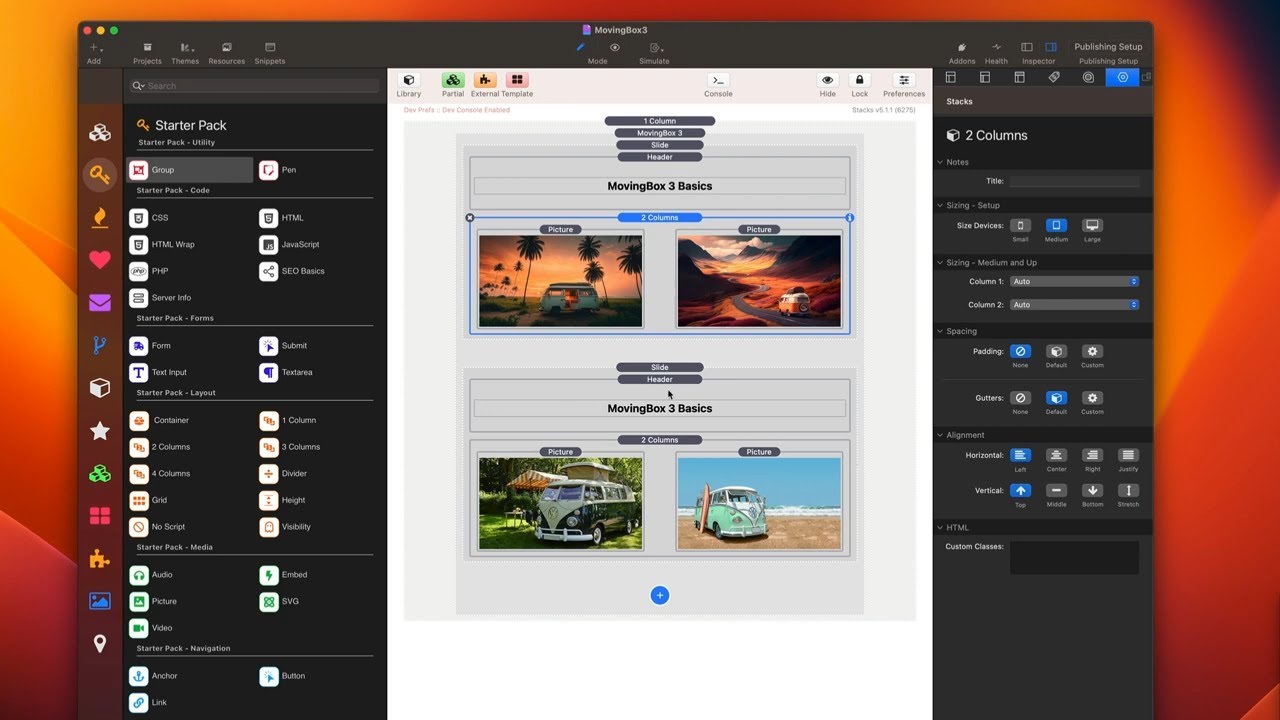
00:44 so here you'll notice I've used some
00:46 stacks for my free starter pack just to
00:48 kind of build out a little layout per
00:50 slide we just have a simple little
00:51 header as well as some columns with a
00:54 couple images just to add a little bit
00:55 of Interest
00:57 now
00:58 there are a couple other slides that
01:00 ship with moving box the default slide
01:03 stack allows you to add whatever stack
01:05 that you want inside right so basically
01:07 you could just take any stack you want
01:09 drag it in and build whatever layout
01:11 that you'd like
01:13 now we also have an image slide and this
01:16 allows you to funny enough add an image
01:19 so let's go ahead and add an image to
01:21 this slide
01:24 there we go we just simply drag and drop
01:25 there's also Warehouse available you can
01:28 add an ALT tag such as you know moving
01:30 box three
01:32 okay now you can also not add a caption
01:34 we're not going to dive into all of this
01:36 right now but you can add a caption and
01:37 add some animations to your captions as
01:39 well which is super cool so let's leave
01:41 that caption on there for now
01:43 and next up we can add a video slide so
01:46 just like the images this allows us to
01:48 add a video to our slide so let's go
01:51 ahead and let me configure this video
01:53 there we have it I've gone ahead and
01:55 added the URL to my mp4 file and I've
01:58 added a poster image as well and defined
02:01 all of my sizing
02:03 now changing the order of the slides is
02:06 super easy with moving box you simply
02:08 take your slides and you can just drag
02:10 and drop them to change the order in
02:12 which they are so let's do this we have
02:14 our kind of our basic uh you know slide
02:17 with our two images and then we have an
02:18 image slide then we're going to have
02:20 another basic slide with our custom
02:22 layout and then a video slide
02:24 now one thing almost every slider is
02:26 going to have that we kind of need is
02:28 let's go ahead and add some arrows
02:30 I'm going to go ahead and add nav arrows
02:33 and I'm not going to tweak many of the
02:35 settings I I do want to just make the
02:37 horizontal position the outside edge
02:41 okay and uh let's go and see how this
02:43 looks
02:44 so now here we are in preview and we see
02:46 our custom slide layout and we click
02:48 next and we can see our lovely image
02:50 slide with our animated caption that we
02:52 got and then we had our third slide and
02:55 then here lastly our video
02:57 now what you might notice is the video
02:59 actually doesn't play
03:01 um it would be nice if it played
03:03 automatically and we can enable that
03:06 super easy inside of moving box so here
03:09 we're going to start changing our first
03:11 settings here we're going to go ahead
03:12 inside moving box
03:14 and we're going to go down to slide
03:15 content and I'm going to click auto play
03:18 and uh if you're curious this other one
03:20 stretch what this does is if you have
03:22 any images that are not potentially
03:24 large enough to scale to the full width
03:26 of your moving box slider
03:29 um this will force them to stretch okay
03:31 so let's go ahead and preview
03:33 we go next next and next
03:38 and what we'll notice is
03:40 now we have autoplay enabled for video
03:42 which is really really cool
03:45 now next thing I'd like to fix is if you
03:48 notice um these slot this slide content
03:50 here isn't necessarily you'd be nice if
03:51 it was all centered right so um by
03:54 default it kind of just goes up at the
03:56 top because that's you know it's not as
03:59 tall as this image right but how can we
04:01 fix that
04:03 so let's quickly fix that we're going to
04:05 add another stack to this uh moving box
04:07 instance called slide styles
04:10 now I'm not going to go into all of this
04:12 here you can actually add background
04:13 colors to your slides if you want you
04:15 can add margins and paddings what I'm
04:18 going to do is I'm going to check this
04:19 set aspect ratio and by default 16x
04:23 which is the size luckily of my video
04:26 and my image so I'm going to go ahead
04:28 and set that and let's go ahead and
04:30 preview again
04:32 and there we go we'll see now that all
04:34 of the content is nicely centered
04:37 um within the slides and our slider just
04:40 looks beautiful
04:44 okay so let's dive into some of the
04:45 other options that we have inside moving
04:47 box three now as you see here inside
04:49 edit mode sometimes
04:52 when you have a slider with a lot of
04:53 slides it can take up a lot of space so
04:56 the very first setting here is super
04:57 convenient and allows us to collapse our
05:00 slides this allows us to just basically
05:02 condense moving box so it takes up less
05:04 space
05:05 it will show the first slide and hide
05:08 the rest and then it will still show
05:10 your nav arrows and your slide Styles
05:13 and all that stuff
05:15 so by default moving box will show one
05:17 slide at a time we can easily configure
05:19 that through this simple slider that
05:21 tells us how many slides we want to see
05:23 at a time
05:25 we can also configure the initial slide
05:27 that it will start on as well as how
05:29 many slides do we want to scroll for
05:32 example if I want to show two slides at
05:34 a time but then also scroll two slides
05:37 at a time we can see that here so here
05:40 I'm displaying two slides and if I click
05:43 next it will scroll both slides and I
05:46 can see the next two slides and if we
05:48 were to change that to be slides to
05:50 scroll of one we can go ahead and scroll
05:52 one slide at a time
05:57 so as we move down to the settings let's
05:59 look at the slide animation
06:01 here you're going to choose between
06:02 slide and fade and then if you have
06:05 slide you can choose the direction of
06:06 whether or not you want a vertical or
06:08 horizontal slider so your direction of
06:10 your sliding
06:12 next you can choose your timing curve
06:14 and if you look in the tooltips here
06:16 you'll notice that there is a website so
06:19 greensock.com docs V3 slash eases and
06:23 that will give you a great
06:24 representation of what all of these look
06:28 like in terms of the timing curves okay
06:30 now here in the timing curve you'll
06:32 notice that we have in in out and out
06:35 and the tooltip here kind of explains
06:38 those so the out will start fast and
06:40 finish slow the in starts slow and
06:43 finishes fast and the in out will start
06:46 and finish slow but in the middle it
06:48 kind of speeds up right so think of it
06:50 as it starts slow and then fast right so
06:53 that's kind of what those timing curves
06:55 um do
06:57 next is our features now a lot of times
06:59 you're going to want to have autoplay
07:01 turned on
07:02 um so this is actually on by default I
07:04 did shut this off earlier
07:07 but the auto advance basically allows
07:09 you to Auto cycle through your slides
07:12 and this is a wait time in milliseconds
07:15 so by default it will wait four seconds
07:17 before animating to the next slide
07:20 and then here we have pause on Hover so
07:22 a lot of times if you have content that
07:24 you want your users to be able to
07:25 analyze or consume you can actually have
07:27 pause on Hover so when they hover over
07:29 the slider the actual animations will be
07:32 paused
07:35 then we have some controls for touch so
07:37 swipe is on by default we also have drag
07:39 and drop as well as touch targets touch
07:42 targets are on mobile if you tap on left
07:45 or right of the slider
07:47 it'll actually go to previous or next
07:51 I guess another nice feature to show off
07:53 in this Basics video would be adding
07:55 some nav dots so if we just go ahead
07:58 and
08:00 so we just go ahead and add the nav Dots
08:02 here we'll see that we can then
08:04 configure all of our various options for
08:06 our navigation dots
08:08 and as you see here they do show up at
08:11 the bottom by default you can configure
08:13 those to be in all kinds of different
08:14 locations within the dot settings and if
08:17 you click on the dots it'll actually
08:18 navigate to that particular slide as
08:20 well
08:21 and last but definitely not least is the
08:24 new animate options that we have within
08:27 the moving box slides
08:28 so here we add the mv3 animate and let's
08:31 go ahead and add that to some of our
08:32 slide content
08:35 okay so what I've added here is I've
08:38 made the animations
08:40 um for the moving box set to fade and
08:43 then what I've done here is on the
08:45 header this is going to fade in down and
08:48 it's going to fade out up and it's going
08:50 to delay by a quarter second so not much
08:53 but it is going to be delayed actually
08:54 let's make that half a second okay and
08:57 then these images they're going to fade
08:59 in from the sides and Fade Out from the
09:00 sides
09:04 so there we go we got our images coming
09:06 in and the header faded down we saw that
09:09 they animated out when the slide changed
09:11 and if we go back to that slide let's go
09:14 back to that slide
09:15 you'll see that those animations happen
09:17 again so super easy way to add
09:20 animations to our slides this is a
09:23 really powerful feature inside moving
09:25 box
09:27 so I hope you enjoy the moving box
09:30 stack as you see it's super powerful
09:32 it'll definitely be the most powerful
09:34 slider that you have inside your Stacks
09:37 Library uh you can just do so many
09:39 things with it I can't wait to see the
09:41 amazing designs that you make with
09:42 moving box now go forth and make your
09:44 websites great
09:45 thank you
09:52


