
Stacks Guru is born from the need to search the vast number of videos out there on stacks built for Stacks Pro and the Stacks 5 plugin for Rapidweaver.
We have scraped over 500 videos to get the transcripts for each in order to make the spoken word searchable.
Please use this free tool to help you learn and discover the awesome power that Stacks and the stacks made for Stacks have to offer.
00:00 come on
00:10 hey guys so in this video we're going to
00:11 be showing you exactly how you can
00:13 integrate total CMS and feeds to
00:17 generate your moving box slides for you
00:20 so there are three different ways of
00:23 adding slides from Total CMS into moving
00:27 box I just wanted to give you the most
00:29 flexible and way that works best with
00:32 your workflow
00:34 now I think the easiest way to do this
00:37 is through a new stack that I built just
00:40 for total CMS and moving box integration
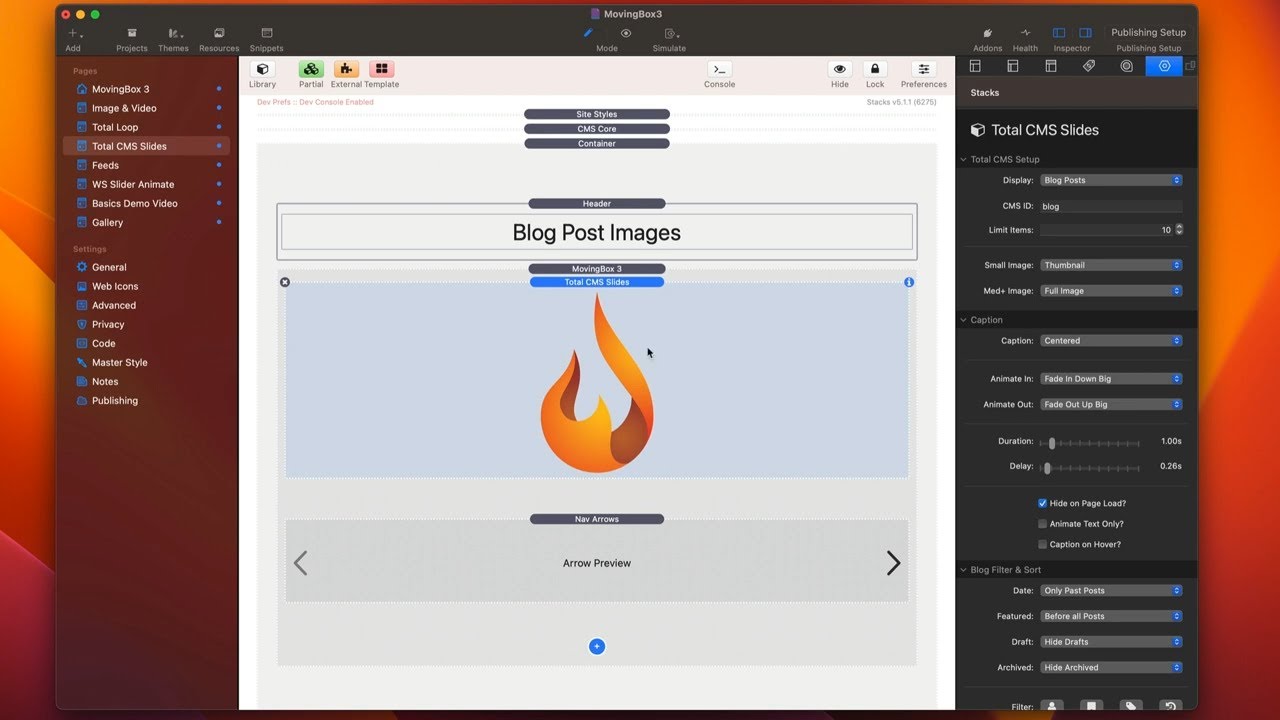
00:42 called total CMS slides now you can add
00:46 that via the little drop down on the
00:48 child Stack menu inside moving box and
00:51 when you add this you then configure how
00:54 moving box needs to connect with total
00:57 CMS
00:59 so here we want you can either display a
01:01 gallery
01:02 we can display blog posts so basically
01:06 um the image the main image from every
01:09 single blog post
01:10 or a blog post Gallery which is a
01:14 gallery that is displayed on the blog
01:16 post page
01:19 so in this instance let's just configure
01:21 blog posts
01:22 you put in your CMS ID in this case it's
01:25 of the blog it could be of a gallery as
01:27 well if you're using gallery
01:29 you can limit the number of items this
01:31 is important because if you're gallery
01:34 or you have 50 blog posts you don't want
01:36 to display all of those you might want
01:38 to limit those the number of images or
01:41 the number of slides that you have
01:42 within moving box
01:46 here as you know total CMS allows you to
01:49 have a full image as well as two
01:51 different versions of thumbnails a
01:53 normal thumbnail and a square thumbnail
01:54 this allows you to configure whether or
01:56 not on small what what image do you want
01:59 to display and then on medium and large
02:01 devices what image do you want to
02:03 display
02:05 next up is caption and this is exactly
02:08 the same as in the image slide so you
02:11 can display a caption or you cannot I
02:13 mean it's completely optional if you set
02:15 caption To None no captions will be
02:18 displayed
02:19 now for blog post the title of the blog
02:22 post will be displayed now if you're
02:25 using any of the galleries either the
02:27 gallery or blog post gallery
02:29 the alt tag that is configured for each
02:33 individual image will be displayed as
02:35 the caption
02:37 now if if there's any case where there
02:39 is no alt tag found then no caption will
02:42 be displayed for an image now in this
02:44 case we're actually displaying blog
02:46 posts so we actually have the ability to
02:49 actually Define the filter of what blog
02:51 posts we want to display so maybe we
02:53 only want to display only featured posts
02:58 we only want to display past featured
03:00 posts or all featured posts right do you
03:03 want to high draft hide archives do you
03:04 want to filter by a category or a genre
03:07 so this gives us a lot of flexibility in
03:09 terms of defining exactly what blog
03:12 posts do we want to display inside of
03:15 this slider
03:18 so here we are in preview and as you can
03:20 see we have our list of blog posts that
03:23 shows the actual image displayed as well
03:26 as the caption which is the title of
03:28 that blog post
03:32 next we're allowed to actually use total
03:35 Loop within moving box and you just as
03:38 the total CMS slides you can add that
03:40 from
03:42 um the moving box stack just go ahead
03:44 and add total Loop
03:46 and once you have total Loop in here you
03:49 can then use all the various macros and
03:51 child Stacks that can really help you
03:53 build out the blog list or the gallery
03:56 or whichever component within total CMS
03:58 you are looking to build
04:01 now be reminded that total Loop will not
04:04 display inside preview you will need to
04:07 publish in order to see all the data
04:09 from Total Loop
04:12 now the last way that we can integrate
04:14 with moving box and total CMS is by
04:16 adding a blog list directly inside of
04:20 moving box at that point you just build
04:22 out your blog list how you see fit you
04:24 can go ahead and add your image or your
04:26 you know your title your layouts your
04:29 categories whatever you like
04:31 and then inside the blog list I do
04:33 recommend that you set the columns to be
04:36 one for everything right that will just
04:39 ensure that it is just one wide for
04:42 everything okay so set your grid style
04:45 to be grid your columns to be one at
04:48 that point
04:49 um everything your in your blog list
04:51 should work properly within moving box
05:03 now we're on to feeds so integrating
05:06 feeds into moving box is very similar to
05:08 how you would use feeds for anything
05:10 else okay essentially you're going to
05:13 drop the feed stack directly into moving
05:15 box and then inside your feed content
05:17 you're going to put in a slide
05:20 and then inside of that you're going to
05:22 inject your data so for example here I
05:25 just have a very simple CSV data that
05:27 just has our name
05:28 a bunch of names what it's going to do
05:31 is going to create a slide for each name
05:32 and then it's going to inject that name
05:34 directly inside of my content here


