
Stacks Guru is born from the need to search the vast number of videos out there on stacks built for Stacks Pro and the Stacks 5 plugin for Rapidweaver.
We have scraped over 500 videos to get the transcripts for each in order to make the spoken word searchable.
Please use this free tool to help you learn and discover the awesome power that Stacks and the stacks made for Stacks have to offer.
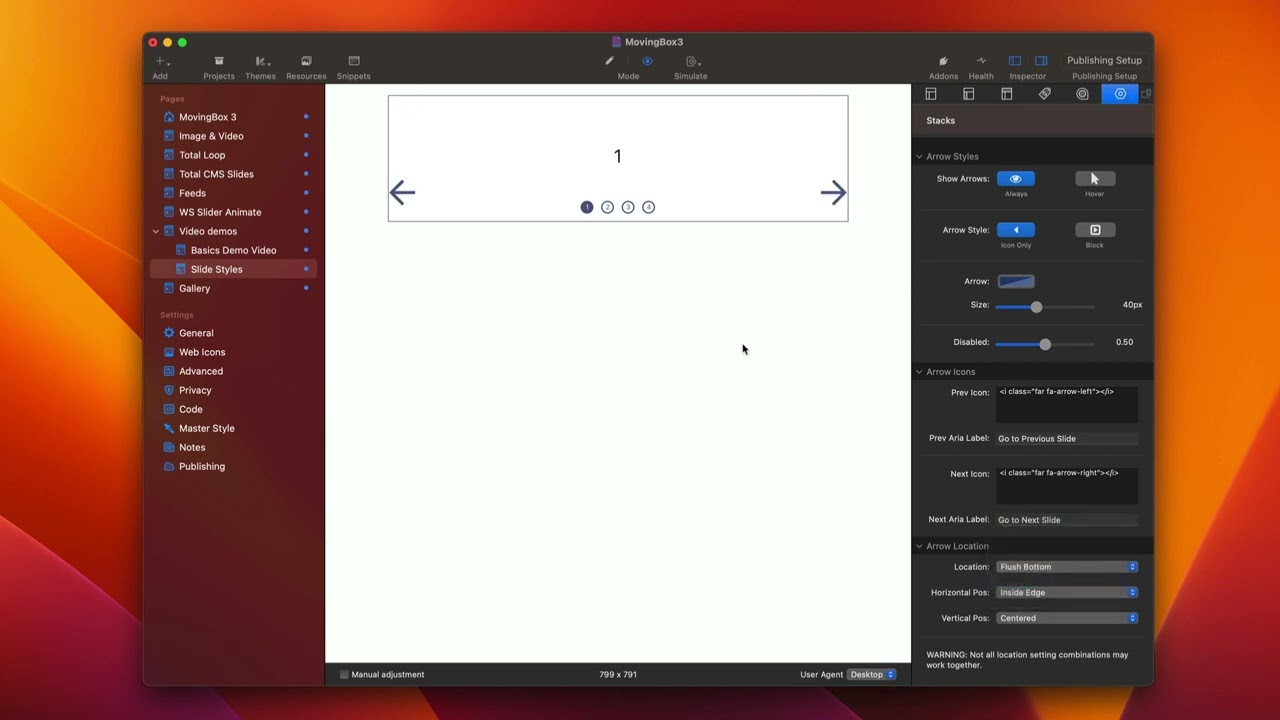
00:00 come on
00:10 okay so in this video we're going to be
00:12 talking about the nav arrows and the nav
00:14 dots for moving box 3.
00:17 so here I have a very simple slider uh
00:20 let's have a look at what it is and this
00:23 just a simple slider that has both
00:25 arrows and navigation dots now let's
00:28 play with the actual arrows right now to
00:30 kind of show you uh what we can do with
00:32 our arrows
00:34 so right now uh by default we can always
00:36 show the arrows but we can also show
00:38 them just on Hover
00:40 and when we turn on just on Hover when
00:42 we hover over our slider then the arrows
00:45 will be displayed
00:47 we can do if you notice here we can have
00:51 the arrows shown as blocks or just show
00:53 the arrows only
00:55 you'll notice when we turn on the Block
00:57 arrows we actually have a couple more
00:59 options for settings for colors and
01:01 sizing
01:04 so the arrow color and size should be
01:06 pretty obvious allows us to customize
01:08 the color as well as the size of our
01:10 arrows
01:11 so we can adjust the size of these
01:13 arrows
01:14 the background for our block is pretty
01:18 apparent as well it allows us to
01:19 customize the color and the background
01:22 that we have for our arrows
01:29 next is the block size
01:33 which allows us to configure the actual
01:35 kind of the width of our block sizes so
01:38 how bulky do we want those blocks to be
01:43 next after we get our color and sizing
01:45 all situated you'll notice that we can
01:47 actually Define the actual arrows
01:49 themselves
01:50 now what you'll notice is here by
01:53 default we have some SVG icons
01:56 and this is a great really powerful way
01:58 to define things because you can really
02:01 customize these to be whatever you want
02:02 because there are a billion different
02:04 svgs out there I'll show you a couple of
02:07 the ways that I like to insert these and
02:10 where I find them
02:12 um but if you just Google there's a ton
02:14 of SVG resources online that allow you
02:16 to get some really great arrows and
02:20 navigation svgs so I have a Mac app
02:23 called nucleo
02:25 um it is a kind of a one-time purchase
02:27 uh and it just has a ton uh we just
02:30 search for arrows in here
02:32 um and it just has a ton like thousands
02:34 and thousands of different svgs that you
02:37 can then say Hey you know I want this
02:39 one you just right click copy SVG paste
02:43 it into Stacks done
02:45 now if you are a font awesome user uh
02:49 whether that be through my font awesome
02:51 Stacks or through a foundation six uh it
02:55 has font awesome 5 Pro built in
02:57 um you can actually use Font awesome
02:58 icons here
03:00 so here I've gone and just copied a
03:03 couple font awesome Snippets for the
03:05 generic arrows off font awesome five
03:07 directly inside of here and you'll
03:09 notice that we have the ability to still
03:11 size them and color them just like we
03:13 did with svgs
03:16 all right so last up is let's look at
03:18 playing around with the arrow locations
03:21 now these settings are very flexible it
03:24 works great for either a horizontal or
03:26 vertical and there are going to be a lot
03:29 of situations where some of the setting
03:31 combinations here won't make sense for a
03:33 vertical slider but they do work great
03:35 for horizontal slider so what I
03:37 recommend is just working from your way
03:39 top down okay so for example by default
03:43 we're going to have our
03:45 um
03:45 arrows centered they're centered within
03:48 our slide okay and we can also do flush
03:52 left which means they're both on the
03:54 left side
03:55 we can do them both flush right which
03:57 means they're on the right side
03:59 and then we could also do flush top and
04:01 we can do flush Bottom now you'll notice
04:04 that some of those settings were a
04:06 little bit funky so that's kind of like
04:07 get the location to where you want your
04:10 arrows to be for example let's say I
04:12 wanted it to be flush right
04:14 that obviously doesn't look good but we
04:17 need to tweak it so we have them both on
04:18 the right side now so we want our
04:20 horizontal position to be on the Inside
04:22 Edge because I do but then we want our
04:24 vertical position to be on the Inside
04:26 Edge as well
04:28 so there we go so now I have
04:30 um vertically there on the Inside Edge I
04:33 can also put them on the outside edge
04:35 okay
04:37 um but I think let's say I wanted them
04:38 on the Inside Edge now this works great
04:40 probably for a vertical slider if these
04:42 arrows were up and down rather than uh
04:45 top or left and right
04:47 so you'll see if I change these arrows
04:48 to be up and down these positions now
04:51 make perfect sense I wanted them flush
04:53 right I wanted them horizontally on the
04:55 Inside Edge not on the outside edge and
04:58 vertically I wanted them on the Inside
05:00 Edge of the vertical line rather than
05:02 the outside edge
05:09 so again always start from your location
05:11 and then work your way down to fine-tune
05:14 the horizontal and vertical positions
05:17 so for example let's say I wanted to be
05:19 flush bottom
05:21 and then actually I think inside it
05:23 that's maybe perfect maybe that's
05:24 exactly what I want right or flush top
05:27 right so you see there's a lot of really
05:30 uh good flexibility here there's also a
05:33 lot of custom options here as well if
05:35 you want to do exactly put the exact
05:37 pixel percentage or the pixel width from
05:40 The Edge you can do that as well
05:43 now if you want this pixel to be outside
05:45 you just do a negative number so for
05:46 example I could do negative
05:48 um 20 and these arrows then kind of leak
05:51 outside of that right if I did negative
05:54 let's keep going that that way that's
05:56 how we can kind of go outside
06:00 now let's dive into our navigation dots
06:02 just like our arrows we can actually
06:04 always show them or only show them on
06:06 Hover
06:08 we have the ability to show just the
06:10 dots
06:12 dots and numbers
06:14 or just the numbers
06:17 as you see some of our color options
06:19 change as we go down uh depending on if
06:22 we want dots and numbers we can color
06:24 both the dots and the numbers
06:27 you'll notice that there are two columns
06:29 because that allows us to define the
06:31 default dot color as well as the current
06:34 active dot color
06:37 so as you see for my icons here um when
06:40 the dot is active I have a filled in
06:42 circle
06:43 but for my inactive dots it is a Hollow
06:47 Circle therefore I want my number color
06:49 to be different
06:52 next as you'll see uh with our DOT icons
06:54 just like the arrows we can use svgs
06:57 from wherever you like as well as you
06:59 can put in font awesome or really any
07:01 icon font snippet that you want directly
07:04 in there and it should work great
07:07 now the dot location is very simple a
07:09 little simpler than the arrows because
07:11 essentially what you would do is you set
07:13 your alignment whether or not you want
07:14 Center left or right so where do you
07:18 want your icons located and then you can
07:20 go ahead and configure the position so
07:22 do you want the inside bottom inside top
07:24 maybe you want the outside bottom which
07:27 would be outside of the slider right if
07:30 you want it inside right so earlier when
07:32 we had those vertical arrows this could
07:34 look great where we have our top Arrow
07:37 our bottom arrow and then the mid the
07:39 icons are all centered within those
07:41 arrows as well so we have inside right
07:44 we have outside right outside left so we
07:46 have basically all possible locations of
07:49 your dots and then this little uh check
07:53 box for centering with the arrows
07:55 essentially what it'll do is if you are
07:57 using
07:59 um the nav dots between those arrows
08:01 this guarantees it'll be really
08:03 centralized to those arrows and if
08:06 you're not centrally centralizing with
08:08 the arrows it actually just adds a nice
08:09 little kind of buffer around so it's
08:11 kind of like adding a little bit of
08:12 padding around your navigation so that
08:16 it just positioned and looks a little
08:18 bit nicer


