
Stacks Guru is born from the need to search the vast number of videos out there on stacks built for Stacks Pro and the Stacks 5 plugin for Rapidweaver.
We have scraped over 500 videos to get the transcripts for each in order to make the spoken word searchable.
Please use this free tool to help you learn and discover the awesome power that Stacks and the stacks made for Stacks have to offer.
00:00 come on
00:10 so in this video we're going to be
00:11 looking at timers progress bars and
00:14 counters so let's start off by looking
00:16 at these timer bars and progress bars
00:19 as we see here we have two different
00:21 styles of timer bars we have the ability
00:23 to actually have a bar that goes along
00:26 the entire edge of our slider as well as
00:29 this animated ring
00:32 and then our progress bars are basically
00:34 styled similar to our timer bars but the
00:38 size of that is basically progresses
00:40 along with the progression of your
00:42 slider so we actually get the progress
00:45 that we are within our overall slider
00:48 timeline
00:51 so adding these are super simple they're
00:53 all within the child menu of moving box
00:57 so you can go and add our counters or
00:58 progress bars so let's have a look at
01:01 the timer bar here we have the ability
01:03 to customize the color so the back color
01:05 as well as the background color as well
01:07 as the foreground color the size of that
01:09 timer bar so how tall or wide is it and
01:12 then your location uh you can have it on
01:15 the left or right side
01:17 um if you want it to actually fill the
01:18 entire side so if we want to kind of
01:20 picture what that looks like let's go
01:21 ahead and do right
01:24 here we see if we set the position to be
01:26 right the progress bar is actually on
01:28 the right side and we can actually also
01:30 say where to start from so instead of
01:33 starting from the bottom we can actually
01:34 start from the center
01:36 you'll notice when we start from the
01:37 center of this slide it actually kind of
01:40 grows up so it's very interesting the
01:43 ring timer has very similar
01:45 configurations where we have a color as
01:47 well as the size of the circle as well
01:49 as the thickness of the stroke uh and
01:52 then we kind of place this anywhere we
01:54 want within the Four Corners so do we
01:56 want to the top top bottom left right
01:59 with these buttons
02:02 now the progress bar pretty much it has
02:05 the same exact settings as the timer bar
02:07 just the underlying functionality is
02:10 different
02:11 now remember if you haven't watched the
02:14 Styles video that we have on moving box
02:16 you can actually use the Swatch colors
02:19 to actually customize the colors of the
02:22 progress bars timers as well as captions
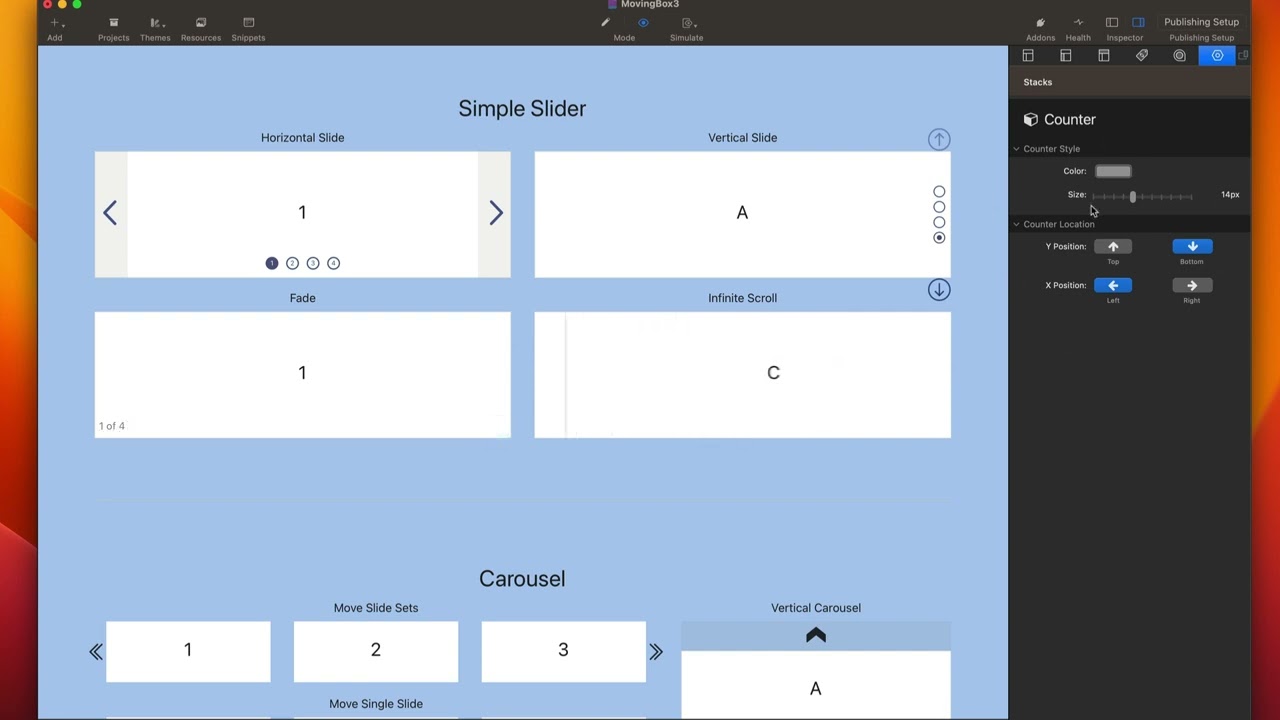
02:26 now the last thing in this video we're
02:27 going to cover is the counter stack and
02:29 essentially what this does is it gives
02:31 you like a counter so slide one of four
02:34 or so on and so forth on your particular
02:37 slides so if we preview this you'll see
02:40 that I have one of four and in the
02:43 settings for this stack is really simple
02:44 we have the color as well as the text
02:46 size and then the position that you'd
02:48 want to position this
02:50 now you're not stuck with the verbiage
02:53 one of four
02:56 because if we double click this you'll
02:58 see that this is just some HTML so if
03:01 you just want to have a stack so if you
03:03 want to you know customize the look The
03:05 basically the language here if you're
03:07 you know of is not your language
03:09 um you can customize this to be Spanish
03:11 or German or Italian or whatever
03:13 language you see fit now however you
03:16 will also notice that these just have a
03:18 bunch of classes
03:20 so if you you don't necessarily need to
03:23 use this stack you can actually use
03:25 whatever stack you want as long as you
03:28 put in the MB slide index class that
03:32 whatever you put that class on will
03:34 actually get updated with the current
03:36 index
03:38 count
03:39 and then if you have MB slide count
03:41 class
03:42 whatever that will has will
03:45 automatically be uh converted to be the
03:47 actual slide count
03:49 let's see this in action
03:51 so here we have an example where I just
03:53 added two header Stacks in here and all
03:55 I did is added the classes that I talked
03:57 about earlier we have MB slide index and
04:00 MB slide count
04:02 I added in some words in here
04:05 um just to show you that these date this
04:08 data will actually get replaced with the
04:10 current data dynamically for moving box
04:12 and there you have it we have the uh
04:15 slide index as well as the slide count
04:17 now if I go ahead and change slides
04:19 you'll see that the actual index number
04:22 changed now the total count is never
04:24 going to change because our number of
04:26 slides aren't Dynamic right but as we
04:29 change the slides you'll see that these
04:31 actual index count will dynamically be
04:34 displayed
04:36 but what I would recommend is instead of
04:38 starting with some random number
04:39 actually put in you know the actual
04:41 starting value of the first slide so one
04:44 of four or something of that nature
04:47 now if you are curious of other
04:49 um class classes available to you within
04:52 moving box there is a moving box class
04:54 reference that you can leverage for all
04:57 kinds of cool stuff
04:59 um from swatches to your own CSS to
05:01 other great things


