
Stacks Guru is born from the need to search the vast number of videos out there on stacks built for Stacks Pro and the Stacks 5 plugin for Rapidweaver.
We have scraped over 500 videos to get the transcripts for each in order to make the spoken word searchable.
Please use this free tool to help you learn and discover the awesome power that Stacks and the stacks made for Stacks have to offer.
00:00 come on
00:10 so in this video we're going to be
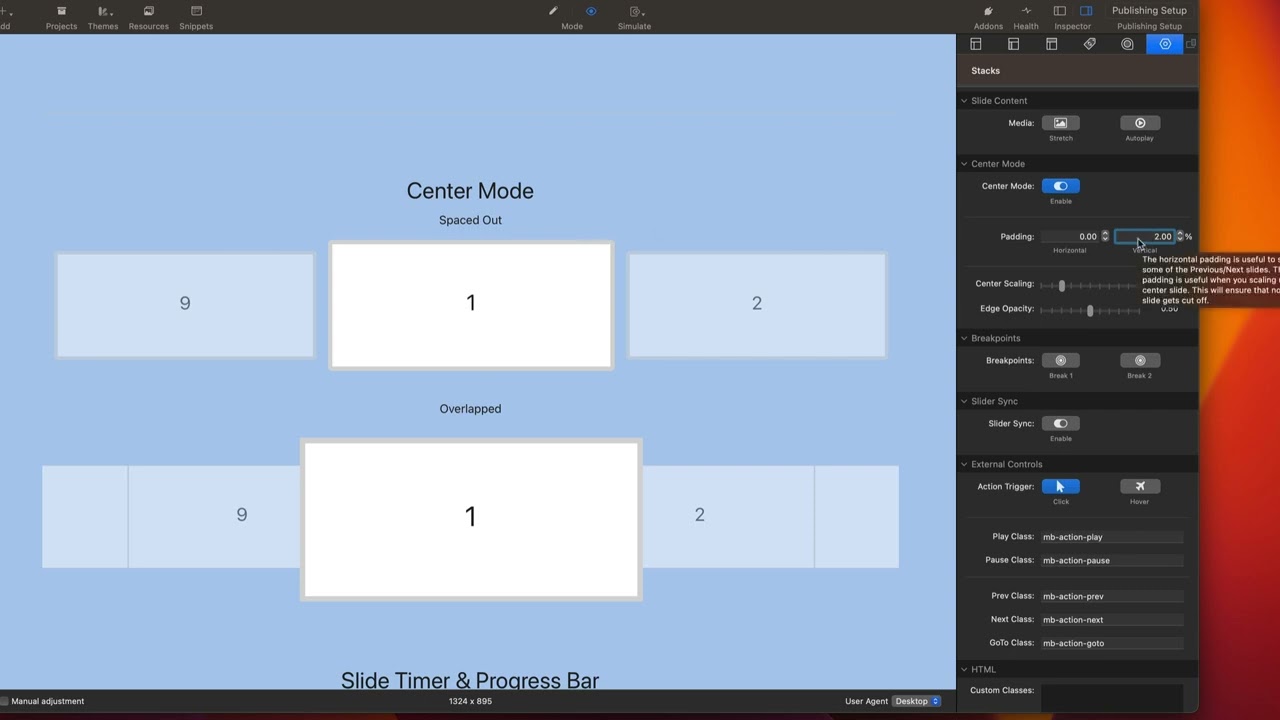
00:11 talking a little bit about Center mode
00:13 to help you understand a little bit on
00:15 how the center mode settings work
00:18 so let's look at these two examples and
00:20 the moving box setup for these are
00:22 actually very similar here we have
00:24 slides to show is three now just to
00:27 explain what that means here you'll
00:29 notice that you actually potentially see
00:31 one two three four five slides because
00:35 we see a little bit of the previous and
00:37 next slides on the very outside
00:40 however what this means when you say
00:42 slides to show that is the number of
00:45 complete slides we will show
00:48 so when we set it to three it means I
00:50 see all of this Center slide and then
00:52 all of two adjacent slides next to it
00:57 now how do we get the little previews of
01:01 the next and previous on the very
01:03 outsides of these
01:05 so that is done inside the center mode
01:07 settings and that is all done with the
01:09 horizontal padding
01:12 so when I set this to be 10 10 width of
01:17 this particular area will be displayed
01:19 as the next and previous here I'm going
01:21 to go ahead and set this to zero
01:23 what you'll notice when I set that to
01:25 zero is I no longer see any of the
01:28 previews on those outside slides
01:31 so this padding percentage gives us that
01:34 preview
01:36 now vertical padding this might be uh
01:39 good to have if your Center slide okay
01:42 if you have apply certain styles to it
01:45 and it grows to be too large I'm having
01:48 some vertical padding there could
01:49 actually help you out
01:52 speaking of scaling here we have Center
01:54 scaling and that allows us to actually
01:56 scale up
01:57 our Center slide
02:00 um so here it actually scales up to 12
02:04 the size so 1.2 x the size that it is
02:07 normally
02:09 and then Edge opacity that applies in
02:12 opacity to all of the slides that are
02:15 not the center slide
02:18 now you might be wondering how do we get
02:20 this spaced Outlook versus this
02:22 overlapped look
02:23 and that's all done with just the slide
02:26 styles
02:27 so here on the spaced uh implementation
02:30 I just applied a margin of one REM to
02:35 the left and right of our slides that
02:39 gives us the Gap that we see there
02:41 and what we'll see on the overlapped
02:43 version is the slide Styles has a margin
02:46 set to zero
02:49 now I wanted to show you this simple
02:50 example down here at the bottom of the
02:52 demo that has
02:54 um just images right because you see
02:56 this is a center mode
02:59 now what was accomplished here is
03:01 something that might be a little bit
03:03 confusing
03:04 so if we look at this implementation
03:06 here we'll notice that this does use
03:09 Center mode but I'm only seeing one
03:11 slide at a time
03:12 now I know a lot of people might think
03:15 oh I want to show three slides here but
03:17 again remember
03:19 these slides that are on the outside
03:20 that aren't showing the entire slide are
03:22 all accomplished with the horizontal
03:24 padding
03:25 so in this particular example I have
03:28 slides to show set to one
03:31 then if we look further down in my
03:33 Center mode settings I have the
03:35 horizontal padding set to 20 percent
03:39 and then I also have a margin set via
03:41 the slide style stack that adds this
03:43 little spaced Outlook
03:45 um so that we have actually a gap in
03:46 between each individual slide
03:51 all of these examples are inside the
03:53 demo file that you can play around with
03:55 and see exactly how they are done as
03:57 well


