
Stacks Guru is born from the need to search the vast number of videos out there on stacks built for Stacks Pro and the Stacks 5 plugin for Rapidweaver.
We have scraped over 500 videos to get the transcripts for each in order to make the spoken word searchable.
Please use this free tool to help you learn and discover the awesome power that Stacks and the stacks made for Stacks have to offer.
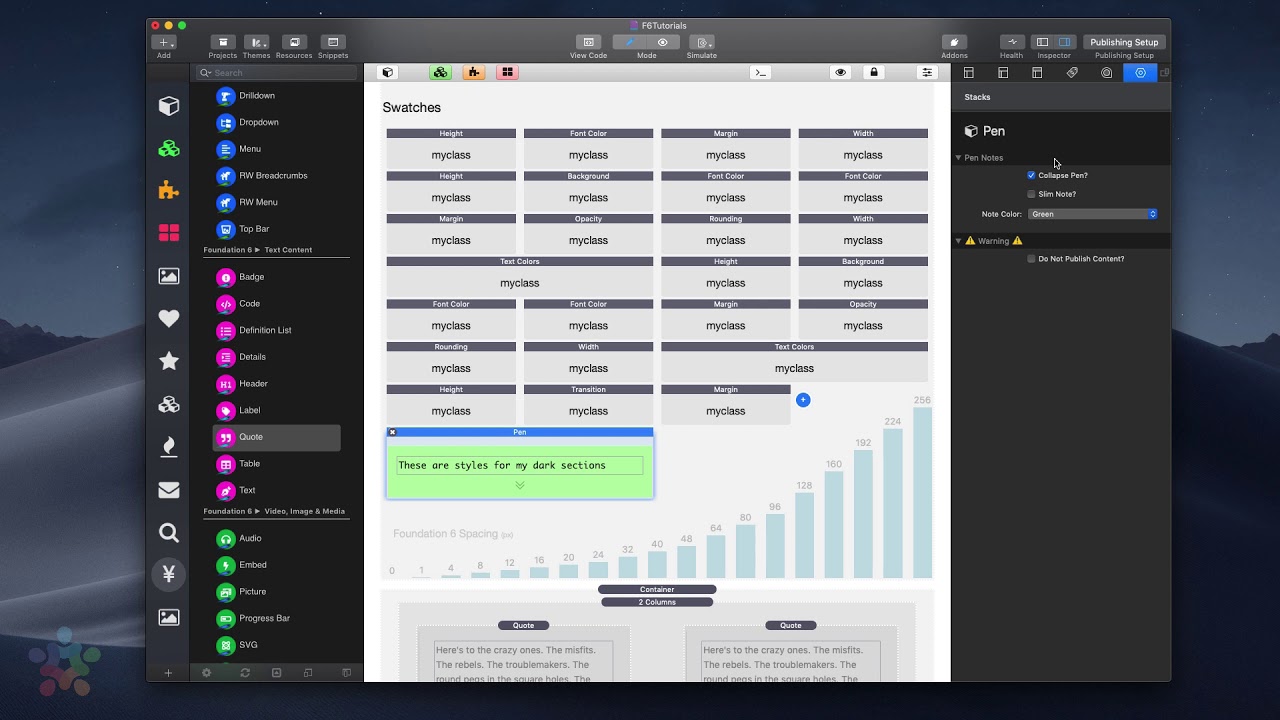
00:08 so over time the more that we use
00:11 foundation 6 we're gonna build up a lot
00:15 of swatches right so sometimes you know
00:18 this is probably even a small amount I
00:20 think in the future we'll even have more
00:22 than what we see here ok I has word
00:25 building and organizing our websites but
00:29 I wanted to give us the ability to
00:31 organize these swatches in better ways
00:33 and as we're using these um you know I'm
00:37 sure we'll come up with better and
00:38 better best practices but I wanted to
00:40 give you a couple ideas on what you can
00:42 do to organize your swatches obviously
00:45 by default it kind of organizes
00:47 everything in a nice grid and as you
00:49 select every single swatch um it kind of
00:51 gives you a preview of what that swatch
00:53 is right so you can kind of look at it
00:55 um other things that you can do inside
00:57 every single swatch is in the notes
01:00 field you can actually give something a
01:02 title right so um maybe we do like dark
01:06 section right um so as you see here we
01:09 can do dark section we have a note
01:12 section in here that gives us a you know
01:14 notes about this swatch so that six
01:16 months from now when you're looking at
01:18 it you can maybe remember what in the
01:21 world you did right so um this notes in
01:24 the title section the combination of
01:26 these are gonna be really good to kind
01:29 of give us little notes within edit mode
01:31 okay but there's more that we can do um
01:35 the first option is if you own i've a
01:38 free stack called pen and pen is
01:41 actually integrated directly into site
01:43 styles so if you own pen that will show
01:46 up here if you don't own pen go to my
01:48 site pick it up it's a free copy okay go
01:51 to pen and what you could do with pen is
01:54 it allows this to drag a lot of swatches
01:57 inside of it and it kind of lives so
01:59 it's gives us the ability to kind of
02:00 group our swatches so if you notice some
02:03 of these swatches I have the dark class
02:05 so I'm gonna go ahead and select all of
02:07 these and you can multi-select using
02:09 this new stacks for multi select which
02:12 is cool I'm gonna go ahead and drag
02:14 all of those directly independent and
02:15 what you'll notice is now inside pen I
02:19 have everything displayed beautifully
02:22 and what's cool is when I when I select
02:24 this pen everything inside of it expands
02:27 so I can see all the styles right and if
02:31 I unselect the pen everything kind of
02:34 collapses so I can I have a little group
02:35 and what what pen does it allows us you
02:38 know these let's say these are styles
02:43 for my dark sections right or something
02:47 like that so you can you can have some
02:50 notes here there we go notice bell there
02:53 we go
02:54 okay now pen has a bunch of other
02:56 options right you can choose different
02:57 various colors for the little note right
03:00 another thing you can do is you can
03:01 collapse a pen right so if you want to
03:04 completely collapse the pen you can do
03:06 that as well so in the future you just
03:09 go to this pen stack you can uncollapse
03:11 it and then see all the styles within it
03:13 so I see pen can really gives us a lot
03:15 of flexibility we can have multiple pens
03:17 in here another thing that you could do
03:19 I guess even simpler that is you know
03:22 you can drag and drop and kind of
03:23 organize these um you know swatches just
03:26 by dragging them around and changing the
03:28 order right so that's a very convenient
03:31 thing to do as well now the last trick
03:33 that we give you to help you organize
03:35 swatches is an actual and external stack
03:38 that we call swatches right so if I add
03:40 the swatches stack to the page um I can
03:44 go ahead and use this just as if it was
03:46 a site style stack and I can add
03:47 swatches directly into here
03:51 or I can just simply drag and drop and
03:53 kind of reorder my swatches in here
03:55 right um and then this obviously you can
03:58 you know have labels so we could say you
04:00 know my dark swatches right you can kind
04:03 of you know combine these and you can
04:06 have different swatches now these
04:07 swatches can be anywhere you want on the
04:09 page um it doesn't really matter
04:11 um I recommend kind of maybe keeping
04:13 them at the top so that you know where
04:14 they are right but um these are good if
04:17 you wanted to maybe create a template or
04:19 a partial and you want to make sure that
04:21 all these particular swatches kind of
04:23 lived with that partial or that template
04:25 or that external right um so these
04:28 swatches are nice if you want to include
04:31 them with things um you'll notice that
04:34 in when I ship a foundation six
04:36 templates a lot of times they'll ship
04:39 with a swatch and the reason I did that
04:41 was purely so that I can ship these
04:44 swatches along with other stacks right
04:47 now you can then take those and copy
04:49 them and paste them directly into site
04:51 Styles if you want or you can keep them
04:53 with us in this swatches stack it
04:55 doesn't really matter it's just another
04:57 avenue that we can use another tool that
05:00 we can use to help us organize our
05:02 swatches um in what works best for you


