
Stacks Guru is born from the need to search the vast number of videos out there on stacks built for Stacks Pro and the Stacks 5 plugin for Rapidweaver.
We have scraped over 500 videos to get the transcripts for each in order to make the spoken word searchable.
Please use this free tool to help you learn and discover the awesome power that Stacks and the stacks made for Stacks have to offer.
00:07 hello everyone this is Joe workman and
00:10 today I'd like to introduce you to pick
00:11 boo now if you visited my website at all
00:16 over the past couple years you've
00:18 probably used peekaboo many many times
00:21 and that is because peekaboo is my
00:23 awesome demo drawer that is available on
00:26 all of my product pages as you notice
00:29 here as I click on the view demo button
00:31 a nice drawer opens up where I can
00:33 contain any stack data that I like and
00:36 then when i'm finished i can simply
00:38 close that demo now this is just one
00:42 example use case of peekaboo let's go
00:44 ahead and jump in and see what else we
00:45 can do with peekaboo now what we're
00:48 looking at here is the demo file that
00:51 actually ships with the peekaboo stack
00:53 so you can take your time and look
00:55 through all of the great examples that
00:56 we're about to show you right now and
00:57 see exactly how they were accomplished
01:00 now peekaboo ships with two different
01:02 stacks you have the peekaboo stack which
01:04 actually contains the content that will
01:06 be shown and hid and then there is the
01:09 peekaboo launcher stack and this allows
01:11 you to add the actual component that
01:14 will be clicked in order to open
01:17 peekaboo the atom that has to be clicked
01:20 is actually a link so the content that
01:24 you add to the peekaboo launcher stack
01:26 needs to be a link now a lot of times
01:28 that could be a button or just some
01:30 plain text and we'll see some other
01:32 examples of that as we go along so as we
01:35 see on this page we have several
01:37 different ways to launch peekaboo here
01:40 is a default button stack that allows me
01:42 to close and open the drawer and we can
01:46 also use just a simple text link and all
01:49 this was done by just adding those
01:51 components into the peekaboo launcher
01:53 stack here is a sample with a sweet
01:56 button and also we have an image so if
02:01 you click on the image will notice that
02:03 peekaboo contains some text at the
02:04 bottom and it is displayed under the
02:06 image now you'll also notice that
02:11 peekaboo can be contained within
02:13 container or it could just simply be
02:15 just some content that kind of opens up
02:18 onto the page now peekaboo can actually
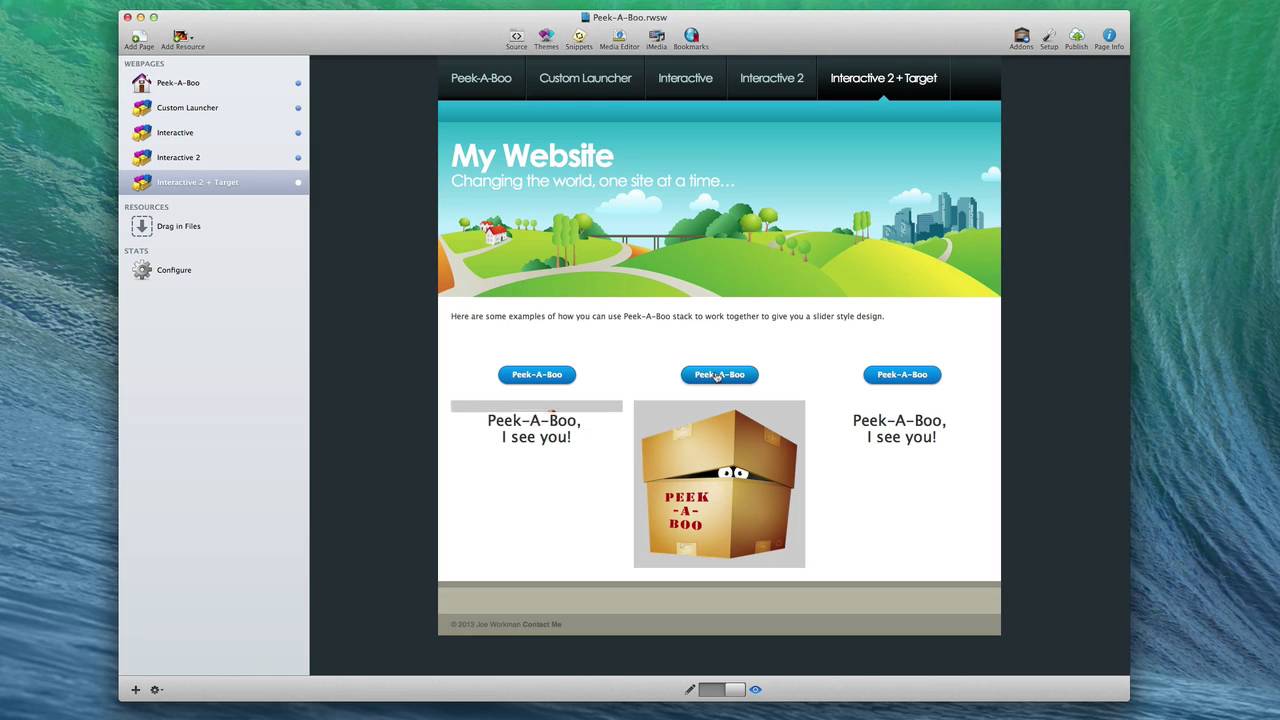
02:21 be made to interact with other peekaboo
02:23 stacks on the page so here's an example
02:26 where I have a kind of central content
02:29 area and i have three buttons that
02:31 control three different peekaboo stacks
02:33 and as i click on the various buttons
02:36 here will notice that the other peekaboo
02:40 stacks are unveiled actually what's
02:43 happening is what one is closing as the
02:46 other one is opening simultaneously so
02:49 it kind of gives you a slider effect so
02:52 here's another great use case for
02:53 peekaboo and what this is doing is as I
02:56 open a peekaboo and I open another one
02:59 you can actually close other peekaboo
03:02 stacks so really this allows you to some
03:05 great flexibility and great effects on
03:08 displaying content whether or not you
03:10 want to only have one particular
03:12 component displayed at a time now here's
03:15 a very similar use case to the one we
03:18 just watched however I'm actually using
03:20 the target stack with Picabo to kind of
03:22 use a peekaboo to overlay existing
03:25 content so as you see I have a set of
03:28 buttons and some text and as I click on
03:31 these buttons you'll notice that the
03:33 peekaboo stack that is inside of a
03:36 target stack will actually be overlaid
03:38 on top of the content so now that we've
03:46 seen some great use cases for a peekaboo
03:47 let's go ahead and jump in and see what
03:50 the stacks all about so let's review the
03:52 peekaboo settings that we have available
03:53 to us the very first setting here is the
03:57 launch ID now you won't need to change
04:00 this if you only have one peekaboo stack
04:02 on your page however if you're going to
04:04 have multiple instances you're going to
04:06 make sure that you actually have a
04:09 unique ID for each of your peekaboo
04:11 instances and later on we'll see how we
04:14 use this ID on inside the peekaboo
04:17 launcher um so here we have some simple
04:20 layout things padding for inside the
04:23 peekaboo stack these starting height
04:25 which by default is zero
04:27 so maybe if you wanted to show a portion
04:30 of the peekaboo stack and then actually
04:33 expand it so basically you can show a
04:36 portion and then expand based on that
04:38 okay next is max height and this is the
04:43 maximum height that peekaboo will
04:45 stretch to now if you only have a
04:49 hundred pixels of content and you set
04:51 next high to a thousand only people will
04:54 only expand to the height of the content
04:59 however if you're noticing that your
05:02 animation speeds are a little bit slow
05:04 um you might have an issue where you
05:07 have max height set too high so be
05:09 careful of that then an animation we
05:13 have their general animation settings
05:15 here you can change your affect your
05:18 speed of the animation you can delay it
05:20 so if you want after a click you can
05:22 actually delay a few milliseconds or
05:24 whatever amount of seconds that you'd
05:26 like before the animation begins we can
05:30 have peek-a-boo opened on page load
05:33 closed all other peek-a-boos so that
05:36 means when I open this particular
05:38 peekaboo that's how I can close all the
05:40 other peek-a-boos on the page okay then
05:43 you can also disable closed for links
05:45 and that means basically once you open
05:48 it you cannot close peekaboo from the
05:50 various buttons again however other
05:53 peekaboo stacks can still close it
05:55 that's how we get that that cool
05:56 interactive ability between the multiple
05:59 stacks and lastly if you notice as we
06:01 were clicking through the demos the
06:03 actual text of our links changed that's
06:06 because peekaboo can actually change
06:08 that text for us so you can say what is
06:10 our open text and what is our closed
06:12 text now obviously this works great for
06:17 very simple things the the button the
06:21 default button text links however with
06:25 more complex tax such as sweet button
06:27 and possibly other third-party stacks
06:30 this custom launcher tech feature may
06:32 not work now sweet button itself has the
06:36 ability to change text so in the demo
06:39 that we saw with sweet button
06:40 i was using sweet buttons ability to
06:43 change that text and not peek-a-boos and
06:47 lastly at the bottom we can set an
06:49 insect shadow to have that nice inset
06:52 feel so that the actual content looks
06:55 like it's inset into the page and by
06:58 default that's turned off but you can
07:00 easily turn and add your own shadows now
07:03 the peekaboo launcher stack is really
07:05 easy to use once you add it to the page
07:07 all you need to do is add the launch ID
07:09 into the settings that you configure it
07:11 into the peekaboo stack this will tie
07:14 those two stacks together and then
07:17 simply drag in a button or a link or
07:20 whatever you would like that will launch
07:22 that will be used to launch the peekaboo
07:24 launcher stack now it's important to
07:26 note that even if you have a entire
07:29 paragraph of text inside the peekaboo
07:31 launcher only the link that is inside
07:34 the text will actually be used to
07:36 trigger peekaboo now there's one
07:40 important now there's one important
07:42 thing I want to note on my product pages
07:44 as you'll notice peekaboo actually looks
07:48 like it extends the page below it it is
07:51 an entire full width of the web page and
07:54 it actually doesn't have any sort of
07:56 margins or borders around it now out of
08:01 the box peekaboo will look like this it
08:03 takes up one hundred percent of the
08:06 container that it has within it it will
08:10 not go edge to edge for you and
08:12 unfortunately this isn't something the
08:15 stack can do for you automatically
08:17 essentially what's going on here is the
08:20 theme has added some padding around your
08:22 main content area and for most use cases
08:26 this is exactly what you want however in
08:30 the times where you would like some
08:31 content to go edge to edge this is less
08:34 than ideal so I'm not going to dive into
08:37 and show you exactly how to do this um
08:39 in this particular webcast because every
08:42 theme is going to be different and every
08:44 use case is going to be different now
08:46 obviously this is outside the scope of a
08:49 normal support request however we've
08:51 created some great tutorials on our
08:53 website
08:54 actually show you how you can manipulate
08:55 the themes using CSS and the Safari dev
08:59 inspector so essentially what you're
09:02 going to want to do is you're going to
09:03 want to discover the content area of
09:05 your website and then reduce the padding
09:08 and or margins of that area so that your
09:12 content can go edge to edge well that
09:15 wraps this video up everyone I hope you
09:17 enjoyed peekaboo it's a very powerful
09:19 stack and I can't wait to see what guys
09:21 do to it so have a great day thank you
09:24 very much bye-bye


