
Stacks Guru is born from the need to search the vast number of videos out there on stacks built for Stacks Pro and the Stacks 5 plugin for Rapidweaver.
We have scraped over 500 videos to get the transcripts for each in order to make the spoken word searchable.
Please use this free tool to help you learn and discover the awesome power that Stacks and the stacks made for Stacks have to offer.
For more information about Pi, head over to https://www.weavers.space/stacks/pi
00:06 [music]
00:10 hi so in this video we're going to be
00:11 looking at the one of the new features
00:13 of the pi 2 stack and that is the pi
00:15 show hiide feature and it's super simple
00:18 to use so as we see here uh I have a
00:22 text input uh that has a field name of
00:25 number very clever name okay and in here
00:29 ENT what we can do is we can supply a
00:32 bunch of logic for whether or not we
00:35 want when we analyze the value of number
00:39 what should we do so here we say if
00:41 number is greater than 10 this uses the
00:43 same macro syntax as the normal P stack
00:46 okay but here what we're going to do is
00:48 we're going to give it conditionals now
00:50 if you're not sure what conditionals are
00:52 you can go ahead and show the cheat
00:54 sheet and it kind of gives you an idea
00:55 of things that you can do and we have
00:57 some simple examples as well as some
00:59 more complex on on where you can
01:00 actually you take in multiple inputs
01:04 okay and some examples with text as well
01:09 so here we're just going to say if
01:10 number is greater than 10 what we want
01:12 to do is we want to show or hide in this
01:14 case I want to show this text area now
01:18 by default um it's basically just a drop
01:21 zone so you can add whatever content you
01:23 want into the show hid stack uh it could
01:25 be just a bit of content or it could be
01:28 other form fields which we'll look at at
01:30 in a little bit but let's look at this
01:31 example right now so as you see when I
01:34 make this number greater than 10 which
01:37 is going to meet now we'll see that it
01:40 then displays that text box this is a
01:43 very simple example again whenever I go
01:46 below
01:48 or equal to 10 that then is not
01:51 displayed any longer
01:55 okay let's look look at this next
01:57 example where we're actually looking at
01:59 a drop down here so I'm going to say
02:01 display extra Fields yes and when I
02:04 display that you'll notice that it shows
02:06 another form field as as well as some
02:09 text and I'm going to go ahead and say
02:12 yes and there it goes it actually
02:14 changes the content to be some different
02:17 text let's look at that
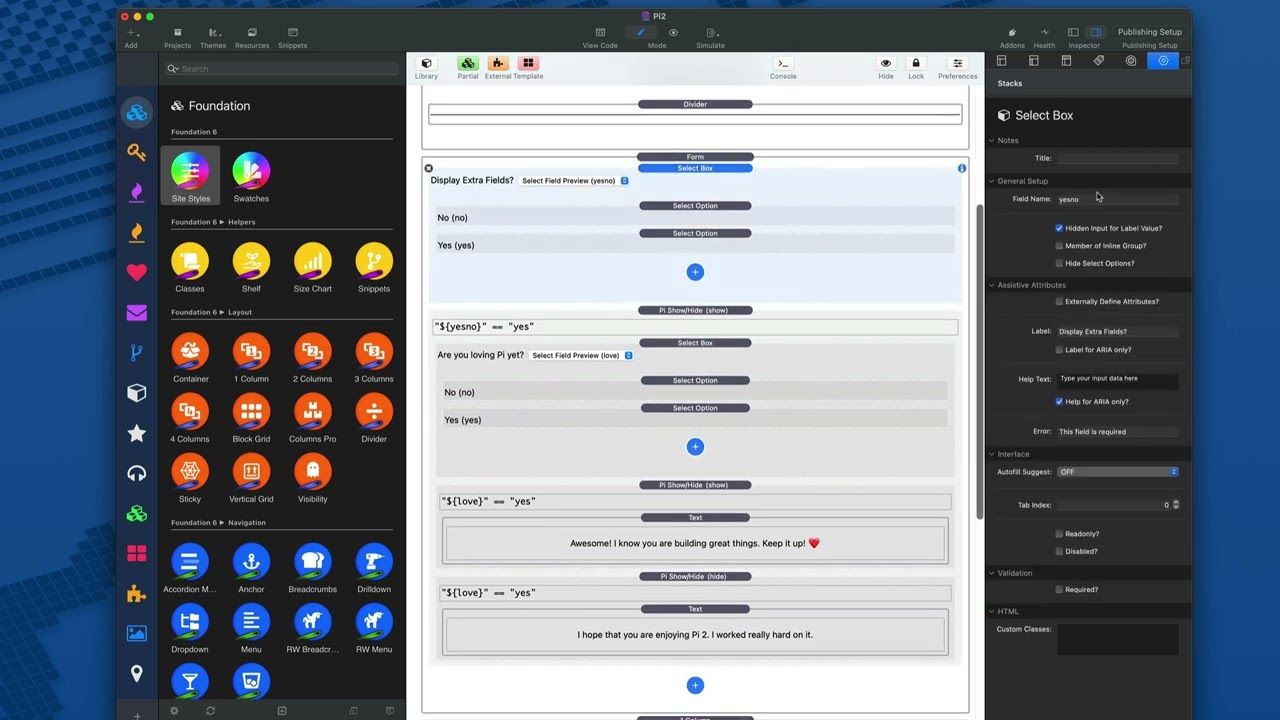
02:20 so here we have this example here where
02:22 I have a select box where the field name
02:24 is yes no because it just has two
02:27 different options yes or no and then
02:30 inside this Pi hide show stack I say if
02:34 yes no equals yes
02:37 I want to show this select box and uh
02:42 this particular select box has a field
02:45 Name of Love and then I have another p h
02:49 show hide inside of this that says do we
02:55 want if love equals yes display this and
02:59 if love equals yes hide this right so it
03:03 gives us a lot of flexibility in terms
03:05 of what we can do and again what's kind
03:08 of cool if I go ahead and say Yes here
03:11 and then even if I say yes here if I go
03:12 back up here and say no it's going to
03:14 hide everything because that entire
03:17 contents was inside of this parent show
03:22 hide stack
03:24 so this and this were inside of here so
03:28 you can Nest these show hide Stacks to
03:30 create some really great workflows with
03:33 your forms
03:35 now this was an example of how we can
03:37 analyze text in our show hid stack so
03:40 this was an example of looking at the
03:42 text and making sure it equaled yes
03:48 let's look at one more example here and
03:51 um essentially this is analyzing dates
03:55 so in here I have a date field uh this
03:58 is actually a foundation 6 date field um
04:00 and then I have a pie stack that uses
04:03 some um kind of advanced stuff here
04:06 right we're we're taking the birthday
04:08 and we're outputting the number of years
04:12 ago okay um I we have a field on some of
04:15 the date functions please go ahead and
04:17 watch that video um and it'll kind of
04:20 give you some uh hints on what we can do
04:22 with dates here so here's an example
04:25 where this particular formula here will
04:28 output the number of years since the
04:31 date uh inputed in this field okay now
04:36 here I give it a field name of age
04:40 then inside of my Pi show hid stack I
04:43 say if age is greater than 18
04:47 display this text let's see it in action
04:52 so here I'm going to go ahead and choose
04:54 a date let's go ahead and uh let's go
04:57 way back about let's go like 1990 okay
05:01 February 1st
05:03 voila so February 1st we've determined
05:05 the age is 35 and because it's greater
05:08 than 18 this text is displayed
05:12 let's go ahead and change that if we go
05:13 ahead and uh let's just go to see what
05:17 year how about 2015 which isn't 18 years
05:20 ago and we say five we'll notice that it
05:24 displays age 10 and that paragraph below
05:27 is no longer displayed because because
05:30 the the age is not greater than 18
05:35 so you see there's a lot of flexibility
05:37 here um where you can really build some
05:39 really Advanced workflows based on the
05:42 values that users have inputed into the
05:44 form super excited to see what you build
05:47 with this
05:55 [music]


