
Stacks Guru is born from the need to search the vast number of videos out there on stacks built for Stacks Pro and the Stacks 5 plugin for Rapidweaver.
We have scraped over 500 videos to get the transcripts for each in order to make the spoken word searchable.
Please use this free tool to help you learn and discover the awesome power that Stacks and the stacks made for Stacks have to offer.
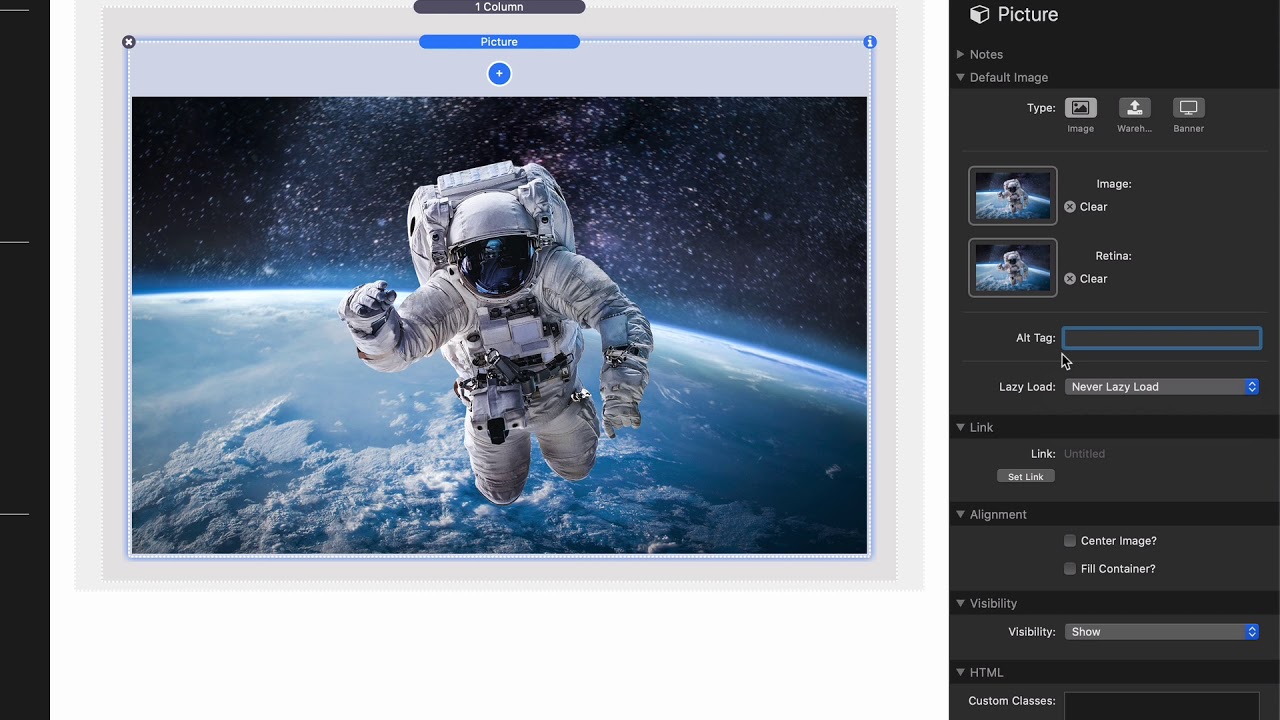
00:08 so the pitcher stack in foundation 6 is
00:11 really really powerful and this is gonna
00:14 be the first of a couple videos and in
00:16 this video we're just gonna be looking
00:17 at using a single image okay so if we
00:20 look at the settings you'll notice that
00:21 I've actually already defined two
00:24 different images we have a normal image
00:26 and then a retina image we need to find
00:29 both images on non retina displays the
00:32 top image will be displayed and then on
00:34 Retina displays the larger retina image
00:38 that you supply will be displayed
00:41 now retina obviously means you probably
00:43 need to double the pixels that means at
00:45 least double the width and double the
00:47 height of the image for the supplied
00:50 area that you want so this really is
00:52 going to be a large image so make sure
00:54 you use your favorite image compression
00:56 tools out there to make that image as
00:58 small as possible
01:02 now almost at the top here we can by
01:04 default we can drag and drop images but
01:06 we can also define warehoused images now
01:09 when you warehouse an image this is
01:10 where you can actually define SVG's if
01:12 you want to load an SVG in here because
01:14 you cannot drag and drop an SVG I'm here
01:17 when you're using the drag-and-drop mode
01:19 okay so if you want to actually
01:21 warehouse and display an SVG that way
01:23 you're gonna use warehouse now we also
01:26 have a video on the SVG stack that
01:28 behaves a little bit differently so
01:29 check that out if you're interested in
01:31 SVG's
01:33 and lastly we have banner um and you
01:36 might be wondering well what's banner uh
01:38 when you choose banner this actually
01:40 uses the banner image that is supplied
01:42 inside the rapidweaver page inspector
01:45 now why might this be useful um let's
01:49 say you had a banner image that you
01:50 wanted to be different on every single
01:52 page and you wanted to supply a nice way
01:56 to so actually I'm partial this picture
01:59 stack but then have the ability to
02:01 change the picture on each page so that
02:04 you could actually do that using this
02:05 banner option now you only have one
02:08 option with banner you can't actually
02:10 supply multiple images you only get to
02:12 use the banner image and that's it so
02:14 whatever image you supply um you don't
02:16 get any of the other advanced features
02:18 so there is some drawbacks to that but
02:20 it is useful feature if you if that's
02:22 what you want
02:25 next you can also obviously supply an
02:27 alt tag for accessibility reasons and
02:30 SEO um and then we can supply and then
02:35 next we can actually define if we want
02:36 to lazy load the image now what is that
02:38 mod this is using some new techniques in
02:41 some modern browsers that allows us to
02:43 lazy load and there's three options here
02:46 never lazy load this probably you
02:48 definitely want this set to never lazy
02:51 load if the image is at the top of the
02:53 fold right so if the image is the top of
02:55 your webpage you definitely do not want
02:57 to lazy load that but then there's a
03:00 couple other things let the browser
03:01 decide whether in it it should lazy load
03:03 the image or always lazy load okay so if
03:06 this particular image is maybe towards
03:08 the bottom of your page you probably
03:10 want to set always lazy load because
03:12 what that's gonna do is that's gonna
03:13 make your page load faster and then the
03:16 browser will just lazy load that image
03:18 in the background so definitely want to
03:20 choose always lazy load if the image is
03:23 going to be below visible view on page
03:26 load
03:30 next we can add a link to an image um
03:33 and then we have a few alignment options
03:35 we can do Center image and also make
03:37 sure the image fills the container
03:39 because by default the image will only
03:41 grow to its maximum size but if you want
03:44 to make sure it always fills the
03:46 container even if it stretches the image
03:48 larger than it really is
03:50 that's exactly what this fill container
03:51 is
03:53 and next up is visibility right so it's
03:57 really important that we actually added
03:58 visibility to the directly to the
04:01 picture stack instead of adding it to a
04:03 visibility stack right the reason is a
04:07 modern browser is actually if you set a
04:09 image to let's say hide on mobile or
04:12 something like that
04:12 um the browser smart enough to know that
04:15 since we put the visibility directly on
04:18 that image it actually won't download
04:20 that image for that browser width so
04:23 it's really nice now obviously if you're
04:25 scaling your browser up and down um if
04:27 that you know media query becomes
04:31 relevant the browser will download it
04:34 when it's needed however by default age
04:36 load it won't this is really great to
04:38 have the visibility directly as a
04:40 setting inside picture and then lastly
04:44 we have the custom classes that you can
04:46 apply all your favorite swatches to
04:47 pictures so if you want to add a border
04:49 or round corners or things of that
04:52 nature
04:52 this is where you can actually add even
04:54 more functionality to picture through
04:57 swatches
05:07 you


