
Stacks Guru is born from the need to search the vast number of videos out there on stacks built for Stacks Pro and the Stacks 5 plugin for Rapidweaver.
We have scraped over 500 videos to get the transcripts for each in order to make the spoken word searchable.
Please use this free tool to help you learn and discover the awesome power that Stacks and the stacks made for Stacks have to offer.
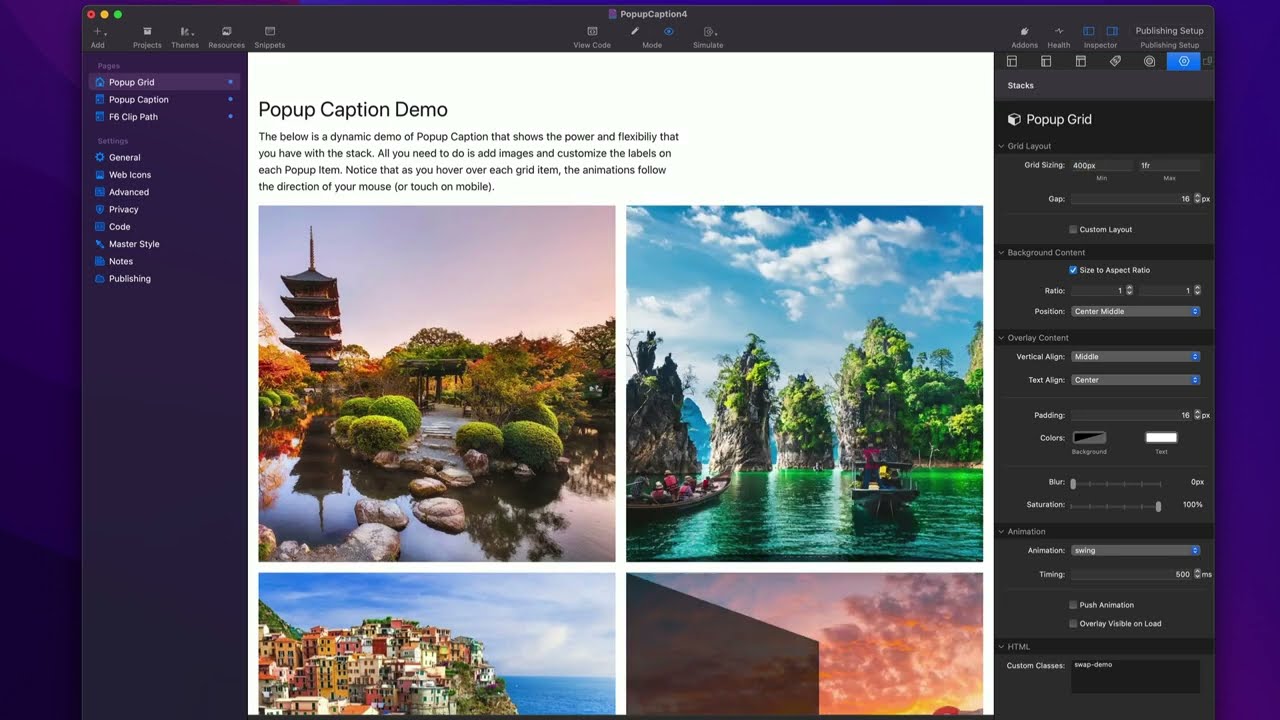
For more information about Popup Caption stacks, head over to https://www.weavers.space/stacks/popup-caption
00:09 hey in this video we are going to be
00:10 looking at the popup grid stack and I'm
00:13 not going to be going over all the
00:15 individual style settings for every
00:17 single pop item um those settings were
00:21 reviewed inside the normal pop-up
00:23 caption howto video um and all of that
00:25 is applicable to here they share the
00:27 same settings okay now when are you
00:30 going to want to use the popup grid
00:32 stack um as we saw in the other video
00:35 pop-up caption they are individually
00:38 maintained however in popup grid all of
00:41 the style settings for your animation
00:43 and the styles are actually configured
00:46 at a parent level um and then you can
00:49 add individual popup items that only
00:51 manage the content for that popup and as
00:55 you'll notice in the pop-up grid there
00:57 is a plus button and when you click that
00:59 plus button it adds a new item let's
01:03 dive into the popup grid
01:05 settings and here you'll notice at the
01:07 very top we have grid layout and what
01:10 this does is is allows us to size our
01:12 grid items and uh I did allow this to be
01:16 flexible so that you can kind of use
01:18 your own CSS patterns here um so here I
01:21 have the minimum size of a single item
01:25 is going to be 15 REM that's
01:28 approximately 300
01:32 pixels and then the max is going to be
01:34 1R um most of the time you're going to
01:37 want to keep maximum at one FR um that's
01:40 basically a one fraction unit it's kind
01:42 of like full width sort of thing um it's
01:45 going to make the most sense to have it
01:47 1R in most cases however you can
01:50 customize these to be the minimum and
01:51 maximum size that you want so for
01:54 example you can do I want the minimum to
01:55 be um you know 200 pixels
02:00 and I want the maximum to be 400 pixels
02:03 let's say okay so you can definitely do
02:06 that and then um the grid will
02:09 dynamically add things to the page um as
02:12 we're doing it now as you see here I did
02:16 2400 um because the the they were static
02:20 units okay for the maximum it kind of
02:23 just left this empty space right if I
02:25 were to keep this as
02:28 1fr um you'll notice now that it it kind
02:31 of changes things a little bit right so
02:33 we have a minimum of 200 pixels if we
02:34 want a minimum of 100 pixels you'll
02:36 notice that it even goes even smaller
02:38 okay that's probably too small but um
02:41 yeah we can do minimum of 400 pixels
02:44 right and so and what's great about this
02:47 is um let's do a manual
02:50 adjustment we'll see that as the screen
02:53 changes okay it dynamically adds in new
02:57 items let's change this back to 15 REM
03:00 okay um so yeah there we go you'll
03:03 notice that on large it goes from four
03:06 and then once it can't reach fit anymore
03:08 it goes down to three and then it goes
03:10 to two and then it goes to one okay so
03:13 you can adjust these settings um again I
03:16 think just adjusting just the minimum
03:18 settings probably going to be um all you
03:20 need um but yeah uh I left this setting
03:23 in here just in case we needed to modify
03:26 it for something okay um next up is the
03:29 gap so that is obviously going to be the
03:30 Gap in between each one um I like it
03:33 with a gap but you can set this to be
03:35 zero or whatever you like right so if
03:37 you want zero Gap in between all your
03:39 items there you
03:41 go next up is this custom layout button
03:45 now let's say you didn't like this grid
03:48 popup caption does create it's a decent
03:50 grid right it is fully responsive um but
03:54 what if you wanted to create your own
03:55 layouts what can we do here so if I go
03:58 ahead and check the custom layout what
04:01 you'll notice is a drop zone has been
04:04 displayed at the very top now at this
04:06 point what you can do is you can add in
04:08 your own layout Stacks okay so let's say
04:11 for example let's keep this simple let's
04:13 go to um Foundation or I'm sorry the
04:15 starter pack and uh this my free starter
04:18 pack let's add a grid in here okay and
04:22 basically now I can use my power grid or
04:24 or my my grid here and let's go ahead
04:27 and add in um 1 2 3 3 four five uh six
04:32 cells so now that I have six cells uh
04:35 let's go ahead and move all of these
04:36 popup items um into each
04:52 cell all right oh I have one
04:56 more right 1 2 3 4 5 5 six 7 eight
05:01 there's eight okay so now um instead of
05:05 using the grid built into popup grid um
05:07 I'm using my own and again I'm using the
05:09 grid from starter pack but you can use
05:11 Bento or Foundation layouts or whatever
05:13 you want okay it doesn't matter and uh I
05:17 can go inside the grid settings here and
05:19 I can customize it to be whatever I want
05:21 let's say on small I want two on medium
05:24 I want three and on large I want four
05:28 okay um simple enough um let's go and
05:31 preview
05:32 that and we'll see is again on large I
05:35 have four then three and then two and it
05:39 goes all it just stops it two cuz I did
05:41 two was on small so there we go uh you
05:43 can use your own layouts now in here if
05:46 we wanted a gutter right we can add
05:47 gutters at that point um to each one uh
05:51 maybe just gutter see what that looks
05:53 like there we go now I have a gutter and
05:55 we can configure that okay um so there
05:58 we go you can use your own layouts now
06:01 what's also great is you can use feeds
06:03 or something like that into this um as
06:05 well let's show you an example on how
06:07 you can Implement feeds with this um so
06:09 I'm going to go ahead and I added a
06:11 pop-up grid down on the down below here
06:13 um I'm going just going to plop in feeds
06:16 and then what you're going to do is
06:17 you're going to add your popup item into
06:19 there now at this point feeds you're
06:21 going to configure whatever your
06:22 favorite feed is okay it could be a CSV
06:25 or it could be total CMS or it could be
06:27 whatever you want um and then in inside
06:30 of the pop-up item you're probably going
06:32 to use Warehouse image you're going to
06:34 use the macros inside the CSV data to uh
06:38 populate the image um the alt text and
06:41 then inside of the content here you're
06:42 going to implement rules there as well
06:46 so um yeah I'm not going to show a full
06:48 implementation of that but to kind of
06:49 give you an idea here now if you didn't
06:52 want to use the popup grid uh layout
06:54 again you can use a custom layout um and
06:57 then you can add your you know your grid
06:59 into here and you you would essentially
07:02 um you know replicate just as you would
07:03 with any other feed essentially now this
07:06 is using um feeds to populate a starter
07:10 pack grid and it's going to create a
07:12 bunch of grid cells that contain popup
07:14 items right so um yeah it will work
07:18 great with feeds total CMS and a lot of
07:20 other you know layout generation tools
07:22 out
07:23 there okay so now in the pop-up grid
07:26 settings everything after grid layout
07:29 these are all the identical settings
07:31 that you would use as you were inside
07:33 the pop-up caption stack so this is
07:35 going to be all the uniform settings
07:37 across every popup item inside of a
07:40 popup grid so if I didn't want to have
07:42 one to one aspect ratio I can turn that
07:44 off and as you see it turns it off
07:46 everywhere okay so any settings that I
07:49 change inside here will affect every
07:52 single popup item within my
07:56 grid now let's look at what a pop-up
07:59 item is essentially it is just the
08:02 content side of each individual item so
08:04 whether it's an image a warehouse image
08:06 or a
08:07 video the size and all T information if
08:10 you want to make that a link you can
08:11 make that particular item a
08:14 link and then you can also add custom
08:16 content so you can add in your own
08:17 custom Stacks into there as well so
08:20 there we have it I hope you enjoy popup
08:22 Grid it's a super powerful stack uh that
08:25 makes building great grids just like
08:27 this super easy oh
08:35 [Music]


