
Stacks Guru is born from the need to search the vast number of videos out there on stacks built for Stacks Pro and the Stacks 5 plugin for Rapidweaver.
We have scraped over 500 videos to get the transcripts for each in order to make the spoken word searchable.
Please use this free tool to help you learn and discover the awesome power that Stacks and the stacks made for Stacks have to offer.
00:06 hello everybody this is Joe workman and
00:08 today I'd like to introduce you to the
00:10 new quick pics Instagram stack this
00:13 stack lets you really easily integrate
00:15 your Instagram photos into your
00:17 rapidweaver website you can have nice
00:20 image galleries and also beautiful
00:24 slideshows so your users can also enjoy
00:28 your Instagram photos now it's great
00:31 with the stack is once you publish this
00:33 page all your photos will dynamically
00:36 update on the website so as you're out
00:38 on your vacation or wherever taking
00:40 pictures with Instagram your wrap weaver
00:42 website will always have your most
00:44 recent photos that's pretty awesome
00:48 let's jump on in and see really how easy
00:50 it is to configure this awesome stack
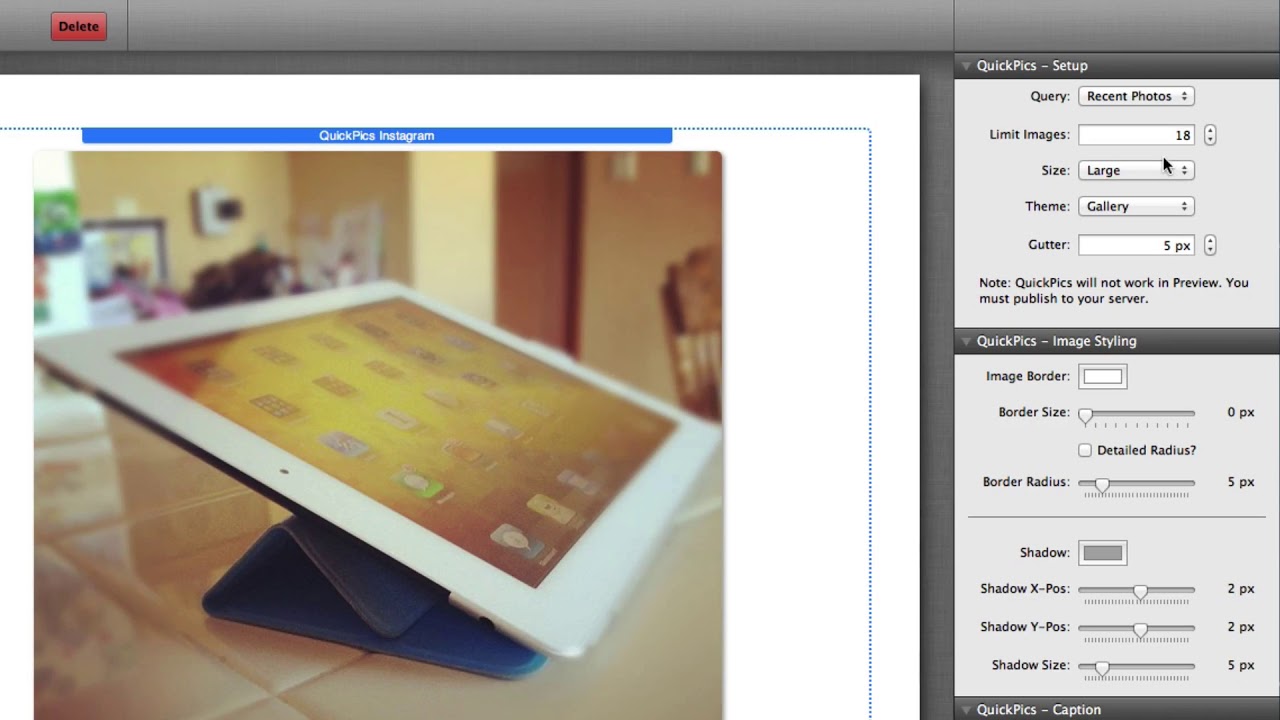
00:54 when you add the quick pics Instagram
00:56 stack to your rapidweaver page you'll
00:58 notice that it has a really nice preview
01:00 of what the published page will look
01:03 like this is important because these
01:05 this stack will not work in preview mode
01:07 you have to publish this stack in order
01:10 for it to function now let's jump
01:12 through some of the settings to setup
01:16 your Quick Pick stack you have a few
01:18 different queries you can either have
01:19 your recent photos which is the photos
01:21 that you've posted to Instagram your
01:24 photo feed which is all of the photos
01:27 from your followers and people that you
01:29 follow on Instagram and liked photos
01:32 these are all the photos that you have
01:33 loved and you have liked on Instagram
01:37 now limit image defines how many images
01:40 you want to display on your wrap weaver
01:43 page obviously the more photos that you
01:45 want to load the longer the page load
01:47 time is going to be so anything between
01:50 20 to 40 pictures is going to load
01:52 relatively quickly anything more than
01:54 that it may start slowing your webpage
01:57 down but you can actually load up as
02:00 many as you want okay we have three
02:03 different size images available so we
02:06 have small medium and large images the
02:11 changes are large you're probably only
02:12 going to be using
02:13 for the slideshow feature not for
02:15 galleries okay in theme you'll notice
02:19 that we have both gallery and slideshow
02:21 settings so I mean you'll notice the
02:24 different settings are opened up when
02:26 you choose that particular theme
02:28 so for gallery you have the ability to
02:30 choose the gutter which is the gap
02:32 between each photo and for the slideshow
02:34 you have the ability to change the
02:36 effect do you want a fade effect do you
02:38 want to slide left right what is the
02:40 animation speed custom navigation arrows
02:43 so on and so forth now the rest of the
02:47 settings that we're going to use
02:48 throughout the stack actually Universal
02:49 for both the gallery and the slideshow
02:51 themes so for image styling we can
02:55 actually add a border around each image
02:58 so we could say that we want a white
03:00 border and have it a particular number
03:02 of pixels maybe add a border radius to
03:04 the image okay and then we can also add
03:07 a drop shadow and as you notice that
03:09 effect is applied live to each image in
03:13 our gallery now for captions we have
03:19 many different options available for
03:21 captioning by default it displays the
03:25 caption that you've typed into Instagram
03:27 as a tooltip now if you also have our
03:31 tip tip stack you can actually displayed
03:34 really nice styled tooltips and quick
03:37 picks integrates nicely directly with
03:39 the tip tip stack however if you don't
03:42 want to use a tooltip you we have many
03:44 different options available you can
03:46 display the caption on the bottom you
03:50 can display by floating the caption in
03:52 the center of the image and you can also
03:55 then float it at the bottom of the image
03:57 as well and you have full rein over what
04:01 color do you want so you do you want it
04:02 black gray or white the opacity of that
04:06 the vertical alignment so where do you
04:08 want that potentially aligned within the
04:12 image okay do you want to show a border
04:15 on your caption do you want to animate
04:17 that on hover so do you want to only
04:20 show that caption when you actually
04:22 hover over the image or do you want it
04:24 static there all the time
04:27 lastly you can customize the text so do
04:30 you want it the text to be aligned left
04:32 what's the color the text at oh and then
04:35 the text size so you have a lot of
04:37 flexibility over these caption settings
04:41 and styling the last settings allow you
04:45 to adjust and activate a lightbox so
04:48 that when a smaller image is clicked on
04:51 that image will open up in a lightbox
04:54 you have the ability to change the
04:56 actually overlay behind the image the
04:59 opacity of that and then the border
05:02 radius and closed position for that for
05:06 the close button in the lightbox so as
05:11 you see these settings are really simple
05:13 to use very powerful very easy to use
05:16 however there's one last thing how do we
05:18 actually configure our Instagram account
05:21 as you'll notice there was actually no
05:24 way to configure what your Instagram
05:26 account was that's because we do this
05:28 after you publish your webpage so when
05:31 we visit our published web page will
05:33 notice a link here instead of the stack
05:35 we see a link that says click this link
05:38 to set up your Instagram authentication
05:39 and when we click on that link it's
05:42 actually going to redirect us to
05:43 Instagram where we need to login to our
05:46 Instagram account and actually grant
05:49 access to the Quick Pick stack so let's
05:52 go ahead and click authorize and that's
05:55 gonna redirect us back to our web page
05:57 and we should instantly see our gallery
05:59 now this set up is only a one-time thing
06:02 and you shouldn't have to do it again so
06:05 now you can sit back have a beer and
06:07 enjoy your Quick Pick stack I hope you
06:10 enjoy this everybody have a great day
06:12 bye bye
06:21 you


