
Stacks Guru is born from the need to search the vast number of videos out there on stacks built for Stacks Pro and the Stacks 5 plugin for Rapidweaver.
We have scraped over 500 videos to get the transcripts for each in order to make the spoken word searchable.
Please use this free tool to help you learn and discover the awesome power that Stacks and the stacks made for Stacks have to offer.
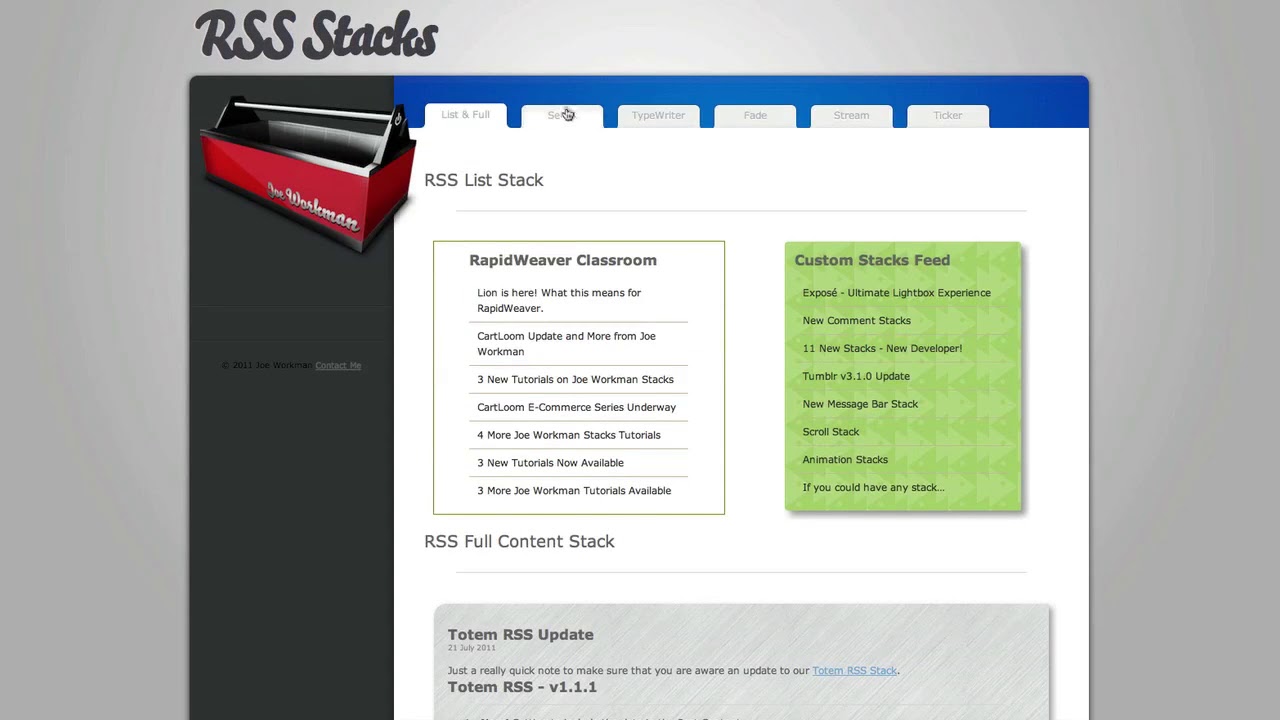
00:07 hi this is Ryan from rap over classroom
00:10 calm and I'd like to introduce you to
00:11 the RSS stacks from jail workman these
00:14 RSS stacks make it easy to take the RSS
00:16 feed from your blog or from any blog on
00:19 any website for that matter and place it
00:20 anywhere in your website using the RSS
00:23 stacks now there's a number of different
00:25 ways that you can present that content
00:27 so there's a number of different stacks
00:28 available these can be purchased
00:29 individually or as a complete set in a
00:33 bundle package to begin with let's take
00:35 a look at the RSS list stack and I've
00:37 got two of those added to the top of
00:38 this page you can see one here and then
00:41 one here and you can see as I hover over
00:43 these items that it gives me a hover
00:45 effect which is optional and then if I
00:47 continue to hover pops up the tooltip
00:49 that gives me a short description kind
00:52 of a preview of the content of that post
00:54 this is actually utilizing Joe's tip tip
00:57 stack in order to dress up a tooltip and
01:00 so it's encouraged to utilize that tip
01:03 tip stack along with the RSS stack in
01:05 order to make that a bit prettier for
01:07 your viewers again you can simply
01:10 display the titles of the entries with
01:13 this list sack and you can then set the
01:15 amount of entries that you want to
01:17 display at a time in the stack itself on
01:20 the right I've actually got the RSS list
01:23 stack placed inside of Joe workman
01:25 styled stack which dresses it up quite a
01:27 bit as you can see I've also done the
01:29 same thing here at the bottom with the
01:30 full content stack and so this is inside
01:33 of the styled stack which gives it a
01:35 nice background and border and then this
01:37 displays the full content of the entry
01:40 and so you can see the title the date
01:42 the actual content of the entry itself a
01:45 separator and then it goes down to the
01:47 next entry so again you can set the
01:49 number of entries that you want to view
01:51 inside of the stack in the full content
01:54 stack and so that is the point of this
01:57 stack is to simply display all of it so
01:59 that you're not linking out of the page
02:01 to the blog next let's take a look at
02:04 the Select stack this is a stack that
02:07 lets you pull feeds from multiple
02:10 websites inside of one
02:12 it's an area and so you can see first of
02:14 all we've got the blog for Joe workman
02:17 and then the blog entries below there is
02:19 a title a date a short description and
02:21 then a link to read more which would
02:23 take you to the full content of the blog
02:26 and then if you would like to select
02:28 other RSS feeds to display then you can
02:30 drop down and have as many listed here
02:32 as you'd like and so I will show you a
02:34 bit more about that in a minute but
02:36 first let's continue and look at the
02:37 rest of these RSS stacks in preview now
02:40 the remaining for all kind of tighten up
02:43 the feed into a small space and so you
02:46 can see here that this is just a
02:48 horizontal stack that displays the
02:51 titles of the blog entries in a kind of
02:54 a typewriter animation and so it will
02:56 just scroll through those with that
02:57 style at any point I could hover over in
03:00 order to view the full content of that
03:03 entry by clicking on the link the fade
03:06 stack is similar in the style in this
03:08 case the entries will fade in and out
03:10 for each and of course with all of these
03:13 you can set the speed by which these
03:16 animate the stream stack will again
03:20 display horizontally and stream through
03:22 the entries with the date and then the
03:24 link for the blog title finally the
03:27 ticker stack is also similar in its
03:31 horizontal view and then it will scroll
03:34 vertically through the different blog
03:37 titles again you can set the speed for
03:39 this so you can slow it down if you'd
03:41 like so that's an overview of all of the
03:43 different RSS stacks I want to take a
03:46 quick moment to look at a couple of
03:47 inspector HUDs for these stacks in
03:49 general the stacks are very easy to
03:53 configure very straightforward all of
03:55 them will require of course for you to
03:57 enter a feed URL which will go into this
03:59 field so this will be the URL of the RSS
04:02 feed and then in general for most of
04:04 these you would set the number of items
04:06 that you would like to display inside of
04:08 the stack as well as a length of
04:09 description that you would like to
04:10 include many of these also include
04:12 different styling options such as color
04:14 Pickers as well as a few other options
04:17 again it's pretty self-explanatory to
04:20 use all of these I do want to take a
04:21 quick look at the Select stack because
04:24 it is offering the ability to
04:26 provide RSS feeds to multiple feeds and
04:30 the way that works is by first placing
04:32 the Select stack into the stacks page
04:36 and then here you will notice two
04:39 additional feeds and those are being
04:41 pulled in using the RSS select feed
04:45 stack and so there are two different
04:47 stacks at work here the Select stack and
04:49 then the Select feed stack and so at any
04:51 time I could drop in an additional
04:53 select feed stack place that here and
04:57 then configure the title and the feed
05:00 URL again the rest are very simple and
05:03 straightforward to set up and the result
05:06 is a very nice way of presenting the RSS
05:08 feed to your viewers through any page of
05:10 your website and rapidweaver
05:11 so that is the RSS stacks from Joe
05:23 you


