
Stacks Guru is born from the need to search the vast number of videos out there on stacks built for Stacks Pro and the Stacks 5 plugin for Rapidweaver.
We have scraped over 500 videos to get the transcripts for each in order to make the spoken word searchable.
Please use this free tool to help you learn and discover the awesome power that Stacks and the stacks made for Stacks have to offer.
00:05 hey everybody Joe workman here and in
00:08 this video we're gonna be looking at the
00:09 total CMS select stacks now these stacks
00:14 don't have an exact use case right I
00:17 mean they're kind of thing you know
00:19 tools that you can use for a lot of
00:20 various things and I'm very interested
00:22 interested to see how you and other
00:25 people use them okay essentially it's a
00:28 drop-down box that you can have premade
00:30 content and then you can do things based
00:33 on that content either you can just
00:34 display it okay or you can do things and
00:38 show things and hide things based on
00:40 that content as well so let's show you I
00:44 think it'll be a lot easier let's go
00:46 ahead and look at what select can do for
00:47 us okay so here I am inside the total
00:51 CMS demo project and if we look down
00:53 here I have a very simple example for a
00:56 total select and as you see is just a
00:59 drop-down box that we can choose premade
01:02 content that we've made okay so if you
01:05 want to change it you can go ahead and
01:07 select a new value and just like a text
01:10 box it turns red and you actually have
01:12 to save it right so I can go ahead and
01:14 save that command S will save it or we
01:17 can click the Save button if there was
01:18 one on the page now what's going to look
01:21 at what that did to our content so here
01:25 I am on the content page and we've
01:26 actually done a couple things with it so
01:29 here this content
01:31 okay markdown this is pre-made content
01:33 from the total select this actual text
01:36 was inserted by me selecting that choice
01:40 inside the select box now also this
01:45 particularly down here since I changed
01:48 it from that show value this particular
01:50 area has hidden a piece of Stax content
01:55 so if I now go and make this HTML it's
01:59 gonna put in different text content
02:01 inside there okay and if I change it to
02:04 this show value which I'm going to do
02:06 now and save it what it's done now is in
02:10 this particular text area that text
02:13 that select box said show now this isn't
02:16 a great use case for displaying
02:18 text in that manner but this is just a
02:20 purpose of showing you a use case where
02:22 based on the value of that select box I
02:26 can show content on the page so in this
02:30 area in this particular area I said if
02:32 this selects box has a value of show
02:35 let's go ahead and show this image that
02:39 wasn't there before so here we have the
02:42 Select box inside edit mode on the admin
02:45 page and here I set my CMS ID to be
02:48 select and then you can select for your
02:50 placeholder which is going to be you
02:51 know the text that shows up if nothing
02:54 is selected okay you can show a Save
02:57 button if you want just like a normal
02:59 text area and then you can hide the
03:01 select setup in edit mode if you wanted
03:03 to now what you'll notice here is inside
03:06 the select box
03:07 I have child of stacks that define all
03:11 of my pre-made content so as we see in
03:15 this first option I have marked down I
03:17 set the label to be marked down and when
03:19 the customer chooses that option this is
03:23 the text content that will be inserted
03:26 now you can reference all the values
03:29 that are saved with select via any ways
03:32 you would normally access a text stack
03:35 okay so I can use macros I can use the
03:39 format macros to reference this data and
03:42 insert it wherever you want and this
03:46 particular option in the show I just
03:48 said it to have a label of show and then
03:50 a value of show and here I have added
03:53 another select value that actually
03:56 contains HTML on this value now this is
03:59 rather simple but you can really get as
04:01 complex as you want with this HTML so
04:04 that users can turn on and off various
04:06 things right okay so this is powerful we
04:11 can have a select box where a customer
04:13 can choose from pre-made text now in
04:17 this particular example I'm I'm doing um
04:19 you know just as a sample some markdown
04:22 HTML and then he's simple just plain
04:25 text where the value is
04:27 a single word right no me you're not
04:31 gonna mix these up maybe you have an
04:33 on/off switch where maybe the toggle
04:35 doesn't make sense and you want to
04:37 actually have words right in the office
04:39 out of the office or you want to have a
04:43 project status on the page where it's in
04:45 progress where it's you know work order
04:49 you know completed closed some things of
04:51 that nature
04:52 right maybe that's what you want to use
04:54 select for okay
04:55 really it's just a way of defining
04:59 pre-made content and you can use that
05:01 pre-made content in two ways and let's
05:04 go to the content page and look at that
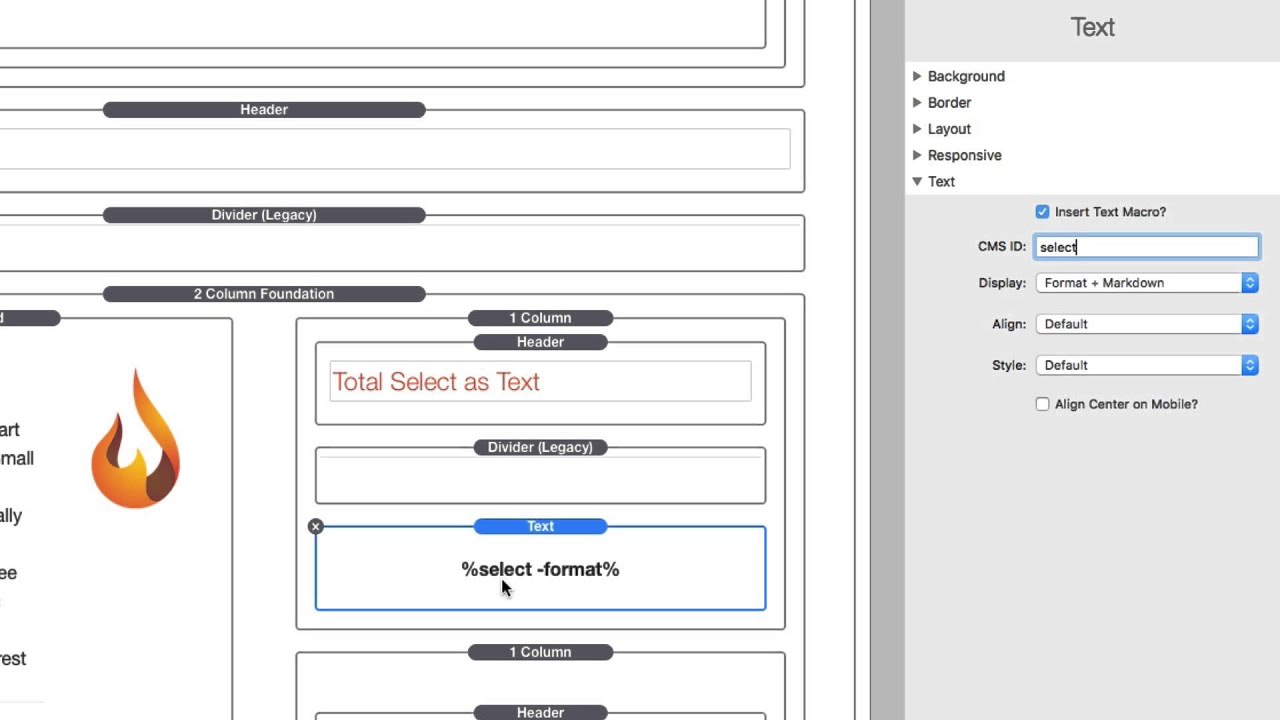
05:06 so here I am on the content page and as
05:10 I said we can reference the text saved
05:13 with the select stack as text so here
05:17 I'm using the text stack and I set my
05:19 CMS ID to be select and as you see here
05:22 I'm formatting with markdown now you can
05:25 also just take this macro that is
05:27 displayed here and use it anywhere or
05:29 you can use the plain text macro which
05:31 is just percent select percent right and
05:34 you can use that wherever you want the
05:36 same places you can use your text macros
05:39 okay this one is just selects from
05:42 predefined
05:43 text snippets that you've defined now we
05:48 do have a select show stack okay and
05:52 this is where we can actually show or
05:56 display content based on text now you
06:01 give it a CMS ID now to be honest the
06:03 CMS ID could be any text stack you want
06:06 on it it makes sense for a select admin
06:11 side because you can pre do those and
06:14 and explicitly define content IDs okay
06:18 and what content those values will have
06:20 but this CMS ID can seriously reference
06:25 any sort of text area okay within the
06:28 CMS now your logic okay is going to be
06:32 equal to not equal to if you want to
06:35 base it on numbers you can have it
06:37 greater than or less than and then you
06:39 can also have
06:40 contains string okay contain string is
06:44 different than equals because equal or
06:47 not equal is is it exactly show so in
06:51 this instance if the select ID has a
06:55 content value of show then this
06:58 condition will be satisfied and that
07:00 content will be shown okay however if
07:03 you have contains string it could be as
07:06 long as if the data within this CMS ID
07:10 contains this value then show my content
07:15 right so this is just a a more useful
07:18 and more elaborate toggle okay it's a
07:21 way of displaying your content and in a
07:25 more rich manner and have more advanced
07:27 logic around it and ever that select
07:30 everybody I mean it's as you see it's a
07:33 very general purpose tool right to doing
07:36 premade texts okay you can use that text
07:39 as markdown you could use it to maybe
07:41 display a status on the page or do
07:44 entire paragraphs or HTML widgets or you
07:49 can use it to show and hide content
07:51 based on the value that the user has
07:54 selected right so it's very flexible
07:57 right I kind of left it wide open to
08:00 your imagination right so you use it the
08:03 way you want to right um I can't wait to
08:06 see how you use it
08:07 maybe you're using it in ways that I
08:09 never thought of and that excites me so
08:12 go forth and I hope select makes your
08:15 websites great thanks everybody bye


