
Stacks Guru is born from the need to search the vast number of videos out there on stacks built for Stacks Pro and the Stacks 5 plugin for Rapidweaver.
We have scraped over 500 videos to get the transcripts for each in order to make the spoken word searchable.
Please use this free tool to help you learn and discover the awesome power that Stacks and the stacks made for Stacks have to offer.
00:00 come on
00:11 so in this video we are going to be
00:13 looking at implementing sitemap within
00:15 SEO helper
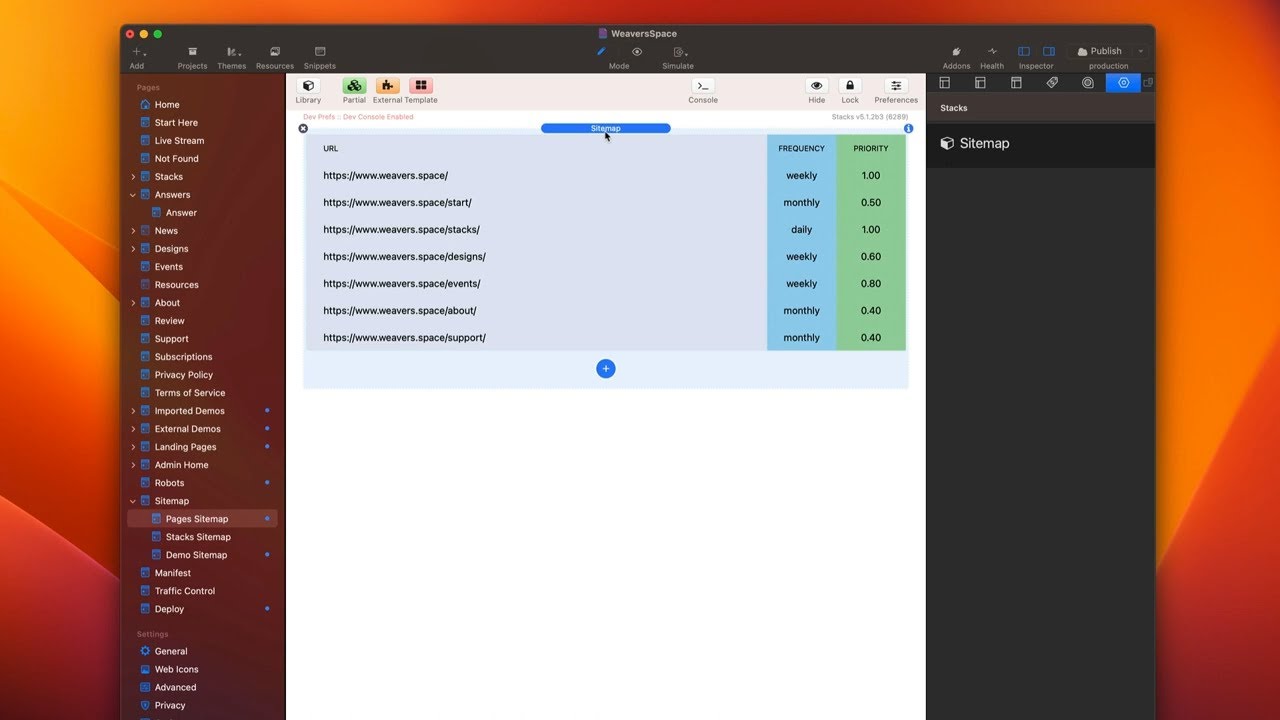
00:17 so here is an example of sitemap this is
00:20 the actual site map that I have used on
00:23 Weaver space it's the one currently in
00:26 use so we can see exactly how I am doing
00:29 it
00:30 now first step that you need to do
00:32 before we use sitemap within SEO helper
00:36 is we need to go into your Project's
00:39 advanced settings
00:41 and we need to turn off generate search
00:45 engine sitemap
00:47 okay so turn that one off
00:49 now if you had this on and published
00:51 another thing you'll have to do is
00:52 remove the sitemap.xml file that is on
00:55 your server okay so use your FTP client
00:58 or somewhere in cpanel where you're
01:01 going to delete the sitemap.xml
01:03 okay because uh SEO helper does not use
01:07 sitemap.xml we'll get into that a little
01:09 bit later
01:11 so you'll probably notice that there are
01:13 multiple SEO helper sitemap Stacks there
01:17 are there's site map
01:18 sitemap index and sitemap ping okay we
01:23 will uh go through all three of these
01:25 stacks
01:27 right now the basic sitemap stack that
01:29 we're going to look at is sitemap this
01:31 is what most users are going to be using
01:35 so chances are you're going to just be
01:36 creating a a page on your on your
01:39 project that is called sitemap and
01:42 that's going to be what we submit to
01:43 Google
01:45 on this page you do need to make sure
01:48 that it's the only thing on the page
01:49 okay so the only thing on this page
01:51 needs to be sitemap nothing else
01:55 now if you want you can go ahead and set
01:57 this to be a different theme it doesn't
01:58 really matter okay sitemap will take
02:01 care of it when you add this uh to your
02:04 page you will have one entry by default
02:07 here we see I have multiple you can
02:09 easily add different entries by just
02:11 going ahead and say site map location or
02:13 you can actually do a batch load okay
02:16 let's look at adding a new location here
02:20 okay so let's look at I some of my
02:22 existing pages that I have here so what
02:24 you're going to do is you're going to
02:25 add the full URL
02:27 to the web page that you want to index
02:30 then you're going to set the priority
02:32 okay this is kind of like uh in your own
02:35 like you can read this whole tooltip
02:37 here that kind of uh explains what the
02:39 priority is but it essentially tells the
02:42 search engines this page is a really
02:45 important page or not a very important
02:47 page okay so do search engines really
02:50 use this I don't know it's a feature of
02:52 sitemap so there we go you can set your
02:55 priority from zero to one basically
02:58 then you can tell search engines here
03:01 how often your page is changing just to
03:05 kind of give them an idea of how often
03:08 that page changes okay so uh whether or
03:11 not it's going to be hourly daily weekly
03:12 yearly never changes now all these in
03:16 the optional settings here these are
03:18 definitely all optional you don't have
03:19 to set them path page what this is is if
03:23 you go ahead and link to the page so
03:25 basically you're gonna find like this is
03:27 my support page I can go ahead and Link
03:29 this to the support page
03:32 now what this does is if you take the
03:34 time to do that
03:35 whenever you publish that support page
03:38 that the site map will automatically see
03:40 that it changed and it'll flag it'll
03:43 basically add the last modified time to
03:45 your sitemap file okay so it's a nice to
03:48 have you do have to link those two pages
03:50 together
03:52 um or link this with the actual web page
03:55 but you know there are benefits to that
03:57 if you want to take the time to do that
04:00 next is you can actually add a CSV of
04:03 image urls
04:05 so if you want particular images that
04:08 are associated with this webpage to be
04:10 indexed by your search engines basically
04:13 like Google image search or you know so
04:15 on and so forth if you want those images
04:17 to be indexed now they will be indexed
04:20 throughout just by finding them on the
04:22 page but this just gives them more
04:24 priority right so if you add images to
04:29 your sitemap the search engines are more
04:31 likely to index those and serve them up
04:34 via image search
04:37 now there are more advanced options here
04:40 and we can go ahead and enable that with
04:43 this button
04:44 when you click this enable you'll see
04:46 that and you can do this for every
04:48 single page
04:50 okay
04:51 um so these are Advanced options for
04:54 each and individual URL
04:57 now you'll see that that shows us a new
05:00 plus button we go ahead and click that
05:03 and here we have more options we can do
05:06 alternate language image
05:09 video or hosted video all right so let's
05:12 go through those
05:13 alternate language so if you have a dual
05:16 language website and let's say your
05:18 default is English but you have an
05:20 alternate page
05:22 um for this particular URL that is in
05:24 German or English or whatever right
05:27 um You can go ahead and and Supply that
05:30 alternate
05:31 um URL
05:32 for that particular language okay and if
05:35 you have multiple you can actually add
05:36 multiple alternate language tags
05:40 this is very beneficial this is
05:42 definitely a lot of work if you are
05:45 building a multi-language website but
05:48 this is really the only way to do this
05:50 throughout the entire ecosystem
05:52 um it's the only add-on that lets you do
05:53 that a particular feature so it's a
05:56 must-have for alternate language sites
05:58 really really great
06:01 next up is you can add images now
06:03 earlier on I said that we could go ahead
06:05 and in the main you can add a CSV of
06:07 images this is just a way of adding it
06:10 one by one if you wanted it to just a
06:12 different way
06:14 um I I wanted to be able to make it
06:16 super easy if you wanted to Define
06:17 multiple images all at once just by
06:19 having a CSV of them here but you can
06:22 provide them one by one right here
06:27 next is if you have a self-hosted video
06:29 that's associated with this URL you can
06:32 go ahead and add that
06:34 okay so that video will be added there
06:36 and then if you have a hosted video such
06:39 as YouTube or Vimeo or things like that
06:41 you can go ahead and add the hosted
06:44 video so there we go and you can have
06:46 multiple videos multiple uh you know
06:49 images multiple link you can have as
06:51 many of these as you want
06:53 um all associated with a single URL
06:56 all right now an option I skipped
06:58 earlier was this sitemap location batch
06:59 load okay and so what this allows us to
07:03 do is you can actually load a comma
07:05 delimited list of urls
07:08 and then it allows you to add priorities
07:11 and change frequencies basically it'll
07:13 sign uh the same priority and same
07:16 change frequency for every URL that you
07:18 define inside the CSE so it's just a
07:20 little bit quicker I kind of like the
07:23 interface of showing each individual one
07:25 and managing them individually but
07:28 um if you just want to get the quick and
07:30 dirty thing done you can go ahead and
07:32 just batch out a list of URLs uh along
07:35 with the frequency and the priority of
07:37 those urls
07:39 okay so now that we've built our site
07:42 map how do we actually submit this to
07:44 search engines let's show you how to
07:46 submit this inside Google right now so
07:49 what you're going to want to do is
07:50 um
07:51 most like I said I have a quite complex
07:54 setup which we will dive into in a
07:56 minute
07:57 um on Weaver space
07:59 um so but mostly what you're going to do
08:01 is you're going to be publishing you're
08:04 going to have a single site map for all
08:06 of your entire site and you're going to
08:08 have it set to slash sitemap and the
08:11 file name is going to be index.php
08:13 okay that's how I'd recommend you set it
08:16 up okay if you have a single sitemap
08:18 file
08:19 so now that we know that
08:22 um we're going to dive into let's head
08:24 over into Google search console
08:26 okay so now we are in Google search
08:28 console and we're going to go ahead and
08:30 you go into the sitemaps tab and if you
08:33 have any site Maps it'll they'll be
08:35 shown here okay now if here's another if
08:38 you had sitemap.xml before and you
08:40 weren't using SEO helper you're going to
08:42 want to delete that so you're going to
08:44 go in here and then you can actually
08:45 delete a sitemap file actually once you
08:47 delete it from the server and Google
08:49 doesn't find it anymore
08:51 um Google will flag it and delete it
08:53 automatically eventually
08:55 um but actually it doesn't look like you
08:57 can delete uh oh that's a directory
09:00 though let's see can you delete
09:02 you can't I don't see a way of actually
09:05 deleting oh remove sitemap so once you
09:07 go into a particular sitemap file you
09:09 can go ahead and say remove sitemap I'm
09:11 not going to do that
09:13 for obvious reasons this is my active
09:15 live account so um Google will already
09:19 have your url right here and you're just
09:21 going to type sitemap
09:24 slash
09:25 okay so um you could add index.php if
09:29 you want to put the full path that's
09:30 okay
09:31 um you know but my server does do
09:33 sitemap slash and um what you're gonna
09:36 do is you're going to submit that and
09:37 that's it assuming you used the setup
09:39 that I recommended having the folder of
09:42 sitemap the page index.php
09:45 um that's all you need to do
09:48 so you just submit this and it will show
09:51 up in here uh within Google
09:54 um and if we go ahead and click on like
09:56 here's that pages one that we were
09:57 looking at I click on pages and it'll
10:00 show us how many pages were discovered
10:01 so on and so forth right and that was a
10:04 rather small one if you notice that
10:06 seven so one two three four five six
10:09 seven all my pages were discovered
10:11 okay so pretty good
10:13 what's the next step like if you have a
10:16 more advanced website I will let's show
10:18 you what I do on Weaver space
10:21 so on Weaver space you'll notice here in
10:23 the sidebar I have actually three
10:26 different
10:28 sitemap files
10:30 okay I've won the kind of for my static
10:32 pages I have another one for all my
10:36 stacks pages and then I have another one
10:39 still of my all my external demos for
10:42 Stacks because some of my stacks have
10:44 you know demos on the actual product
10:46 page and some have external so I want to
10:48 make sure those external uh demos are
10:51 all indexed let's let's look at that we
10:54 already saw the pages right if you
10:56 notice I the URL here is site map Pages
11:00 index okay this is the page that we were
11:02 looking at before again
11:04 for you I told you to set it to sitemap
11:06 if you have one I have it set it to be
11:09 sitemaps pages
11:10 okay so this site map here builds out
11:14 all of my stacks all of my product URLs
11:17 now this particular page I just say
11:21 um no one else has access to so we're
11:23 not going to dive into it um this is
11:25 just an unreleased version uh that
11:27 integrates with total cms2
11:29 um however I do have to say that there
11:31 is sitemap integration built in total
11:33 cms1 for blog okay
11:36 um and ultimately in total CMS 3 we will
11:38 have something similar to this
11:41 um but yeah we're gonna we're gonna skip
11:43 this
11:45 next is my demo URLs and this is all of
11:49 the demo URLs as I said earlier and to
11:52 make it easy on me basically all I did
11:54 is I just did a comma delimited list of
11:56 URLs that all have my external
12:00 um demos
12:01 so and then I just use the same priority
12:04 and frequency for all of them
12:06 now now that I have my three different
12:08 site Maps enabled I could submit all
12:12 three of these site Maps individually
12:15 however
12:17 um there is another stack that I had
12:20 mentioned earlier called sitemap index
12:23 now what is that so this page this page
12:27 is slash sitemap okay so this is my
12:30 default sitemap on Weaver space
12:34 so this is what you would normally use
12:35 if you were just having one sitemap to
12:37 control your entire site but on my site
12:40 I have multiple so my default sitemap
12:43 which is slash sitemap has a site map
12:45 index and then what I have here is we
12:49 can add multiple sitemap files so this
12:52 is basically like a directory of
12:54 sitemaps okay so if we look at all of
12:57 these individual site Maps basically
12:59 what I do is I put in the urls
13:02 to my three site maps that I pages that
13:05 I just showed you so basically this is a
13:07 site map of sitemap files
13:11 so this is why when we look in Google
13:13 search console at Weaver space you'll
13:15 see that at the top at the top I only
13:17 have one sitemap submitted and if I
13:20 click on it it takes me inside it's like
13:22 a folder right and then inside there I
13:25 have multiple different
13:27 um site Maps which are the ones that we
13:30 looked at one way I mentioned earlier
13:33 how total cms1 currently has a Blog
13:38 um integration for sitemap so as you
13:41 probably know blog already creates a
13:43 sitemap file for you automatically okay
13:46 you can copy that from the admin area on
13:49 the blog list okay and what you would do
13:52 is you would just get the site map that
13:54 total CMS creates and you're going to
13:56 add that into your sitemap index so
13:58 you're just going to copy that from your
14:00 admin area
14:01 um and then paste it right here and then
14:04 that way if you have multiple blogs or
14:07 you know even if you're you know abusing
14:09 blog for products or whatever other
14:11 reason you basically just put in those
14:13 site maps for every single total CMS
14:16 blog inside of a sitemap index and then
14:20 submit that that way you only have it's
14:22 super easy to manage you have one
14:24 sitemap file and then that indexes
14:27 multiple different ones throughout your
14:29 website the last stack I mentioned was
14:32 sitemap ping okay and what this does is
14:35 you're going to add this you're not
14:37 going to add this to your sitemap pages
14:38 this is one that you're going to add to
14:40 maybe an admin page or something like
14:43 that probably an authenticated page and
14:46 basically you can add whatever button
14:48 you want in here okay add any button
14:51 inside of this and when you click on it
14:53 what it will do is it will actually go
14:56 ahead and
14:57 request Google to re-index your site map
15:01 so basically you configure your sitemap
15:03 URLs in here
15:05 and then you can have a confirm message
15:06 okay to confirm are you sure you want to
15:09 submit your sitemap now this doesn't
15:12 this just requests Google eventually
15:16 re-index your site map it doesn't like
15:18 do it immediately it's just a hey Google
15:21 and Bing please re-index my sitemap
15:26 I personally don't use this because I
15:29 find that that API with Google and Bing
15:32 just
15:34 it's not a guarantee it's going to
15:35 happen right now anyway it's just a a
15:38 request so you can add that to your
15:40 admin Pages if you'd like a way to
15:43 request Google and ping
15:45 um Google and Bing to uh index re-index
15:49 your site Maps but again there's no time
15:52 frame when they guarantee they're going
15:53 to do that so it'll just eventually
15:55 happen which it will eventually just
15:57 happen anyways so I'm not really sure if
16:01 it actually does anything
16:07 foreign


