
Stacks Guru is born from the need to search the vast number of videos out there on stacks built for Stacks Pro and the Stacks 5 plugin for Rapidweaver.
We have scraped over 500 videos to get the transcripts for each in order to make the spoken word searchable.
Please use this free tool to help you learn and discover the awesome power that Stacks and the stacks made for Stacks have to offer.
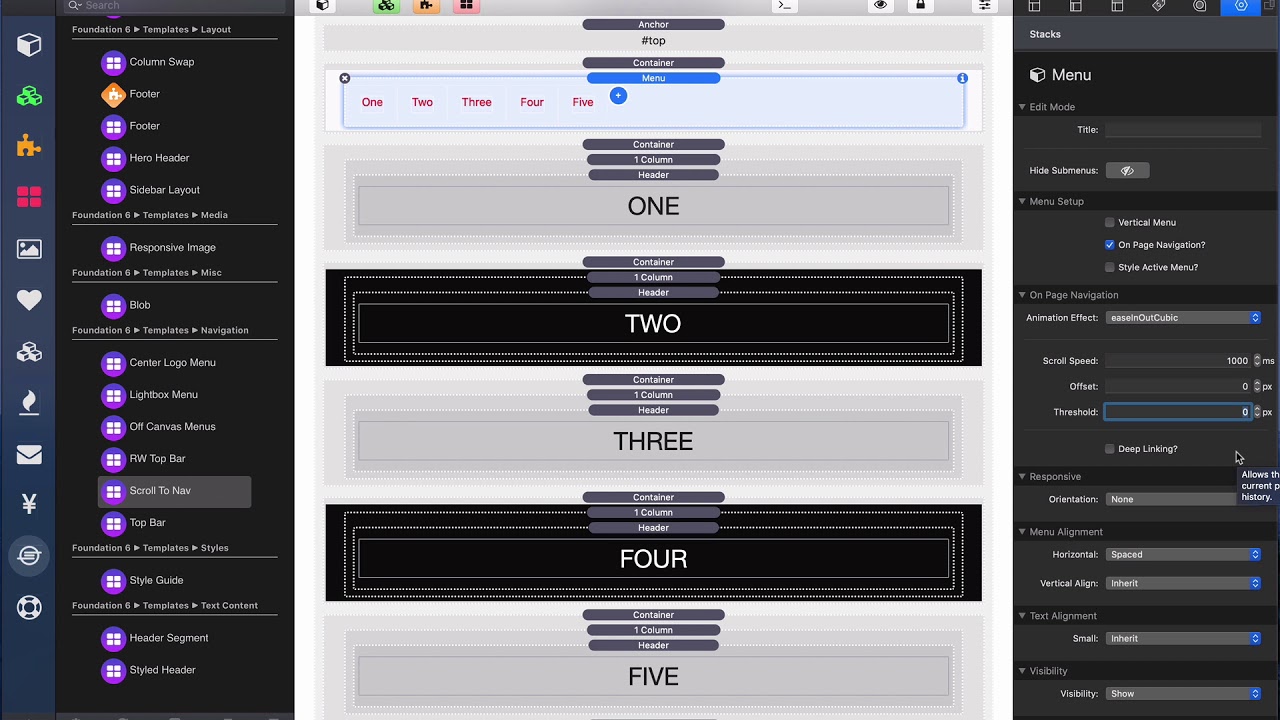
00:09 okay so on page navigation and I just
00:12 want to point out that the settings for
00:14 this are the same inside all the menu
00:16 stacks in this particular example I'm
00:18 just gonna be using a straight-up just
00:20 our normal menu but all the settings are
00:22 identical for any of the menu stacks
00:25 okay
00:26 so inside the menu stack we gonna turn
00:30 on on page navigation this tells a
00:33 foundation that the the menu items in
00:36 here are linking to parts of this page
00:39 okay they're not linking out they're
00:41 linking to parts of this page and when
00:43 you turn that on you'll see that we get
00:45 a bunch of other settings down here okay
00:48 and this this is the first one is the
00:50 animation so like kind of how the page
00:52 Scrolls you can play around these see
00:55 which ones you like um I tend to like
00:57 the ease in out ones easing out cubics
00:59 kind of one I like or any of the ease in
01:02 out are my favorite I think for at least
01:05 for scrolling but depend on what you
01:07 want the the speed and the variation of
01:10 this bead is very different so play
01:11 around with them next is the speed how
01:13 long does it take to scroll to a
01:16 particular point then you can have
01:18 offset so like you know scroll 100
01:20 pixels from the top and stuff like that
01:22 um and threshold is how many pixels away
01:25 from the menu item until it triggers
01:28 that menu item to be active okay then
01:33 last but not least we can actually do
01:34 deep linking and update history so that
01:37 you know whenever you click on this
01:39 it'll actually updates the browser
01:40 history with that hashtag okay those are
01:44 off by default I personally don't like
01:46 those but I you know some websites like
01:49 them and maybe there's some SEO reasons
01:51 or something you want you know users to
01:53 be able to go back and forward in their
01:54 browser history to visit various parts
01:57 of your page okay
01:59 so that's all that is on the menu side
02:02 okay um in the menu links all you need
02:06 to do is just like you're linking to it
02:09 an anchor on the page so if you look at
02:11 this link here it's just hash tag one
02:14 and one is the name of the anchor that
02:18 we're linking to okay so on and so forth
02:21 we have two like links to hash tag - now
02:25 how do we create these internal markers
02:28 on our page there's two different ways
02:30 first off you see at the very top of
02:32 this page I have one and it uses the
02:34 anchor stack okay it is um it is a part
02:38 of the navigation um part of the
02:40 navigation uh
02:42 stacks anchor here it is it is under
02:46 navigation it's called anchor and it has
02:49 zero visual representation on the page
02:52 it's completely invisible it just points
02:54 to an anchor it creates an anchor on the
02:56 page and you give it your ID so you
02:58 don't put the hash tags here we need to
03:00 find your anchor that's only in the
03:02 links okay so here we go we put in our
03:06 anchor ID and we're good to go the other
03:09 way is kind of naturally instead of
03:11 having to add anchors all over the place
03:13 um we're gonna be naturally be using
03:15 containers Oh a lot right so kind of um
03:18 divvy up sections of our web page so for
03:22 example this section here is section one
03:24 okay so in this container
03:27 I said the anchor ID and containers are
03:31 the only other stacks that have this
03:32 okay you can set the anchor ID in this
03:35 container to be one
03:37 and then here I have section two and
03:39 that is set to obviously be anchor ID
03:42 two and then we have so on and so forth
03:44 three four and five now at the bottom I
03:47 want to show you how we can actually um
03:49 use buttons to link to on page
03:51 navigation as well and this is an anchor
03:54 button okay not to be confused again
03:57 there is an anchor stack that is part of
03:59 the navigation that is where you can
04:01 define the point okay uh you can use
04:04 that or a container don't use both just
04:07 use one or the other okay now if I
04:10 scroll down let's look here's the anchor
04:12 button okay so yeah this is the anchor
04:15 button okay so when we load the anchor
04:18 button you'll notice that um as a part
04:21 of the anchor button all you have to do
04:22 is give it the anchor ID okay there's no
04:24 tricky hashtags or anything just put any
04:26 straight up to put in the anchor ID
04:27 that's it okay and then you can set
04:30 smooth scroll if you want that smooth
04:32 scroll you don't turn on smooth scrolls
04:34 just gonna like link to that point
04:35 directly it's gonna be immediate there's
04:38 zero animation at all okay and then you
04:42 set your it similar to the men you can
04:44 set your animation effect your speed and
04:46 your offsets
04:48 okay so let's preview this to see how it
04:50 works right so here we have the page
04:53 obviously have a bunch of swatches that
04:55 kind of just make these sections big
04:56 right so that we have a page to scroll
04:59 through and if I click on various things
05:01 you'll notice that the animation is very
05:04 nice right it just Scrolls to our
05:06 various point and if I click on the
05:07 button at the bottom the Anchor button
05:09 it takes us all the way back up to the
05:11 top
05:25 you


