
Stacks Guru is born from the need to search the vast number of videos out there on stacks built for Stacks Pro and the Stacks 5 plugin for Rapidweaver.
We have scraped over 500 videos to get the transcripts for each in order to make the spoken word searchable.
Please use this free tool to help you learn and discover the awesome power that Stacks and the stacks made for Stacks have to offer.
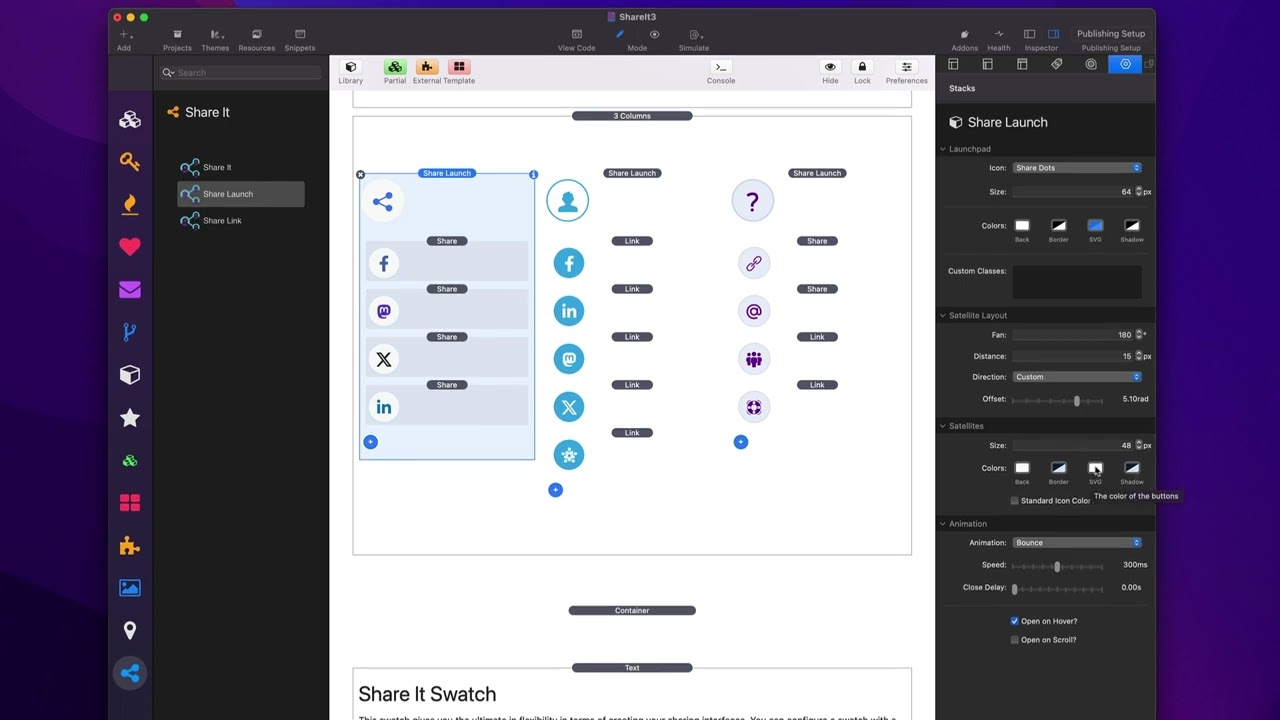
00:10 so in this video we're going to be
00:11 looking at the share launch or the share
00:14 Launchpad stack um within sheret so here
00:18 we have three examples here and let's
00:21 have a look at what sherit Launchpad
00:23 does right so as you see we can have it
00:25 open on scroll um and then it will when
00:28 we hover over basically all of these
00:31 actions um can be configured okay so
00:35 let's look at this existing
00:36 implementations that we have inside this
00:38 demo project that ships with the
00:41 stack when we look at share launch um
00:45 the top section allows us to configure
00:47 the Launchpad okay that is the main icon
00:50 that triggers the actual action so here
00:53 we can customize the icon so we have
00:56 four different icons that we can use uh
00:58 three different types of share icons
01:00 link as well as a custom SVG that you
01:03 can Define so like here is example here
01:05 in this demo I used a custom SVG that
01:08 has the question mark I just pasted that
01:10 directly into um the custom setting so
01:14 here for the Launchpad you can then
01:16 Define the size of that icon okay it's
01:18 actually the size the the total size of
01:21 the actual button so the icon size
01:23 itself will actually be half the size of
01:25 this because we need a little bit of
01:26 padding for everything to look good then
01:29 you can configure your colors so your
01:31 background your border options your SVG
01:34 color as well as Shadow now if you don't
01:37 want a border or a shadow it's simply
01:40 just go into the color settings and set
01:42 the opacity all the way to zero that
01:44 will effectively remove the border and
01:47 the shadow then if you're a foundation
01:49 user or a CSS Guru you can go ahead and
01:52 create your own custom classes and then
01:54 style this button even farther okay with
01:57 swatches and your own
01:58 CSS then the next setting has to do with
02:01 the direction or the layouts of the
02:04 satellites this has to do with the the
02:07 actual positions of the share it and
02:09 share link Stacks that can be added
02:12 around your
02:13 Launchpad fan option defines the scope
02:17 at which how far around the circle are
02:20 we going to evenly distribute our
02:24 satellites so in case one and case three
02:28 here I have actually the set to 180 okay
02:32 whereas this middle example here is set
02:34 to 360° because the limitation it they
02:38 will be spread all around the circle
02:42 okay um and then we the distance is how
02:45 far away from the Launchpad do you want
02:47 them to go and then the direction here
02:50 the direction allows us to Define where
02:52 do we want this makes most sense if we
02:55 have it less than 360 so for these
02:57 particular 180° implement ations where
03:00 do we want that to be to Fan out from
03:05 right so do we want it to be up down
03:08 left right or a custom value now if you
03:11 notice when you choose a direction up
03:14 down left or right I give you a value in
03:18 radians that is being used um I do this
03:21 to kind of help you out to if you want
03:23 to define a custom you can kind of get
03:26 an idea of what the radian values Define
03:30 right there's a lot of tricky
03:32 trigonometry going on here and depending
03:35 on your distance um sometimes these
03:38 default values might not be exactly what
03:41 you want so this is why um you know
03:44 depending on what distance and sizes
03:46 values you have set um you might need to
03:49 go to custom and then tweak the value
03:51 till you get the alignment of your
03:54 satellites just right the next settings
03:57 have to do with our satellites
04:00 themselves so these allow us to define
04:02 the size and the colors of all the
04:06 satellites so in this first example here
04:09 um I have the size of my satellites to
04:11 be 48 pixels and then here's the colors
04:14 that are going to be used for every
04:15 satellite Now by default the SVG color
04:18 here is not used if we want the
04:21 standardized if we want the svgs to have
04:23 a standard color we go ahead and check
04:25 this and what you'll notice is those
04:28 icon colors are now all the same okay
04:31 let's have a look at this SE second
04:33 example here if I were to turn off
04:35 standard color you'll see that we
04:37 actually get the the native colors of
04:39 each icon rather than um you know having
04:44 one uniform color so depending on what
04:47 layout you want um you might want them
04:49 to have different colors or the same
04:52 color and lastly we can customize the
04:54 animations so there's several different
04:56 animations that we can utilize here um
04:59 my favorite is Bounce I think it just is
05:01 a really nice elegant animation you can
05:03 customize the speed of the animation now
05:06 you can also Define a Clos delay and
05:09 what that is is let's say I scroll down
05:12 the page or click on something else on
05:15 the page this will cause the actual
05:17 satellites to automatically close you
05:19 can add a delay to that close instead of
05:22 them actually going
05:23 immediately next is we can open on Hover
05:26 which uh you know I think is a great way
05:28 to actually trigger it but you can
05:31 always click on the Launchpad to open
05:34 and close the Launchpad so I I think
05:37 open on Hover is great because it gives
05:39 a lot of you know discoverability um as
05:42 well as you can open on scroll so as we
05:45 see here on this page if I go ahead and
05:47 do preview if I scroll down the page
05:50 this particular one will actually load
05:53 on
05:55 scroll now in terms of the Launchpad
05:58 satellites I have already talked about
06:01 how share it and the share link Stacks
06:03 work and the share and Link satellite
06:06 Stacks work exactly the same however I
06:10 should note that when you can override
06:13 the styles that are defined globally in
06:15 the share launch stack so in the share
06:18 launch you can go ahead and customize
06:20 the default color of all your satellites
06:22 however you can override that at the
06:25 individual satellite level as
06:28 well
06:32 now lastly we can actually add a Content
06:35 stack to share launches well and what
06:38 this allows us to do is you can add
06:40 whatever content you want as a
06:43 standalone satellite as well now granted
06:46 our satellites are tiny so you can't add
06:48 a lot of content into here but I wanted
06:51 to give you the flexibility to add your
06:53 own stack content inside of an
06:56 individual
06:58 satellite
07:07 oh


