
Stacks Guru is born from the need to search the vast number of videos out there on stacks built for Stacks Pro and the Stacks 5 plugin for Rapidweaver.
We have scraped over 500 videos to get the transcripts for each in order to make the spoken word searchable.
Please use this free tool to help you learn and discover the awesome power that Stacks and the stacks made for Stacks have to offer.
00:05 hello everyone this is Joe workman and
00:08 today I would like to show you the new
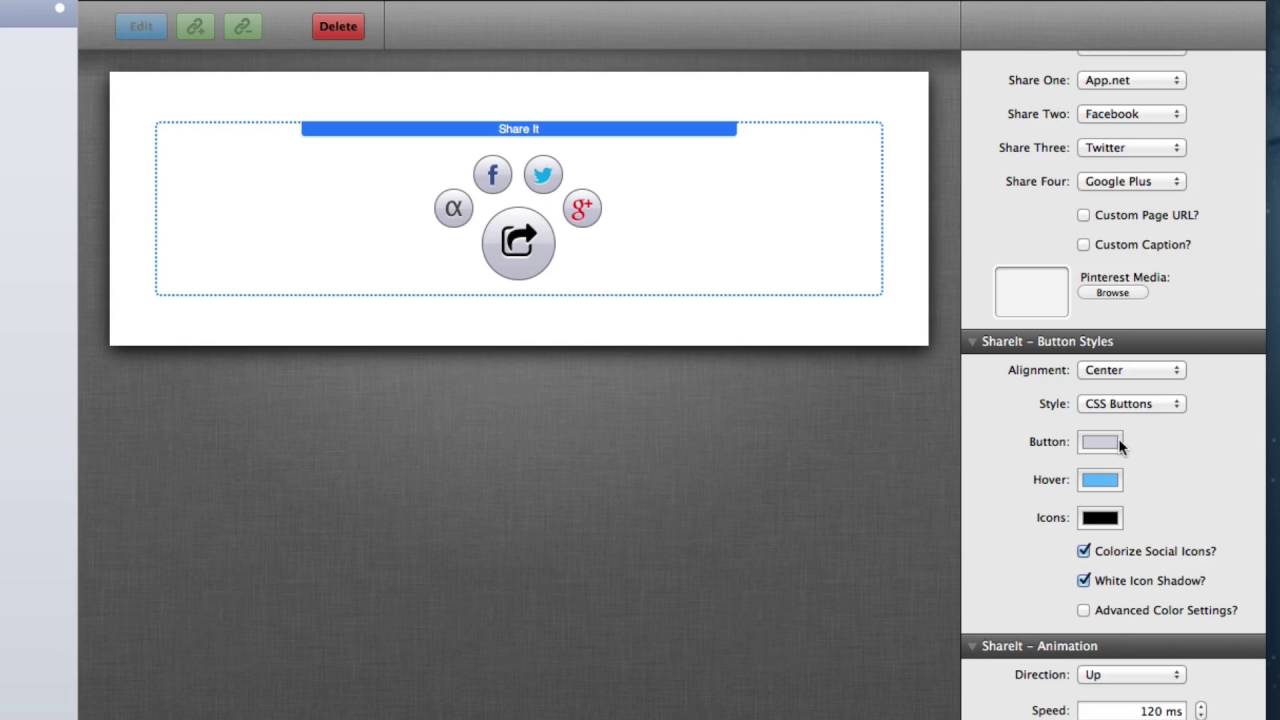
00:10 share it stack now share it allows you
00:13 to have a beautiful share button that as
00:16 you notice when we hover over it
00:17 beautiful share buttons from configure
00:19 networks fly out and allow users to
00:22 actually click them and then share that
00:24 web page on that particular Network now
00:29 share it is really easy to configure
00:31 when you add it to your web page you'll
00:33 notice in the settings pane we have our
00:34 button set up area and you'll notice for
00:38 each button the main button as well as
00:40 the for share buttons there is a
00:42 drop-down which allows you to actually
00:44 select a supported icon that can be used
00:48 within that button now for their main
00:50 button there's several different options
00:52 that you have and all of the share
00:54 buttons have all of these supported
00:57 networks that you could potentially want
00:59 to use now on top of the default values
01:01 every button has the ability to define a
01:04 custom icon value now as this
01:08 information drop-down tells you there's
01:10 actually many many different icon names
01:12 that you could potentially use within
01:14 the share it stack just simply go to the
01:16 mentioned URL and then copy and paste
01:19 the icon name that you would like to use
01:21 for this particular button for example
01:25 here we have icon RSS and we have a nice
01:28 RSS style button with an hour share one
01:32 button now because share it doesn't know
01:34 exactly what you would like to do with
01:36 this you can also provide a custom URL
01:38 link that users will be taken to when
01:42 they click this button now by default
01:45 share it will pass along the actual URL
01:48 in the web browser to the various social
01:52 networks that are configured however you
01:55 can also provide a custom page URL that
01:58 will override that behavior conversely
02:01 you can also provide a custom caption
02:03 that will actually be sent along with
02:05 the URL not by default this will be the
02:08 page title and lastly in this area you
02:13 can act
02:13 drag and drop a custom image that will
02:16 be used when you share with Pinterest
02:19 the next settings group allows us to
02:23 customize the button Styles the top
02:26 setting is obviously the alignment which
02:28 allows us to align the share it stack to
02:30 the left center or right of our stack
02:33 content area the style is do we want to
02:36 use CSS buttons or do we actually want
02:38 to provide an actual background image
02:40 that we can use within our buttons you
02:46 can then provide a button color the
02:49 hover shadow color when you hover over
02:51 each individual share button and then
02:54 the default icon colors now if you're
02:57 using known social networks we have the
03:00 colorized social icons this uses the
03:03 standard known colors for each
03:05 particular social network so the f is
03:08 facebook blue the twitter is a teal
03:10 color google+ is red and so on and so
03:13 forth and then we have some advanced
03:16 color settings which allow you to
03:17 actually define a particular color for
03:20 each and every icon now the last
03:25 settings group allows us to control the
03:27 actual animations by default the share
03:31 buttons will animate up and away from
03:33 the main share button however we can
03:36 animate them down to the left and also
03:42 to the right of the main share button we
03:46 can then adjust the speed at which the
03:48 buttons will animate out we can adjust
03:51 the height weight time that is the time
03:53 that when the user hovers away from the
03:56 share button it will wait this amount of
03:58 time before the share buttons actually
04:00 collapse back into the main button and
04:03 then the last settings is the bounce
04:06 distance which gives that it a nice
04:08 bounce when they fly out from the main
04:10 button well I hope you enjoy the share
04:13 it stack it definitely is the most
04:15 beautiful way to share your website with
04:16 the world thank you very much everybody
04:19 have a great day bye bye
04:27 you


