
Stacks Guru is born from the need to search the vast number of videos out there on stacks built for Stacks Pro and the Stacks 5 plugin for Rapidweaver.
We have scraped over 500 videos to get the transcripts for each in order to make the spoken word searchable.
Please use this free tool to help you learn and discover the awesome power that Stacks and the stacks made for Stacks have to offer.
00:00 come on
00:09 so on Foundation 6.12 we added support
00:11 for Native share sheets
00:13 um inside buttons and various other
00:15 elements so what is a native share sheet
00:17 well here's a couple examples on the
00:19 foundation Stacks demo site where if you
00:21 click you'll notice that it opens up the
00:24 operating system's share sheet now I'm
00:27 currently on a Mac so it's showing the
00:28 Mac based system but if we were on an
00:30 iOS device it would actually show from
00:32 the bottom and show you the actual share
00:34 sheet from IOS at that point you can you
00:37 know send messages or airdrop and all
00:39 kinds of stuff
00:40 and what's interesting is do we also
00:42 added share sheets directly to the
00:44 picture stack so if you click and
00:46 actually trigger a share sheet from a
00:48 picture stack the actual image not just
00:51 the URL the actual image will actually
00:53 be shared
00:55 so these are really simple to configure
00:57 um in all of the foundation 6 button and
00:59 Link Stacks you'll notice that there is
01:01 now a checkbox to add a share sheet
01:04 now in this example you'll notice that
01:06 this is a button there are no URLs
01:08 affiliated with this particular button
01:10 so what this is going to do is actually
01:11 going to share the current web page that
01:14 this button resides on
01:16 now once you turn on this add share
01:19 sheet there are options if you want to
01:20 configure a custom URL you can actually
01:23 do a file URL as well which if you want
01:25 to share a particular file not just
01:27 images like in the picture stack but if
01:29 you want to share a file you can put in
01:31 the URL to that file and then that
01:33 actual file will get downloaded now you
01:36 can't currently share both a URL and a
01:39 file it needs to be one or the other
01:41 okay so you need to choose that now I
01:44 don't recommend doing very large files
01:46 because well those files have to be
01:48 downloaded and um and then shared so I
01:51 would definitely recommend
01:53 um you know not sharing huge large files
01:56 with this next is title and text and
01:59 these are used various different ways
02:01 depending on the share action that you
02:03 trigger so maybe play around with those
02:05 to kind of see how they affect
02:07 um and how they are shared via the
02:08 actions that you want to utilize with
02:10 this
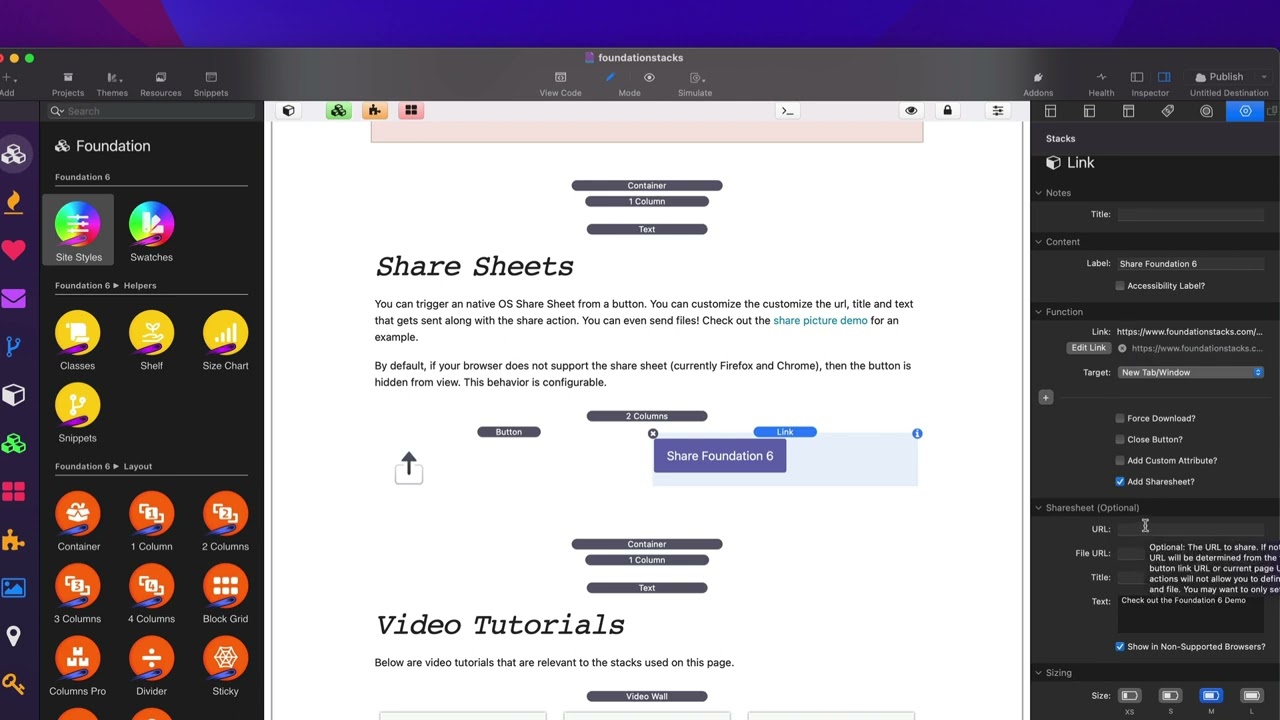
02:12 now this last setting here you'll notice
02:14 that it says show on non-supported
02:16 browsers Now by default if a browser
02:19 does not support a share sheet for
02:21 example Chrome and Firefox on Mac do not
02:24 support share sheets but Safari does but
02:27 Chrome and Firefox on iOS do so by
02:31 default this button would be hidden
02:35 for all browsers that do not support the
02:37 native share sheet but if you don't want
02:39 that behavior just simply check this
02:40 show on unsupported browsers and then
02:43 this button will always be displayed
02:46 here's a perfect example of that here I
02:48 have a link to share Foundation 6.
02:51 and if we notice here um I had it is an
02:54 actual link button
02:55 that is linking to a web page
02:58 so because I'm I've defined a link in
03:01 this button this URL that is inside the
03:03 link will be shared not the URL of the
03:06 web page
03:08 and then I don't need to define a URL
03:10 here because I've defined a URL in my
03:12 link
03:13 um and then I've defined some text that
03:15 will be shared along with URL and then
03:17 here I've say always display this
03:20 now why this is useful on devices such
03:23 as Safari on Mac or browsers on iOS it
03:26 will show the share sheet but on Mac for
03:29 you know Chrome and Firefox this will
03:32 just behave like a normal link button
03:34 and when a user clicks on it it'll take
03:36 into the URL
03:37 so let's show you a quick example of how
03:39 share sheets are used used with the
03:41 picture stack so here I just have a
03:43 normal picture stack and all I've done
03:45 is I've clicked add share sheet and
03:48 that's it now what this will do is it
03:50 will actually look for the alt tag so if
03:52 you define an ALT tag it will actually
03:54 get that and send that along with the
03:56 image so as text so if we're emailing
03:59 this
04:00 um image it'll actually attach the image
04:02 and then put this text along with the
04:04 email or if you were text messaging it
04:06 it would do the same thing but what's
04:08 cool with this is you can actually like
04:10 airdrop these photos directly from a web
04:13 page to another user and then that
04:15 particular image is actually saved to
04:18 their photo library which is really cool
04:20 so along with this there is actually
04:22 also a utility class for share sheets so
04:25 all you need to do is add the share
04:27 sheet class and then you can actually
04:29 add share sheets to anything you want
04:33 and if you want to customize it
04:34 basically you can you can actually
04:35 provide custom HTML attributes data URL
04:39 title text and file
04:41 um to those elements and then those
04:44 particular attributes just like we saw
04:46 in the button will be utilized there
04:48 there's also a couple special classes
04:51 here for share sheet no hide and share
04:53 sheet Auto Hide uh in terms of
04:56 controlling whether or not
04:58 um the share sheet will actually be
05:00 hidden or displayed on non-supported
05:02 browsers
05:06 foreign


