
Stacks Guru is born from the need to search the vast number of videos out there on stacks built for Stacks Pro and the Stacks 5 plugin for Rapidweaver.
We have scraped over 500 videos to get the transcripts for each in order to make the spoken word searchable.
Please use this free tool to help you learn and discover the awesome power that Stacks and the stacks made for Stacks have to offer.
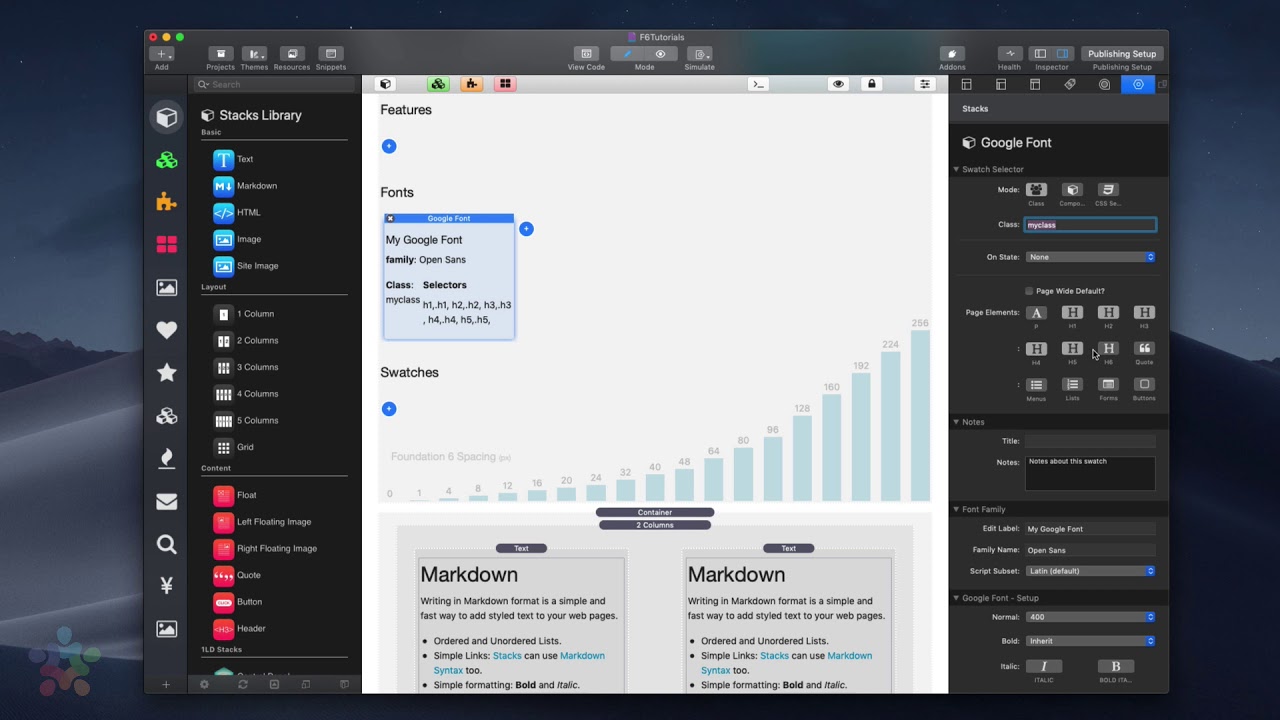
00:08 now how can we add custom fonts and font
00:11 sizing to various components on our site
00:14 it is super easy inside side cells
00:17 you'll notice that we have a fonts
00:19 section here and when you add this
00:21 you'll notice we have a bunch of font
00:23 swatches for you to choose from now on
00:25 your machine you might be missing a few
00:27 of these if you have font Pro you'll
00:29 notice that all the font Pro stacks are
00:31 integrated directly into site Styles now
00:34 you no longer need to add the font Pro
00:36 stacks to your page you just add them
00:38 directly into site Styles now I'm not
00:41 going to be reviewing these font Pro
00:43 stacks right now but that is a great win
00:45 for compro users now if we add the font
00:48 style stack to our page this stack
00:50 allows us to customize the font styles
00:53 for our fonts such as the sizing do we
00:57 want to bold or italic and so on and so
00:59 forth now at the top here you'll notice
01:01 the normal kind of swatch selectors from
01:04 most swatches but font swatches have a
01:07 few other niceties that you can use for
01:10 example if you want to apply something
01:12 to a paragraph tag and h6 tag right you
01:16 can simply click on these buttons to
01:18 apply this style to particular types of
01:21 objects page wide now you can also check
01:25 this page wide default setting if you
01:27 want to make this the default setting
01:29 across all text on the page then you can
01:32 override that settings with other
01:34 swatches
01:36 so if you look down at the font styles
01:38 we can then we can customize the size so
01:40 do we want what size do we want on small
01:42 medium and large we we can also make
01:45 define the exact weight of our font that
01:48 we want as well as make the particular
01:51 piece of text italic
01:53 so I can do is I'm going to create a
01:55 class called big text and I'm going to
01:57 make it 24 pixels so across the board
01:59 and simply I'm just going to go to this
02:01 one tech stack and I'm gonna add in D
02:03 big text class and what you notice is it
02:07 made all the text in there really big
02:12 now the next two swatches are all about
02:14 managing font families so the website
02:18 font this will actually allow you to
02:20 define web safe fonts that are
02:23 considered to be safe to be used so
02:25 we're not loading at any external font
02:27 these are response that are loaded
02:28 inside the OS um so if you can use these
02:31 fonts you you should because they're
02:33 gonna be a lot faster doesn't need to be
02:35 downloading any sort of google fonts or
02:38 any external font files all these fonts
02:41 are considered to be safe to use across
02:43 all devices because they are installed
02:45 natively on devices now next a very
02:49 popular web service is called google
02:52 fonts so google provides a vast online
02:55 resource for fonts that we can use right
02:57 and um this stack is really simple to
03:00 use um so what let's let's do this here
03:03 what I'm gonna do is I'm gonna add for
03:06 all headers so for all h1 h2 h3 h4 h
03:10 and h6 is okay so for all headers on my
03:13 site I want to make the font open sans
03:17 which is the default font inside the
03:19 stack but it is a very nice font from
03:22 Google okay and probably it's a header
03:24 so let's do like a 600 font 600 weight
03:27 now you do have to verify that that
03:29 particular weight actually exists for
03:32 that font on google fonts um I just
03:34 happen to know that 600 does exist so if
03:38 we go to Google's fonts website we can
03:40 surf it simply search or browse through
03:42 all these available fonts and what I can
03:44 do is I'm going to search for open sans
03:46 and here we're going to click on open
03:47 sans and if we say select this font the
03:51 best place that I've seen that we can
03:52 see the weights is if we click on on it
03:55 and we go to the customize and open sans
03:57 and you'll see all of the available
03:59 sizes so that we see the open sans is
04:01 available in 300 400 600 700 and 80
04:06 right so now we know that I'm safe to
04:09 use this in 400 and 600 weights or 70
04:12 if I see fit now google fonts has a
04:15 plethora of really great fonts that you
04:17 might want to use so make sure you check
04:19 this out so going back into Rack Weaver
04:21 I'm going to choose 400 for normal
04:23 weight and 700 for bold
04:25 and if we preview this we will see that
04:28 now open sans' is being used for my
04:32 headers so let's say as my page wide
04:34 default font on and maybe I apply it to
04:36 paragraphs as well I want to use another
04:39 font
04:40 another popular font on Google is called
04:42 Roboto
04:44 okay and let's just use it for 400 week
04:47 and I'm not even gonna load old so let's
04:51 preview that and we'll see now I have
04:54 open sans as my header fonts and the
04:57 page Y default font or paragraphs and
04:59 lists and text is going to be Roboto now
05:03 again if you wanted to use your own font
05:05 file I recommend checking out font Pro
05:07 it allows you to have a web safe fonts
05:09 as well as things like Adobe fonts and
05:11 Hoffler fonts so there's a lot of really
05:13 great more advanced styles of it
05:16 available as well inside font Pro


